
FD V2020
Contents
FD Wireless Keyboard and Mouse Combo User Manual
Model: V2020 Black-Gradient
1. Package Contents
Upon opening the package, please verify that all components are present:
- Wireless Keyboard x 1
- Wireless Mouse x 1
- USB Receiver x 1 (stored in the mouse battery compartment)
- User Manual x 1

2. Setup Instructions
Follow these steps to set up your FD Wireless Keyboard and Mouse Combo:
- Insert Batteries: Open the battery compartments on both the keyboard and the mouse. Insert one 1.5V AA battery into each device (batteries are not included). Ensure correct polarity.
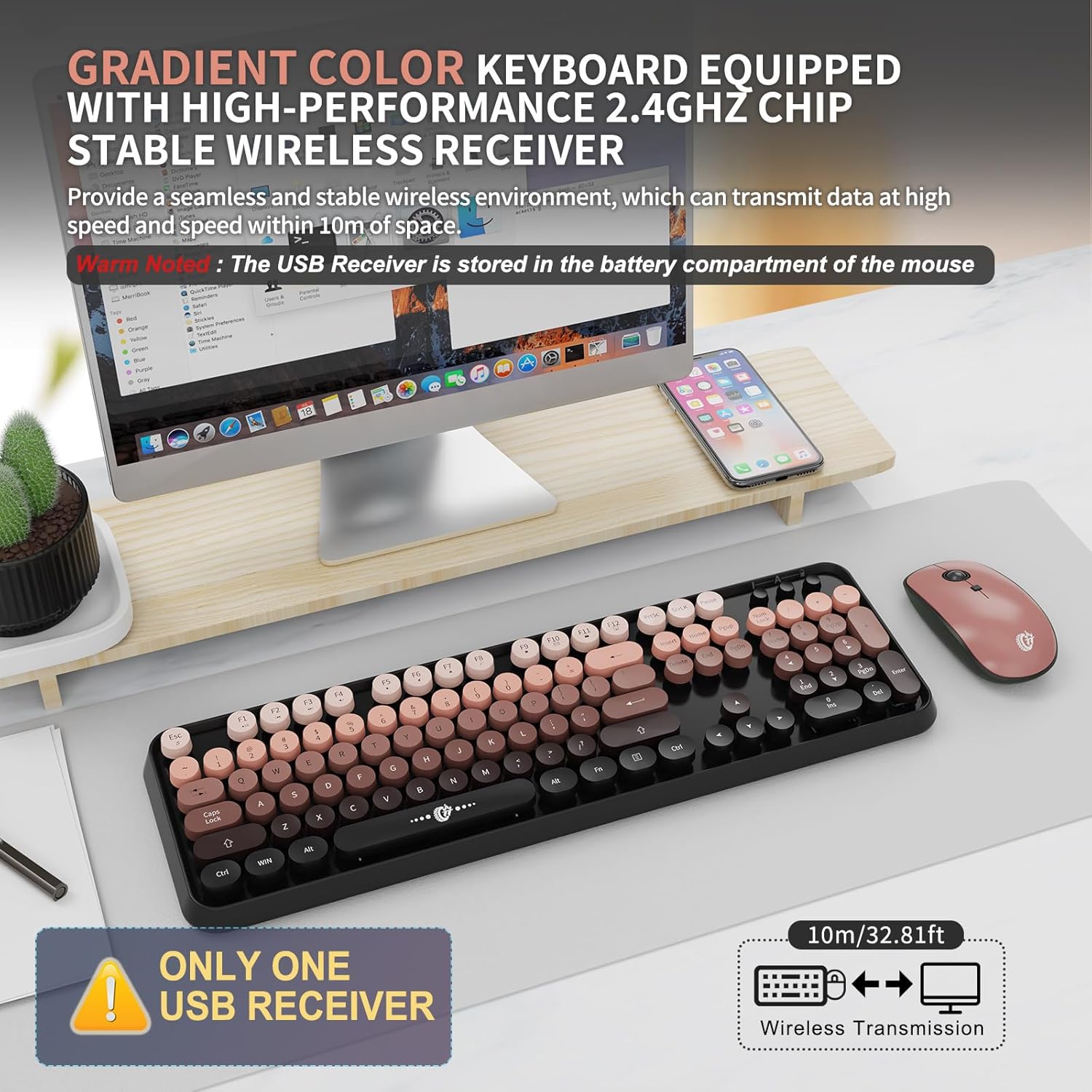
- Locate USB Receiver: The 2-in-1 nano USB receiver is conveniently stored inside the mouse's battery compartment. Remove it carefully.
- Plug in USB Receiver: Insert the USB receiver into an available USB-A port on your computer (PC, laptop, MacBook, desktop, Chromebook, or Smart TV). If your device only has USB-C ports, a USB-A to USB-C adapter (not included) will be required.
- Automatic Connection: The keyboard and mouse will automatically connect to your computer. No additional software or drivers are required.


Note: The wireless connection operates on a 2.4GHz frequency, providing a stable connection up to 10 meters (393.7 inches).
3. Operating Instructions
3.1 Keyboard Features
The keyboard features a full-size 104-key layout with retro typewriter-inspired round keycaps, designed for comfortable typing.
- Function Keys (FN + F1-F12): Access multimedia controls and system functions.
- FN + ESC: Music Player
- FN + F1: Play/Pause
- FN + F2: Previous Track
- FN + F3: Next Track
- FN + F4: Volume Up
- FN + F5: Volume Down
- FN + F6: Mute
- FN + F7: Web Browser
- FN + F8: Search
- FN + F9: Favorites
- FN + F10: Email
- FN + F11: Lock Screen
- FN + F12: Windows Key
- Indicators: Located in the upper right corner, these indicators show Num Lock status, low battery/2.4G connection, and Caps Lock status.


3.2 Mouse Features
- DPI Settings: Adjust mouse sensitivity with three DPI levels: 800, 1000, and 1600. This allows for fast and precise cursor control.
- Silent Clicking: The mouse features silent micro-motion technology, reducing clicking noise.
- Ergonomic Design: The mouse has a contoured shape with a sweat-resistant and skin-friendly finish for comfortable use.


3.3 Auto-Sleep and Energy Saving
Both the keyboard and mouse are designed with an auto-sleep function to conserve battery life:
- The keyboard enters auto-sleep mode after 60 seconds of inactivity.
- The mouse enters auto-sleep mode after 3 seconds of inactivity.
- To reactivate either device, simply press any key on the keyboard or click/move the mouse.

4. Maintenance
To ensure the longevity and optimal performance of your keyboard and mouse combo, follow these maintenance guidelines:
- Cleaning: Use a soft, dry cloth to wipe down the surfaces of the keyboard and mouse. For deeper cleaning, a slightly damp cloth with mild soap can be used, ensuring no liquid enters the devices. Avoid harsh chemicals.
- Battery Replacement: Replace batteries when the low battery indicator illuminates or when performance degrades. Always use fresh 1.5V AA batteries.
- Storage: When not in use for extended periods, remove the batteries to prevent leakage. Store the devices in a cool, dry place.
- USB Receiver: Keep the USB receiver in a safe place, ideally stored in the mouse's battery compartment when traveling or not in use.
5. Troubleshooting
If you encounter issues with your FD Wireless Keyboard and Mouse Combo, refer to the following troubleshooting steps:
- No Connection/Lag:
- Ensure the USB receiver is securely plugged into a working USB-A port on your computer.
- Check if the batteries in both the keyboard and mouse are correctly inserted and have sufficient charge. Replace them if necessary.
- Move the keyboard and mouse closer to the USB receiver to rule out range issues (maximum range is 10 meters).
- Try plugging the USB receiver into a different USB port on your computer.
- Restart your computer.
- Keys Not Responding/Mouse Not Moving:
- Check battery levels and replace if low.
- Ensure the devices are not in auto-sleep mode by pressing a key or moving the mouse.
- Verify that the USB receiver is properly connected.
- Clean any debris around the keys or mouse sensor that might be obstructing movement.
- Hotkeys Not Working on Mac:
- Note that some hotkeys (function keys) may not be fully compatible with Mac operating systems. This is a known limitation.
- You may need to adjust keyboard settings in your Mac's System Preferences to remap certain keys if desired.
6. Specifications
| Brand | FD |
| Model | V2020 Black-Gradient |
| Connectivity Technology | 2.4GHz Radio Frequency Wireless |
| Keyboard Layout | Full-size 104 keys |
| Mouse DPI Levels | 800 / 1000 / 1600 |
| Operating System Compatibility | Windows XP/ME/Vista/7/8/10/11, Mac OS (limited hotkey compatibility), Chrome OS, Linux |
| Power Source | 1 x AA battery for keyboard, 1 x AA battery for mouse (not included) |
| Wireless Range | Up to 10 meters (393.7 inches) |
| Keyboard Dimensions | 13.5 x 4.2 x 1.2 inches (approx.) |
| Mouse Dimensions | 3.4 x 1.9 x 1 inch (approx.) |
| Keyboard Net Weight | 1.6 LB (approx.) |
| Mouse Net Weight | 0.15 LB (approx.) |
7. Warranty and Support
FD offers comprehensive support for your product:
- Warranty: A three-year worry-free warranty is provided.
- Money-Back Guarantee: A 60-day money-back guarantee or replacement option is available.
- Contact Support: For any inquiries or concerns regarding your wireless keyboard and mouse set, please contact FD customer support via Amazon email. The support team is committed to providing satisfactory solutions.

8. Product Videos
Watch the official product video for additional information and visual guidance:
Ask a question about this manual
Ask about setup, troubleshooting, compatibility, parts, safety, or missing instructions. Manuals+ will review the question and use this page’s manual context to help answer it.