
1. Product Overview
The surmen V300 is a full-size 104-key wired USB keyboard featuring a retro typewriter style with round, backlit keys. Designed for comfortable and quiet typing, it includes dedicated multimedia controls and anti-ghosting capabilities for efficient use across various operating systems.

Image 1: The surmen V300 keyboard, showcasing its full-size layout and retro design.
2. Setup
This keyboard is designed for plug-and-play functionality, requiring no additional drivers for most operating systems. Simply connect the USB cable to your device to begin use.
2.1 Connecting the Keyboard
- Locate an available USB port on your computer, laptop, or tablet.
- Insert the USB connector of the keyboard cable into the USB port.
- The keyboard should be automatically recognized by your operating system. No software installation is typically required.
Video 1: An unboxing video demonstrating the initial setup and appearance of a similar keyboard model.
Video 2: A demonstration highlighting the aesthetic and design of the typewriter-style keyboard, providing context for its physical features.
2.2 Compatibility
The surmen V300 keyboard is compatible with Windows 2000/XP/7/8/10, Vista, and Mac OS. Please note that multimedia keys may not be fully compatible with Mac OS systems.
3. Operating Instructions
3.1 Typing Experience
The keyboard features membrane keys that offer a comfortable and relatively quiet typing experience compared to mechanical keyboards. The crater structure ensures a button life of over 50 million presses. While generally quiet, typing hard and fast may produce audible sound.
3.2 Backlight Control
The keyboard includes a bright LED backlight for improved visibility in low-light conditions. You can adjust the brightness or turn the backlight on/off using the following key combinations:
- FN + Scrlk: Turn backlight on/off.
- FN + PgUp: Increase backlight brightness.
- FN + PgDn: Decrease backlight brightness.
- FN + Home: Activate breathing lamp mode.

Image 2: Visual guide for controlling the keyboard's white LED backlight using FN key combinations.
Video 3: A short video demonstrating how to adjust the backlight settings on the keyboard.
Video 4: A demonstration of the keyboard's backlight in action, showing its visual appeal and functionality.
Video 5: Another video showcasing the keyboard's light-up backlit keys.
3.3 Multimedia Shortcuts
The keyboard features 12 multimedia combination keys (Fn+F1 to Fn+F12) for quick access to common functions:
- Fn + F1: Music
- Fn + F2: Decrease volume
- Fn + F3: Increase volume
- Fn + F4: Mute
- Fn + F5: Stop
- Fn + F6: Previous track
- Fn + F7: Play/Pause
- Fn + F8: Next track
- Fn + F9: Open email
- Fn + F10: Open homepage
- Fn + F11: Open My Computer
- Fn + F12: Open calculator
- Fn + Win: Lock/Unlock Windows key
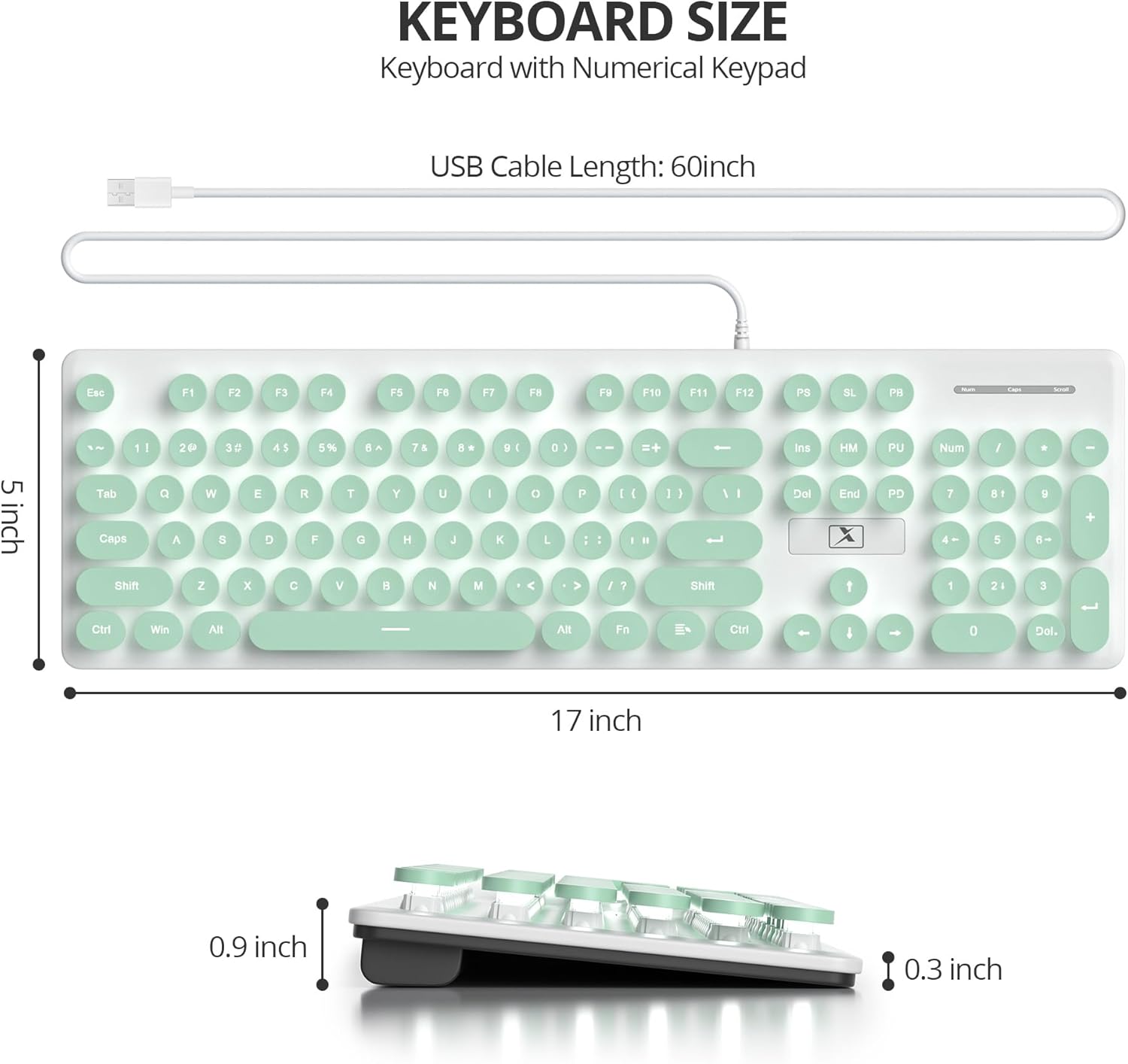
Image 3: Illustration of the 12 convenient multimedia shortcuts available on the keyboard.
3.4 Anti-Ghosting
The keyboard features 19 anti-ghosting keys, ensuring that multiple key presses are recognized simultaneously for rapid and accurate input, particularly beneficial during gaming or fast typing.
4. Maintenance
To ensure the longevity and optimal performance of your surmen V300 keyboard, regular cleaning is recommended.
4.1 Cleaning the Keycaps
The round keycaps are detachable, allowing for easy cleaning underneath. Gently pull the keycaps upwards to remove them. Use a soft brush or compressed air to remove dust and debris from the keyboard base and the underside of the keycaps. Reattach the keycaps by pressing them firmly into place.
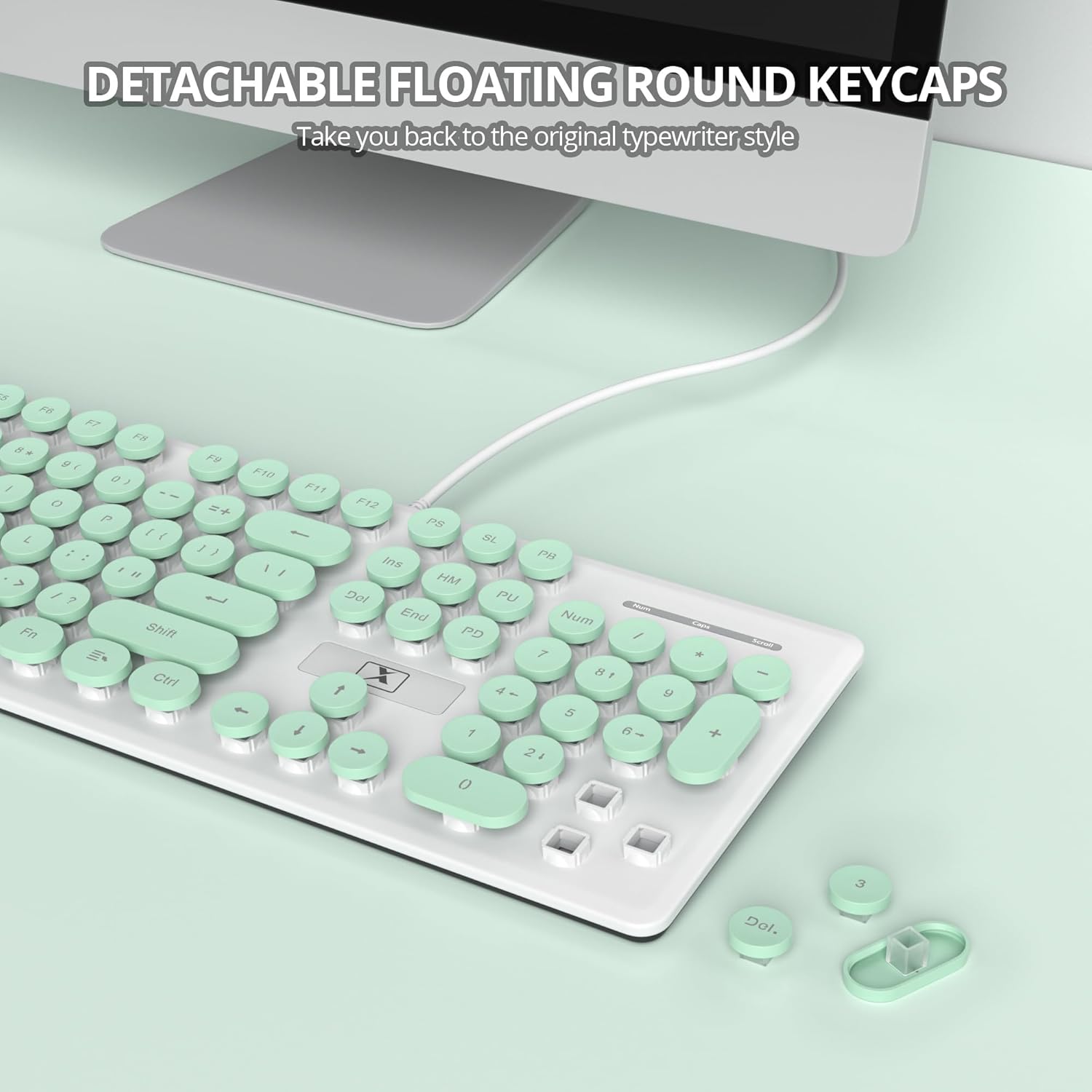
Image 4: A close-up view demonstrating the detachable floating round keycaps, facilitating easy cleaning and maintenance.
5. Troubleshooting
If you encounter any issues with your surmen V300 keyboard, please refer to the following common solutions:
- Keyboard not responding: Ensure the USB cable is securely connected to both the keyboard and your device. Try plugging the keyboard into a different USB port.
- Backlight not working: Check if the backlight is turned off using the FN + Scrlk key combination. Adjust brightness with FN + PgUp/PgDn.
- Keys not registering: Clean under the affected keycaps as described in the Maintenance section.
- Multimedia keys not functioning on Mac OS: As noted, some multimedia keys may have limited compatibility with Mac OS. This is expected behavior.
6. Specifications
| Feature | Detail |
|---|---|
| Brand | surmen |
| Model | V300 |
| Connectivity Technology | USB |
| Keyboard Description | Membrane |
| Number of Keys | 104 |
| Keyboard Layout | QWERTY |
| Special Features | Backlit, Hotkeys and Media Keys, Round Key, Quiet |
| Compatible Devices | Laptop, PC, Tablet |
| Compatible Operating System Family | MacOS, Windows |
| Power Source | USB power |
| Material | Plastic |
| Color | Green |
| Parcel Dimensions | 44.4 x 15.8 x 4.2 cm; 590 g |
7. Warranty
This product comes with a 30-day warranty from the date of purchase. Please retain your proof of purchase for any warranty claims.
8. Support
For further assistance or inquiries regarding your surmen V300 keyboard, please refer to the retailer's customer service or visit the official surmen website for support resources.


