Introduction
This manual provides instructions for the ZdalaMit Voice Replacement Remote Control, designed for use with Sony Bravia 8 OLED 4K HDR Google TVs. This remote offers voice control functionality and is compatible with various Sony TV models, ensuring seamless integration and operation.
Compatible Sony TV Models: K-55XR80, K-65XR80, K-85XR80, K-75XR80, K-77XR80, K55XR80, K65XR80, K85XR80, K75XR80, K77XR80, K-55XR80C, K-65XR80C, K-77XR80C, K-85XR80C, K-75XR80C, K55XR80C, K65XR80C, K77XR80C, K85XR80C, K75XR80C, K-55XR83, K-55XR84, K-65XR83, K-65XR84, K-77XR83, K-77XR84.
Package Contents
- 1x ZdalaMit Voice Replacement Remote Control
- Note: 2x 1.5V AAA Alkaline Batteries are not included and must be purchased separately.
Setup
1. Battery Installation
Open the battery compartment cover on the back of the remote control. Insert two (2) 1.5V AAA alkaline batteries, ensuring correct polarity (+ and -) as indicated inside the compartment. Close the battery cover securely.
2. Pairing with Your TV
Before using the voice function and certain other features, the remote must be paired with your Sony Bravia TV. Follow these steps:
- Power On TV: Press the power button on your TV or an existing remote to turn on your television.
- Initiate Pairing: On the ZdalaMit remote, simultaneously hold down the VOL- (Volume Down) button and the Google Assistant key (microphone icon) for approximately 3 to 5 seconds.
- Confirmation: The indicator light on the remote will go out once pairing is successful.
- Automatic Setup: All pairing transactions occur automatically in the background. No further manual setup is required after successful pairing.
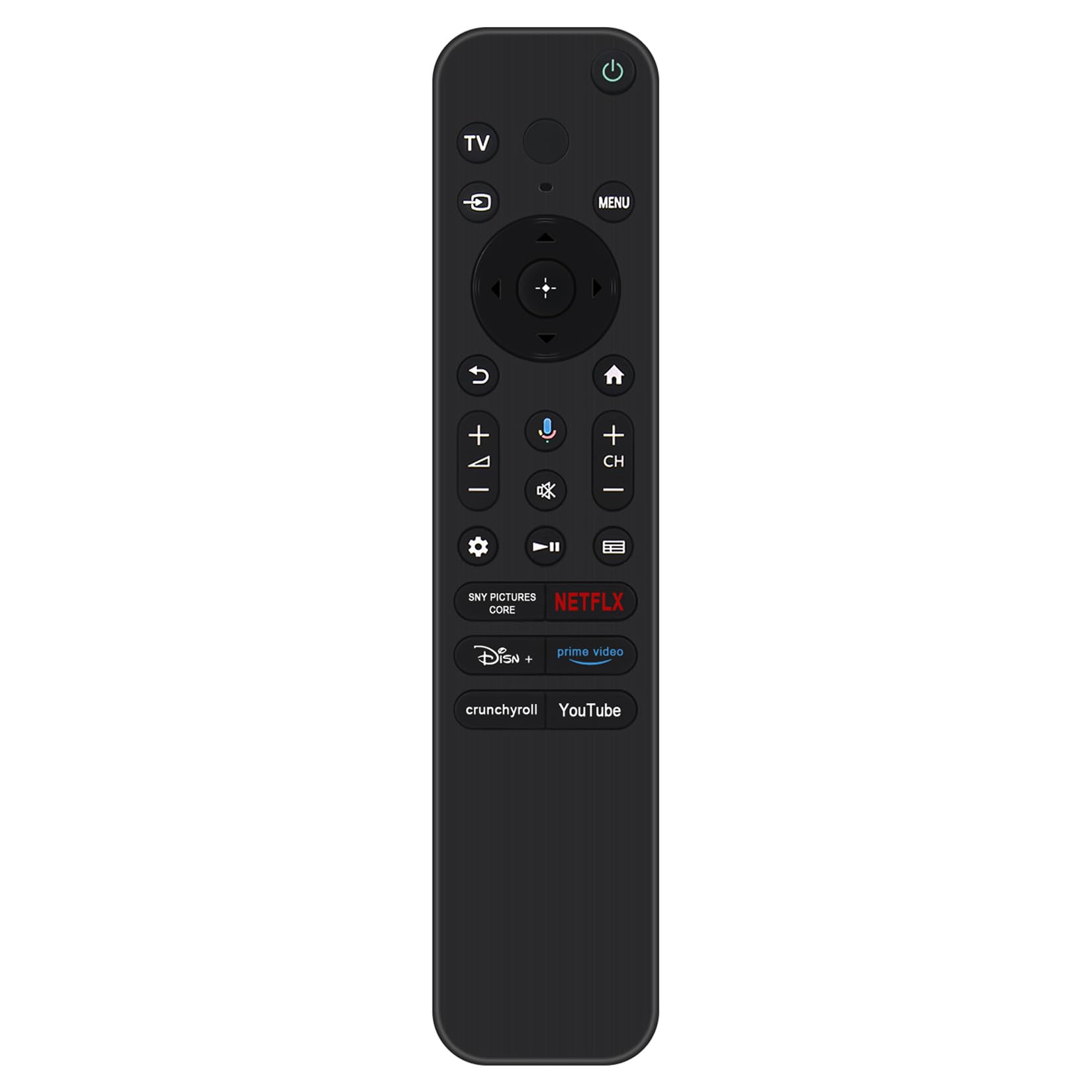
Image: Front view of the ZdalaMit Voice Replacement Remote Control. This image displays the layout of all buttons, including the power, TV input, navigation, volume, channel, Google Assistant (microphone), and dedicated app buttons like Netflix and YouTube.
Operating Instructions
The ZdalaMit Voice Replacement Remote provides full functionality for your Sony Bravia Google TV. Below is a guide to its primary buttons and their functions:
- Power Button (Green Circle with Line): Turns the TV on or off.
- TV Input Button: Switches between different input sources (HDMI, AV, etc.).
- Navigation Pad (Circular with Arrows): Use the directional arrows (Up, Down, Left, Right) to navigate menus and select items. The central button confirms selections.
- Back Button (Curved Arrow): Returns to the previous screen or menu.
- Home Button (House Icon): Accesses the TV's home screen or main menu.
- Volume Up/Down (VOL+/-): Adjusts the audio volume.
- Mute Button (Speaker with Cross): Mutes or unmutes the TV audio.
- Google Assistant Key (Microphone Icon): Activates the voice control feature. Press and hold to speak commands or search queries.
- Channel Up/Down (CH+/-): Changes TV channels.
- Settings Button (Gear Icon): Opens the TV's settings menu.
- Playback Controls (Play, Pause, Fast Forward, Rewind): Controls media playback.
- Dedicated App Buttons: Provides quick access to popular streaming services such as Netflix, Prime Video, Disney+, Crunchyroll, YouTube, and SNY Pictures Core.
Maintenance
Battery Replacement
When the remote's performance degrades or it stops responding, replace the batteries. Always replace both AAA batteries simultaneously with new ones. Do not mix old and new batteries, or different types of batteries.
Cleaning
To clean the remote control, use a soft, dry cloth. Do not use liquid cleaners, sprays, or abrasive materials, as these can damage the remote's surface or internal components.
Troubleshooting
- Remote Not Responding:
- Check if the batteries are correctly inserted and have sufficient charge. Replace them if necessary.
- Ensure there are no obstructions between the remote and the TV's IR receiver.
- Re-pair the remote with the TV following the "Pairing with Your TV" steps in the Setup section.
- Voice Control Not Working:
- Confirm that the remote is successfully paired with your TV. Voice functionality requires pairing.
- Ensure your TV is connected to the internet, as Google Assistant requires an active internet connection.
- Speak clearly and hold the remote closer to your mouth when using the Google Assistant key.
- Buttons Require Hard Pressing:
- This can sometimes indicate low battery power. Try replacing the batteries.
- Ensure the remote is clean and free from debris that might obstruct button presses.
Specifications
| Product Dimensions | 6.95 x 1.51 x 0.55 inches |
| Item Weight | 1.41 ounces |
| Power Supply | 2x 1.5V AAA Alkaline Battery (Not Included) |
| Special Feature | Voice Search |
| Compatible Devices | Television (Sony Bravia 8 OLED 4K HDR Google TV series) |

Image: The ZdalaMit Voice Replacement Remote Control shown with its approximate dimensions: 6.9 inches in length and 1.5 inches in width.
Warranty and Support
For any questions, technical assistance, or warranty inquiries regarding your ZdalaMit Voice Replacement Remote Control, please contact the manufacturer or your point of purchase. Keep your purchase receipt for warranty purposes.


