
Pulsar XG30
Pulsar Axion Compact Thermal Imaging Monocular XG30 User Manual
Brand: Pulsar | Model: XG30
Introduction
The Pulsar Axion Compact Thermal Imaging Monocular XG30 is a state-of-the-art device designed for enhanced observation in various conditions. Its compact and lightweight design makes it highly portable, while advanced thermal imaging capabilities provide clear visuals for a range of applications, including scouting, hunting, and monitoring livestock. This manual provides essential information for setting up, operating, and maintaining your device.

Figure 1: The Pulsar Axion Compact Thermal Imaging Monocular XG30, showcasing its sleek, dark grey design with prominent Pulsar branding and control buttons.
Setup
Battery Installation and Charging
The Axion XG30 uses an APS 3 Battery. To install or replace the battery, locate the battery compartment on the device. Insert the APS 3 battery pack, ensuring proper orientation, until it clicks securely into place. For charging, connect the provided power adapter to the USB-C charging port located on the front of the device. A full charge ensures optimal operating time.

Figure 2: The Pulsar Axion monocular with its APS 5 Li-Ion battery pack removed, illustrating the easy battery replacement process. The device is designed for up to 7 hours of continuous use.
Initial Power-On
Press and hold the power button (usually the central blue button) until the display illuminates. Allow a few moments for the device to initialize. Adjust the diopter on the eyepiece for clear focus according to your vision.
Operating the Monocular
Basic Controls and Navigation
The Axion XG30 features intuitive controls for easy operation. The main buttons on the top panel allow for power on/off, menu navigation, and digital zoom adjustments. Familiarize yourself with the button layout for quick access to functions.
Magnification and Field of View
The monocular offers a 2-16x magnification range, allowing for detailed observation of distant objects. Its 14.6° wide field of view is ideal for scanning large areas efficiently, ensuring you don't miss any details.
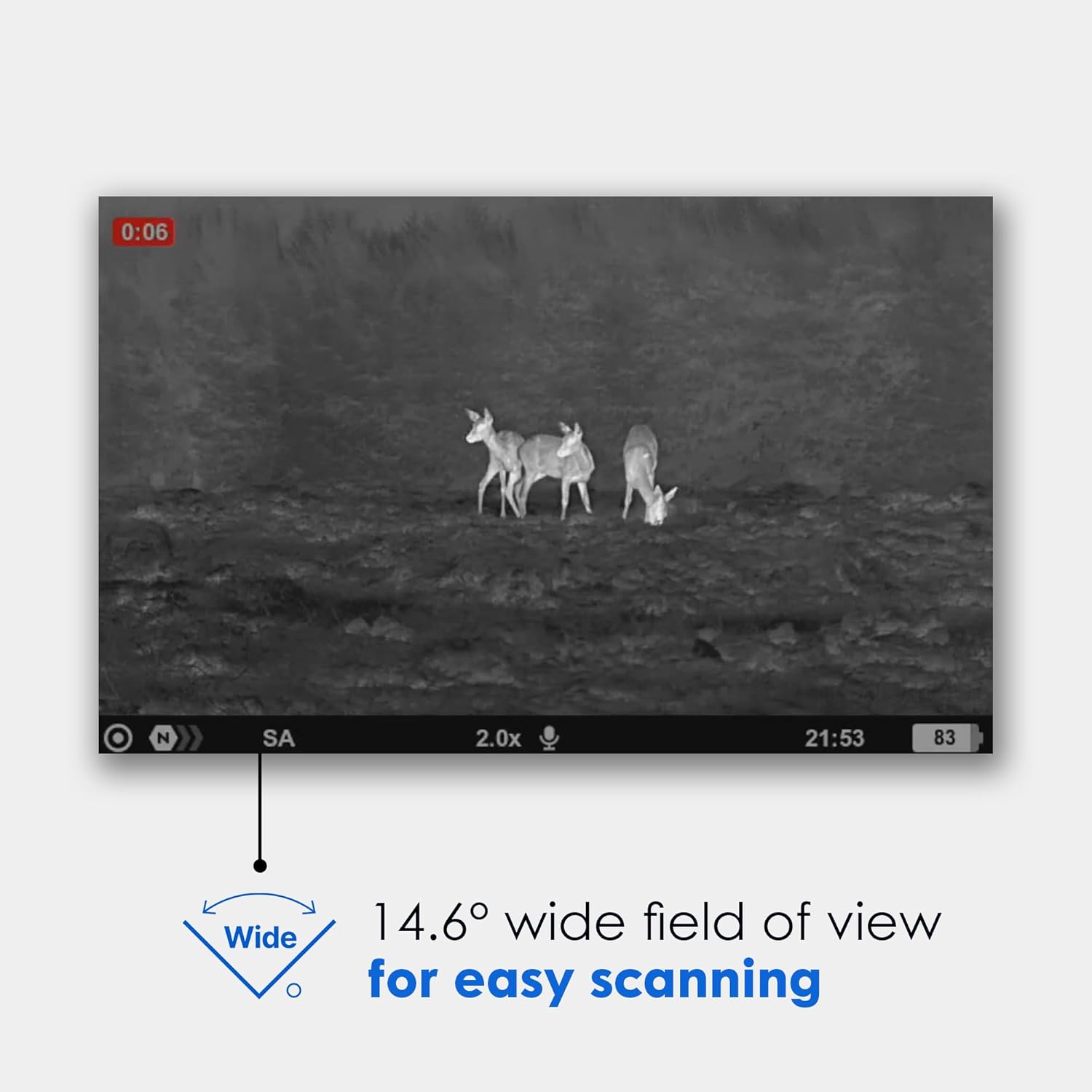
Figure 3: A thermal image captured through the Pulsar Axion, demonstrating its 14.6° wide field of view, which is excellent for easy scanning and observing multiple subjects.
Color Modes
The Axion XG30 provides eight distinct color modes to adapt to various environments and preferences, enhancing visibility and target identification. These modes include:
- White Hot: Hotter objects appear white.
- Black Hot: Hotter objects appear black.
- Red Hot: Highlights the hottest areas in red.
- Red Monochrome: Displays a red-tinted monochrome image.
- Rainbow: Uses a spectrum of colors to represent temperature differences.
- Ultramarine: A blue-dominant color palette.
- Violet: A purple-dominant color palette.
- Sepia: Provides a warm, brown-toned image.

Figure 4: Visual representation of the eight different color palette options available on the Pulsar Axion, demonstrating how temperature differences are displayed.
Stream Vision 2 App Support
Enhance your experience by connecting your Axion XG30 to the Stream Vision 2 app, available for iOS and Android devices. The app allows for remote control, live streaming, and recording of thermal footage directly to your smartphone or tablet.

Figure 5: A smartphone screen displaying the Stream Vision 2 app interface, highlighting its support for iOS and Android devices for remote control and media management.
Maintenance
Cleaning and Care
To ensure the longevity and optimal performance of your monocular, regularly clean the lenses with a soft, lint-free cloth designed for optics. Avoid using abrasive materials or harsh chemicals. Keep the device free from dust and debris, and store it in its protective carrying case when not in use.
Storage
Store the monocular in a cool, dry place, away from direct sunlight and extreme temperatures. Ensure the battery is partially charged (around 50%) if storing for extended periods to maintain battery health.
Troubleshooting
Common Issues and Solutions
- No Power: Ensure the battery is fully charged and correctly inserted.
- Blurred Image: Adjust the diopter on the eyepiece and the objective lens focus ring.
- Image Freezing/Lagging: Try restarting the device. If using the app, ensure a stable connection.
- Device Not Responding: Perform a hard reset by holding the power button for an extended period (e.g., 10-15 seconds).
For persistent issues, refer to the detailed troubleshooting section in the full manual or contact Pulsar customer support.
Specifications
| Feature | Detail |
|---|---|
| Model Name | Axion |
| Color | XG30 |
| Sensor | 12-Micron Microbolometer, 640x480 Uncooled |
| Display | 640x400 AMOLED HD |
| Magnification | 2 - 16x |
| Detection Range | 1400 yards |
| Operating Temperature | -13°F to +104°F |
| Waterproof Rating | IPX7 (Submersion Waterproof Rated) |
| Battery Type | APS 3 Battery |
| Material | Magnesium Alloy |
| Item Weight | 0.68 Pounds |
| Item Dimensions LxWxH | 5.7 x 1.6 x 2.7 inches |
Understanding NETD
NETD (Noise Equivalent Temperature Difference) is a key measure of sensitivity in thermal imaging devices. It indicates the smallest temperature difference a sensor can detect—lower NETD values mean clearer, more detailed images, especially in low-contrast environments like fog or darkness. This makes NETD essential for evaluating the performance of thermal scopes, monoculars, and cameras.
Understanding Pixel Pitch
Pixel pitch (µm) in Pulsar thermal devices refers to the space between pixels on the sensor. Smaller pixel pitch delivers higher image resolution and finer detail, ideal for close-range clarity. Larger pixel pitch gathers more thermal energy, enhancing detection range and sensitivity. It plays a crucial role in thermal image quality and performance.
Warranty and Support
The Pulsar Axion Compact Thermal Imaging Monocular XG30 comes with a 5 Year Manufacturer Warranty. For warranty claims, technical support, or any inquiries regarding your device, please contact Pulsar customer service through their official website or the contact information provided in your product packaging.
EXPORT CONTROL NOTICE: This product is controlled for export and in-country transfer under the Export Administration Regulations (EAR). Diversion contrary to U.S. law prohibited.
Related documentsXG30


Ask a question about this manual
Ask about setup, troubleshooting, compatibility, parts, safety, or missing instructions. Manuals+ will review the question and use this page’s manual context to help answer it.