
1. Introduction
This manual provides essential information for the safe and efficient operation of your BenQ W2720i 4K UHD LED Smart Home Theater Projector. Please read this manual thoroughly before using the projector and retain it for future reference.
2. Safety Information
Always observe the following safety precautions to prevent fire, electric shock, or injury.
- Power Source: Use only the power supply specified for this projector.
- Ventilation: Do not block ventilation openings. Ensure adequate space around the projector for proper airflow.
- Heat: The projector can become hot during operation. Avoid touching the projector's surface directly after extended use.
- Liquid: Do not expose the projector to rain or moisture. Do not place objects filled with liquids on or near the projector.
- Cleaning: Unplug the projector from the power outlet before cleaning. Use a soft, dry cloth.
- Servicing: Do not attempt to service this product yourself. Refer all servicing to qualified service personnel.
- Eye Safety: Do not look directly into the projector lens when the lamp is on. The bright light can cause eye damage.
3. What's in the Box
Verify that all items are present in the package:
- BenQ W2720i Projector
- Remote Control
- Power Cord
- Quick Start Guide
- Warranty Card
4. Product Overview
4.1 Front View

This image shows the front of the BenQ W2720i projector, highlighting the lens and front ventilation. The projector is black with a sleek design.
4.2 Rear Panel and Connectivity

This image displays the rear panel of the BenQ W2720i projector, detailing its various input and output ports including HDMI 2.1, SPDIF, eARC, RS-232, and a 12V trigger.
- HDMI 2.1 (x3): For connecting high-definition sources like Blu-ray players, gaming consoles, and streaming devices.
- SPDIF: Digital audio output.
- eARC: Enhanced Audio Return Channel for high-quality audio passthrough to compatible sound systems.
- RS-232: For control system integration.
- 12V Trigger: For synchronized control of external devices like motorized screens.
- Media Reader: For direct media playback.
5. Setup
5.1 Placement and Screen Alignment
Proper placement is crucial for optimal viewing experience. The BenQ W2720i offers several features to assist with image alignment.

This diagram illustrates the Intelligent Screen Alignment feature, which automatically adjusts the projected image to match the screen boundaries for effortless setup.
This image demonstrates the Precise Image Correction feature, utilizing an eight-point corner fit correction for accurate image alignment on various surfaces or angles.

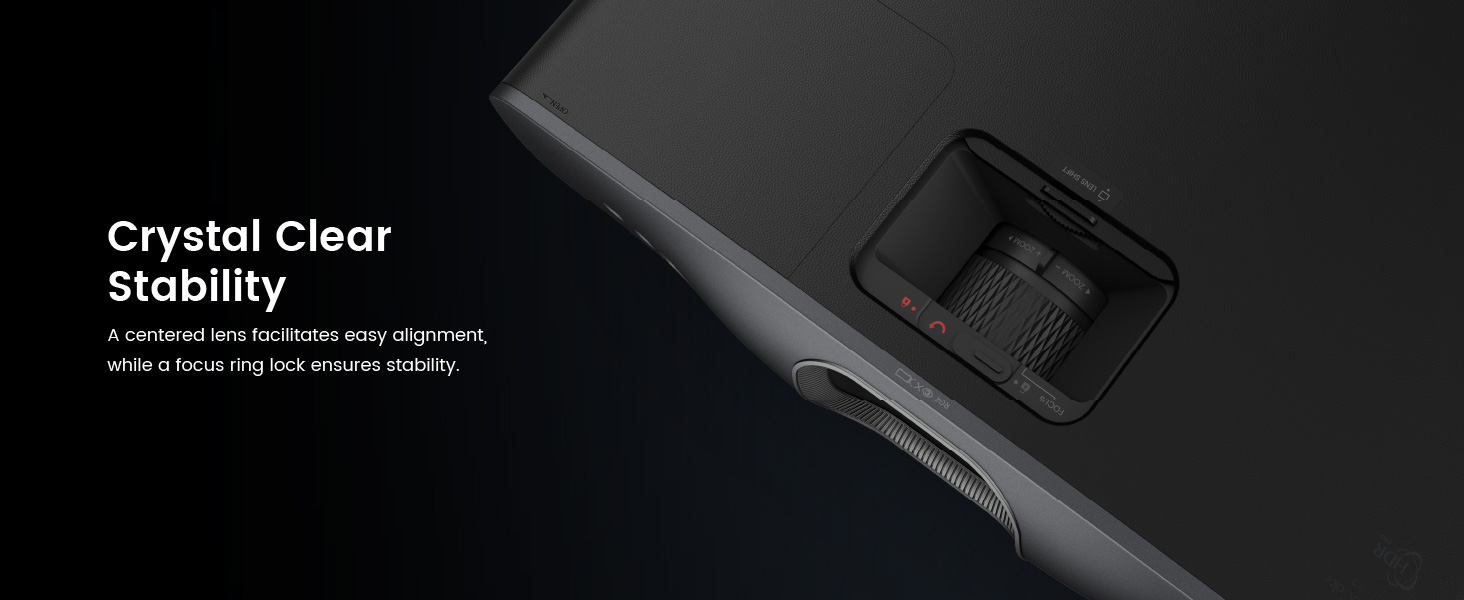
This diagram illustrates the Easy Image Alignment feature, showcasing the ±5% vertical lens shift capability, allowing image adjustment without physically moving the projector.
- Intelligent Screen Alignment: The projector can automatically adjust the image size to fit your screen.
- Precise Image Correction: Use the eight-point corner fit correction for fine-tuning image geometry, especially on uneven surfaces.
- Easy Image Alignment (Lens Shift): Adjust the vertical position of the image without moving the projector, offering flexibility in installation.
5.2 Connections
Connect your source devices to the appropriate HDMI ports on the rear of the projector. For audio, you can use the eARC port for a soundbar or AV receiver, or the SPDIF output.
- Connect the power cord to the projector and a wall outlet.
- Connect your video source (e.g., Blu-ray player, streaming device) to one of the HDMI inputs.
- For external audio, connect your sound system to the eARC or SPDIF port.
5.3 Power On/Off
Press the power button on the projector or the remote control to turn the unit on or off.
6. Operating the Projector
6.1 Basic Operation
- Source Selection: Use the "Source" button on the remote or projector to cycle through input sources.
- Menu Navigation: Use the "Menu" button and arrow keys to navigate the on-screen display (OSD) for settings adjustments.
- Focus and Zoom: Adjust the focus and zoom rings on the lens for a clear and appropriately sized image.
6.2 Key Features
The BenQ W2720i incorporates advanced technologies for an enhanced viewing experience.
AI-Powered Cinema Mode

This image depicts the AI-Powered Home Cinema feature, showing how it adjusts ambient brightness, screen brightness, and optimizes content for superior image quality.
AI Cinema Mode intelligently adapts colors and brightness based on ambient light conditions and the content being displayed, ensuring optimal image quality.
Out-of-Box Color Accuracy

This image displays a BenQ Projector Online Factory Calibration Report, demonstrating the projector's out-of-box color accuracy with DCI-P3 90% and Rec.709 98% coverage and Delta E < 3.
The W2720i achieves 90% DCI-P3 and 98% Rec.709 color spaces with a Delta E < 3, ensuring precise and true-to-life colors as calibrated at the factory.
Next-Gen LED Light Source
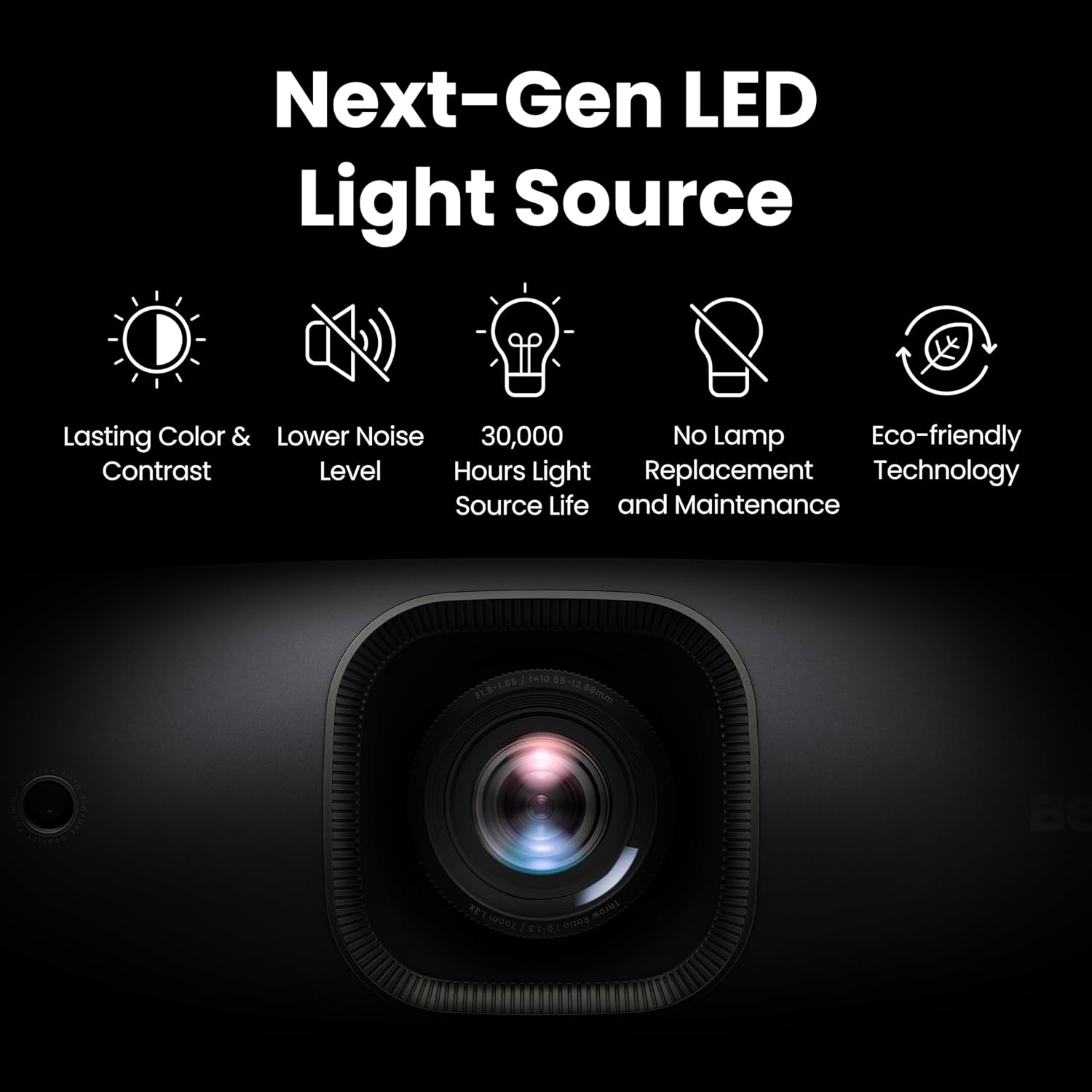
This image highlights the benefits of the Next-Gen LED Light Source, including lasting color and contrast, lower noise level, 30,000 hours light source life, no lamp replacement, and eco-friendly technology.
The durable LED light source provides up to 30,000 hours of lifespan, offering consistent color and contrast with lower noise levels and no need for lamp replacement.
4K Streaming and Android TV

This image shows the 4K streaming capabilities and Android TV interface, featuring popular apps like Netflix and YouTube, along with Chromecast built-in.
With built-in Android TV and Chromecast, you can easily access and stream 4K content from your favorite applications.
HDR-PRO and Dynamic Contrast Optimization

This image illustrates Dynamic Contrast Optimization, showing how the projector dynamically adjusts light output for deep blacks and vibrant highlights in every frame.
HDR-PRO technology delivers finely tuned brightness and contrast, revealing clear details in both bright and dark scenes. Dynamic Contrast Optimization further enhances image depth by adjusting light output based on content.
7. Maintenance
Regular maintenance ensures the longevity and optimal performance of your projector.
- Lens Cleaning: Use a soft, lint-free cloth specifically designed for optical lenses. Do not use abrasive cleaners.
- Cabinet Cleaning: Wipe the projector's exterior with a soft, dry cloth. For stubborn marks, use a slightly damp cloth and mild detergent, then wipe dry.
- Ventilation: Periodically check and clean the ventilation grilles to prevent dust buildup, which can impede airflow and cause overheating.
- Storage: If storing the projector for an extended period, place it in a cool, dry environment and protect it from dust.
8. Troubleshooting
This section addresses common issues you might encounter. For more complex problems, contact customer support.
| Problem | Possible Cause | Solution |
|---|---|---|
| No image on screen | Power cable disconnected; Incorrect input source selected; Source device not powered on. | Check power connections; Select the correct input source using the "Source" button; Ensure source device is powered on. |
| Image is blurry | Lens out of focus; Projector too close/far from screen. | Adjust the focus ring on the lens; Reposition the projector or use zoom to fit the screen. |
| No audio | Volume too low; Audio cable disconnected; Incorrect audio output selected on source. | Increase volume; Check audio cable connections; Verify audio output settings on your source device. |
| Remote control not working | Batteries depleted; Obstruction between remote and projector. | Replace batteries; Remove any obstructions and ensure direct line of sight. |
9. Specifications
| Feature | Detail |
|---|---|
| Brand | BenQ |
| Model Number | W2720i |
| Display Resolution | 3840 x 2160 (4K UHD) |
| Brightness | 2500 ANSI Lumens |
| Light Source | LED (30,000 hours lifespan) |
| Color Accuracy | 90% DCI-P3 & 98% Rec.709, Delta E < 3 |
| Connectivity | 3x HDMI 2.1 (HDCP 2.3), SPDIF, eARC |
| Smart Features | Android TV, Chromecast built-in, AI Picture |
| Special Features | Built-In Speaker, Digital Keystone Correction, Auto Focus, Vertical Lens Shift |
| Item Weight | 19.8 pounds |
| Product Dimensions | 19.29 x 16.54 x 10.24 inches |
10. Warranty and Support
For warranty information and technical support, please refer to the warranty card included in your product package or visit the official BenQ support website. You can also contact BenQ customer service for assistance.
BenQ Support Website: www.benq.com/en-us/support.html


