
1. Introduction
The REKA Smart Thermostatic Head TRV06 is designed to optimize your comfort while reducing energy consumption. This device allows you to control your home's temperature remotely via the Tuya application or through voice commands using assistants like Alexa and Google Home. It features an open window detection function that automatically pauses heating to prevent energy waste. With flexible programming, you can customize heating schedules for each day of the week, promoting energy savings tailored to your lifestyle. Equipped with advanced buffer memory, the thermostat ensures continuous operation even if internet connection is lost, maintaining predefined settings. For optimal synchronization and control, a Zigbee 3.0 gateway is required. The REKA thermostat comes with universal adapters, making it compatible with a wide range of existing valves. It complies with NF EN ISO 52120-1 and NF EN 12098-3 standards, meeting European safety and performance requirements. Transform your home into a smart and eco-responsible space with the reliable and easy-to-use REKA thermostat for optimal temperature control.
Key Features
- Smart Control: Manage your connected thermostatic radiator via the Tuya app. Compatible with Alexa and Google Home for seamless voice control.
- Automatic Energy Saving: Automatically pauses heating when an open window is detected, preventing energy waste.
- Flexible and Personalized Programming: Create customized heating schedules to match your daily routine for optimal comfort.
- Offline Functionality: Integrated buffer memory ensures continuous operation even without an internet connection.
- Universal and Simple Installation: Includes adapters for RA, RAV, and RAVL valves, compatible with M30 x 1.5 mm valves and most European heating systems.
2. Product Overview
Package Contents
- REKA Smart Radiator Thermostat
- Bluetooth Zigbee Gateway (if purchased with gateway)
- USB Cable and Adapter (for gateway)
- Universal Valve Adapters (RA, RAV, RAVL)
- User Manual
Device Layout and Indicators

The image above illustrates the REKA Smart Thermostatic Head, highlighting its dimensions (94mm height, 55mm width) and key indicators:
- Temperature Adjustment Ring: Located at the top for manual temperature changes.
- Temperature Display: Digital screen showing the current temperature.
- Indicator 1: Battery Capacity icon.
- Indicator 2: Heat Icon, indicating active heating.
- Indicator 3: Program Mode icon.
- Indicator 4: Wi-Fi/Connectivity icon.

This image shows the REKA Smart Thermostatic Head mounted on a radiator, with its digital display showing '22' degrees, indicating its smart and connected functionality for precise temperature control.
3. Setup
3.1 Battery Installation
- Gently twist and remove the back cover of the thermostatic head.
- Insert two AA batteries, ensuring correct polarity (+/-).
- Replace the back cover, twisting it until it clicks into place.
3.2 Physical Installation on Radiator
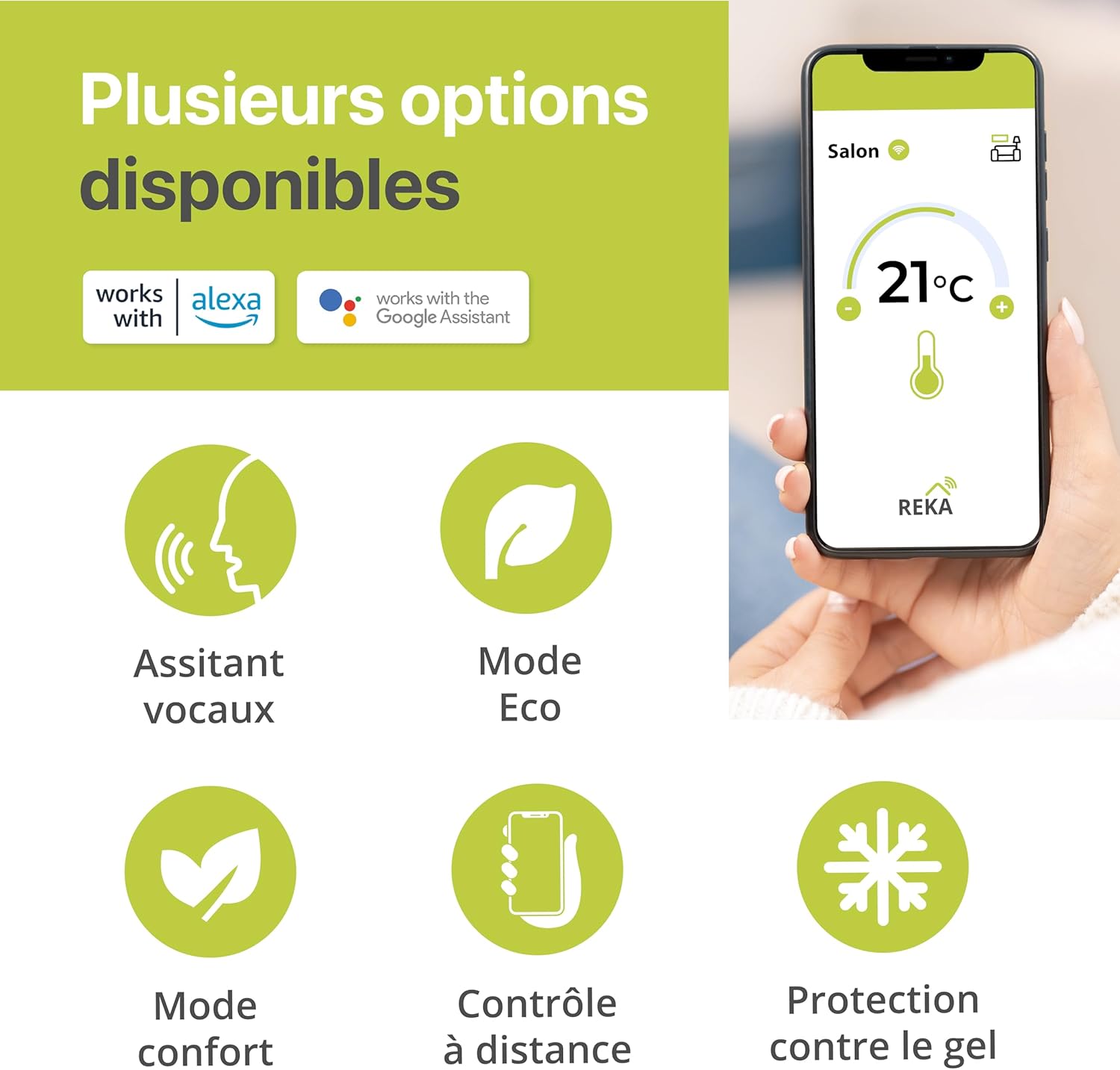
This image highlights the multiple available options for the REKA Smart Thermostatic Head, including compatibility with Alexa and Google Assistant, Eco Mode, Comfort Mode, Remote Control, and Frost Protection, all managed via a smartphone app.
- Remove your existing thermostatic head from the radiator valve.
- Identify the correct adapter (RA, RAV, or RAVL) for your valve type. The REKA TRV06 is compatible with M30 x 1.5 mm valves.
- Attach the appropriate adapter to the radiator valve if necessary.
- Screw the REKA Smart Thermostatic Head onto the adapter or directly onto the M30 x 1.5 mm valve until it is securely fastened.
3.3 App Installation and Pairing (Tuya App)

This image demonstrates the ecosystem for the REKA Smart Thermostatic Head, showing the essential Zigbee gateway, the Tuya app on a smartphone for remote control, and the thermostatic head itself, indicating that the gateway ensures proper functionality.
- Download the Tuya Smart or Smart Life app from your smartphone's app store (iOS or Android).
- Register or log in to your account.
- Connect the Zigbee gateway to a power source using the provided USB cable and adapter. Ensure it is within range of your Wi-Fi network.
- In the Tuya app, tap '+' to add a new device. Select 'Gateway' or 'Bridge' and follow the on-screen instructions to add your Zigbee gateway.
- Once the gateway is added, select it in the app and choose 'Add sub-device'.
- On the REKA Smart Thermostatic Head, press and hold the main button until the Wi-Fi/connectivity icon starts flashing, indicating pairing mode.
- Follow the app's instructions to complete the pairing process. The device will appear in your app once successfully connected.
4. Operating Instructions
4.1 Manual Temperature Control
You can adjust the temperature directly on the thermostatic head:
- Rotate the adjustment ring clockwise to increase the temperature.
- Rotate the adjustment ring counter-clockwise to decrease the temperature.
- The new temperature setting will be displayed on the screen.
4.2 Using the Tuya App

This image illustrates the capability for remote, room-by-room temperature control using the Tuya app, showing a floor plan with varying temperatures in different rooms (e.g., 21°C in the living room, 19°C in the bedroom, 23°C in the kitchen).
The Tuya app provides comprehensive control over your REKA Smart Thermostatic Head:
- Remote Control: Adjust the temperature of individual rooms from anywhere.
- Mode Selection: Switch between various modes such as Eco, Comfort, and Frost Protection.
- Programming: Set up detailed heating schedules.
- Child Lock: Activate the child safety function to prevent accidental changes.
4.3 Voice Control (Alexa/Google Home)
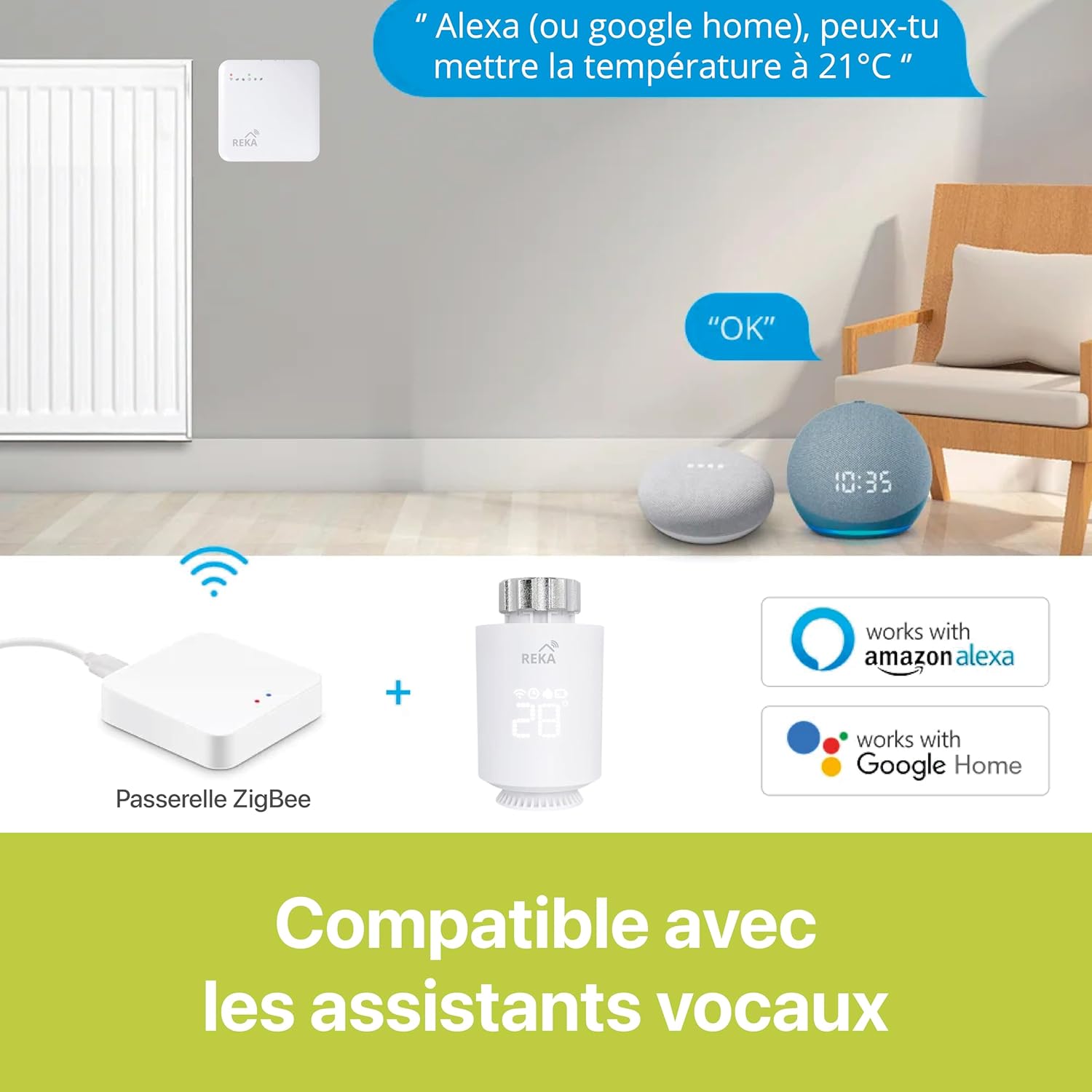
This image demonstrates the voice control compatibility of the REKA Smart Thermostatic Head. It shows the thermostatic head and its Zigbee gateway alongside Amazon Alexa and Google Home smart speakers, illustrating how users can issue voice commands like "Alexa (or Google Home), can you set the temperature to 21°C" for hands-free temperature adjustment.
To enable voice control:
- Link your Tuya Smart/Smart Life account to your Amazon Alexa or Google Home app.
- Discover new devices in your voice assistant app.
- Use commands such as:
- "Alexa, set [Room Name] to 21 degrees."
- "Hey Google, what is the temperature in [Room Name]?"
4.4 Open Window Detection
The thermostatic head automatically detects a sudden drop in temperature, indicating an open window. When detected, it will temporarily pause heating to conserve energy. Heating will resume automatically after a set period or when the temperature stabilizes.
4.5 Programming Schedules

This image displays the programming mode within the Tuya app on a smartphone, illustrating how users can create personalized heating schedules for various times and days of the week (e.g., 06:00 at 20.0°C, 12:00 at 15.0°C, 18:00 at 22.0°C, 22:00 at 15.0°C).
To create personalized heating schedules:
- Open the Tuya app and select your thermostatic head.
- Navigate to the 'Schedule' or 'Programming' section.
- Set desired temperatures for different times of the day and days of the week.
- Save your schedules. The thermostat will automatically follow these settings.
4.6 Child Safety Lock

This image features a baby alongside a smartphone displaying the Tuya app, which shows a 'Child Safety' function enabled. This indicates that the app can be used to lock the thermostatic head, preventing children from accidentally changing temperature settings.
Activate the child safety lock via the Tuya app to prevent unauthorized or accidental adjustments to the thermostat settings.
5. Maintenance
5.1 Battery Replacement
When the battery icon on the display or in the app indicates low power, replace the batteries:
- Remove the back cover.
- Replace the two AA batteries with new ones, ensuring correct polarity.
- Reattach the back cover.
5.2 Cleaning
Clean the thermostatic head regularly with a soft, dry cloth. Do not use abrasive cleaners or solvents, as these can damage the device.
6. Troubleshooting
| Issue | Possible Cause | Solution |
|---|---|---|
| Device not turning on | Low or dead batteries; incorrect battery installation. | Replace batteries; ensure correct polarity. |
| Cannot connect to Tuya app | Zigbee gateway not connected; device not in pairing mode; Wi-Fi issues. | Ensure gateway is powered and connected; put TRV in pairing mode; check Wi-Fi signal. |
| Inaccurate temperature readings | Thermostat placed in direct sunlight or near a heat source. | Relocate the thermostat or adjust calibration in the app if available. |
| Heating not working | Valve stuck; low battery; open window detected. | Check valve for obstruction; replace batteries; close windows. |
| Voice control not responding | Tuya account not linked to voice assistant; device not discovered. | Link accounts in respective apps; rediscover devices. |
7. Technical Specifications
| Feature | Specification |
|---|---|
| Brand | REKA |
| Model Number | TRV06 |
| Color | White |
| Special Feature | Temperature Display |
| Item Weight | 1.1 Kilograms |
| Power Source | 2 AA Batteries (Thermostatic Head), Electric Cable (Gateway) |
| Controller Type | Amazon Alexa, Tuya App |
| Connectivity Technology | Tuya (Zigbee 3.0 Gateway required) |
| Temperature Control Type | Programmable |
| Specific Uses for Product | Heating Systems |
| Included Components | Smart Radiator Thermostat, Bluetooth Gateway (with USB cable, adapter), User Manual, Universal Adapters |
| Compliance | NF EN ISO 52120-1, NF EN 12098-3 |
8. Warranty and Support
REKA products are manufactured to high-quality standards. This product comes with a standard manufacturer's warranty. Please refer to the warranty card included in your package for specific terms and conditions.
For technical support, troubleshooting assistance, or warranty claims, please contact REKA customer service through the contact information provided on our official website or your purchase platform.
Online Resources: For the latest updates, FAQs, and additional support, please visit the official REKA website.


