
1. Introduction
Thank you for choosing the NETUM DJ-130 Bluetooth Pet Microchip Reader. This device is designed to efficiently and accurately read microchips in pets and other animals, supporting various common standards. Its versatile connectivity options and user-friendly design make it an essential tool for pet owners, veterinarians, and animal rescue organizations.
Key Features:
- Multi-Protocol Support: Compatible with ISO11784/ISO11785, FDX-B, and EMID microchips. (Note: Does not support AVID microchips.)
- Dual Data Output: Supports both hexadecimal (hex) and decimal data outputs for flexibility.
- Clear TFT Screen: Features a 1.44-inch TFT screen displaying battery status, operating mode, connection type, and microchip data.
- 3-in-1 Connectivity: Offers seamless connection via USB, 2.4GHz wireless, and Bluetooth.
- Two Operating Modes: Choose between Instant Upload Mode for real-time data transfer or Storage Mode to save up to 20,000 records for later upload.
- Long-Lasting Battery: Equipped with a built-in 1200mAh rechargeable battery providing up to 20 hours of continuous use.
2. Safety Information
- Do not expose the device to extreme temperatures, direct sunlight, or high humidity.
- Avoid dropping or subjecting the device to strong impacts.
- Keep the device away from water and other liquids.
- Do not attempt to disassemble or repair the device yourself. Contact qualified personnel for service.
- Use only the provided or recommended charging accessories.
3. Package Contents
Please check the package for the following items:
- 1 x NETUM DJ-130 Pet Microchip Reader
- 1 x USB Charging Cable
- 1 x USB 2.4GHz Wireless Dongle
- 1 x Sample Tag
- 1 x User Manual
4. Product Overview
The NETUM DJ-130 features a compact and ergonomic design for comfortable handling and ease of use.

Figure 4.1: Front view of the NETUM DJ-130 Pet Microchip Reader, highlighting the 1.44-inch TFT screen and control buttons.

Figure 4.2: The 1.44-inch TFT screen provides clear display of battery status, operating mode, connection type, and microchip data.

Figure 4.3: The portable and lightweight design (72x19x157mm, 120g) allows for easy carrying and use in various settings.

Figure 4.4: Rear view of the device, displaying the model number and compliance markings.
5. Setup
5.1 Charging the Device
Before first use, fully charge the microchip reader. Connect the provided USB charging cable to the device's charging port and a compatible USB power source (e.g., computer USB port, USB wall adapter). The battery indicator on the TFT screen will show charging status.

Figure 5.1: The 1200mAh rechargeable battery provides approximately 15 hours of continuous working time after 3 hours of charging.
5.2 Power On/Off
- Power On: Press and hold the power button (usually the top large button) until the screen illuminates.
- Power Off: Navigate to the 'Power Off' option in the menu or press and hold the power button until the device shuts down.
6. Operating Instructions
6.1 Scanning Microchips
To scan a microchip:
- Ensure the device is powered on.
- Select 'Read Tag' from the main menu.
- Position the RFID interrogation zone (the circular part at the top of the device) close to the animal's microchip implantation site. Microchips are typically implanted between the shoulder blades.
- Press the scan button. The device will emit a beep and display the microchip ID on the screen if a compatible chip is detected.
- Move the scanner slowly over the area to ensure the chip is found, as chips can sometimes migrate.
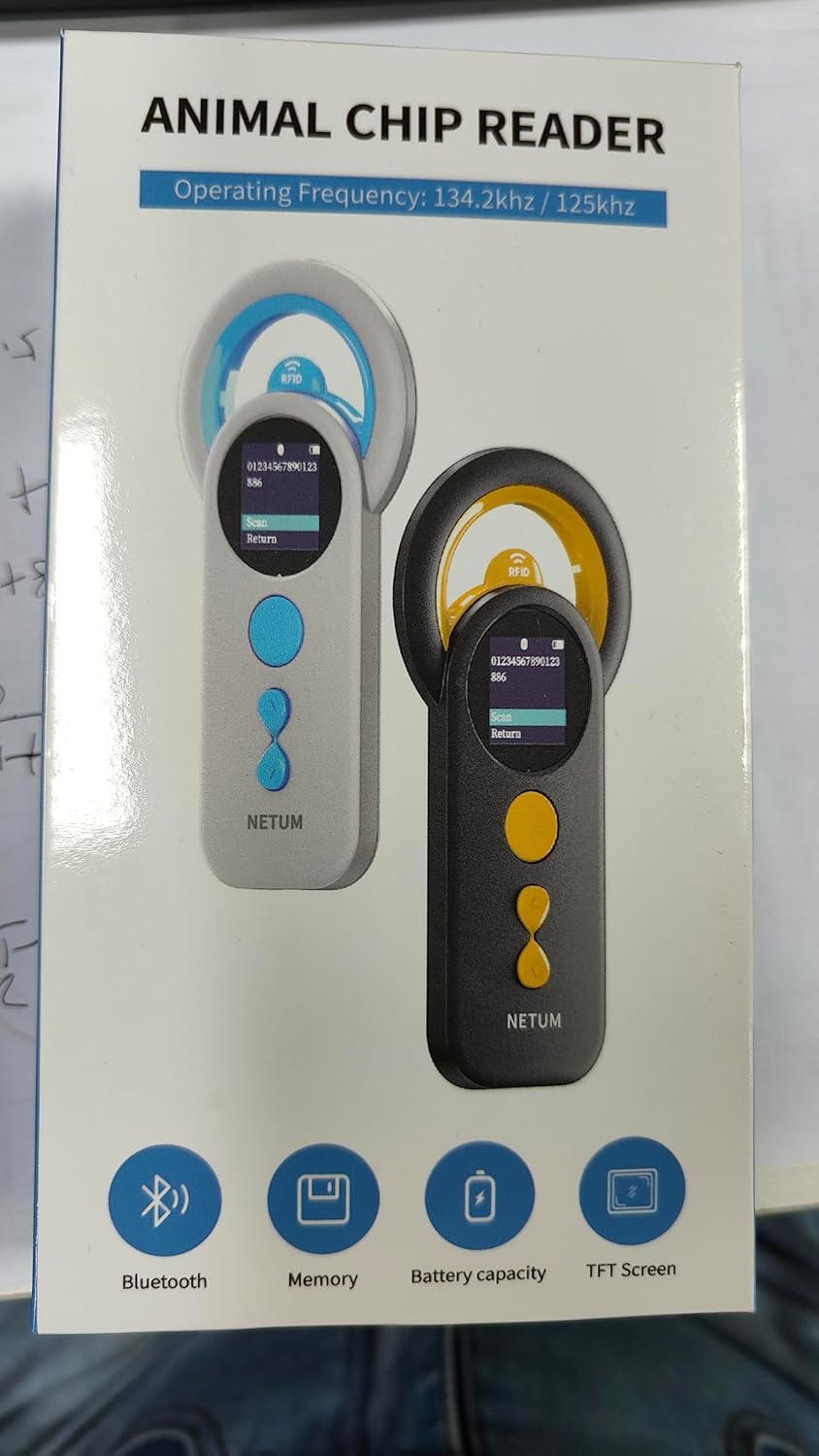
Figure 6.1: The device is compatible with FDX-B (ISO11784/ISO11785) and EMID chips. Ensure the correct chip type for successful reading.

Figure 6.2: The upgraded RFID identification technology allows for efficient reading of various compatible tags and microchips.
6.2 Operating Modes
The DJ-130 offers two primary operating modes:
- Instant Upload Mode: Data is immediately transmitted to a connected device (e.g., computer, smartphone) as soon as a microchip is read.
- Storage Mode: The scanner saves the microchip data internally. It can store up to 20,000 records. Data can be uploaded later when connected to a computer.
You can switch between these modes via the device's settings menu.

Figure 6.3: Visual representation of the two operating modes: Offline Storage Mode and Instant Upload Mode.
6.3 Connectivity Options
The device supports multiple connection methods for data transfer:
- Bluetooth Connection: Pair the device with your smartphone or tablet via Bluetooth for wireless data transfer.
- 2.4GHz Wireless Connection: Use the included USB dongle to establish a wireless connection with a computer.
- USB Wired Connection: Connect the device directly to a computer using the USB cable for data transfer and charging.
The device is plug-and-play, requiring no additional software or drivers for basic functionality.
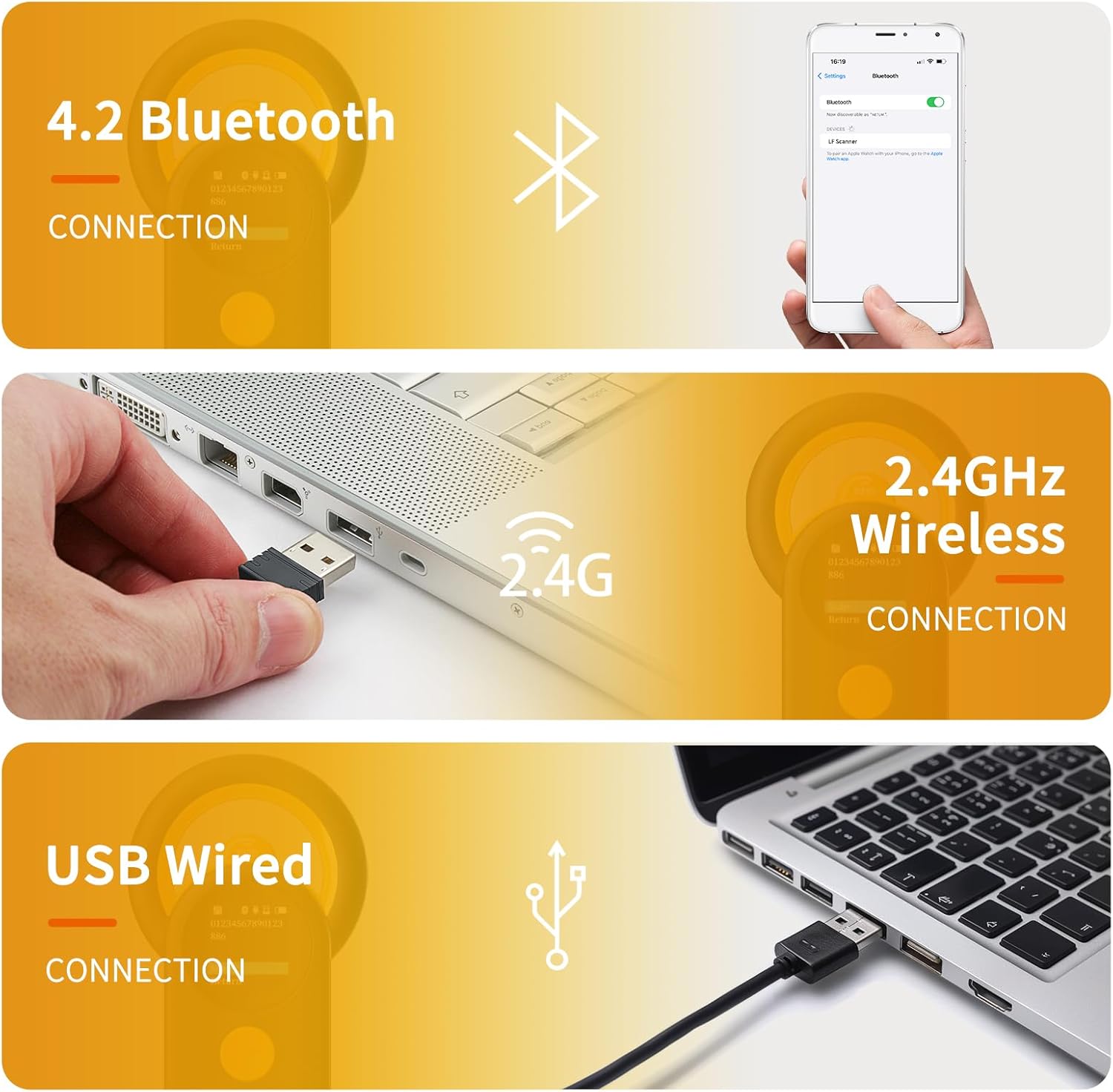
Figure 6.4: The 3-in-1 connectivity options provide flexibility for various usage scenarios.
6.4 Instructional Video
Video 6.1: An official video demonstrating the features and operation of the NETUM Bluetooth Pet Microchip Scanner, Model DJ-130.
7. Maintenance
- Cleaning: Use a soft, dry cloth to clean the device. For stubborn dirt, a slightly damp cloth can be used, but ensure no moisture enters the ports or screen. Do not use abrasive cleaners or solvents.
- Storage: Store the device in a cool, dry place away from direct sunlight and extreme temperatures. If storing for an extended period, ensure the battery is partially charged (around 50%) to prolong its lifespan.
- Battery Care: Avoid fully discharging the battery frequently. Recharge the device when the battery level is low.
8. Troubleshooting
| Problem | Possible Cause | Solution |
|---|---|---|
| Device does not power on. | Battery is depleted. | Charge the device for at least 3 hours. |
| Cannot read microchips. | Incompatible microchip type (e.g., AVID). Incorrect scanning technique. Microchip has migrated. | Verify the microchip type is ISO11784/ISO11785, FDX-B, or EMID. Ensure the RFID interrogation zone is directly over the chip. Slowly move the scanner over the animal's shoulder blade area to locate the chip. |
| Connectivity issues (Bluetooth/2.4GHz/USB). | Incorrect pairing/connection. Interference. Driver issues (rare, as it's plug-and-play). | For Bluetooth, ensure the device is in pairing mode and visible. For 2.4GHz, ensure the USB dongle is properly inserted. For USB, try a different port or cable. Restart both the scanner and the connected device. |
| Screen is blank or unresponsive. | Device is off or frozen. | Ensure the device is charged and powered on. If frozen, try a soft reset by holding the power button for 10-15 seconds. |
| Instructions are unclear for advanced features. | Manual limitations. | Refer to the official NETUM website for updated documentation or contact customer support for detailed guidance on specific features like continuous scan settings or data interpretation. |
9. Specifications
| Feature | Detail |
|---|---|
| Model Number | DJ-130 |
| Supported Microchips | ISO11784/ISO11785, FDX-B, EMID |
| Screen Display Size | 1.44 Inches (TFT) |
| Battery Capacity | 1200mAh (Lithium Ion) |
| Continuous Use Time | Up to 20 hours |
| Memory Storage Capacity | 2 MB (Up to 20,000 records) |
| Connectivity Technology | Bluetooth, 2.4GHz wireless, USB |
| Wireless Communication Standard | 2.4 GHz Radio Frequency |
| Item Weight | 3.52 ounces (0.1 Kilograms) |
| Package Dimensions | 7.13 x 3.86 x 1.77 inches |
| Manufacturer | NETUM |
| Country of Origin | China |
10. Warranty and Support
NETUM provides a standard warranty for its products. For specific warranty terms and conditions, please refer to the warranty card included with your product or visit the official NETUM website. If you encounter any issues or have questions not covered in this manual, please contact NETUM customer support through their official channels for assistance.
Contact Information:
- Refer to the contact details provided on the product packaging or the official NETUM website.

