
1. Introduction
The ORICO M5PLUS 1TB External Solid State Drive (SSD) is a compact and high-performance storage solution designed for efficient data management. This portable SSD offers fast data transfer speeds of up to 460MB/s, making it suitable for backing up and storing large files, photos, and videos. Its plug-and-play functionality and broad compatibility with various devices and operating systems ensure a seamless user experience.

The ORICO M5PLUS 1TB External SSD, featuring a compact design and a versatile 2-in-1 USB C and A cable.
2. Package Contents
Please verify that all items are present in the package:
- ORICO M5PLUS 1TB External SSD
- 2-in-1 USB C & A Cable
3. Setup Instructions
3.1 Connecting the SSD
The ORICO M5PLUS SSD features a convenient 2-in-1 USB C & A cable for wide compatibility. No additional drivers or software installation are required for most operating systems.
- Identify the appropriate port on your device (USB-C or USB-A).
- Connect the 2-in-1 cable to the SSD.
- Connect the other end of the cable (USB-C or USB-A connector) to your computer, smartphone, or tablet.
- The SSD will be automatically recognized by your device as an external storage drive.

The ORICO M5PLUS SSD offers immediate plug-and-play functionality, allowing quick data expansion and backup for your mobile devices with 5Gbps transfer speeds.

The included 2-in-1 USB C and A cable ensures broad compatibility, allowing the SSD to connect seamlessly with both USB-C and USB-A enabled devices.
4. Operating Instructions
4.1 Data Transfer
Once connected, the ORICO M5PLUS SSD functions like any other external drive. You can transfer files by:
- Drag and Drop: Select files or folders on your device and drag them to the SSD's drive icon.
- Copy and Paste: Right-click (or long-press on touch devices) on files/folders, select 'Copy', then navigate to the SSD, right-click, and select 'Paste'.
The SSD supports high-speed data transfer, with read speeds up to 460MB/s and write speeds up to 440MB/s, significantly reducing transfer times compared to older USB 2.0 devices.

Experience rapid data transfer with the ORICO M5PLUS SSD, boasting read speeds of up to 460MB/s and write speeds of 440MB/s, making file management efficient.
4.2 Device Compatibility
The ORICO M5PLUS SSD is compatible with a wide range of devices and operating systems, including:
- Operating Systems: Android, iOS, macOS, Windows.
- Devices: Smartphones, PCs, Laptops, Tablets.
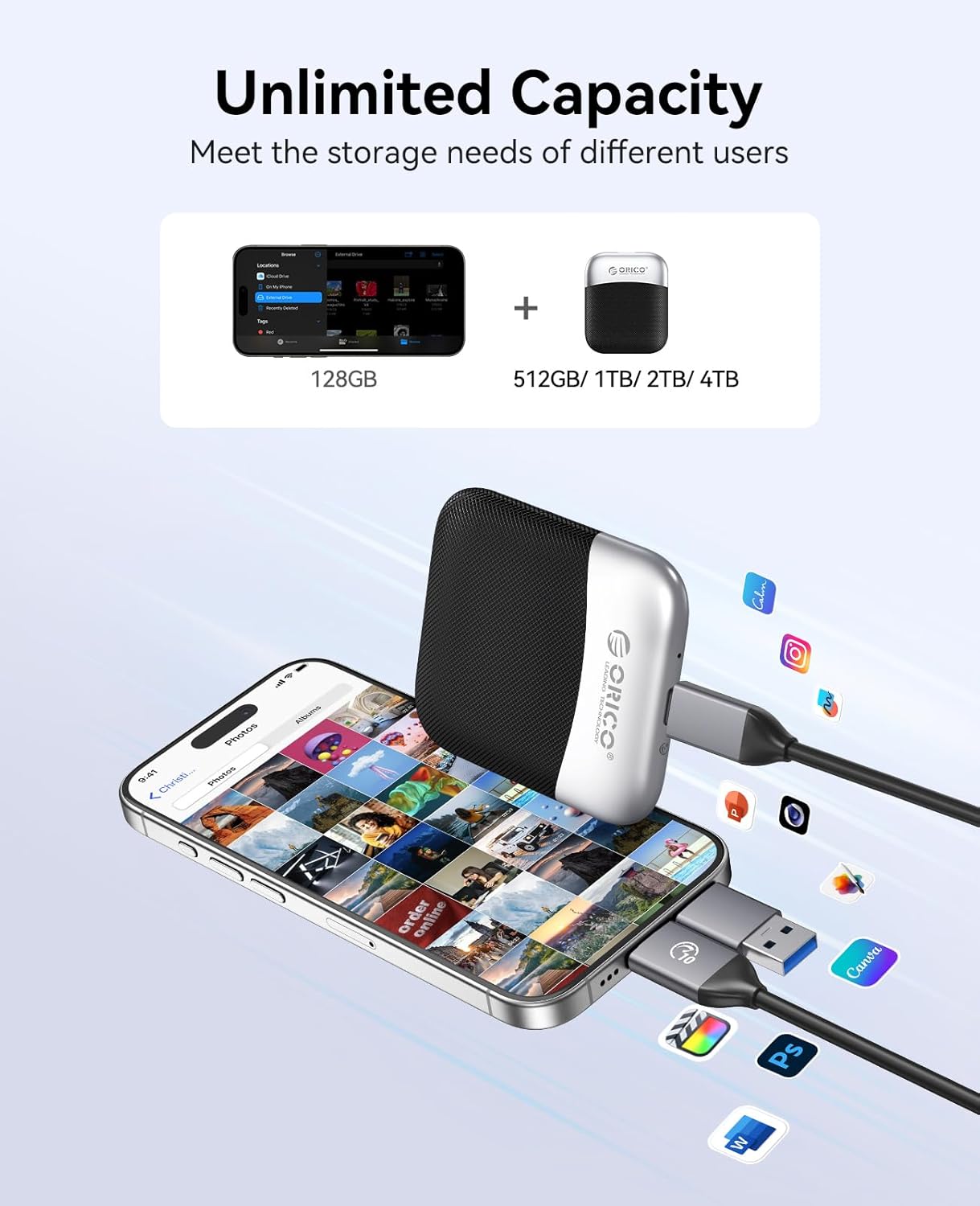
Connect the ORICO M5PLUS SSD to your smartphone to expand storage and manage files, demonstrating its ability to meet diverse storage needs.
4.3 Using for Presentations and Media
The portable nature and high capacity of the SSD make it ideal for storing and accessing presentations, large media files, or design assets directly. Connect it to a compatible device to display content on a larger screen or for quick access during work or travel.

Utilize the ORICO M5PLUS SSD to store and access presentations or media files, enabling convenient display on various devices like laptops and external monitors.
5. Product Features
- High Speed Performance: Enjoy data transfer speeds of up to 460MB/s (read) and 440MB/s (write), facilitating quick backups and file access.
- Pocket-Sized & Portable: With dimensions of 2.56 × 2.95 × 0.47 inches and a weight of 0.14 lbs, this SSD is designed for maximum portability.
- 2-in-1 USB C & A Cable: The included cable ensures full compatibility with both USB-C and USB-A devices, eliminating the need for multiple cables or adapters.
- Durable and Stylish Design: Constructed from zinc alloy and plastic, the M5PLUS offers durability with resistance to drops, shocks, dust, and temperature variations.
- Reliable Storage: Provides a secure and efficient solution for storing important data.

Designed for portability, the ORICO M5PLUS SSD is ultra-small and lightweight, easily fitting into a pocket or bag for on-the-go access to your data.

The ORICO M5PLUS SSD is built with a durable zinc alloy and plastic casing, providing resistance against shocks, dust, and temperature fluctuations for reliable data protection.
6. Specifications
| Feature | Specification |
|---|---|
| Model | M5PLUS-1TB |
| Capacity | 1 TB |
| Interface | USB 3.0 (compatible with USB-C and USB-A) |
| Read Speed | Up to 460MB/s |
| Write Speed | Up to 440MB/s |
| Dimensions | 2.56 x 2.95 x 0.47 inches |
| Weight | 0.14 lbs (4.2 ounces) |
| Material | Zinc Alloy + Plastic |
| Compatibility | Android, iOS, macOS, Windows (Smartphones, PCs, Laptops, Tablets) |
Capacity Reminder: A slight reduction (7%-10%) in reported capacity may occur due to differences in how operating systems (1GB = 1024MB) and SSD manufacturers (1GB = 1000MB) calculate gigabytes.
7. Troubleshooting
7.1 SSD Not Recognized
- Ensure the cable is securely connected to both the SSD and your device.
- Try connecting the SSD to a different USB port on your device.
- Test the SSD with a different compatible device (e.g., another computer or smartphone) to rule out device-specific issues.
- If using a desktop PC, ensure the USB port has sufficient power.
7.2 Slow Data Transfer Speeds
- Ensure you are using a USB 3.0 (or higher) port on your device. Connecting to a USB 2.0 port will result in significantly lower speeds.
- Verify that the cable is not damaged and is the original 2-in-1 cable provided.
- Close any unnecessary applications running in the background on your device that might be consuming system resources.
- Large numbers of small files transfer slower than a few large files of the same total size.
7.3 Formatting the SSD
If the SSD is not recognized or you wish to change its file system, you may need to format it. Warning: Formatting the drive will erase all data on it. Back up any important files before proceeding.
- Windows: Go to 'Disk Management', find the SSD, right-click, and select 'Format'.
- macOS: Use 'Disk Utility', select the SSD, and choose 'Erase'.
8. Safety Information
- Avoid exposing the SSD to extreme temperatures, direct sunlight, or high humidity.
- Do not disassemble or attempt to repair the device yourself. This may void the warranty and cause damage.
- Keep the SSD away from strong magnetic fields.
- Handle the device with care to prevent physical impact or drops.
- Always safely eject the SSD from your device before disconnecting it to prevent data corruption.
9. Warranty and Support
ORICO products come with a standard warranty. For detailed warranty information, technical support, or service inquiries, please refer to the warranty card included with your product or visit the official ORICO website. Please retain your proof of purchase for warranty claims.


