
Product Overview
The Reyke Smart Tag is an item locator designed to help you track your valuables using the Apple Find My network. It is compatible with iOS devices (iOS 14.5 or higher) and is not designed for Android devices. This device is ideal for attaching to keys, wallets, backpacks, and luggage to prevent loss and aid in recovery.
- Apple Find My Integration: Seamlessly track items through the native Apple Find My app on your iPhone, iPad, or Mac.
- Find Nearby: Locate items within Bluetooth range (up to 180 feet) by triggering a built-in speaker.
- Left-Behind Reminders: Receive instant notifications on your iPhone when the tracker moves out of Bluetooth range.
- Lost Mode: Utilize the vast Apple Find My network to locate lost items globally. You receive automatic notifications when your tag is detected by another Apple device in the network.
- Privacy Protection: Location data is encrypted, anonymous, and not stored on the Reyke Smart Tag.
- Share Item Functionality (iOS 17+): Share item locations with up to 5 other users in the Find My app.
- Durable Design: IP67 waterproof and dust resistant, capable of withstanding immersion in water up to 3 feet for 30 minutes.
- Replaceable Battery: Features a replaceable battery with up to 1 year of life.
Setup Instructions
- Unpack the Device: Carefully remove the Reyke Smart Tag from its packaging. Ensure all included accessories, such as keychains, are present.
- Power On: The device is typically powered on by pressing the central button once. You should hear a chime indicating it is active.
- Install Battery (if not pre-installed): If the battery is not pre-installed, use the provided tool (or a similar small, flat object) to gently open the tag. Insert the CR2032 battery with the positive (+) side facing up. Close the tag securely, ensuring the O-ring seal is properly seated for water resistance.
- Open Apple Find My App: On your iOS device (iPhone, iPad, or Mac), open the native "Find My" application. Ensure your device is updated to iOS 14.5 or higher (iOS 17+ for sharing features).
- Add New Item: In the Find My app, navigate to the "Items" tab. Tap the "+" icon and select "Add Other Item."
- Pair the Smart Tag: Follow the on-screen instructions in the Find My app. The app will search for nearby compatible devices. When the Reyke Smart Tag is detected, select it to begin the pairing process.
- Name Your Item: Assign a descriptive name to your Smart Tag (e.g., "My Keys," "Luggage").
- Attach to Item: Use the included keychain to securely attach the Reyke Smart Tag to the item you wish to track.

Image: Reyke Smart Tag integrated with the Apple Find My app, displaying its location on a map interface.
Video: A user demonstrates the unboxing and initial setup of the Reyke Smart Tag, including attaching it to keys and connecting it to the Apple Find My app. The video highlights the ease of setup and the tracker's functionality.
Operating Instructions
1. Finding Items Nearby
When your item is within Bluetooth range (up to 180 feet), you can use the Find My app to make the Smart Tag play a sound. This helps you pinpoint its exact location if it's hidden nearby.
- Open the "Find My" app on your iOS device.
- Go to the "Items" tab.
- Select the Reyke Smart Tag you wish to locate.
- Tap "Play Sound." The tag will emit a loud beep (up to 100dB) to guide you.
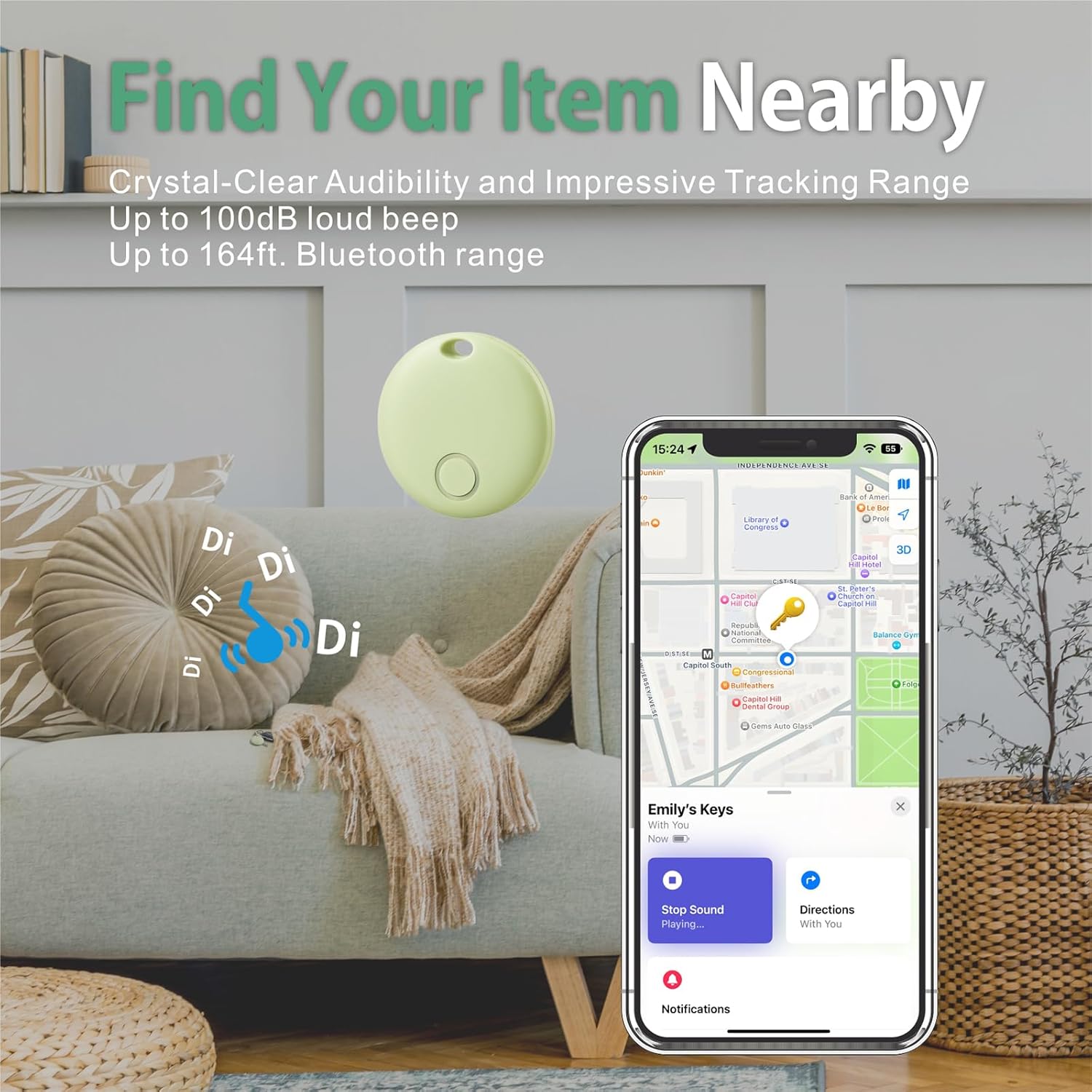
Image: The Reyke Smart Tag emitting a sound, with a visual representation of sound waves, while the iPhone screen displays the 'Play Sound' feature in the Find My app.
2. Left-Behind Reminders
Receive alerts on your iPhone if you accidentally leave your tracked item behind. The Find My app will show you the last known location on a map.
- Ensure "Notify When Left Behind" is enabled for your Smart Tag in the Find My app settings.
- If you move out of Bluetooth range from your item, your iPhone will receive a notification with its last detected location.
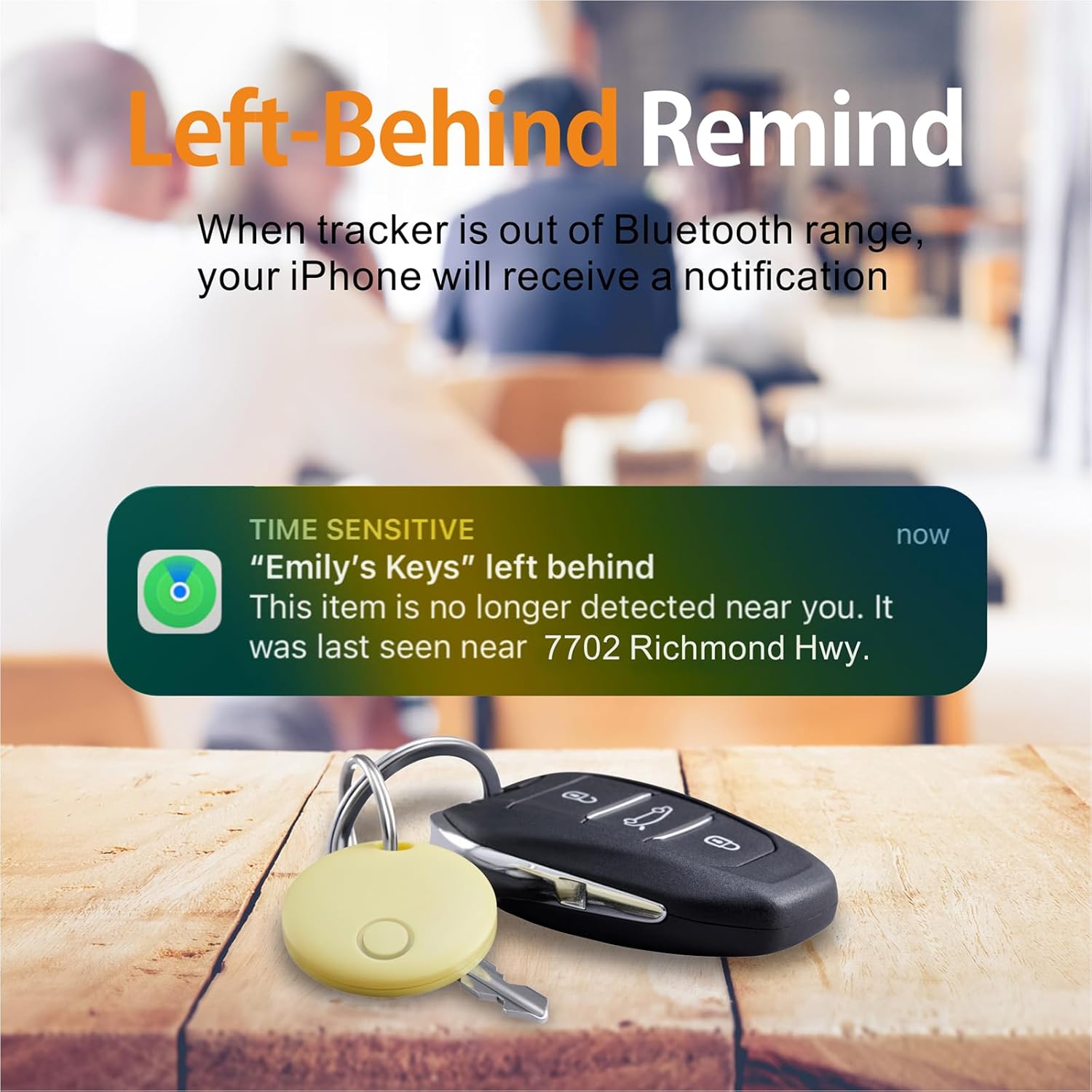
Image: An iPhone screen shows a
Related documentsHB02


Ask a question about this manual
Ask about setup, troubleshooting, compatibility, parts, safety, or missing instructions. Manuals+ will review the question and use this page’s manual context to help answer it.