Introduction
This user manual provides detailed instructions for the operation, maintenance, and troubleshooting of your Fitsenso Trackpro / Outfany Trackpro 2.0 Smartwatch. Please read this manual thoroughly before using your device to ensure proper functionality and to maximize your user experience.
What's in the Box
Upon opening your Fitsenso Trackpro / Outfany Trackpro 2.0 Smartwatch package, you should find the following components:
- 1 x Fitsenso Trackpro / Outfany Trackpro 2.0 Smartwatch
- 1 x Original Box
- 1 x User Manual (this document)
- 1 x Magnetic Charging Cable

Image: The package contents, including the smartwatch, user manual, and magnetic charging cable.
Product Overview
The Fitsenso Trackpro / Outfany Trackpro 2.0 Smartwatch is a versatile device designed to enhance your daily life with its comprehensive features. It boasts a 1.91-inch HD full-touch screen for clear visuals and smooth interaction. Key functionalities include health monitoring, communication tools, and various sports modes.

Image: The Fitsenso Trackpro Smartwatch, showcasing its design and display.
Key Features:
- 1.91-inch HD Full-Touch Screen: Provides an expansive field of view and responsive operation.
- Bluetooth Connectivity: Enables seamless call answering, dialing, and music playback.
- Health Monitoring: Includes features for heart rate, blood pressure, blood oxygen, and sleep quality monitoring.
- Fitness Tracking: Supports over 50 sports modes, pedometer, and calorie tracking.
- Smart Notifications: Receive call logs, messages, and app alerts directly on your wrist.
- Convenience Features: Voice assistant, weather forecasts, find my phone, and remote camera control.
- IP67 Waterproof Rating: Suitable for daily use, resistant to splashes and brief immersion.

Image: Visual representation of the smartwatch's IP67 waterproof rating, mass dial, notification, and sports mode capabilities.

Image: An overview of the multiple functions available on the smartwatch, such as health tracking, activity monitoring, and utility features.

Image: The rear of the smartwatch, highlighting its sensors for continuous data monitoring.
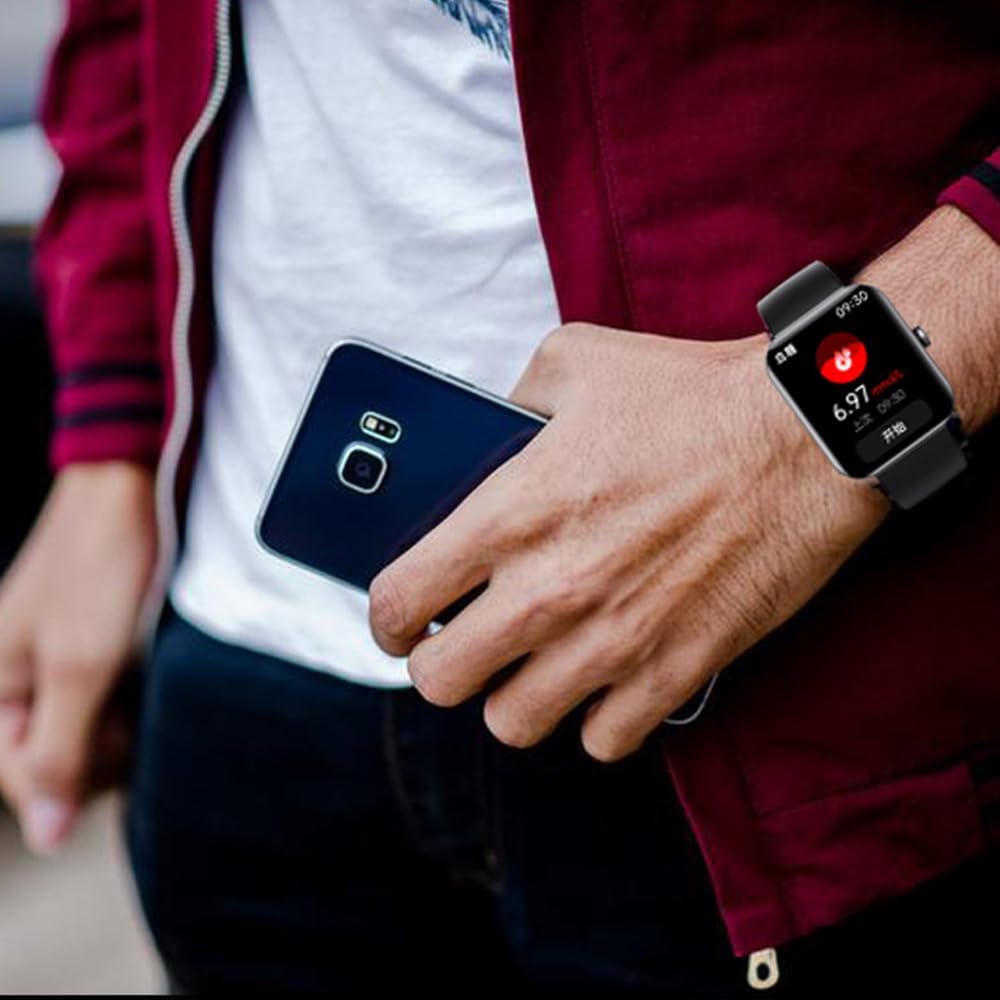
Image: The smartwatch displaying sleep quality data, illustrating its sleep monitoring capabilities.

Image: A user wearing the smartwatch, emphasizing its integration with a smartphone.

Image: A diagram illustrating the physical dimensions of the smartwatch.

Image: A display of the six available styles for the smartwatch, showcasing different strap options.
Setup
1. Initial Charging
Before first use, fully charge your smartwatch. Connect the magnetic charging cable to the charging contacts on the back of the watch and plug the USB end into a standard USB power adapter (not included) or a computer's USB port. The watch display will indicate charging status.
2. App Installation & Pairing
To unlock the full potential of your smartwatch, download the companion application on your smartphone. The app is compatible with both iPhone and Android devices. Refer to the quick start guide included in the box for the specific app name and QR code for easy download.
- Scan the QR code in the quick start guide or search for the app name in your phone's app store.
- Install the application on your smartphone.
- Open the app and follow the on-screen instructions to create an account and set up your profile.
- Enable Bluetooth on your smartphone.
- Within the app, navigate to the device pairing section and select your smartwatch from the list of available devices.
- Confirm the pairing request on both your phone and the smartwatch.
3. Language Selection
You can set the language on your smartwatch directly through its settings menu. Navigate to the settings icon, then look for a language option (often represented by a globe icon or text like 'Language'). Select your preferred language from the list.
Video: This video demonstrates the user interface of the Outfany Trackpro 2.0 Smartwatch, including how to navigate through various functions and change language settings. It provides a visual guide for initial setup and feature exploration.
Operating Instructions
Basic Navigation
The smartwatch features a full-touch screen for intuitive navigation. Swipe left, right, up, or down to access different menus and functions. Tap an icon to select it, and typically swipe right or press the side button to go back to the previous screen.
Accessing Features
From the main watch face, swipe to access various features:
- Workouts/Sports Modes: Select from over 50 sports modes to track your activity, including outdoor walk, hiking, indoor run, mountaineering, sailboat, push-ups, and football.
- Pedometer: Monitors your daily steps, distance, and calories burned.
- Sleep Monitoring: Tracks your sleep patterns, including deep sleep duration.
- Heart Rate: Measures your heart rate in beats per minute (bpm).
- Blood Pressure: Provides an estimate of your blood pressure.
- Blood Oxygen: Measures your blood oxygen saturation.
- Blood Glucose: Offers an estimated blood glucose level. Note: This feature is for reference only and should not be used for medical diagnosis or treatment.
- Notifications: View incoming calls, messages, and alerts from connected apps.
- Call Functionality: Answer and dial calls directly from the watch with high-definition voice quality.
- Voice Assistant: Utilize the integrated voice assistant for hands-free operations.
- Music Playback: Control music playing on your connected smartphone.
- Weather Forecasts: Get real-time weather updates.
- Find Phone: Locate your misplaced smartphone by triggering an alert sound.
- Remote Camera Control: Use your watch as a remote shutter for your phone's camera.
- Calculator: A basic calculator for quick computations.
- Alarm/Timer: Set alarms and use the timer function.
Maintenance
Cleaning Your Smartwatch
To maintain the appearance and functionality of your smartwatch, regularly clean it with a soft, dry, lint-free cloth. For stubborn dirt, slightly dampen the cloth with water. Avoid using harsh chemicals, abrasive cleaners, or solvents as they may damage the device.
Water Resistance (IP67)
Your smartwatch has an IP67 waterproof rating, meaning it is resistant to dust and can withstand immersion in water up to 1 meter for up to 30 minutes. It is suitable for daily use, such as washing hands or light rain. It is not recommended for swimming, showering with hot water, or diving, as prolonged exposure to water or high-pressure water jets may compromise the seal and affect performance.
Charging Best Practices
Always use the provided magnetic charging cable. Ensure the charging contacts on the watch and cable are clean and dry before charging. Avoid overcharging the device; once fully charged, disconnect it from the power source. Store the watch in a cool, dry place when not in use.
Care and Replacement of Watch Bands
Inspect your watch band regularly for signs of wear and tear. If the band becomes damaged or uncomfortable, consider replacing it. The Fitsenso Trackpro / Outfany Trackpro 2.0 Smartwatch uses a standard pin watch band, allowing for easy replacement with compatible bands.
Troubleshooting
If you encounter issues with your smartwatch, please refer to the following common problems and solutions:
| Problem | Possible Solution |
|---|---|
| Watch not turning on or short battery life | Ensure the watch is fully charged using the magnetic charging cable. Check if the charging contacts are clean. If battery life is consistently short, try reducing screen brightness or disabling unnecessary notifications. |
| Difficulty pairing with smartphone | Make sure Bluetooth is enabled on your phone and the smartwatch is within range. Restart both the watch and your phone. Ensure the companion app is updated to the latest version. Forget the device in your phone's Bluetooth settings and try pairing again. |
| Health monitoring readings are inaccurate | Ensure the watch is worn snugly on your wrist, not too tight or too loose. Clean the sensor on the back of the watch. Note that health monitoring features are for general wellness and fitness purposes and are not intended for medical use. |
| Notifications not appearing | Check notification settings in the companion app and on your smartphone. Ensure the app has necessary permissions to access notifications. Verify that the watch is properly connected via Bluetooth. |
| Screen is unresponsive | Try restarting the smartwatch. If the issue persists, ensure the screen is clean and dry. |
Specifications
Below are the technical specifications for the Fitsenso Trackpro / Outfany Trackpro 2.0 Smartwatch (Model: GQ98132):
- Model Name: GQ98132
- Brand: SMOCPROX
- Screen Size: 1.91 Inches
- Display Resolution: 280 * 320 PX
- Shape: Rectangular
- Operating System: IOS9.0 (compatible with iPhone and Android)
- Connectivity Technology: Bluetooth
- Wireless Communication Standard: Bluetooth
- Special Feature: Touchscreen, Lightweight
- Water Resistance: IP67
- Charging Method: Magnetic charging cable
- Battery: 1 9V battery required (Lithium Metal)
- GPS: No GPS
- Manufacturer: SMOCPROX
- First Available Date: December 3, 2024
Warranty Information
Your Fitsenso Trackpro / Outfany Trackpro 2.0 Smartwatch is covered by a manufacturer's warranty against defects in materials and workmanship. Please retain your proof of purchase for warranty claims. For specific warranty terms and conditions, refer to the documentation provided with your purchase or contact customer support.
Support
If you require further assistance or have questions not covered in this manual, please contact our customer support team. You can find contact information on our official website or through the companion application.