
MCHOSE G98 PRO
Contents
MCHOSE G98 PRO Wireless Mechanical Keyboard User Manual
Model: G98 PRO
1. Introduction
The MCHOSE G98 PRO is a versatile mechanical keyboard designed for gaming and productivity, featuring tri-mode connectivity (2.4GHz wireless, Bluetooth 5.0, and USB-C wired), hot-swappable switches, and vibrant RGB backlighting. Its custom 5-layer gasket structure ensures a premium typing experience with excellent sound dampening and shock absorption. This manual provides comprehensive instructions for setting up, operating, and maintaining your keyboard.
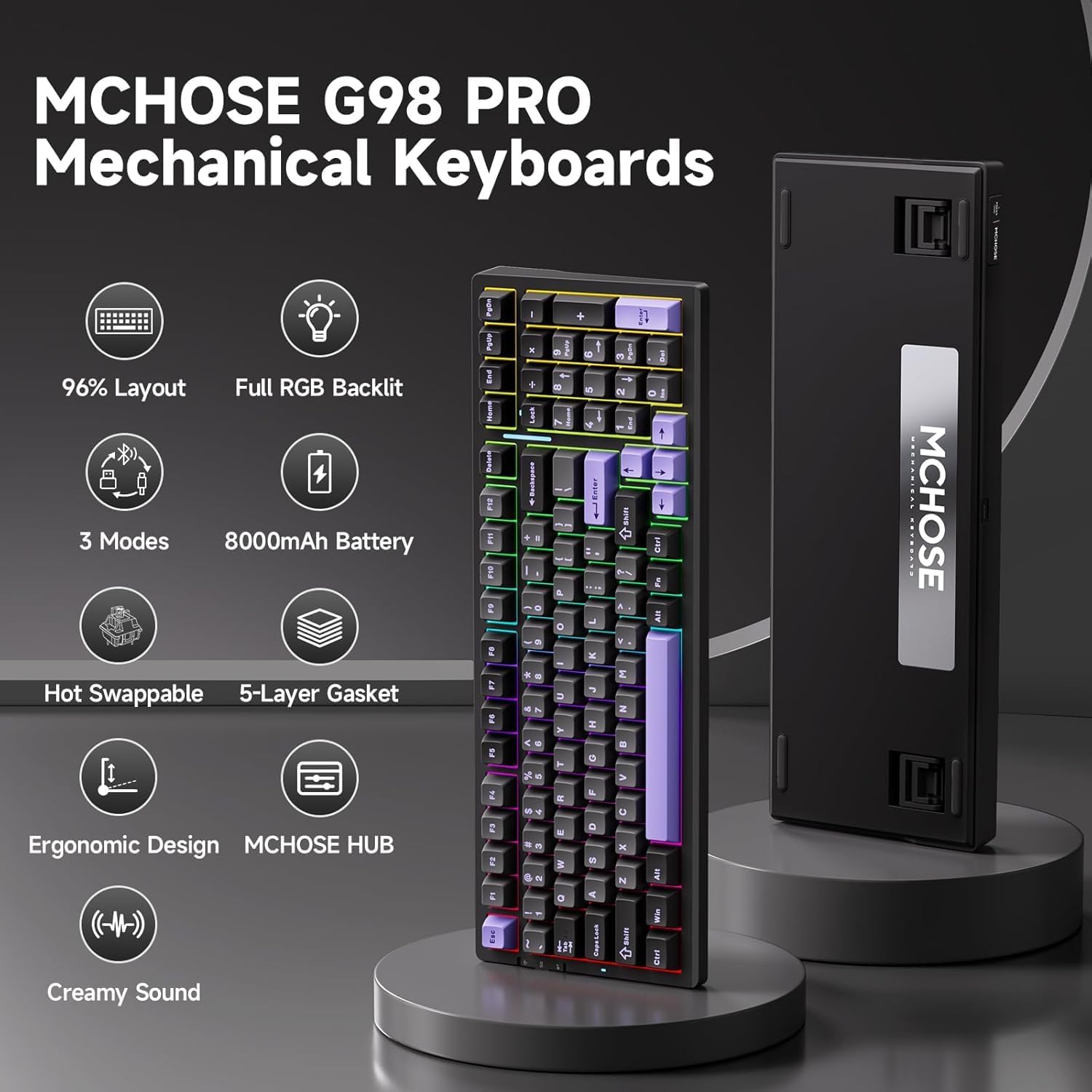
Image: MCHOSE G98 PRO Mechanical Keyboard highlighting its main features.
2. What's in the Box
Your MCHOSE G98 PRO Wireless Mechanical Keyboard package includes the following items:
- MCHOSE G98 PRO Keyboard
- Dust Cover
- USB Cable (Type-C)
- 1 x Handy Guide
- 2.4GHz Receiver
- Keycap & Switch Puller
- 2 x Replace Switch
- 1 x User Manual
Video: An unboxing of the G98 PRO keyboard, showing all included accessories.
3. Setup
3.1 Initial Charging
Before first use, it is recommended to fully charge your keyboard. Connect the provided USB-C cable to the keyboard's USB-C port and the other end to a powered USB port on your computer or a wall adapter. The keyboard features an 8000mAh battery for extended use.
3.2 Connectivity Modes
The MCHOSE G98 PRO supports three connection modes: Wired, 2.4GHz Wireless, and Bluetooth 5.0. Use the mode switch located on the left side of the keyboard to select your preferred connection type.

Image: Overview of the keyboard's tri-mode connection options and wide device compatibility.
3.2.1 Wired Connection
Simply connect the USB-C cable from the keyboard to your computer's USB port. The keyboard will automatically switch to wired mode and begin charging.
3.2.2 2.4GHz Wireless Connection
Locate the 2.4GHz USB receiver hidden within the magnetic side plate on the left side of the keyboard. Remove the receiver and plug it into an available USB port on your computer. Slide the mode switch on the keyboard to the 2.4GHz wireless position. The keyboard should connect automatically.

Image: Detailed view of the keyboard's ergonomic design, including the hidden USB receiver compartment.
3.2.3 Bluetooth 5.0 Connection
Slide the mode switch on the keyboard to the Bluetooth position. The keyboard will enter pairing mode. On your device (computer, tablet, smartphone), search for Bluetooth devices and select 'MCHOSE G98 PRO' to pair. The keyboard can connect to up to 3 devices and easily switch between them using Fn + key combinations.
4. Operating Your Keyboard
4.1 Key Functions and RGB Lighting
The G98 PRO features a 99-key, 96% layout, providing a compact design while retaining essential keys. The per-key RGB lighting offers 16.8 million colors and various effects. Control the lighting using the following Fn key combinations:
- Fn + Tab: Switch backlight color
- Fn + Q: Switch backlight mode
- Fn + W/E: Adjust backlight brightness
- Fn + R/T: Adjust backlight speed
- Fn + Shift (Right): Switch atmosphere lighting mode
- Fn + B: Toggle between Battery Display & Lighting Effects
- Fn + Alt (Right): Cycle ambient light strip brightness levels
- Fn + Ctrl (Right): Cycle ambient light strip speed levels

Image: Guide to controlling the keyboard's RGB backlighting and atmosphere lighting.
4.2 MCHOSE HUB Software
Customize your keyboard's settings, including macros, key assignments, rhythm effects, and lighting modes, using the MCHOSE HUB software. This software allows for a personalized desktop experience.
Video: Instructions on how to connect and use the MCHOSE Web driver and Desktop driver for customization.

Image: Screenshot of the MCHOSE HUB software interface for keyboard customization.
4.3 Hot-Swappable Switches
The G98 PRO features hot-swappable PCB sockets, allowing you to easily change 3-pin and 5-pin mechanical switches without soldering. Use the provided keycap and switch puller to remove and replace switches.
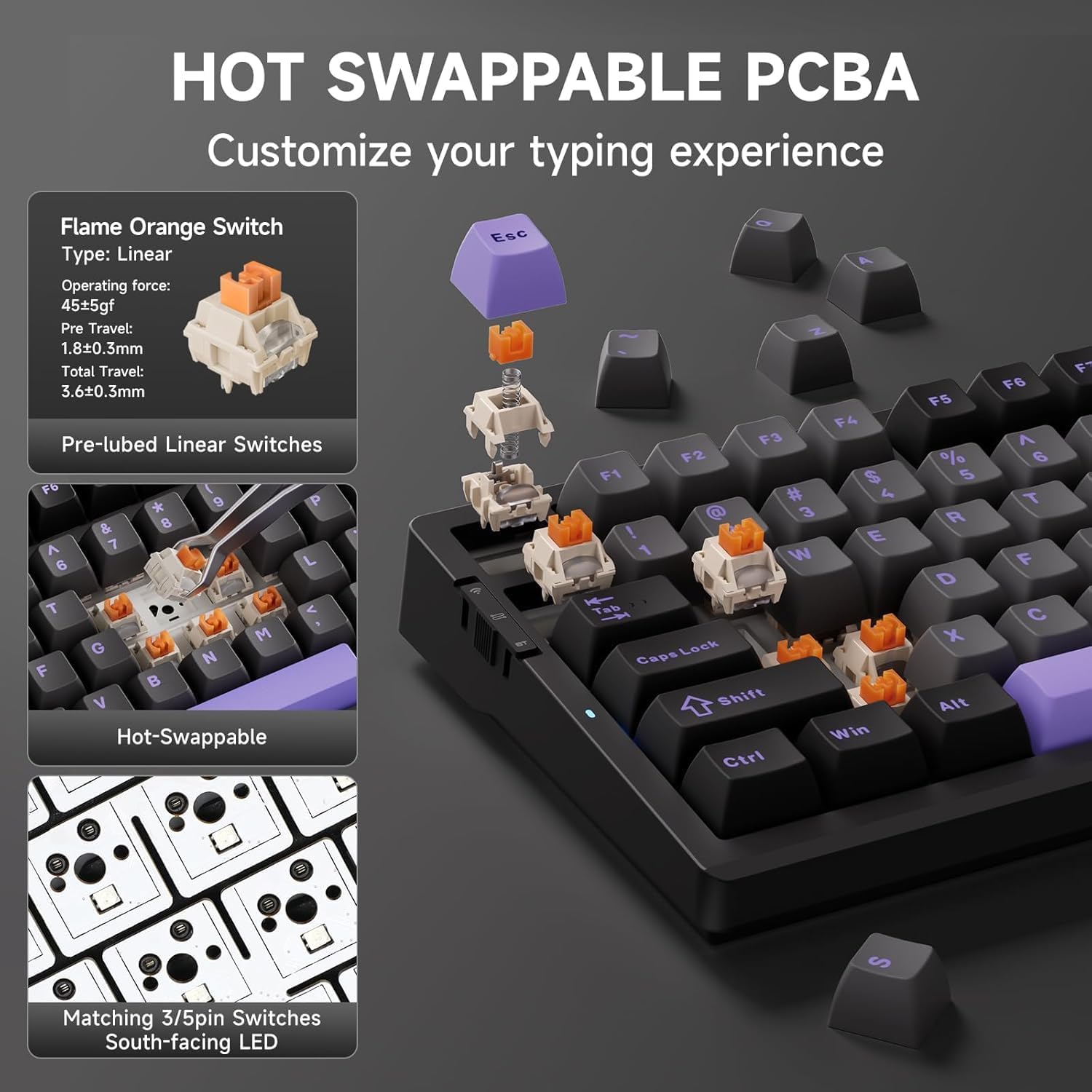
Image: Demonstration of the hot-swappable switch feature, showing switch removal and replacement.
5. Maintenance
To ensure the longevity and optimal performance of your MCHOSE G98 PRO keyboard, follow these maintenance guidelines:
- Cleaning: Regularly wipe the keycaps and keyboard surface with a soft, dry, lint-free cloth. For deeper cleaning, use the provided keycap puller to remove keycaps and clean underneath with compressed air or a small brush.
- Storage: When not in use, store the keyboard in a dry, dust-free environment. Use the included dust cover to protect it from dust and debris.
- Avoid Liquids: Do not expose the keyboard to liquids. In case of spills, immediately disconnect the keyboard and allow it to dry completely before reconnecting.
6. Troubleshooting
If you encounter any issues with your MCHOSE G98 PRO keyboard, refer to the following common problems and solutions:
- Keyboard not responding: Ensure the keyboard is charged. Check the connection mode switch (wired, 2.4GHz, Bluetooth) and ensure it matches your connection method. For wireless, verify the USB receiver is properly inserted or Bluetooth is paired.
- Keys not registering: Ensure the switches are properly seated. If a specific key is not working, try hot-swapping the switch with one of the spare switches provided.
- RGB lighting not working/incorrect: Check Fn key combinations for lighting control. Ensure the keyboard is not in a low-power mode. If using MCHOSE HUB, verify settings within the software.
- Wireless connectivity issues: Ensure the 2.4GHz receiver is close to the keyboard and not obstructed. For Bluetooth, try unpairing and re-pairing the device. Avoid interference from other wireless devices.
If the issue persists after trying these steps, please contact MCHOSE customer support for further assistance.
7. Specifications
| Feature | Description |
|---|---|
| Product Dimensions | 18.11 x 7.48 x 2.36 inches |
| Item Weight | 3.61 pounds |
| Manufacturer | MCHOSE |
| Item Model Number | G98 PRO |
| Batteries | 1 Lithium Polymer batteries required (included) |
| Connectivity Technology | 2.4GHz Wireless, BT5.0, USB-C |
| Keyboard Description | Mechanical |
| Special Features | Ergonomic, Backlit, Rechargeable, Customizable Display Keys, Hot-Swappable |
| Color | Purple&Black |
| Number of Keys | 99 |
| Keyboard Backlighting | RGB |
8. Warranty and Support
MCHOSE is committed to providing high-quality products and an excellent user experience. For detailed warranty information and customer support, please refer to the official MCHOSE website or the warranty card included with your purchase. MCHOSE constantly enhances its products through research, development, production, marketing, and sales processes.
You can visit the MCHOSE Store on Amazon for more products and information: MCHOSE Store
Documents and downloads
Ask a question about this manual
Ask about setup, troubleshooting, compatibility, parts, safety, or missing instructions. Manuals+ will review the question and use this page’s manual context to help answer it.