
Introduction
This manual provides comprehensive instructions for the QZT C10 WIFI Small Security Camera. Designed for versatile indoor surveillance, this compact and rechargeable camera offers 4K 1080P video recording, seamless integration with the Tuya Smart app, motion detection, and infrared night vision. Please read this manual carefully before use to ensure proper operation and to maximize the camera's features.

Image: The QZT C10 WIFI Small Security Camera, showcasing its compact design.
Product Features
- Tuya App Integration & Dual Modes: The camera fully integrates with the Tuya Smart app, providing intuitive control and real-time viewing from your smartphone. It supports both Wi-Fi mode (2.4GHz only) for live streaming and DV mode for direct recording to an SD card without Wi-Fi.
- Flexible DIY Design & Wide-Angle Lens: Featuring a board unit camera, this device allows for flexible installation in various environments, including narrow spaces. Its wide-angle lens expands the surveillance area, making it suitable for diverse monitoring needs.
- High-Precision Motion Detection & Alarm Notifications: Equipped with advanced motion detection technology, the camera instantly detects movement and sends alerts to your smartphone via the app, minimizing false alarms. It supports scheduled and motion-activated recording to efficiently capture important events.
- Advanced Infrared Night Vision: The camera's high-performance board and infrared auto-fill light technology ensure clear black and white images even in complete darkness, providing reliable surveillance day and night.
- 4K 1080P Full HD Recording & 256GB Storage: Records in Full HD 1920x1080p at 30fps, capturing fine details. Supports up to a 256GB SD card for extensive storage and features loop recording to ensure continuous operation by overwriting older files.
- 24-Hour Continuous Surveillance: The camera can operate continuously for approximately 6-7 hours on a single charge and can record while charging, ensuring uninterrupted monitoring. A timer function allows for automated on/off scheduling to conserve energy.
- Camera Sharing & Multi-Platform Playback: Share live camera feeds with family or team members. Recorded videos can be easily played back on PCs or smartphones using a card reader or directly through the dedicated app.

Image: Illustration of the Tuya Smart app interface and the camera's dual Wi-Fi and DV recording modes.

Image: Visual representation of motion detection triggering an alarm notification on a smartphone.

Image: A split image demonstrating the camera's clear daytime and infrared night vision capabilities.
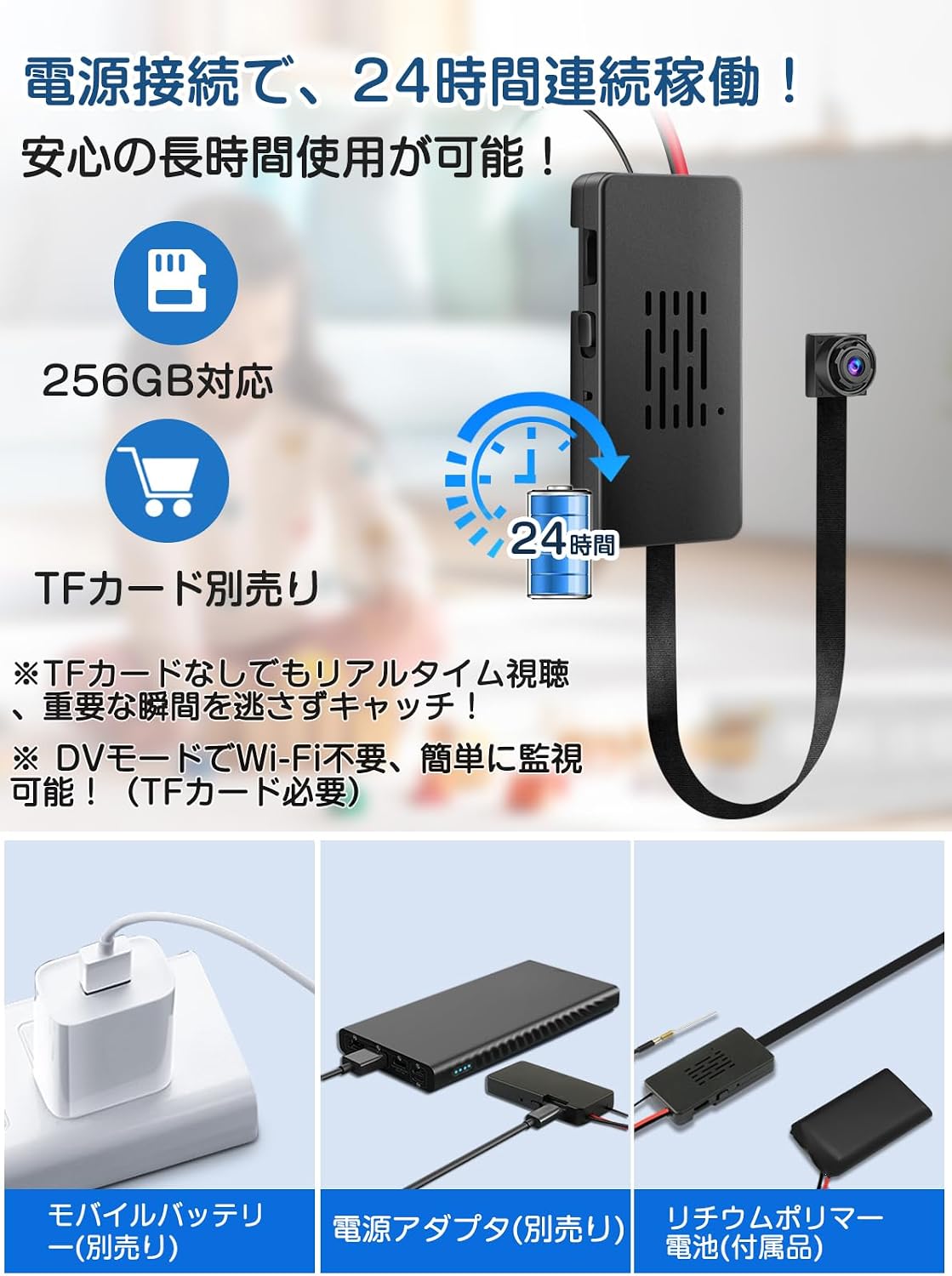
Image: Diagram showing the camera's 24-hour recording capability and various power connection methods.

Image: Examples of the camera's application, including pet monitoring, elderly care, child supervision, and security surveillance.
Package Contents
Please check that all items are present and in good condition upon opening the package:
- QZT C10 Camera Unit
- USB Cable
- User Manual
Product Diagram
Familiarize yourself with the components and dimensions of your QZT C10 camera:

Image: Detailed diagram showing the camera lens, battery, microSD card slot, reset hole, power/record switch, Micro USB charging port, and heat dissipation holes, along with product dimensions.
- Camera Lens: Captures video and images.
- Battery: Provides power for operation.
- MicroSD Card Slot: Insert microSD card for local storage (up to 256GB, sold separately).
- Reset Hole: Used to reset the device to factory settings.
- Power/Record Switch: Controls power and recording functions.
- Micro USB Charging Port: Connect for charging and continuous power.
- Heat Dissipation Holes: Ensures proper cooling during operation.
Setup
1. Initial Charging
Before first use, fully charge the camera. Connect the camera to a 5V USB power adapter (not included) using the provided USB cable. The charging indicator light will typically show charging status and turn off or change color when fully charged.
2. Inserting a MicroSD Card (Optional for Wi-Fi Mode, Required for DV Mode)
If you plan to use DV mode or record locally in Wi-Fi mode, insert a formatted microSD card (up to 256GB, Class 10 or higher recommended) into the microSD card slot. Ensure the card is inserted correctly until it clicks into place.
3. App Download and Installation
Download the "Tuya Smart" app from the App Store (iOS) or Google Play Store (Android). Create an account or log in if you already have one.
4. Wi-Fi Mode Connection (2.4GHz Only)
- Power on the camera.
- Open the Tuya Smart app and tap "Add Device" or the "+" icon.
- Follow the in-app instructions to connect the camera to your 2.4GHz Wi-Fi network. Ensure your smartphone is also connected to the same 2.4GHz network during setup.
- Once connected, you can view live footage and manage settings via the app.
Note: This camera only supports 2.4GHz Wi-Fi networks. It is not compatible with 5GHz networks. Please verify your router settings before attempting to connect.
5. DV Mode Setup
If Wi-Fi is not available, you can use DV mode. Ensure a formatted microSD card is inserted. Switch the camera to DV mode using the designated switch (refer to Product Diagram). The camera will begin recording automatically or with a single press of the record button, depending on the model's specific implementation.
Operating Instructions
1. Power On/Off
Locate the Power/Record switch (refer to Product Diagram). Slide the switch to the "ON" position to power on the camera. Slide it to the "OFF" position to power off.
2. Switching Between Wi-Fi and DV Modes
The camera typically has a mode switch. Refer to the Product Diagram for its location. Toggle the switch to select either Wi-Fi mode for app-based control and live streaming or DV mode for standalone recording to the microSD card.
3. Recording
- Continuous Recording: In DV mode, recording usually starts automatically when powered on with an SD card. In Wi-Fi mode, continuous recording can be enabled via the Tuya Smart app settings.
- Motion-Activated Recording: Enable motion detection in the Tuya Smart app. The camera will automatically record when movement is detected and send a notification.
- Scheduled Recording: Set specific recording times through the Tuya Smart app settings.
- Loop Recording: When the microSD card is full, the camera will automatically overwrite the oldest footage to continue recording.
4. Live View (Wi-Fi Mode)
Open the Tuya Smart app on your smartphone. Select your camera from the device list to access the real-time live feed.
5. Playback
- Via Tuya Smart App: In Wi-Fi mode, access recorded videos directly through the app's playback section.
- Via PC/Card Reader: Remove the microSD card from the camera and insert it into a card reader connected to a computer. The video files (MP4 format) can then be viewed using standard media players.
6. Alarm Settings
In the Tuya Smart app, navigate to the camera settings to configure motion detection sensitivity, alarm notification preferences, and alert schedules.
7. Camera Sharing
The Tuya Smart app allows you to share access to your camera's live feed and recordings with other users. Follow the in-app instructions for device sharing.
Maintenance
- Cleaning: Use a soft, dry cloth to clean the camera lens and body. Avoid using harsh chemicals or abrasive materials.
- Battery Care: To prolong battery life, avoid extreme temperatures. If storing the camera for an extended period, charge it to about 50% before storage and recharge every few months.
- Firmware Updates: Check the Tuya Smart app periodically for any available firmware updates. Keeping your camera's firmware updated ensures optimal performance and security.
- MicroSD Card Management: Regularly back up important footage from your microSD card. Format the card periodically (e.g., once a month) through the app or on a computer to maintain performance and prevent data corruption.
Troubleshooting
| Problem | Possible Cause | Solution |
|---|---|---|
| Camera does not power on. | Low battery; Power switch is off. | Charge the camera fully; Ensure the power switch is in the "ON" position. |
| Cannot connect to Wi-Fi. | Incorrect Wi-Fi password; Not a 2.4GHz network; Weak Wi-Fi signal; Router issues. | Verify Wi-Fi password; Ensure you are connecting to a 2.4GHz network; Move camera closer to the router; Restart your router and camera. |
| No recording or poor video quality. | No microSD card; SD card full or corrupted; Incorrect recording settings; Lens is dirty. | Insert a formatted microSD card; Format or replace the SD card; Check recording settings in the app; Clean the camera lens. |
| App notifications not received. | App notification settings disabled; Phone notification settings disabled; Camera offline. | Enable notifications in the Tuya Smart app; Check your phone's system notification settings for the app; Ensure the camera is connected to Wi-Fi. |
| Camera becomes warm during operation. | Normal operation; Prolonged use or charging. | It is normal for electronic devices to generate some heat. If it becomes excessively hot, discontinue use and contact support. Ensure proper ventilation around the camera. |
Specifications
| Model Number | C10 |
| Brand | QZT |
| Video Capture Resolution | 4K (1080P recording) |
| Video Capture Format | MP4 |
| Connectivity Technology | Wireless (Wi-Fi 2.4GHz) |
| Power Source | Battery Powered |
| Max Flash Memory Support Size | 256 GB (MicroSD card) |
| Night Vision Range | 15 meters |
| Recommended Use | Indoor Security |
| Control Method | App (Tuya Smart) |
| Product Body Size | 22.9 x 3.6 x 1 cm |
| Included Items | Camera Unit, USB Cable, User Manual |
| Country of Origin | China |
Warranty and Support
QZT products are designed for reliability and performance. This product comes with a standard manufacturer's warranty. For specific warranty details, including duration and coverage, please refer to the warranty card included in your package or contact QZT customer support.
If you encounter any issues or have questions regarding the setup, operation, or maintenance of your QZT C10 camera, please contact our customer support team. Contact information can typically be found on the product packaging, our official website, or within the Tuya Smart app's help section.
