
1. Introduction
This manual provides instructions for the proper use and maintenance of your Yunir Real Time Language Translator. This compact device features a 2.45-inch touch screen and is designed to facilitate communication across various languages, supporting both online and offline translation capabilities.

Image 1.1: Yunir Real Time Language Translator device.
The translator is equipped with a noise-canceling microphone for clear audio input and a long-lasting battery, making it suitable for travel, business meetings, and language learning.
2. Setup
2.1 Package Contents
Before proceeding, ensure all items are present:
- 1 x Yunir Translation Device
- 1 x USB Cable
- 1 x User Manual (this document)
2.2 Charging the Device
The device comes with a built-in 1250mAh lithium-ion battery. For optimal performance, fully charge the device before first use.
- Connect the provided USB cable to the charging port on the translator device.
- Connect the other end of the USB cable to a compatible USB power adapter (not included) or a computer's USB port.
- The charging indicator on the device will show its status. A full charge typically provides over 7 days of standby time or more than 8 hours of continuous operation.

Image 2.1: Translator device with USB charging cable.
2.3 Powering On/Off
- To Power On: Press and hold the power button (usually located on the side) until the screen illuminates.
- To Power Off: Press and hold the power button until a power-off option appears on the screen, then select to confirm.
2.4 Wi-Fi Connection
For online translation features, a stable Wi-Fi connection is required.
- From the home screen, tap on the Settings icon.
- Select Wi-Fi from the menu.
- Toggle Wi-Fi On.
- Select your desired network from the list and enter the password if prompted.
- Once connected, the Wi-Fi icon will appear in the status bar.
2.5 Initial Language Settings
Set your preferred system language and default translation languages.
- Navigate to Settings.
- Select System Language to choose from options like English, Chinese, Japanese, Korean, etc.
- For translation, select the source and target languages within the translation application interface.
3. Operating Instructions
The device is designed for intuitive operation via its 2.45-inch touch screen.
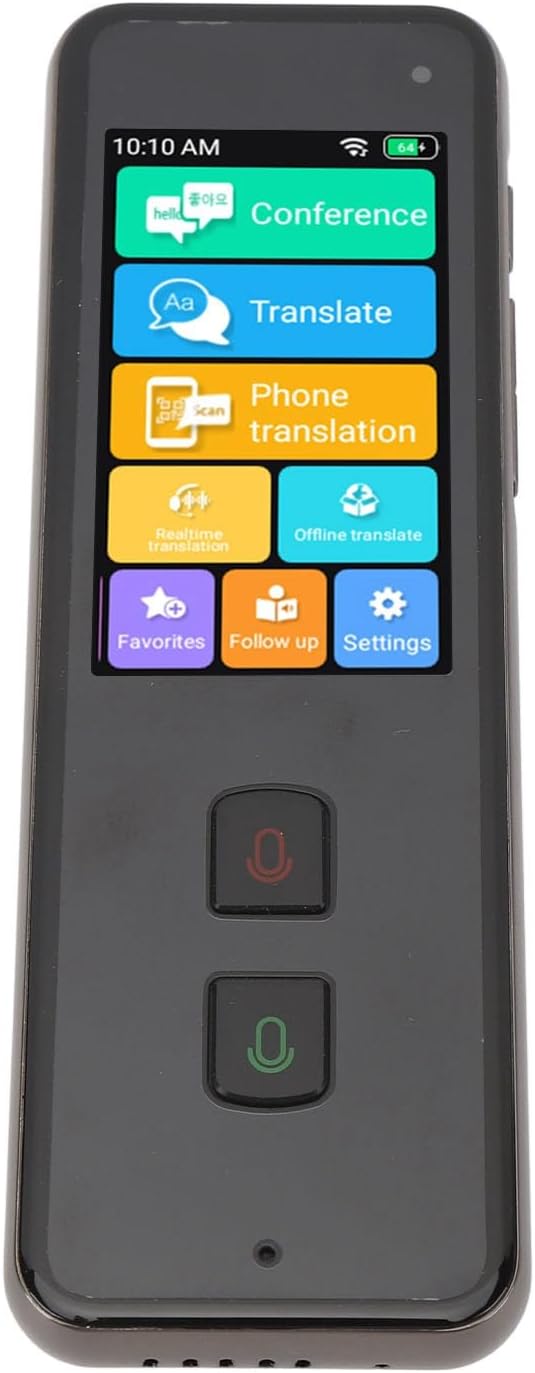
Image 3.1: Translator device screen interface.
3.1 Online Translation (138 Languages)
Ensure the device is connected to Wi-Fi for online translation.
- From the home screen, tap the Translate icon.
- Select your source language (the language you will speak) and target language (the language you want to translate to).
- Press and hold the designated microphone button (usually indicated by a color or icon) for your source language. Speak clearly into the device's microphone.
- Release the button. The device will process your speech and display/speak the translation in the target language.
3.2 Offline Translation (15 Languages)
Offline translation allows use without an internet connection. Ensure necessary language packs are downloaded beforehand.
- Tap the Offline Translate icon on the home screen.
- Select the desired offline language pairs.
- Proceed with speaking as described in the online translation section.
3.3 Photo Translation (40 Offline, 74 Online)
This feature translates text from images using the built-in 5MP rear camera.
- Tap the Phone Translation or Realtime Translation icon (depending on the specific interface for camera translation).
- Point the camera at the text you wish to translate.
- Ensure the text is well-lit and clear within the camera's frame.
- The device will capture and translate the text.
3.4 Two-Way Translation
The device supports seamless two-way communication. After one person speaks and the translation is provided, the other person can speak in their language, and the device will translate it back.
3.5 Noise-Canceling Microphone
The integrated noise-canceling microphone helps ensure clear and precise language input, even in environments with background noise. Speak directly into the microphone for best results.
4. Maintenance
4.1 Cleaning
- Use a soft, dry, lint-free cloth to clean the device's screen and body.
- Do not use liquid cleaners, aerosols, or abrasive materials, as these can damage the device.
4.2 Battery Care
- Avoid exposing the device to extreme temperatures (hot or cold) as this can affect battery life and performance.
- If storing the device for an extended period, ensure it has at least a 50% charge to preserve battery health.
- Use only the provided USB cable for charging.
4.3 Storage
Store the device in a cool, dry place away from direct sunlight and moisture when not in use.
5. Troubleshooting
| Problem | Possible Cause / Solution |
|---|---|
| Device does not power on. |
|
| Translation is inaccurate or not working. |
|
| Wi-Fi connection issues. |
|
| Poor audio quality. |
|
6. Specifications
| Model Number | Yunirpgyt7v3nz8 |
| Material | Aluminum Alloy |
| Operating System | For Android 5.1 |
| Screen Type | 2.45 inch 240 x 432 Touch Screen |
| Memory | 1GB RAM + 8GB ROM |
| Rear Camera | 5MP |
| Wi-Fi | 2.4G (802.11a/b/g/n) |
| Bluetooth | 4.2 |
| Battery Type | Built-in 1250mAh Lithium Ion Battery |
| Battery Life | Over 7 days standby, 8+ hours continuous work |
| Online Translation | 138 Languages |
| Offline Translation | 15 Languages |
| Photo Translation | 40 Offline, 74 Online |
| System Languages | Danish, Japanese, German, Thai, Vietnamese, Greek, Filipino, Korean, Arabic, French, Spanish, Italian, Portuguese, Russian, English, Chinese, Bengali, Malay, Burmese |
| Dimensions | 6.3 x 3.54 x 1.57 inches (Package) |
| Item Weight | 8.9 ounces |
7. Warranty Information
Specific warranty details for the Yunir Real Time Language Translator (Model: Yunirpgyt7v3nz8) are typically provided at the point of purchase or included with the product packaging. Please refer to the documentation provided by your retailer or contact the manufacturer directly for comprehensive warranty terms and conditions.
8. Customer Support
For technical assistance, troubleshooting beyond this manual, or inquiries regarding your device, please contact the seller or the manufacturer, Yunir. Refer to your purchase receipt or the product packaging for contact information.