
Guiheng B0DPGJ8ZH5
User Manual: Guiheng Wireless Keyboard and Mouse Combo
Model: B0DPGJ8ZH5 | Brand: Guiheng
Introduction
This manual provides comprehensive instructions for the Guiheng Wireless Keyboard and Mouse Combo. This versatile combo supports dual-mode connectivity, including 2.4G wireless and Bluetooth (versions 5.0 and 3.0), allowing seamless connection to multiple devices such as Windows PCs, iPads, tablets, MacOS, iOS, and Android devices. The keyboard features an integrated stand for phones and tablets, and both the keyboard and mouse are designed for quiet operation, enhancing focus during use.
Please read this manual carefully before using the product to ensure proper operation and to maximize its lifespan.
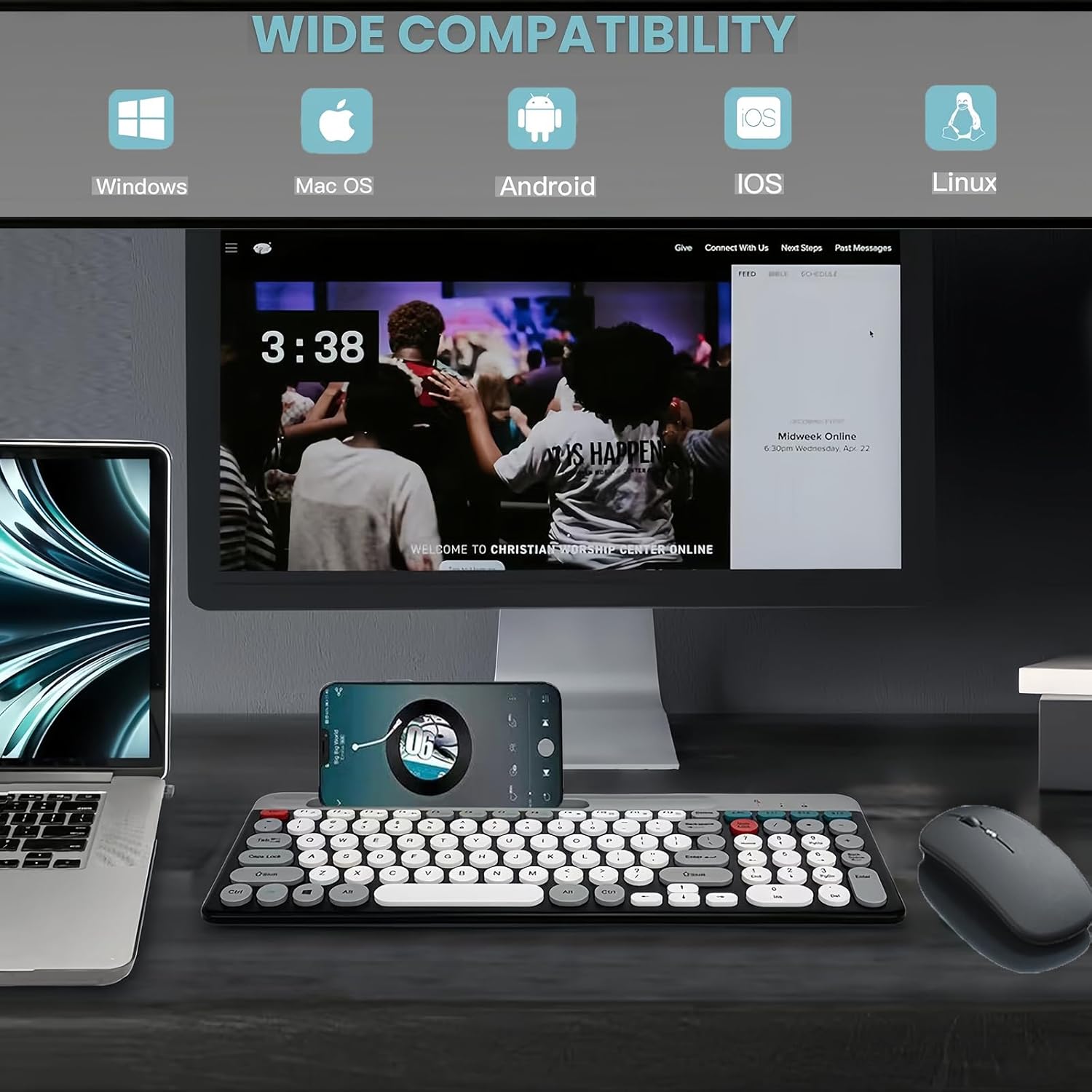
The Guiheng Wireless Keyboard and Mouse Combo offers wide compatibility across various operating systems, including Windows, Mac OS, Android, iOS, and Linux, making it a versatile choice for different devices.
Package Contents
- Wireless Keyboard
- Wireless Mouse
- 2.4G USB Receiver (stored in the mouse battery compartment)
- USB Charging Cable (Type-C for keyboard, Micro USB for mouse)
- User Manual
Product Overview
Keyboard and Mouse Layout

The keyboard features a full layout with an integrated slot for holding smartphones or tablets. The accompanying mouse is compact and designed for silent clicks.
Key Components and Indicators

This image highlights the 2.4G receiver storage compartment and power switch on the mouse, along with the keyboard's charging port and mode switch indicator lights (2.4G, BT1, BT2, BT3).
Product Dimensions
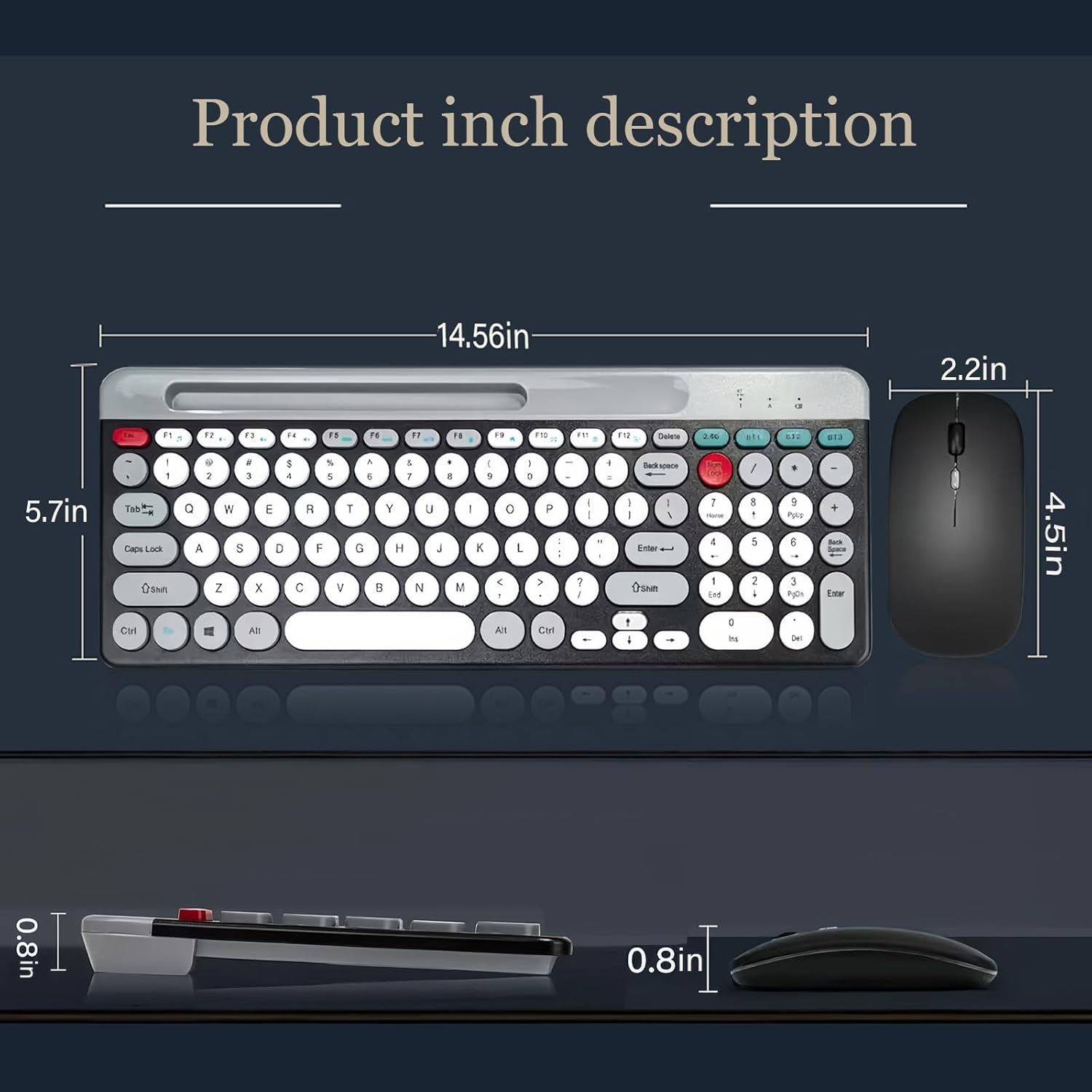
The diagram illustrates the compact dimensions of both the keyboard and mouse, designed for portability and efficient desk space usage.
Setup
1. Charging the Devices
Both the keyboard and mouse are rechargeable. Ensure they are fully charged before first use for optimal performance.
- Keyboard Charging: Connect the provided USB charging cable (Type-C) to the keyboard's charging port and the other end to a USB power source (e.g., computer USB port, USB wall adapter). The charging indicator will blink red when low on power and turn off when fully charged.
- Mouse Charging: Connect the provided USB charging cable (Micro USB) to the mouse's charging port. The scroll wheel will light up during charging and turn off when fully charged. Disconnect the cable once charging is complete.
2. Connectivity Modes
The combo supports three connection modes: 2.4G wireless, Bluetooth 5.0 (BT2/BT3), and Bluetooth 3.0 (BT1).
2.1. 2.4G Wireless Connection (Keyboard and Mouse Shared Receiver)
- Turn on your computer.
- Locate the 2.4G wireless receiver at the bottom of the mouse and plug it into an available USB port on your computer.
- Flip the power switch at the bottom of the mouse to the "ON" position.
- Turn the power switch on the keyboard to "ON".
- Press the 2.4G key on the keyboard for one to three seconds to switch to 2.4G mode. The indicator in the upper right corner will blink red. Once the red light stops blinking, the connection is successful, and both the keyboard and mouse can be used in 2.4G mode.

The 2.4G wireless connection utilizes a small USB receiver that plugs into your computer's USB port for instant plug-and-play functionality.
2.2. Bluetooth Connection (BT1, BT2, BT3)
The keyboard supports three Bluetooth channels (BT1, BT2, BT3) for connecting to multiple devices simultaneously. The mouse also connects via Bluetooth.
- For Bluetooth 3.0 (BT1):
- Switch the keyboard's power switch to "ON".
- Press and hold the BT1 key for 3 seconds until the green light at the icon flashes.
- On your device (e.g., iPad Air with Bluetooth 3.0), open Bluetooth settings and search for "BT3.0 Keyboard". Connect to it.
- To switch back to this mode later, press BT1 for one second.
- For Bluetooth 5.0 (BT2/BT3):
- Switch the keyboard's power switch to "ON".
- Press and hold the BT2 or BT3 key for 3 seconds until the green light flashes.
- On your device (e.g., iPad Air with Bluetooth 5.0), open Bluetooth settings and search for "BT5.0 Keyboard". Connect to it.
- To switch back to this mode later, press BT2 or BT3 for one second.
Operating Instructions
1. Switching Between Connected Devices
Once multiple devices are paired (via 2.4G, BT1, BT2, BT3), you can quickly switch between them by pressing the corresponding mode key (2.4G, BT1, BT2, or BT3) for one second. The indicator light will confirm the active connection.
2. Using Multimedia Keys
The keyboard includes dedicated multimedia function keys (F1-F12) that can be accessed by pressing the Fn key simultaneously with the desired function key.
| Key Combination | Function |
|---|---|
| Fn + F1 | Music Player |
| Fn + F2 | Volume Down |
| Fn + F3 | Volume Up |
| Fn + F4 | Mute |
| Fn + F5 | Previous Song |
| Fn + F6 | Next Song |
| Fn + F7 | Play/Pause |
| Fn + F8 | Stop |
| Fn + F9 | Front Page (Home) |
| Fn + F10 | |
| Fn + F11 | My Computer |
| Fn + F12 | Collection |

The keyboard's multimedia keys provide quick access to various functions, improving efficiency.
3. Mouse Operation
- DPI Adjustment: The mouse may have a DPI key (often near the scroll wheel) to adjust cursor sensitivity. Press it to cycle through available DPI settings.
- Auto-Sleep Function: To conserve battery, the mouse will enter an auto-sleep condition after approximately 50 seconds of inactivity. To reactivate it, simply press the left or right mouse button.
Maintenance
- Cleaning: Use a soft, dry cloth to clean the surfaces of the keyboard and mouse. For stubborn dirt, a slightly damp cloth with mild soap can be used, ensuring no liquid enters the device. Avoid abrasive cleaners or solvents.
- Storage: When not in use for extended periods, store the keyboard and mouse in a cool, dry place away from direct sunlight and extreme temperatures. Ensure the power switches are turned off to conserve battery life.
- Battery Care: Recharge the devices when the low power indicator appears. Avoid completely draining the battery frequently, as this can reduce its lifespan.
Troubleshooting
If you encounter issues with your Guiheng Wireless Keyboard and Mouse Combo, please refer to the following common solutions:
Q1: Keyboard is not compatible with iPad Air or other devices?
Ensure your iPad Air's Bluetooth version is compatible and follow the correct pairing steps:
- For iPad Air with Bluetooth 3.0:
- Switch the keyboard's power switch to "ON".
- Press and hold the BT1 key for 3 seconds until the green light flashes.
- On your iPad, search for "BT3.0 Keyboard" in Bluetooth settings and connect.
- For iPad Air with Bluetooth 5.0:
- Switch the keyboard's power switch to "ON".
- Press and hold the BT2 or BT3 key for 3 seconds until the green light flashes.
- On your iPad, search for "BT5.0 Keyboard" in Bluetooth settings and connect.
- Low Power: If the charging indicator blinks red, the keyboard's battery is low. Please charge it.
Q2: The keyboard and mouse do not connect with the computer (2.4G mode)?
Follow these steps for 2.4G wireless receiver connection:
- Ensure your computer is turned on.
- Plug the wireless USB receiver (located at the bottom of the mouse) into a USB port on your computer.
- Flip the power switch at the bottom of the mouse to the "ON" position.
- Turn the power switch on the keyboard to "ON" and press the 2.4G key for one to three seconds. The indicator in the upper right corner should blink red and then stop, indicating a successful connection.
Q3: The mouse randomly disconnects?
- Low Battery: If the mouse randomly disconnects or the connection signal weakens, check if the battery is low. Charge the mouse promptly if needed.
- Auto-Sleep: The mouse enters an auto-sleep mode after about 50 seconds of no operation. Press the left or right mouse button to activate it.
General Troubleshooting Steps:
If the above steps do not resolve the issue, perform the following:
- Check the connector integrity (ensure cables/receivers are securely plugged in).
- Check the connection to the device (re-pair Bluetooth, re-insert 2.4G receiver).
- Check your device settings (Bluetooth enabled, correct input selected).
- Check the battery level of both keyboard and mouse.
- Disconnect and reconnect the device.
- Restart the device (computer, tablet, phone) if the problem persists.
If issues continue, please contact customer support for further assistance.
Specifications
| Feature | Detail |
|---|---|
| Brand | Guiheng |
| Model | B0DPGJ8ZH5 |
| Connectivity Technology | 2.4G Wireless, Bluetooth 5.0, Bluetooth 3.0 |
| Compatible Devices | Windows (7 and above), MacOS, iOS, Android, USB compatible devices |
| Special Feature | Integrated Phone/Tablet Holder, Ergonomic Design, Silent Keys/Clicks |
| Color | White+Grey |
| Item Weight | 1.65 pounds (approx. 0.75 kg) |
| Package Dimensions | 15.16 x 6.26 x 2.13 inches (approx. 38.5 x 15.9 x 5.4 cm) |
| Manufacturer | Guiheng |
Safety Precautions
To ensure safe operation and prevent damage to the device, please observe the following precautions:
- Keep the equipment dry and away from precipitation, moisture, and all kinds of liquids and condensate.
- Do not use this product with wet hands.
- Do not use or store the device in dusty or dirty places.
- Do not store the equipment in hot or cold conditions, as this may damage the equipment.
- Do not drop, knock, or shake the equipment, as misuse may cause damage.
- Avoid exposing the device to strong magnetic fields.
- Do not attempt to disassemble or modify the product. Repairs should only be performed by qualified personnel.
Warranty and Support
This product comes with a standard manufacturer's warranty. For specific warranty terms and conditions, please refer to the warranty card included in your package or contact the seller directly.
For technical support, troubleshooting assistance, or any inquiries regarding your Guiheng Wireless Keyboard and Mouse Combo, please contact the seller or manufacturer through the platform where you purchased the product. Provide your product model number (B0DPGJ8ZH5) and a detailed description of the issue for faster service.
Ask a question about this manual
Ask about setup, troubleshooting, compatibility, parts, safety, or missing instructions. Manuals+ will review the question and use this page’s manual context to help answer it.