
Jonsbo ZA-240B
JONSBO ZA-240B PC Case Fan Instruction Manual
Model: ZA-240B
1. Introduction
This manual provides detailed instructions for the installation, operation, and maintenance of your JONSBO ZA-240B PC Case Fan. Please read this manual thoroughly before installation and use to ensure proper function and longevity of the product. The JONSBO ZA-240B is an all-in-one unit featuring two 120mm ARGB fans, designed for efficient cooling and customizable lighting within a PC chassis.
2. Safety Information
- Ensure your computer system is powered off and unplugged from the wall outlet before installation or maintenance.
- Avoid touching the fan blades while the fan is operating.
- Handle the fan unit carefully to prevent damage to components or wiring.
- Do not expose the product to moisture or extreme temperatures.
- Use only compatible power and ARGB connectors as specified. Incorrect connections may cause damage.
- Keep out of reach of children.
3. Package Contents
Verify that all items are present in the package:
- JONSBO ZA-240B PC Case Fan Unit (with 2x120mm ARGB Fans)
- Mounting Screws
- Documentation (this manual)

Image: JONSBO ZA-240B fan unit with its integrated cables for power and ARGB connection.
4. Product Features
- All-in-One Design: Single frame unit integrating two 120mm ARGB fans, simplifying installation and cable management.
- ARGB Infinity Mirror: Features 4-sides thousand-layer mirror illusion with 52 lamp beads around the circumference and 18 in the axis for dynamic lighting effects.
- Addressable RGB Sync: Direct 3-pin ARGB connection to compatible motherboards for synchronized lighting control and over 16 million color effects.
- PWM Control: Quiet and low-noise PWM fan operation with an integrated male/female head for speed regulation.
- Aluminum Nameplate: Includes an aluminum CD pattern nameplate for enhanced aesthetics.
- Simplified Cabling: One-line connection to the motherboard for both fan power and ARGB lighting.

Image: Front view of the JONSBO ZA-240B PC Case Fan showcasing its ARGB lighting and infinity mirror effect.
5. Setup and Installation
Follow these steps to install the JONSBO ZA-240B PC Case Fan into your computer chassis:
- Prepare Your System: Power off your computer and unplug it from the power outlet. Open your PC case to access the interior.
- Identify Mounting Location: Determine the desired mounting location for the fan unit (e.g., top, front, bottom, or side of the case). Ensure there is sufficient clearance.
- Secure the Fan Unit: Align the fan unit with the screw holes in your PC case. Use the provided mounting screws to firmly attach the fan unit to the chassis. Do not overtighten.
- Connect PWM Cable: Locate an available 4-pin PWM fan header on your motherboard. Connect the 4-pin PWM connector from the fan unit to this header. This allows the motherboard to control fan speed.
- Connect ARGB Cable: Locate an available 3-pin 5V Addressable RGB header on your motherboard. Connect the 3-pin ARGB connector from the fan unit to this header. Ensure the arrow on the connector aligns with the +5V pin on the motherboard header to prevent damage. Do not connect to a 12V RGB header.
- Cable Management: Route the cables neatly to avoid interference with other components and to improve airflow.
- Close Case and Power On: Once all connections are secure, close your PC case, plug in the power cable, and power on your system.

Image: JONSBO ZA-240B fan unit installed at the top of a PC case, demonstrating typical mounting.
6. Operation
Fan Speed Control (PWM)
The JONSBO ZA-240B fan unit utilizes Pulse Width Modulation (PWM) technology, allowing your motherboard to dynamically adjust fan speeds based on system temperature. This ensures optimal cooling performance while minimizing noise levels. You can configure fan curves through your motherboard's BIOS/UEFI settings or using compatible software provided by your motherboard manufacturer.
ARGB Lighting Control
The Addressable RGB (ARGB) lighting of the ZA-240B can be controlled via your motherboard's ARGB software (e.g., ASUS Aura Sync, MSI Mystic Light Sync, GIGABYTE RGB Fusion, ASRock Polychrome Sync). Ensure your motherboard supports 3-pin 5V ARGB headers. This software allows you to customize lighting effects, colors, and synchronization with other ARGB components in your system.
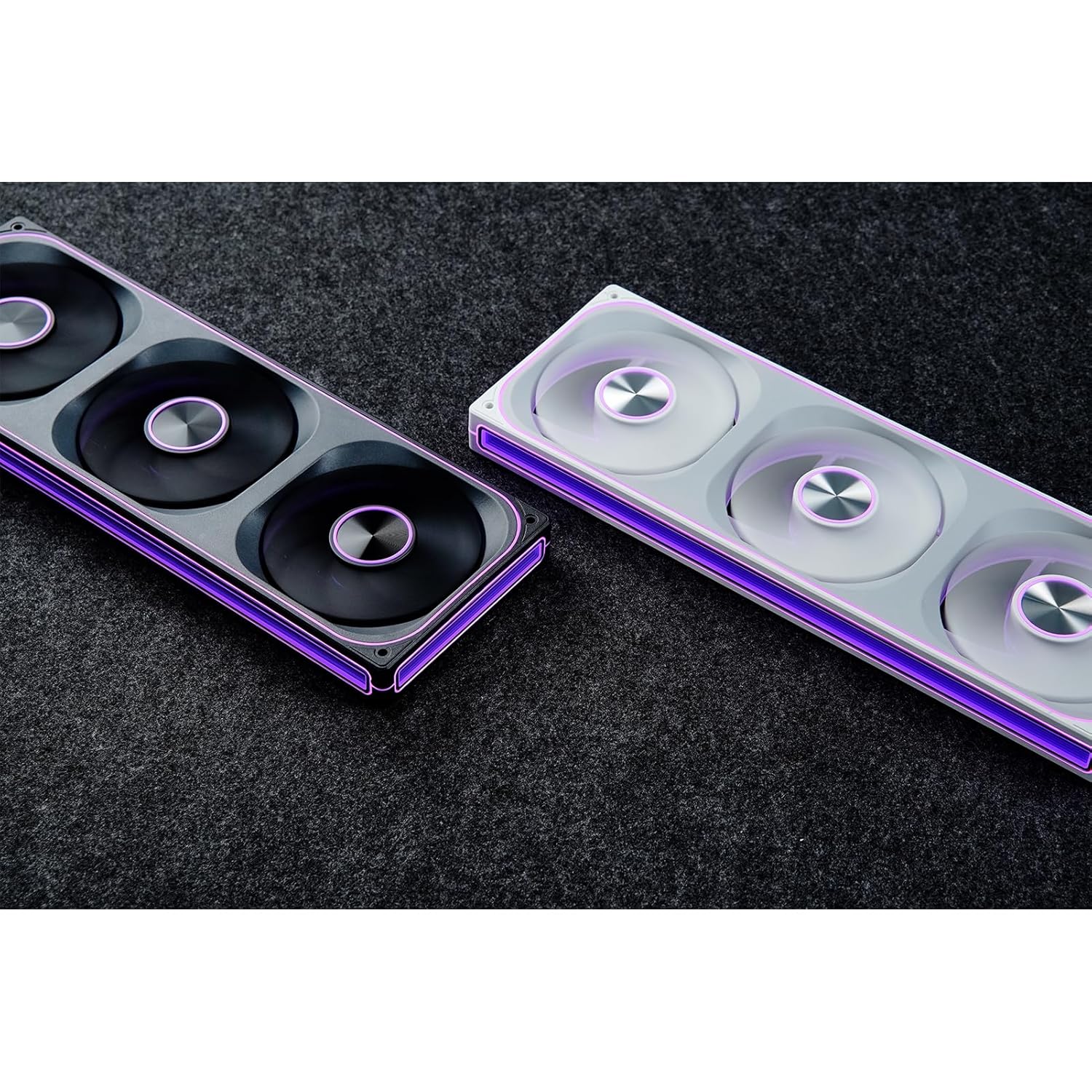
Image: The JONSBO ZA-240B fan unit displaying its customizable ARGB lighting within a computer system.
7. Maintenance
Regular maintenance helps ensure optimal performance and extends the lifespan of your fan unit.
- Dust Removal: Periodically clean dust from the fan blades and frame using compressed air or a soft brush. Ensure the system is powered off and unplugged before cleaning.
- Inspection: Occasionally inspect the fan and its cables for any signs of wear, damage, or loose connections.
8. Troubleshooting
| Issue | Possible Cause | Solution |
|---|---|---|
| Fan not spinning | Loose or incorrect PWM cable connection. Insufficient power. | Check the 4-pin PWM cable connection to the motherboard. Ensure the motherboard is supplying power to the fan header. |
| ARGB lighting not working | Loose or incorrect ARGB cable connection. Connected to 12V RGB header. Motherboard ARGB software not configured. | Verify the 3-pin ARGB cable is securely connected to a 5V ARGB header. Ensure it is not connected to a 12V RGB header. Check motherboard ARGB software settings. |
| Fan is too loud | Fan speed set too high. Obstruction. | Adjust fan speed settings in your motherboard's BIOS/UEFI or software. Ensure no cables or objects are obstructing the fan blades. |
| Poor cooling performance | Insufficient airflow. Dust buildup. Incorrect fan orientation. | Ensure proper airflow within the case. Clean dust from fans. Verify fan is oriented to push or pull air in the desired direction. |
9. Specifications
| Feature | Detail |
|---|---|
| Model Number | ZA-240B |
| Fan Size | 2 x 120mm (integrated unit) |
| Fan Thickness | 28mm |
| Rotational Speed | 700-2400 RPM (±10%) |
| Noise Level | 21.3-37.3 dB(A) |
| Power Connector | 4-Pin PWM |
| ARGB Connector | 3-Pin 5V ARGB |
| Voltage | DC 12 Volts (Fan), 5 Volts (LED) |
| Wattage | 5.16 watts (Fan), 5.80 watts (LED) |
| Compatible Devices | PC Case |
| Dimensions (Parcel) | 29.97 x 15.75 x 4.19 cm |
| Weight (Parcel) | 707.6 g |
10. Warranty and Support
For warranty information and technical support, please refer to the official JONSBO website or contact your retailer. Keep your proof of purchase for warranty claims.
Related documentsZA-240B


Ask a question about this manual
Ask about setup, troubleshooting, compatibility, parts, safety, or missing instructions. Manuals+ will review the question and use this page’s manual context to help answer it.