1. Introduction
This manual provides essential instructions for setting up, operating, and maintaining your QDDQ T901 10-inch Android 14 Tablet. The tablet features an octa-core processor, 24GB (6GB physical + 18GB virtual) expandable RAM, 256GB internal storage expandable up to 1TB, an 8000mAh battery, 5G WiFi, Bluetooth 5.0, GMS certification, and Widevine L1 support for an enhanced user experience.

Image 1.1: QDDQ T901 Tablet and included accessories.
2. Package Contents
Verify that all items are present in your package:
- 1 x QDDQ T901 10-inch Tablet
- 1 x Keyboard
- 1 x Mouse
- 1 x Stylus
- 1 x Protective Case
- 1 x User Manual
- 1 x USB Charger
- 1 x Type-C Cable
- 1 x OTG Cable
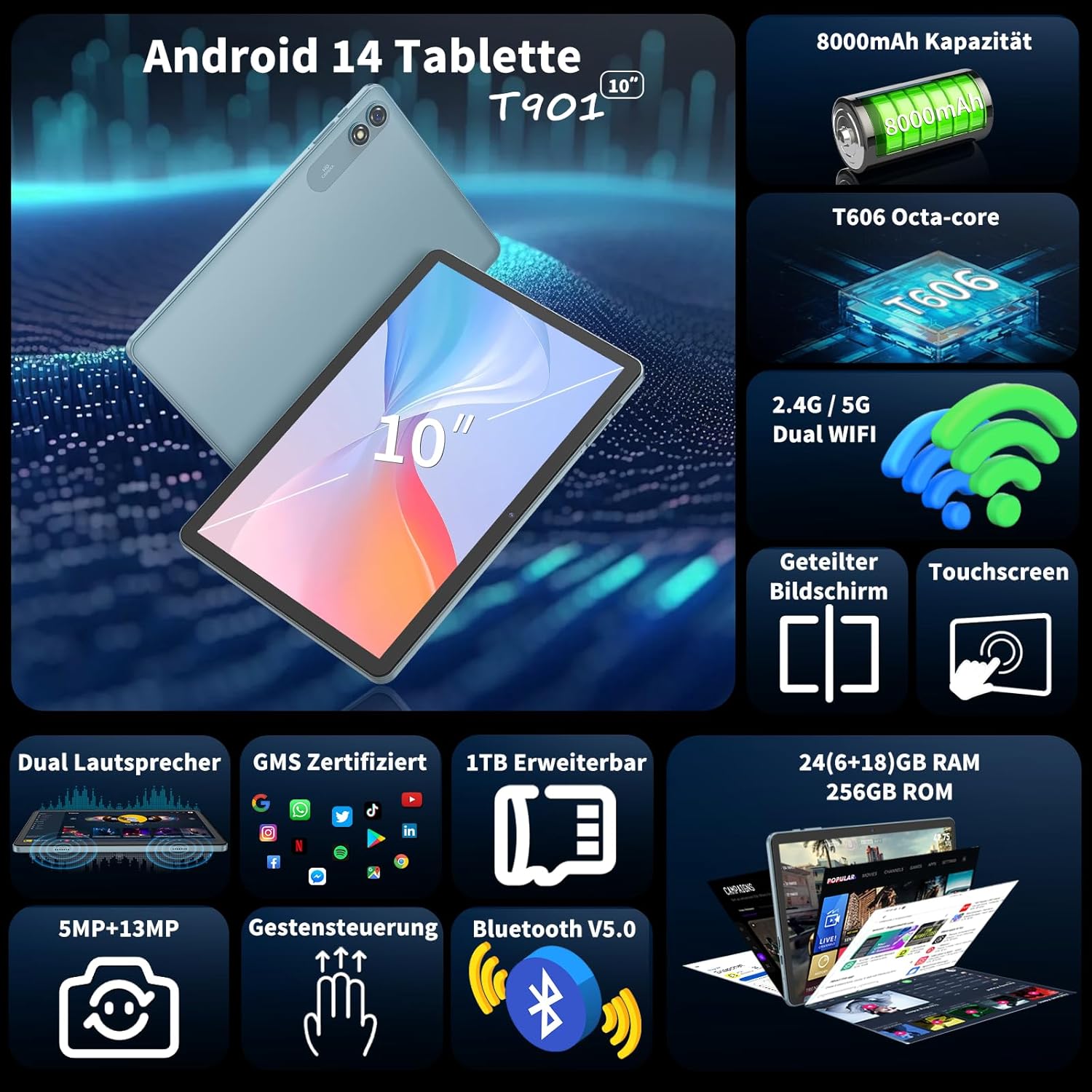
Image 2.1: Overview of tablet features and accessories.
3. Setup
3.1 Initial Charging
Before first use, fully charge the tablet using the provided USB charger and Type-C cable. The 8000mAh battery ensures extended usage.
3.2 Power On/Off
- To Power On: Press and hold the power button until the screen illuminates.
- To Power Off: Press and hold the power button, then select 'Power off' from the options.
3.3 Connecting Accessories
The tablet supports Bluetooth 5.0 for connecting the included keyboard, mouse, and stylus.
- Go to Settings > Connected devices > Bluetooth.
- Turn on Bluetooth.
- Put your accessory (keyboard, mouse, stylus) into pairing mode. Refer to the accessory's individual manual if needed.
- Select the accessory from the list of available devices on your tablet to pair.
3.4 Wi-Fi Connection
Connect to a wireless network for internet access.
- Go to Settings > Network & internet > Internet.
- Turn on Wi-Fi.
- Select your desired 2.4G or 5G Wi-Fi network from the list.
- Enter the password if prompted and tap Connect.

Image 3.1: Tablet usage scenarios highlighting connectivity.
4. Operating Instructions
4.1 Android 14 Features
The QDDQ T901 runs on Android 14, offering enhanced privacy settings, granular permission control, and a user-friendly interface. Access the Google Play Store to download a wide range of applications including social media, streaming services, and productivity tools.

Image 4.1: Android 14 user interface and features.
4.2 Multitasking and Split Screen
Utilize the split-screen feature to run two applications simultaneously, enhancing productivity. To activate, open a recent apps view and drag an app to one side of the screen, then select another app for the other side.
4.3 Storage Management
The tablet comes with 256GB of internal storage. For additional space, insert a Micro SD/TF card (up to 1TB) into the designated slot. Manage your files and applications through the 'Files' app or by navigating to Settings > Storage.
4.4 Media Consumption
With Widevine L1 support, the tablet can stream high-definition content from popular streaming services. The 10-inch IPS display with 1280x800 resolution provides a clear viewing experience. Dual speakers offer improved audio quality.

Image 4.2: Display features and streaming capabilities.
4.5 Camera Usage
The tablet is equipped with a 5MP front camera and a 13MP rear camera. Open the 'Camera' app to capture photos and videos.

Image 4.3: Tablet camera features.
5. Maintenance
5.1 Battery Care
To prolong battery life, avoid extreme temperatures and fully discharging the battery frequently. Use only the provided charger or a compatible Type-C charger. The 8000mAh battery offers approximately 16.5 hours of usage and 720 hours of standby time.

Image 5.1: Battery specifications and charging.
5.2 Cleaning
Use a soft, lint-free cloth to clean the screen and body of the tablet. Avoid using harsh chemicals or abrasive materials.
5.3 Software Updates
Ensure your tablet's software is up to date for optimal performance and security. Check for updates in Settings > System > System update.
6. Troubleshooting
If you encounter issues with your tablet, try the following steps:
- Tablet not turning on: Ensure the battery is charged. Connect the charger and wait a few minutes before attempting to power on again.
- Slow performance: Close unused applications, clear cache, or restart the tablet. Consider reducing the number of widgets on your home screen.
- Wi-Fi connectivity issues: Restart your router and the tablet. Ensure you are within range of the Wi-Fi signal and have entered the correct password.
- Bluetooth pairing problems: Ensure both the tablet and the accessory are in pairing mode and within range. Try unpairing and re-pairing the device.
- Apps crashing: Clear the app's cache and data (Settings > Apps > [App Name] > Storage & cache). If the issue persists, reinstall the app.
- Screen unresponsive: Perform a forced restart by holding the power button for approximately 10-15 seconds.
If problems persist, consult the QDDQ support resources or contact customer service.
7. Specifications
| Feature | Specification |
|---|---|
| Brand | QDDQ |
| Model Number | T901 |
| Series | TB02 |
| Operating System | Android 14 |
| Processor | Octa-core (AMD, Unisoc T606) |
| Installed RAM | 12GB (Up to 24GB with 6GB physical + 18GB virtual expandable RAM) |
| Internal Storage | 256GB |
| Expandable Storage | Up to 1TB via Micro SD/TF card |
| Display Size | 10 Inches |
| Display Resolution | 1280 x 800 Pixels |
| Battery Capacity | 8000 mAh (1 Lithium-ion battery included) |
| Wi-Fi Connectivity | 2.4G/5G Dual-band 802.11ac |
| Bluetooth | Bluetooth 5.0 |
| Front Camera | 5MP |
| Rear Camera | 13MP |
| USB Interface | USB Type-C |
| Dimensions (L x W x H) | 10 x 7.6 x 10.7 cm |
| Weight | 1.45 Kilograms |
| GMS Certified | Yes |
| Widevine L1 Support | Yes |
| SIM Card Support | Not supported |
For detailed product information and energy efficiency, refer to the official EU EPREL database:
EU EPREL Product Information (QR: 2385349)

Image 7.1: QDDQ T901 Product Data Sheet.

Image 7.2: EU Energy Label for QDDQ T901.
8. Warranty and Support
For warranty information, please refer to the documentation included with your purchase or contact QDDQ customer support. For technical assistance or further inquiries, please visit the official QDDQ website or contact their support channels.


