Product Overview
These cutting-edge wireless earbuds offer an immersive audio experience with advanced features designed for convenience and clarity. Equipped with a full-color touch screen on the charging case, you can easily control various settings, including equalizer adjustments and personalized screensavers. The earbuds feature advanced Environmental Noise Cancellation (ENC) for crystal-clear calls and Active Noise Cancellation (ANC) for an uninterrupted listening experience.

Image: The white wireless earbuds are shown alongside their compact charging case, which features a vibrant color touch screen. The screen displays various icons and information, indicating its interactive capabilities.
Available in sleek white or classic black, these earbuds combine style with functionality, ensuring an unparalleled audio journey for music listening and phone calls.
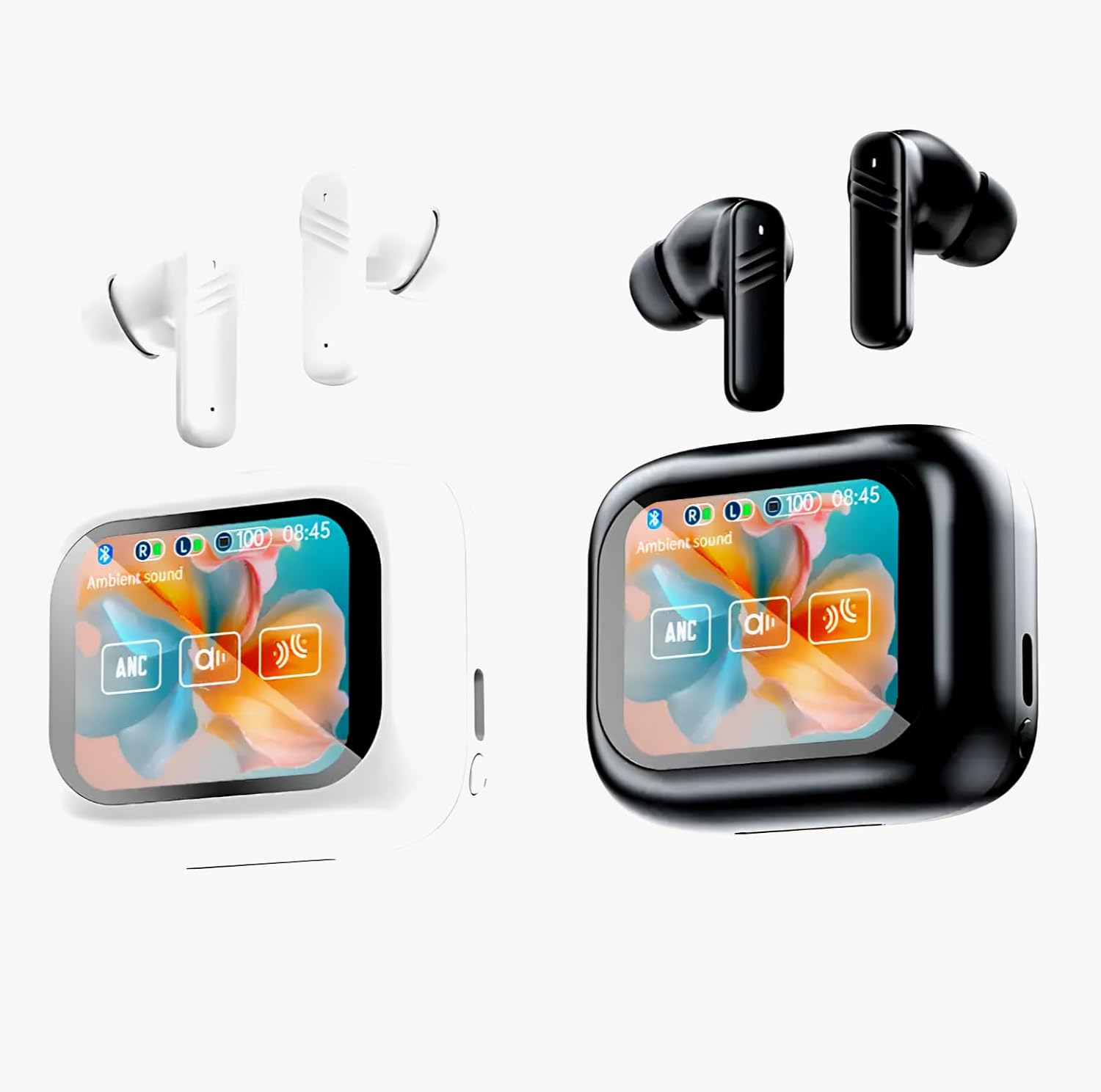
Image: A side-by-side comparison of the white and black versions of the wireless earbuds and their charging cases. Both cases prominently display their color touch screens, highlighting the available color options for the product.
Setup Guide
1. What's in the Box
- Wireless Earbuds (Left and Right)
- Charging Case with Touch Screen
- USB Charging Cable
- User Manual (this document)
2. Initial Charging
Before first use, fully charge the earbuds and the charging case.
- Place the earbuds into the charging case. Ensure they are correctly seated in their respective slots.
- Connect the USB charging cable to the charging port on the case and plug the other end into a compatible USB power source (e.g., computer USB port, wall adapter).
- The screen on the charging case will indicate the charging status. A full charge typically takes approximately 1-2 hours for the earbuds and 2-3 hours for the case.

Image: The white earbuds are securely placed within their charging case, which is open to show the earbuds. This illustrates the correct placement for charging or storage.
3. Pairing with Your Device
- Ensure the earbuds are in the charging case and the case has sufficient battery.
- Open the charging case lid. The earbuds will automatically enter pairing mode, and a Bluetooth indicator will appear on the case's screen.
- On your device (smartphone, tablet, laptop), go to Bluetooth settings and turn Bluetooth on.
- Search for available devices. Select "Simply Everyday Earbuds" (or similar name) from the list.
- Once connected, the case screen will show a connected status, and you will hear an audio prompt from the earbuds.
- For subsequent uses, the earbuds will automatically connect to the last paired device when removed from the case, provided Bluetooth is enabled on the device.
Operating Instructions
1. Touch Screen Controls (Charging Case)
The charging case features a full-color touch screen for intuitive control over various functions without needing your connected device.
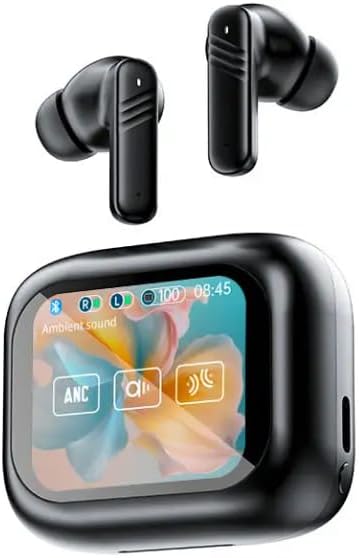
Image: A detailed view of the charging case's touch screen. The display shows icons for ambient sound, ANC (Active Noise Cancellation), and other settings, demonstrating the interactive interface for controlling earbud functions.
- Navigation: Swipe left/right or up/down on the screen to browse through different menus and settings.
- Selection: Tap on an icon or option to select it.
- Equalizer Adjustment: Access the equalizer settings from the main menu to customize audio profiles (e.g., Bass Boost, Vocal, Flat).
- Screensavers: Personalize your case display by selecting from various pre-loaded screensavers or uploading your own (refer to the app for custom uploads).
- Battery Status: The screen displays the battery levels of both earbuds and the charging case.
2. Earbud Touch Controls
Each earbud has touch-sensitive areas for controlling playback, calls, and noise control modes.
| Action | Left Earbud | Right Earbud |
|---|---|---|
| Play/Pause | Single Tap | Single Tap |
| Next Track | Double Tap | Double Tap |
| Previous Track | Triple Tap | Triple Tap |
| Answer/End Call | Single Tap | Single Tap |
| Reject Call | Press and Hold (2s) | Press and Hold (2s) |
| Toggle ANC/Transparency Mode | Press and Hold (3s) | Press and Hold (3s) |
| Activate Voice Assistant | Quadruple Tap | Quadruple Tap |
3. Noise Control Modes
- Active Noise Cancellation (ANC): Reduces ambient noise for an immersive listening experience. Ideal for travel or noisy environments.
- Transparency Mode: Allows you to hear your surroundings while still enjoying your audio. Useful for awareness in urban areas.
- ENC Call Noise Reduction: Specifically designed to reduce background noise during phone calls, ensuring your voice is clear to the recipient. This feature is automatically active during calls.
Maintenance
1. Cleaning
Regular cleaning helps maintain sound quality and extends the lifespan of your earbuds.
- Use a soft, dry, lint-free cloth to wipe the earbuds and charging case.
- For stubborn dirt, slightly dampen the cloth with water or a mild, non-abrasive cleaner. Avoid getting liquid into openings.
- Gently clean the ear tips and speaker mesh with a cotton swab or a small, soft brush to remove earwax or debris.
- Do not use harsh chemicals, alcohol, or abrasive materials.
2. Storage
When not in use, always store the earbuds in their charging case to protect them from dust, dirt, and physical damage.
- Store in a cool, dry place, away from direct sunlight and extreme temperatures.
- Avoid storing in humid environments.
3. Battery Care
To maximize battery life:
- Avoid fully discharging the battery frequently.
- Charge the case and earbuds regularly, even if not used for extended periods.
- Do not expose the device to extreme heat or cold.
Troubleshooting
If you encounter issues with your earbuds, refer to the following common problems and solutions:
| Problem | Possible Cause | Solution |
|---|---|---|
| Earbuds not pairing/connecting | Bluetooth off, out of range, low battery, interference. |
|
| No sound from one or both earbuds | Low battery, not properly seated, volume too low, connection issue. |
|
| Charging case not charging | Faulty cable/adapter, dirty charging port. |
|
| Touch controls not responding | Dirty sensor, temporary software glitch. |
|
Specifications
| Feature | Detail |
|---|---|
| Model Name | 8JR-00001 |
| Item Model Number | 5569-55 |
| Connectivity Technology | Bluetooth, Wireless |
| Wireless Communication Technology | Bluetooth |
| Control Type | Touch Screen (Case), Touch (Earbuds) |
| Noise Control | Active Noise Cancellation (ANC), Environmental Noise Cancellation (ENC) for calls |
| Battery Life | Up to 8 Hours (Earbuds) |
| Ear Placement | In Ear |
| Form Factor | In Ear |
| Water Resistance Level | Water Resistant |
| Material | Plastic |
| Included Components | Charging Case, Earbuds, User Manual |
| Manufacturer | Alpha Elite Wholesale Inc. |
| UPC | 683125838392 |
Warranty and Support
Warranty Information
Please refer to the warranty card included in your product packaging for detailed warranty terms and conditions. Typically, products are covered against manufacturing defects for a specified period from the date of purchase. Keep your proof of purchase for warranty claims.
Customer Support
For technical assistance, troubleshooting beyond this manual, or warranty inquiries, please contact the manufacturer, Alpha Elite Wholesale Inc., or the retailer from whom you purchased the product. Contact information can usually be found on the product packaging, the manufacturer's official website, or the purchase receipt.
For the most up-to-date support information, visit the product page on Amazon or the official website of Simply Everyday Products.


