
1. Introduction
Thank you for purchasing the WVCLTVJA 318C Digital Microscope Camera. This device is designed for detailed observation and analysis, featuring a 12MP camera, up to 1600X magnification, and a 7-inch IPS touch screen for intuitive control. This manual provides essential information for the safe and effective use of your microscope. Please read it thoroughly before operation and retain it for future reference.
2. Safety Information
To ensure safe operation and prolong the lifespan of your device, please observe the following precautions:
- Do not expose the microscope to extreme temperatures, humidity, or corrosive substances.
- Avoid direct exposure of the lens to strong light sources, as this may damage the sensor.
- Use only the provided power adapter. Using an incorrect adapter may damage the device or pose a fire hazard.
- Keep the device away from children to prevent accidents.
- Do not attempt to disassemble or modify the microscope. Refer all servicing to qualified personnel.
- Clean the device with a soft, dry cloth. Avoid liquid cleaners directly on the screen or lens.
3. Package Contents
Please check the package contents upon receipt. If any items are missing or damaged, contact your retailer immediately.
- WVCLTVJA 318C Digital Microscope Camera
- Ordinary Lens
- Adjustable Stand
- USB Power Cable
- Power Adapter
- Calibration Ruler
- User Manual (this document)
4. Product Overview
Familiarize yourself with the main components and controls of your WVCLTVJA 318C Digital Microscope.
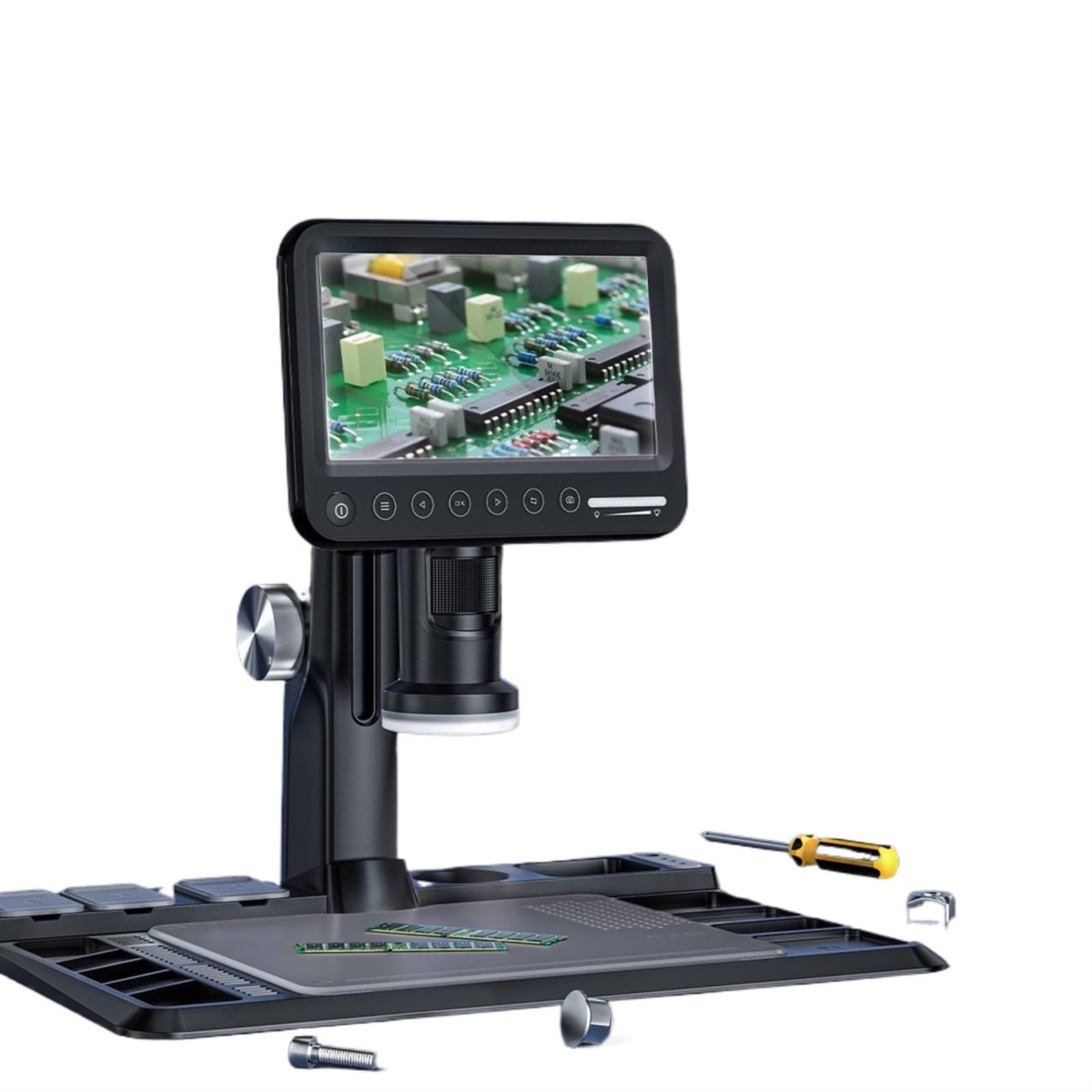
Figure 4.1: WVCLTVJA 318C Digital Microscope Camera. This image illustrates the main unit, including the 7-inch IPS touch screen, the adjustable stand, and the attached ordinary lens. Key components include the screen, focus wheel, magnification adjustment, and power input port.
Key Components:
- 7-inch IPS Touch Screen: For viewing live images, navigating menus, and adjusting settings.
- Ordinary Lens: The primary lens for standard magnification.
- Focus Wheel: Adjusts the focus for clear images.
- Magnification Adjustment: Controls the optical magnification level.
- LED Illumination: Built-in lights to illuminate the specimen.
- Power Button: Turns the device on and off.
- USB Port: For power input and data transfer.
- MicroSD Card Slot: For storing captured images and videos.
5. Setup
5.1 Unpacking and Assembly
- Carefully remove all components from the packaging.
- Place the adjustable stand on a stable, flat surface.
- Attach the microscope main unit to the stand, ensuring it is securely fastened.
5.2 Lens Installation
- Gently screw the ordinary lens onto the microscope body until it is firm. Do not overtighten.
- Ensure the lens is clean and free of dust before use.
5.3 Power Connection
- Connect the USB power cable to the microscope's USB port.
- Plug the other end of the USB cable into the provided power adapter.
- Insert the power adapter into a standard electrical outlet.
5.4 Initial Power On
- Press and hold the Power button on the microscope for a few seconds until the screen illuminates.
- The device will boot up and display the live view from the camera.
6. Operating Instructions
6.1 Power On/Off
- To Power On: Press and hold the Power button until the screen turns on.
- To Power Off: Press and hold the Power button until a shutdown prompt appears on the screen. Confirm to power off.
6.2 Placing a Specimen
Place the object you wish to observe directly on the stage beneath the lens. Ensure it is stable and centered.
6.3 Focus Adjustment
- Adjust the distance between the lens and the specimen using the stand's height adjustment mechanism.
- Rotate the Focus Wheel slowly until the image on the screen becomes clear and sharp.
6.4 Magnification Adjustment
The 318C offers digital magnification up to 1600X. Optical magnification is adjusted by rotating the lens barrel or by changing the distance between the lens and the object. Digital zoom can be controlled via the touch screen interface.
6.5 Image and Video Capture
The 318C allows you to capture high-resolution images and videos directly to a MicroSD card (not included).
- Ensure a MicroSD card (Class 10 or higher, up to 32GB recommended) is inserted into the card slot.
- From the live view, tap the camera icon on the touch screen to take a photo.
- Tap the video camera icon to start recording. Tap again to stop recording.
- Captured files can be reviewed in the gallery mode, accessible via the main menu.
6.6 Menu Navigation (Touch Control)
The 7-inch IPS screen supports touch control for navigating the microscope's settings and features.
- Tap: Select an option or icon.
- Swipe: Scroll through lists or images in gallery mode.
- Pinch-to-Zoom: Adjust digital zoom in live view or gallery (if supported by software).
Common menu options include:
- Resolution: Adjust image/video capture resolution.
- Exposure: Control brightness.
- White Balance: Adjust color temperature.
- Date/Time: Set system date and time.
- Language: Select display language.
- Format SD Card: Erase all data on the MicroSD card.
6.7 Data Transfer
To transfer files to a computer:
- Connect the microscope to your computer using the USB cable.
- The microscope should appear as a removable storage device.
- Alternatively, remove the MicroSD card from the microscope and insert it into a card reader connected to your computer.
7. Maintenance
7.1 Cleaning
- Lens: Use a soft, lint-free lens cleaning cloth and specialized lens cleaning solution. Do not use abrasive materials.
- Screen: Wipe the touch screen gently with a microfiber cloth. For stubborn smudges, slightly dampen the cloth with water or a screen cleaner.
- Body: Use a soft, dry cloth to wipe the microscope body. Avoid harsh chemicals.
7.2 Storage
When not in use, store the microscope in a clean, dry, and dust-free environment. Use the original packaging or a protective case to prevent damage.
7.3 Battery Care (if applicable)
If your model includes a rechargeable battery, ensure it is charged periodically even when not in use to maintain battery health. Avoid fully discharging the battery for extended periods.
8. Troubleshooting
If you encounter issues with your WVCLTVJA 318C Digital Microscope, refer to the following table for common problems and solutions.
| Problem | Possible Cause | Solution |
|---|---|---|
| Device does not power on. | No power, loose connection, or discharged battery. | Check power adapter and cable connection. Ensure the power outlet is functional. Charge the device if it has an internal battery. |
| Image is blurry. | Out of focus, dirty lens, or incorrect working distance. | Adjust the focus wheel. Clean the lens. Adjust the height of the microscope relative to the specimen. |
| Cannot capture images/videos. | No MicroSD card, full card, or card error. | Insert a MicroSD card. Check if the card is full and delete unnecessary files or replace it. Format the MicroSD card (this will erase all data). |
| Screen is unresponsive. | Software glitch or temporary freeze. | Restart the device by holding the power button. If unresponsive, disconnect power and reconnect after a few seconds. |
| Image is too dark/bright. | Incorrect LED illumination or exposure settings. | Adjust the brightness of the LED lights. Modify exposure settings in the menu. |
If the problem persists after trying these solutions, please contact customer support.
9. Specifications
Technical specifications for the WVCLTVJA 318C Digital Microscope Camera:
| Feature | Detail |
|---|---|
| Model | 318C |
| Camera Resolution | 12 Megapixels |
| Magnification | Up to 1600X (Digital) |
| Display | 7-inch IPS Touch Screen |
| Storage | MicroSD Card (up to 32GB, Class 10 recommended) |
| Connectivity | USB |
| Illumination | Adjustable LED Lights |
| Power Input | 5V DC via USB |
| Weight | Approximately 50 Grams (main unit) |
10. Warranty and Support
The WVCLTVJA 318C Digital Microscope Camera comes with a standard manufacturer's warranty. Please refer to the warranty card included in your package for specific terms and conditions. For technical support, troubleshooting assistance, or warranty claims, please contact your retailer or the manufacturer directly using the contact information provided with your purchase.
Please have your model number (318C) and purchase date available when contacting support.