1. Introduction
Thank you for choosing the Douk Audio U8 HiFi Dual ES9038Q2M Bluetooth 5.0 Balanced DAC. This device is designed to deliver exceptional audio fidelity for your home audio and studio setups. It features advanced decoding capabilities, versatile input/output options, and high-resolution wireless streaming. This manual provides detailed instructions for setup, operation, and maintenance to ensure optimal performance and longevity of your U8 DAC.
2. Important Safety Information
- Do not expose this device to rain or moisture.
- Do not disassemble the unit. Refer all servicing to qualified personnel.
- Ensure proper ventilation around the unit to prevent overheating.
- Use only the provided power adapter.
- Avoid placing the unit near heat sources or in direct sunlight.
- Keep out of reach of children.
3. Package Contents
Please verify that all items are present in your package:
- 1x Douk Audio U8 DAC Unit
- 1x USB Cable
- 1x Bluetooth Antenna
- 1x Power Adapter
- 1x Remote Control
- 1x CD Driver (for Windows systems)

Figure 3.1: Image displaying the complete contents of the Douk Audio U8 package, including the DAC unit, USB cable, Bluetooth antenna, power adapter, remote control, and CD driver.
4. Product Overview
The Douk Audio U8 DAC is a compact yet powerful audio device designed for high-fidelity sound reproduction. It integrates dual ES9038Q2M DAC chips, an XMOS XU208 USB processor, and a QCC5125 Bluetooth 5.0 chip to support a wide range of audio formats and connectivity options.
4.1 Front Panel
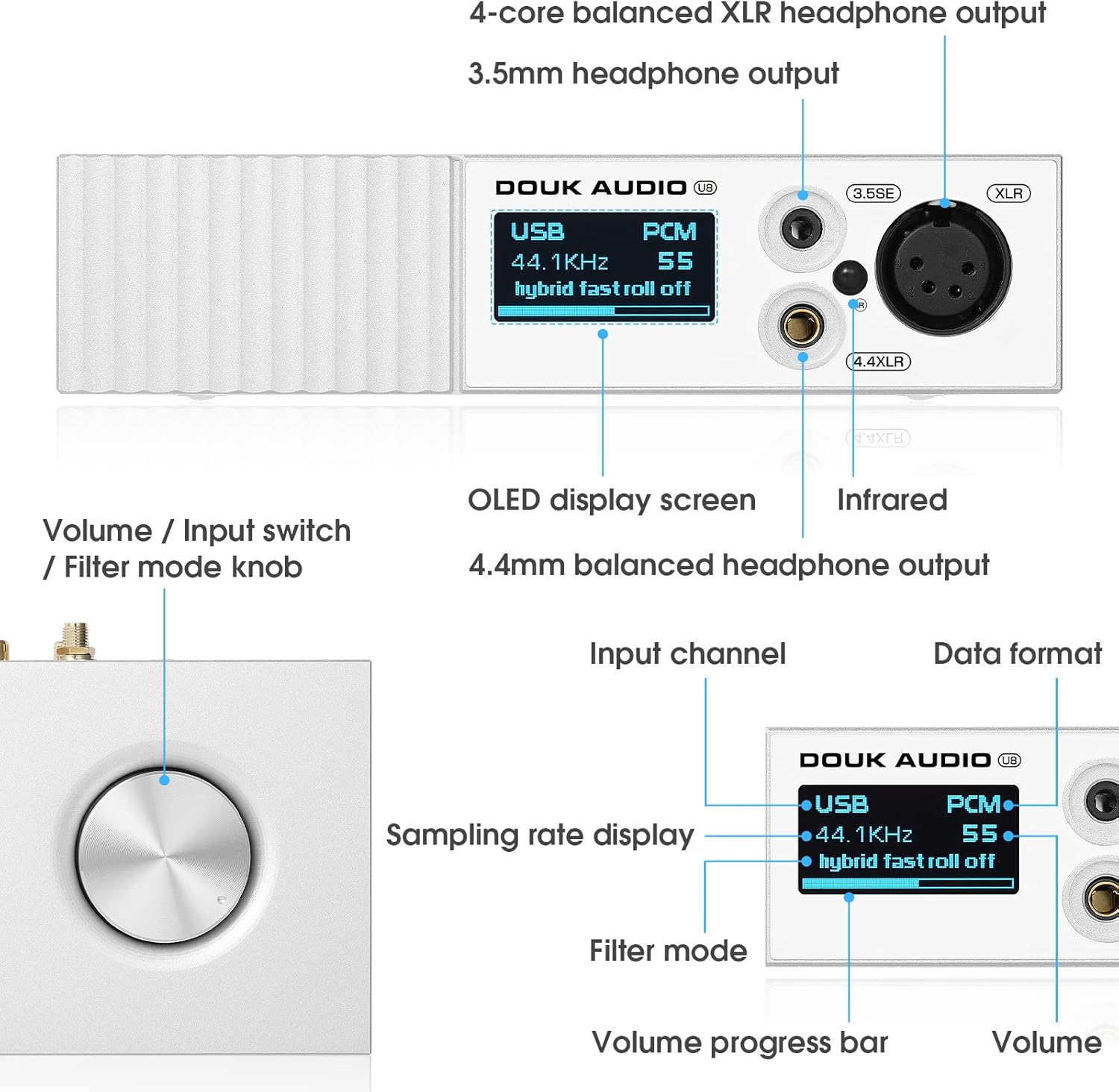
Figure 4.1: Detailed view of the Douk Audio U8 DAC front panel, labeling the OLED display screen, volume/input switch knob, 3.5mm headphone output, 4.4mm balanced headphone output, and 4-core balanced XLR headphone output.
- OLED Display Screen: Shows current input, sampling rate, volume level, and filter mode.
- Volume / Input Switch / Filter Mode Knob: Rotate to adjust volume. Press to cycle through input sources. Press and hold to enter filter mode selection.
- 3.5mm Single-Ended Headphone Output: For connecting headphones with a 3.5mm jack.
- 4.4mm Balanced Headphone Output: For connecting headphones with a 4.4mm balanced jack.
- 4-pin XLR Balanced Headphone Output: For connecting headphones with a 4-pin XLR balanced connector.
4.2 Rear Panel
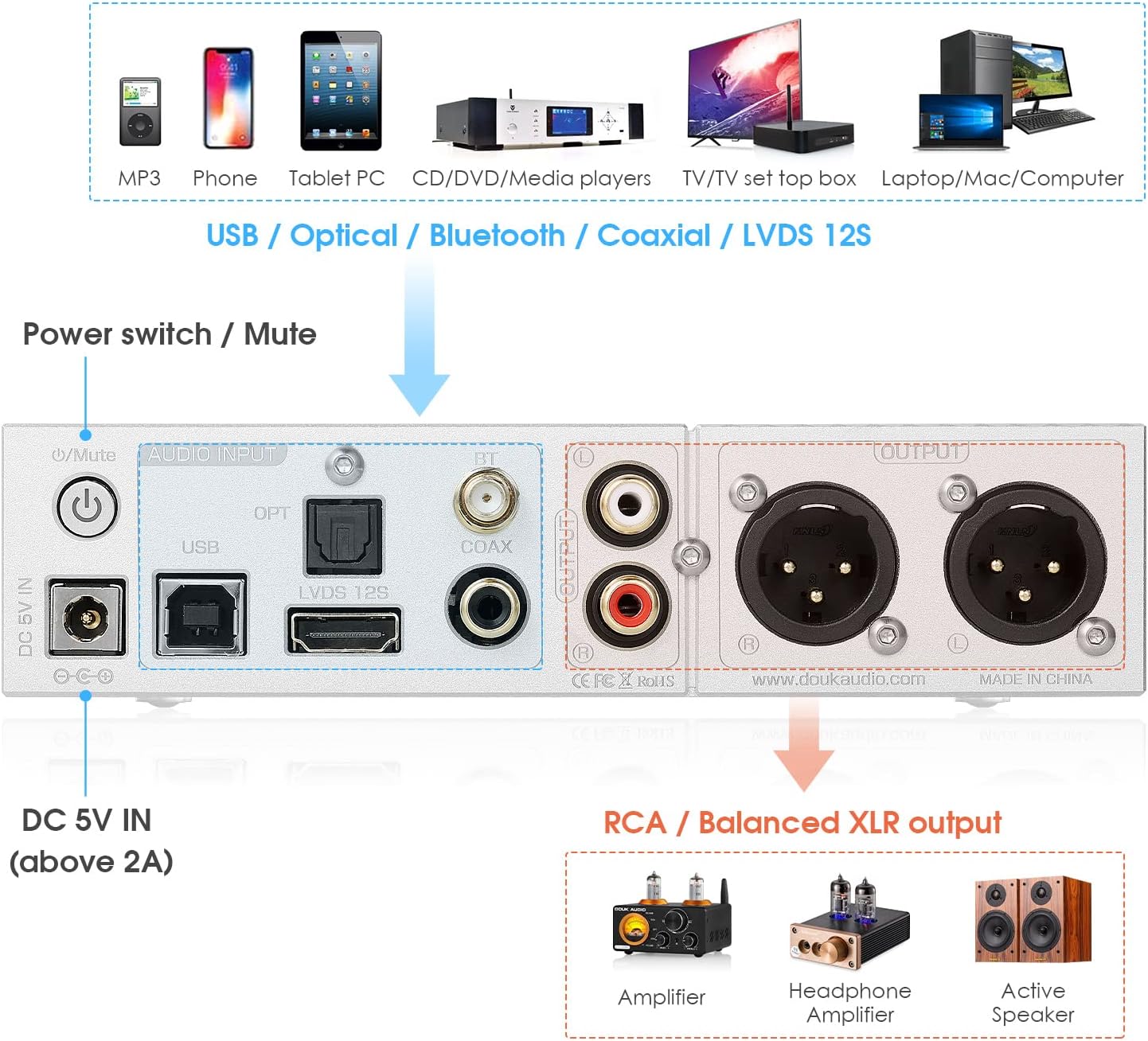
Figure 4.2: Detailed diagram of the Douk Audio U8 DAC rear panel, illustrating the DC 5V power input, power switch/mute button, and various audio inputs (USB, Optical, Bluetooth, Coaxial, LVDS I2S) and outputs (RCA, Balanced XLR).
- DC 5V IN (above 2A): Power input port.
- Power Switch / Mute Button: Press to power on/off. Short press to mute/unmute.
- USB Input: Connect to a computer or other USB audio source.
- Optical Input (OPT): Connect to optical audio sources.
- Bluetooth Antenna Port (BT): Connect the provided Bluetooth antenna.
- Coaxial Input (COAX): Connect to coaxial audio sources.
- LVDS I2S Input: High-performance digital audio input.
- RCA Output (L/R): Unbalanced analog audio output.
- Balanced XLR Output (L/R): Balanced analog audio output.
4.3 Remote Control

Figure 4.3: Image of the Douk Audio U8 DAC remote control, showing buttons for menu navigation, input selection, volume adjustment, and playback controls.
The remote control allows for convenient operation of the U8 DAC from a distance, including input switching, volume adjustment, and filter mode selection.
5. Setup Guide
5.1 Driver Installation (Windows Only)
For Windows operating systems, a specific driver is required for USB audio functionality. Please contact Douk Audio customer support to obtain the latest driver. Insert the provided CD driver into your computer and follow the on-screen instructions for installation. Restart your computer after installation if prompted.
5.2 Connecting to Power
- Connect the provided power adapter to the DC 5V IN port on the rear panel of the U8 DAC.
- Plug the power adapter into a suitable wall outlet.
5.3 Connecting Audio Sources
The U8 DAC supports multiple digital audio inputs:
- USB: Connect a USB cable from your computer, smartphone (with OTG cable for Android, large current camera kit for iOS), or digital player to the USB input.
- Bluetooth: Screw the Bluetooth antenna into its designated port on the rear panel.
- Optical (OPT): Connect an optical cable from your audio source (e.g., TV, game console) to the OPT input.
- Coaxial (COAX): Connect a coaxial cable from your audio source to the COAX input.
- IIS: Connect an IIS cable from a compatible source to the LVDS I2S input.
5.4 Connecting Audio Outputs
The U8 DAC offers various output options:
- RCA Output: Connect RCA cables from the U8 DAC to your amplifier, active speakers, or preamplifier.
- Balanced XLR Output: For professional setups, connect XLR cables from the U8 DAC to compatible balanced amplifiers or active speakers.
- Headphone Outputs (3.5mm, 4.4mm, 4-pin XLR): Plug your headphones into the desired front panel output.

Figure 5.1: Diagram illustrating the various input (USB, Bluetooth, Optical, Coaxial, IIS) and output (RCA, XLR, 3.5mm, 4.4mm) options of the Douk Audio U8 DAC.

Figure 5.2: Internal view of the Douk Audio U8 DAC circuit board, highlighting the XMOS XU208 USB chip, ESS9038Q2M decoding chip, and QCC5125 Bluetooth chip, which contribute to its high-end audio processing capabilities.
6. Operating Instructions
6.1 Power On/Off
Press the power switch on the rear panel to turn the unit on or off. The OLED display will illuminate upon power-on.
6.2 Input Selection
Short press the front panel knob or use the 'Input' button on the remote control to cycle through available input sources (USB, Bluetooth, Optical, Coaxial, IIS). The selected input will be displayed on the OLED screen.
6.3 Volume Control
Rotate the front panel knob clockwise to increase volume and counter-clockwise to decrease volume. Alternatively, use the volume up/down buttons on the remote control.
6.4 Filter Modes
The U8 DAC offers various digital filter modes to fine-tune the sound characteristics. Press and hold the front panel knob to enter filter mode selection, then rotate the knob to cycle through the options. Short press again to confirm your selection. You can also use the remote control to access and select filter modes.
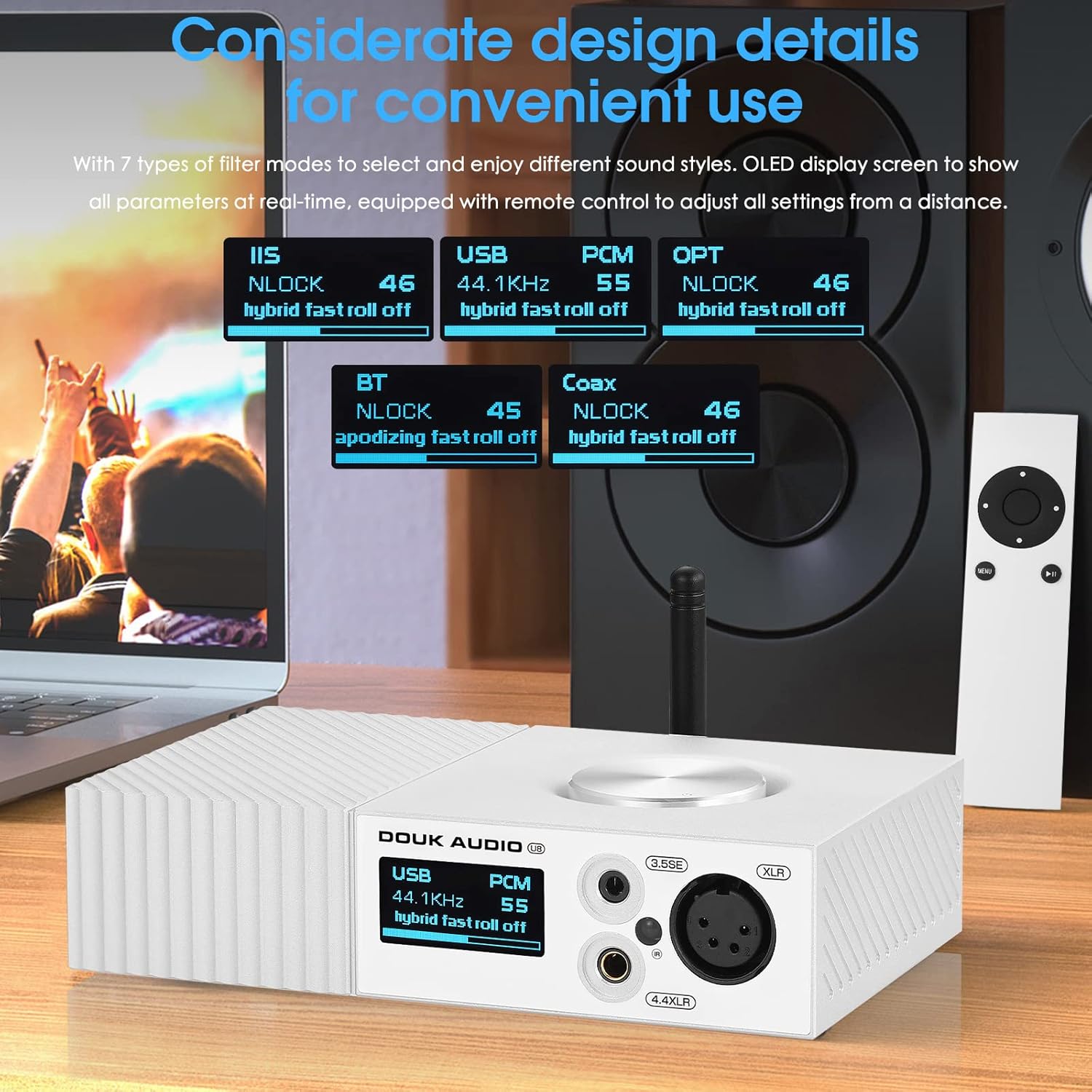
Figure 6.1: Close-up of the Douk Audio U8 DAC display showing different filter modes for various inputs like IIS, USB, OPT, BT, and Coax, highlighting user-friendly design.
6.5 Bluetooth Pairing
- Select 'BT' as the input source on the U8 DAC. The display will show 'BT' and indicate it's ready for pairing.
- On your smartphone, tablet, or other Bluetooth device, go to Bluetooth settings and search for available devices.
- Select 'Douk Audio U8' from the list to pair.
- Once connected, the display will show 'BT' and the codec being used (e.g., LDAC, APTX-HD).
7. Maintenance and Care
- Cleaning: Use a soft, dry cloth to clean the exterior of the unit. Avoid using harsh chemicals or abrasive cleaners.
- Storage: When not in use for extended periods, store the unit in a cool, dry place away from direct sunlight and extreme temperatures.
- Ventilation: Ensure that the ventilation slots are not blocked to prevent overheating.
8. Troubleshooting
| Problem | Possible Cause | Solution |
|---|---|---|
| No power | Power adapter not connected or faulty. | Check power connections. Ensure the power adapter is working. |
| No sound output | Incorrect input selected, volume too low, or output device not connected. | Verify input selection. Increase volume. Check connections to amplifier/headphones. |
| USB input not working (Windows) | Driver not installed or incorrectly installed. | Install the correct USB driver. Restart computer. |
| Bluetooth pairing fails | Device too far, U8 not in pairing mode, or interference. | Ensure U8 is in Bluetooth input mode. Move devices closer. Try re-pairing. |
| Remote control not responding | Batteries low or line of sight blocked. | Replace batteries. Ensure no obstructions between remote and U8. |
9. Technical Specifications
- DAC Chips: Dual ES9038Q2M
- USB Processor: XMOS XU208
- Bluetooth Chip: QCC5125
- Bluetooth Version: 5.0
- Bluetooth Codecs: LDAC, APTX-HD, AAC, SBC
- USB Input Support: PCM 32Bit/384kHz, DSD256
- IIS Input Support: PCM up to 32Bit/768kHz, DSD512
- Distortion (THD+N): 0.0007%
- Signal-to-Noise Ratio (SNR): 118dB
- Inputs: Bluetooth, USB, IIS, Optical, Coaxial
- Outputs: Balanced XLR, RCA, 3.5mm Headphone, 4.4mm Balanced Headphone, 4-pin XLR Balanced Headphone
- Power Supply: DC 5V (above 2A)
- Item Weight: 3 pounds (approximately 1.36 kg)
- Package Dimensions: 8 x 8 x 5 inches (approximately 20.3 x 20.3 x 12.7 cm)
10. Warranty and Customer Support
Douk Audio products are designed for reliability and performance. This product comes with a standard manufacturer's warranty against defects in materials and workmanship. For specific warranty terms, please refer to the documentation included with your purchase or contact Douk Audio customer support.
If you encounter any issues or have questions regarding your Douk Audio U8 DAC, please visit the official Douk Audio website or contact their customer support team for assistance. Please have your model number (U8 or DZ096-NEW) and purchase information ready when contacting support.


