
Losfom Z11
Losfom Z11 4K Body Camera User Manual
Model: Z11
1. Introduction
Thank you for choosing the Losfom Z11 4K Body Camera. This compact and versatile device is designed for various recording needs, offering high-quality video, audio, and photo capture. With its 180° rotatable lens, night vision capabilities, and long battery life, the Z11 is a reliable tool for personal security, documentation, and capturing life's moments.
This manual provides detailed instructions on how to set up, operate, and maintain your Z11 Body Camera. Please read it thoroughly before use to ensure optimal performance and longevity of your device.
2. What's in the Box
The Losfom Z11 Body Camera package includes the following components:
- Z11 Camera
- Back Clip
- User Manual
- USB Cable
- Stand/Bracket
- Strap
- Lanyard
- Adapter
- Card Reader
- 256GB Micro SD Card (pre-installed or included separately)

Image: Overview of all items included in the Losfom Z11 Body Camera package.
3. Product Overview
Familiarize yourself with the various parts and controls of your Z11 Body Camera:
- Power Button: Turns the device on/off.
- Reset Button: Used to reset the device if it becomes unresponsive.
- Video Recording/Return Button: Starts and stops video recording; also used to navigate back in menus.
- Audio Recording Button: Starts and stops audio-only recording.
- Photo Button: Captures still images.
- Alarm Light Button: Activates/deactivates alarm lights (if applicable).
- Lanyard Hole: Attachment point for the included lanyard.
- TF Slot: Slot for the Micro SD card.
- USB Port: For charging and data transfer.
- Back Splint/Clip: Attaches to clothing or other surfaces.
- 180° Rotatable Lens: Allows adjustment of the camera's viewing angle.
- IPS HD Screen: For instant playback and settings adjustment.

Image: Front and side views of the Z11 Body Camera with labeled components.
4. Setup
4.1. Charging the Battery
Before first use, fully charge the camera's built-in 1700mAh rechargeable battery. Connect the camera to a USB power source (e.g., computer USB port, wall adapter) using the provided USB cable. The charging indicator light will show the charging status. A full charge typically takes 3-4 hours and provides 6-7 hours of working time. The camera supports recording while charging.
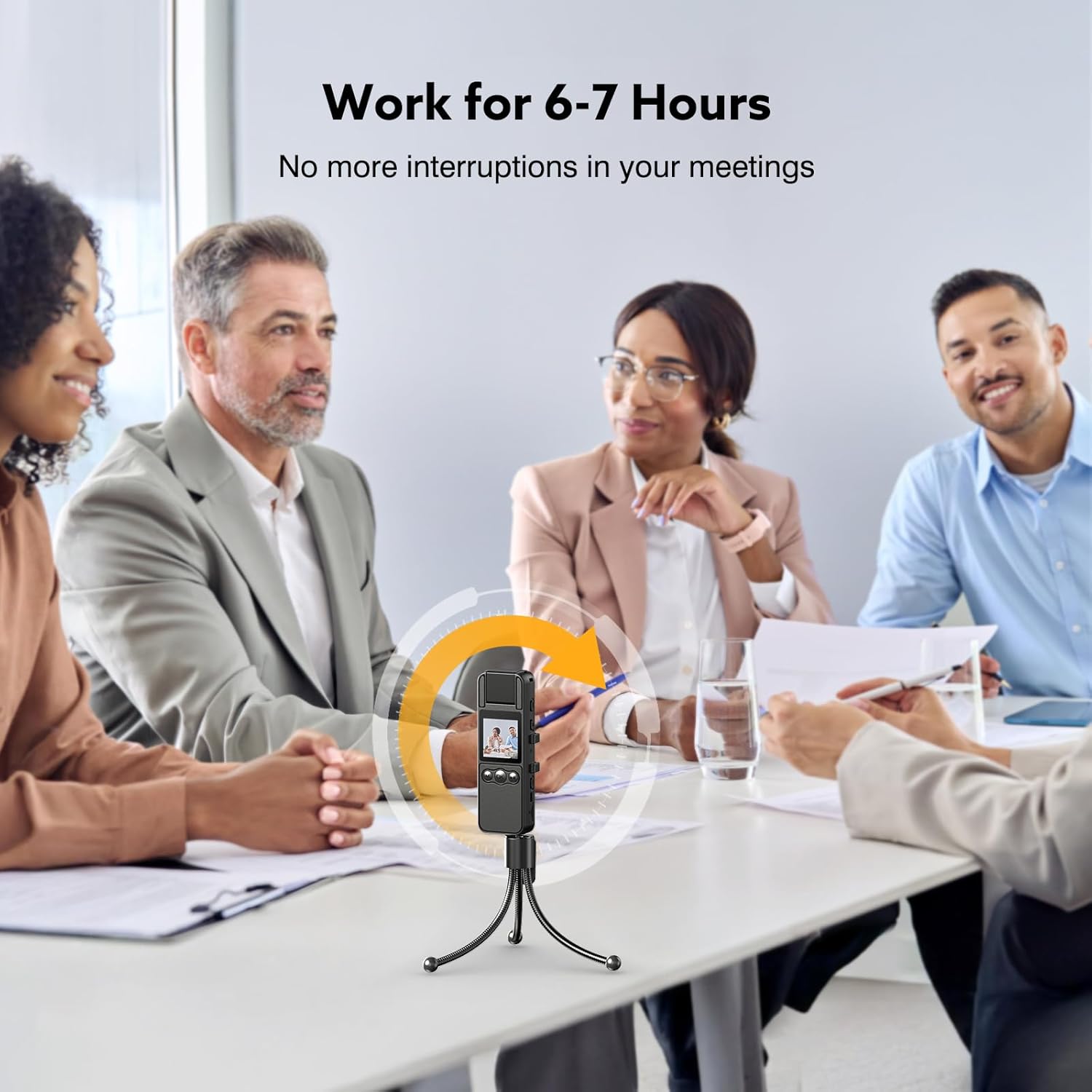
Image: The Z11 camera in use, illustrating its extended battery life for continuous operation.
4.2. Inserting the Micro SD Card
The camera comes with a 256GB Micro SD card. Locate the TF slot on the side of the camera. Gently insert the Micro SD card into the slot with the gold contacts facing down until it clicks into place. To remove, push the card in slightly until it springs out.
4.3. Powering On/Off
To power on the camera, press and hold the Power Button until the screen lights up. To power off, press and hold the Power Button again until the screen turns off.
5. Operating the Camera
5.1. Video Recording
To start video recording, press the Video Recording button. The screen will display a recording indicator. To stop recording, press the Video Recording button again. Videos are saved to the Micro SD card.
5.2. Audio Recording
To start audio-only recording, press the Audio Recording button. To stop recording, press the Audio Recording button again. Audio files are saved to the Micro SD card.
5.3. Taking Photos
To capture a still image, press the Photo button. The camera will take a picture and save it to the Micro SD card.
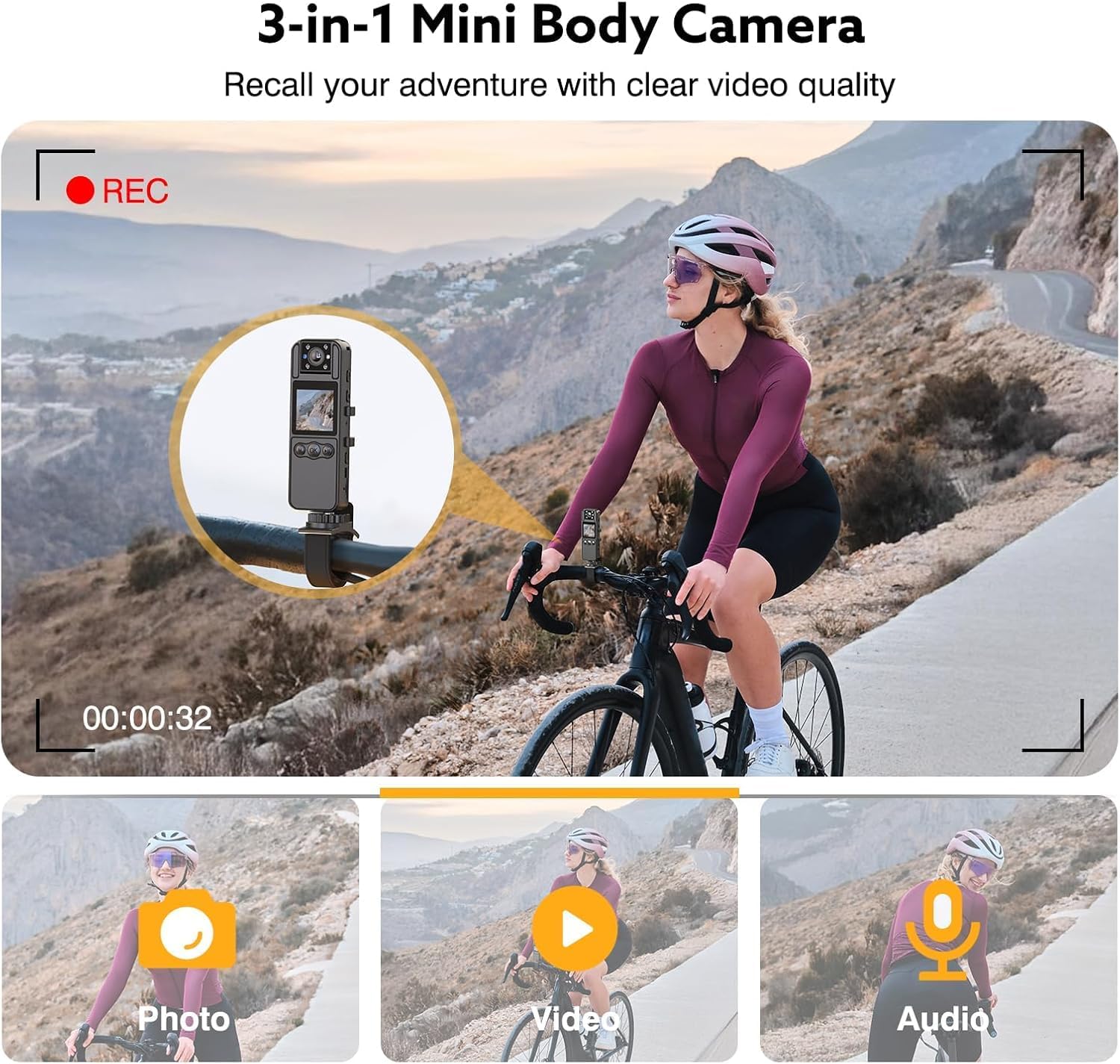
Image: The Z11 camera's multi-functional capabilities for capturing photos, videos, and audio.
5.4. Night Vision
The Z11 camera is equipped with night vision for recording in low-light conditions. The night vision feature activates automatically in dark environments or can be manually toggled through the camera's settings menu. Ensure the lens is clear for optimal night vision performance.

Image: The Z11 camera utilizing its night vision feature to record in a dark environment.
5.5. Motion Detection
The motion detection system allows the camera to start recording only when movement is detected. This feature helps conserve battery life and storage space. To enable or disable motion detection, navigate through the camera's settings menu on the IPS HD screen.
5.6. Loop Recording
The Z11 camera supports loop recording. When the memory card is full, the camera will automatically overwrite the oldest footage to make space for new recordings. This ensures continuous recording without manual intervention. Regularly transfer important files to a computer to prevent them from being overwritten.
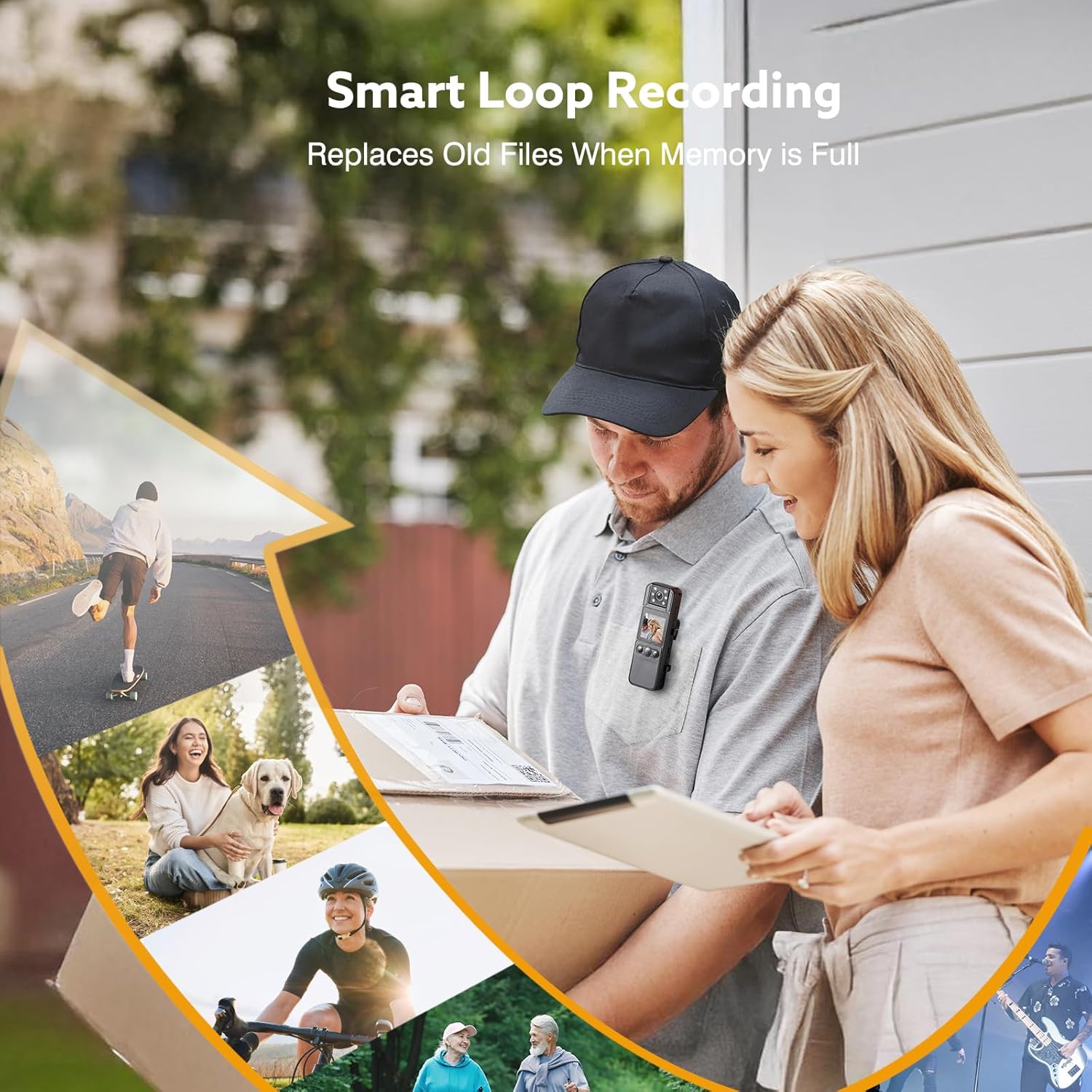
Image: The Z11 camera in action, demonstrating its smart loop recording feature across different activities.
5.7. 180° Rotatable Lens
The camera's lens can be rotated 180 degrees, allowing you to adjust the recording angle as needed. This flexibility ensures you can capture the desired perspective whether the camera is mounted or worn.

Image: The Z11 camera highlighting its 180-degree rotatable lens and 360-degree rotatable back clip for versatile positioning.
6. Data Transfer
To transfer recorded data, connect the Z11 Body Camera to your Windows or Mac computer using the included USB cable and adapter. The camera will appear as a removable storage device. You can then easily drag and drop files to your computer for backup or viewing.

Image: The Z11 camera connected to a laptop, demonstrating effortless data transfer to both Windows and Mac operating systems.
7. Wearing Options
The Z11 Body Camera offers multiple wearing and mounting options for various scenarios:
- 360° Back Clip: Easily clip the camera to clothing, bags, or belts for hands-free recording.
- Bracket/Stand: Use the included stand for stable support, ideal for desktop recording during meetings or surveillance.
- Lanyard: Wear the camera around your neck using the provided lanyard for convenient access.
- Strap and Screw Hole: The camera can be mounted on bikes or motorcycles using the strap and built-in screw hole for outdoor activities.

Image: The Losfom Z11 Body Camera shown with various accessories, illustrating its diverse wearing and mounting options.
8. Maintenance
- Keep the camera clean, especially the lens and screen. Use a soft, dry cloth for cleaning.
- Avoid exposing the camera to extreme temperatures, direct sunlight for prolonged periods, or high humidity.
- Do not attempt to disassemble the camera, as this will void the warranty.
- Store the camera in a cool, dry place when not in use.
9. Troubleshooting
- Camera not turning on: Ensure the battery is charged. If the issue persists, try pressing the reset button with a thin object.
- Cannot record: Check if the Micro SD card is inserted correctly and has sufficient free space. Format the card if necessary (this will erase all data).
- Poor video/audio quality: Ensure the lens is clean. Check recording settings (resolution, frame rate). Ensure sufficient lighting for optimal video quality.
- Cannot connect to computer: Try a different USB port or cable. Ensure the camera is powered on when connected.
- Clip is too tight/difficult to remove: While the clip is designed for secure attachment, apply firm, even pressure when detaching. Avoid excessive force to prevent damage.
10. Specifications
| Feature | Specification |
|---|---|
| Brand | Losfom |
| Model Number | Z11 |
| Item Weight | 8.4 ounces |
| Package Dimensions | 5.98 x 4.29 x 1.85 inches |
| Batteries | 2 Lithium Polymer batteries (included) |
| Photo Sensor Technology | CMOS |
| Video Capture Resolution | 2K (4K variant available) |
| Maximum Focal Length | 6.8 |
| Maximum Aperture | 2 f |
| Flash Memory Type | Micro SD |
| Video Capture Format | MOV |
| Supported Audio Format | AAC |
| Screen Size | 2 inches |
| Connectivity Technology | USB |
11. Warranty and Support
For warranty information and technical support, please refer to the contact details provided on the product packaging or visit the official Losfom website. Keep your purchase receipt as proof of purchase for warranty claims.
Ask a question about this manual
Ask about setup, troubleshooting, compatibility, parts, safety, or missing instructions. Manuals+ will review the question and use this page’s manual context to help answer it.