1. Introduction
This manual provides essential instructions for the setup, operation, and maintenance of your HKOORLAMULS P30 Max Projector and Game Console. Please read this manual thoroughly before using the device to ensure proper functionality and to prevent damage.

Image 1.1: HKOORLAMULS P30 Max Projector and Game Console.
The P30 Max is a versatile device combining a smart projector with a retro game console. It features WiFi 6 and Bluetooth 5.4 connectivity, supports 4K video playback, and includes two wireless controllers for an interactive experience.
2. Package Contents
Verify that all items listed below are included in your package. If any items are missing or damaged, please contact customer support.
- HKOORLAMULS P30 Max Projector (1 unit)
- Wireless Gamepad (2 units)
- LR Remote Control (1 unit)
- AC Power Cable (1 unit)
- 2.4G Receiver (1 unit)
- TF Card (1 unit)
- HDMI Cable (1 unit)
- User Manual (1 unit)

Image 2.1: Package Contents Diagram.
3. Product Overview
3.1 Device Layout and Ports
Familiarize yourself with the projector's physical components and connection ports.
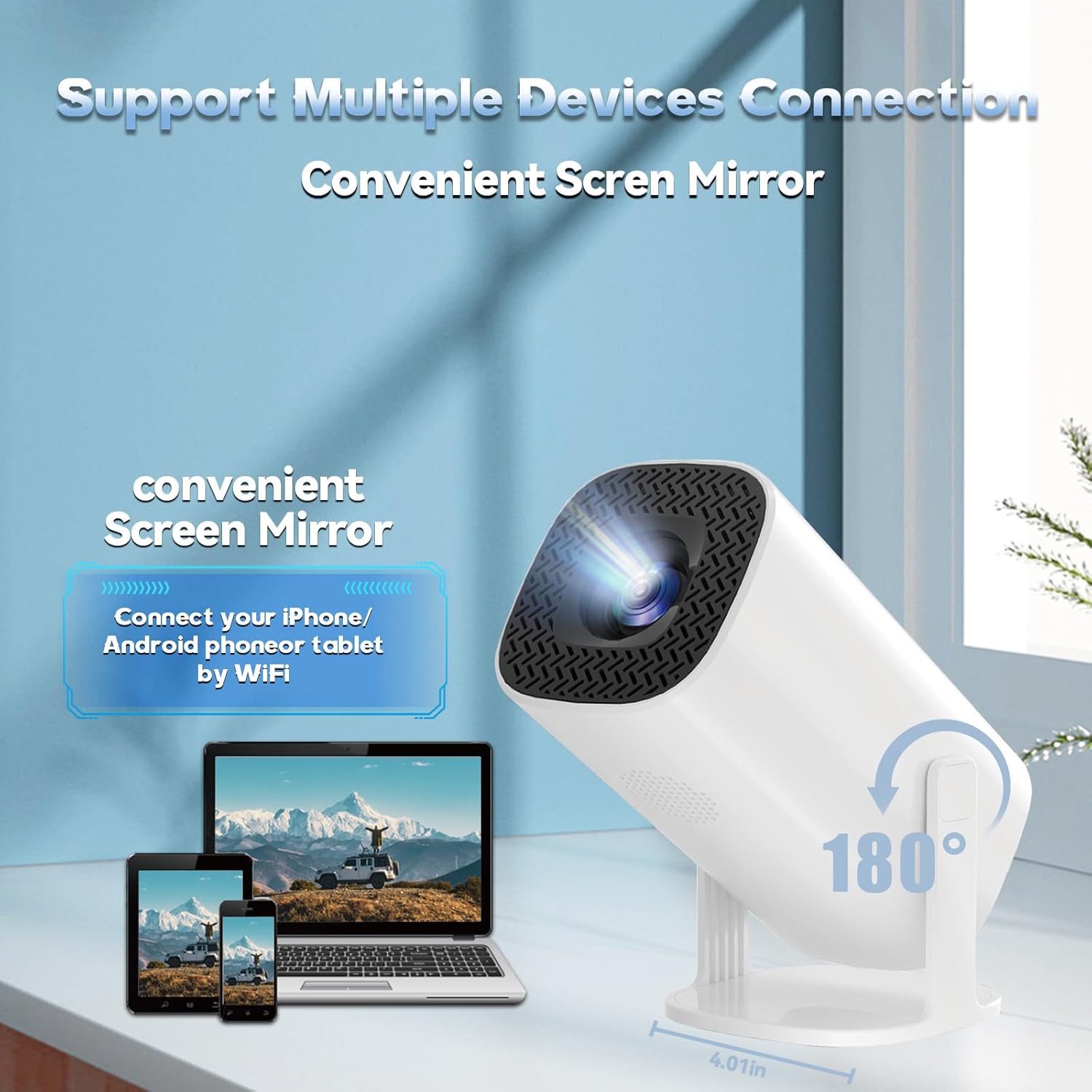
Image 3.1: Projector Ports and Connectivity.
- USB Port: For connecting USB storage devices or the 2.4G receiver for wireless gamepads.
- HDMI Port: For connecting external video sources such as laptops, gaming consoles (PS5/PS4), or other media players.
- AUX Port: For connecting external audio devices like speakers or headphones.
- IR Receiver: For receiving signals from the remote control.
- Power Input: For connecting the AC power cable.
- Lens: The projection lens.
- Focus Wheel: Manual adjustment for image clarity.
- Integrated Speaker: For audio output.
4. Setup
4.1 Power Connection
- Connect the AC power cable to the projector's power input port.
- Plug the other end of the power cable into a standard electrical outlet.
- Press the power button on the projector or remote control to turn on the device.
4.2 Initial Placement and Screen Size
Place the projector on a stable, flat surface. The P30 Max features a 180° rotating stand, allowing for flexible projection angles, including ceiling projection. Adjust the projector's distance from the wall or screen to achieve your desired screen size, up to 130 inches.
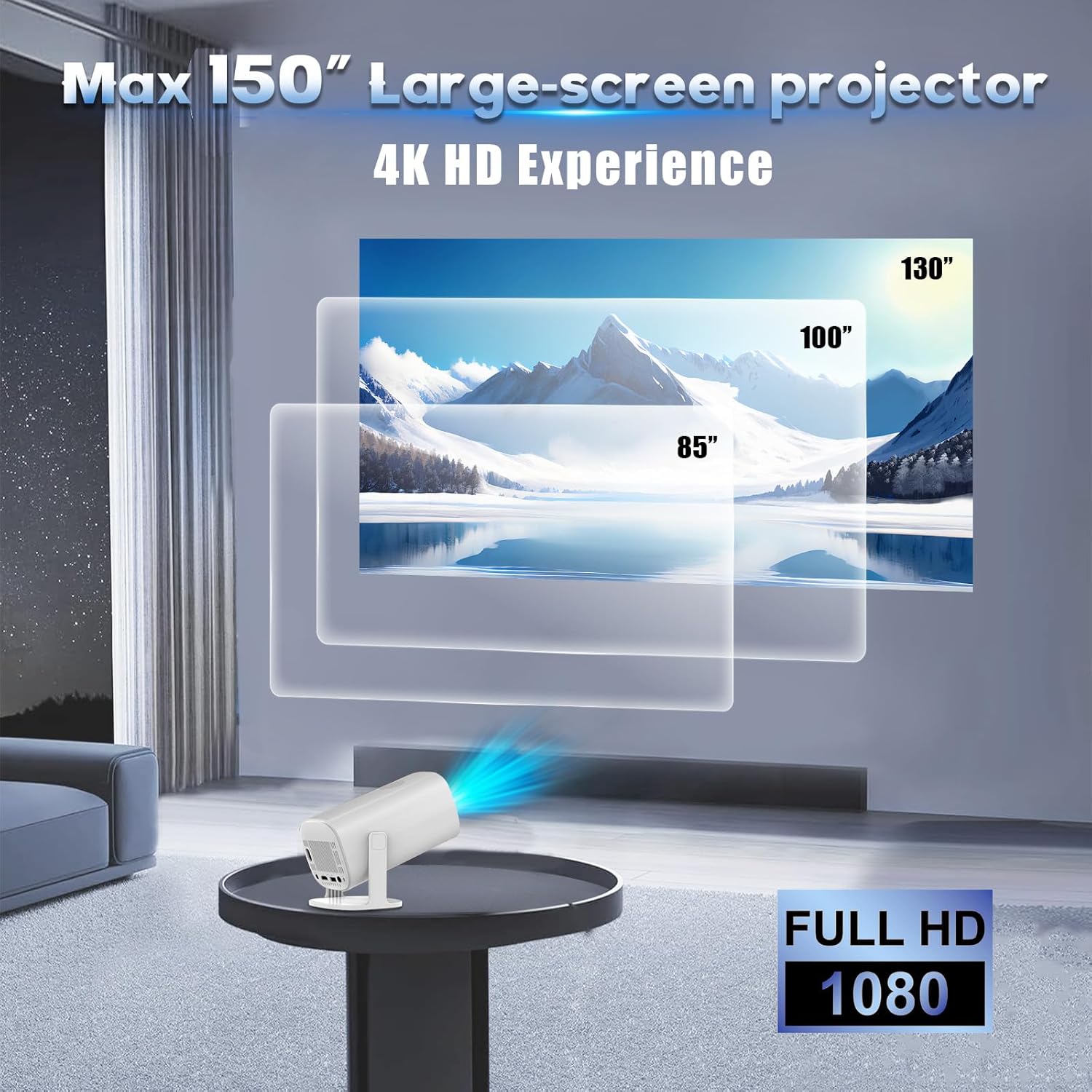
Image 4.1: Projector Screen Size Examples.
4.3 Focus and Keystone Correction
To ensure a clear and rectangular image:
- Focus Adjustment: Use the manual focus wheel near the lens to sharpen the image until it is clear.
- Automatic Keystone Correction: The projector features one-click automatic keystone correction. This function automatically adjusts the image to be rectangular even if the projector is placed at an angle.
- Digital Zoom: The projector supports a 50% zoom function, allowing you to adjust the image size without moving the projector. This can be accessed through the on-screen menu.
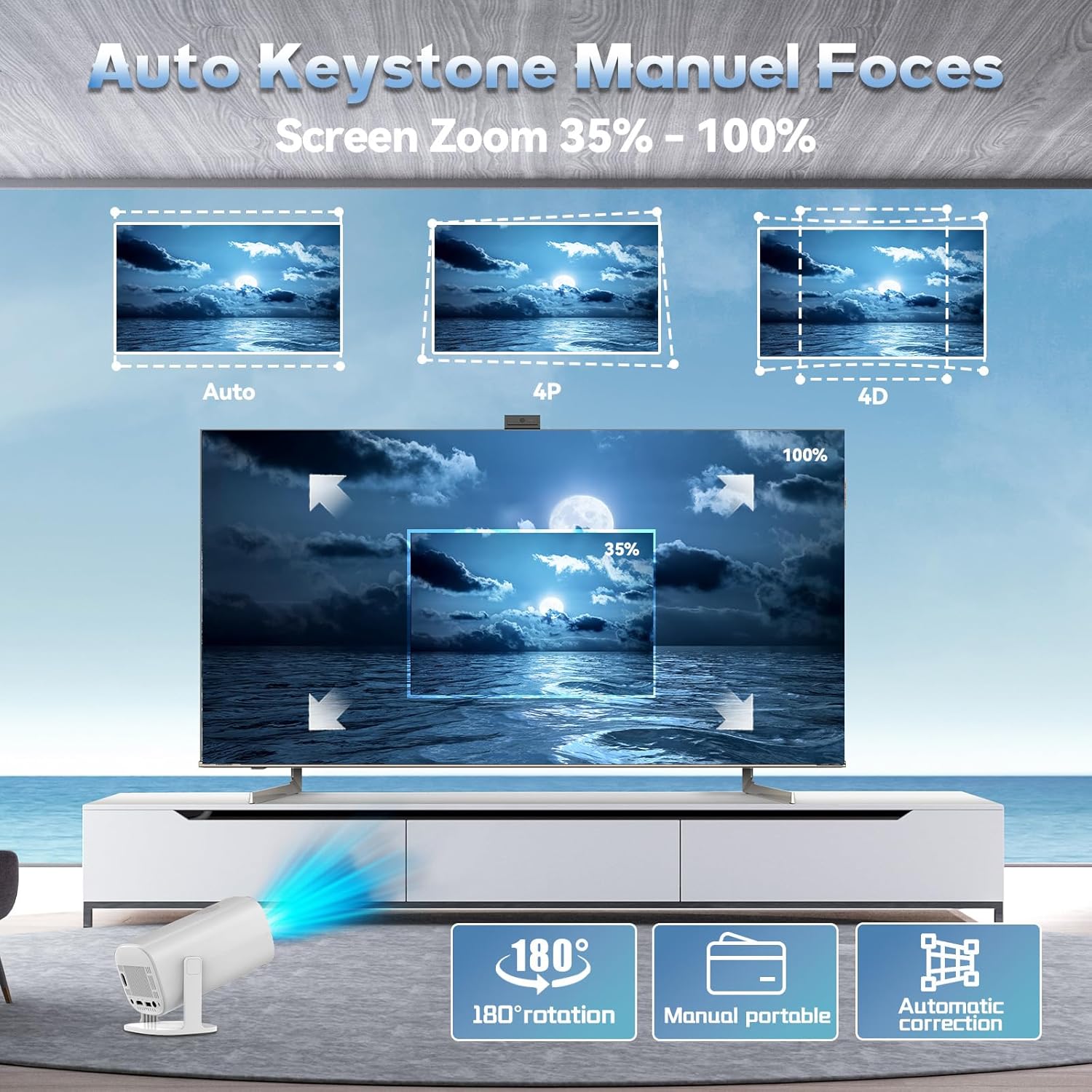
Image 4.2: Keystone Correction and Zoom.
4.4 Network Connection (WiFi)
To access online features and screen mirroring:
- Navigate to the 'Settings' menu on the projector.
- Select 'Network' or 'WiFi'.
- Turn on WiFi and select your desired network from the list.
- Enter the password if prompted and connect. The projector supports WiFi 6 (2.4G and 5G).
4.5 Bluetooth Connection
To connect external audio devices:
- Navigate to the 'Settings' menu.
- Select 'Bluetooth'.
- Turn on Bluetooth and select your desired Bluetooth speaker or headphones from the available devices.
- Pair the device. The projector supports Bluetooth 5.4.
5. Operating Instructions
5.1 Basic Operation
- Power On/Off: Press the power button on the projector or remote control.
- Navigation: Use the arrow keys and 'OK' button on the remote control to navigate through the on-screen menus.
- Volume Control: Use the volume buttons on the remote control.
5.2 Projector Mode
The P30 Max can function as a standalone smart projector for streaming content or displaying media from connected devices.
- Media Playback: Access pre-installed apps or connect a USB drive to play videos, photos, or music.
- Input Source Selection: Use the remote to select the input source (e.g., HDMI, USB, internal media).
5.3 Game Console Mode
The projector comes with over 15,000 classic and modern 3D games and 14 built-in emulators. Two wireless gamepads are included for an immediate gaming experience.
- Connect Gamepads: Insert the 2.4G receiver into a USB port on the projector. The wireless gamepads should automatically connect.
- Access Games: Navigate to the 'Games' section on the projector's main interface.
- Select and Play: Choose your desired game from the library and start playing.

Image 5.1: Gaming with Wireless Gamepads.
5.4 Screen Mirroring
The projector supports wireless screen mirroring from Android, iOS, and Windows devices via WiFi.
- Ensure both your device (phone, tablet, laptop) and the projector are connected to the same WiFi network.
- On the projector, select the 'Screen Mirroring' or 'Wireless Display' option from the main menu.
- On your device, activate its screen mirroring feature (e.g., 'Smart View' on Android, 'Screen Mirroring' on iOS, 'Connect' on Windows).
- Select the projector's name from the list of available devices to establish the connection.
5.5 External Device Connection
Connect various devices using the available ports:
- HDMI: Connect a laptop, gaming console, or Blu-ray player using an HDMI cable. Select 'HDMI' as the input source.
- USB: Insert a USB flash drive to play media files directly. Select 'USB' as the input source.
- AUX: Connect external speakers or headphones for enhanced audio.
6. Maintenance
6.1 Cleaning
- Lens: Use a soft, lint-free cloth specifically designed for optical lenses. Do not use abrasive cleaners or cloths.
- Exterior: Wipe the projector's exterior with a soft, dry cloth. For stubborn marks, a slightly damp cloth can be used, followed by a dry wipe.
- Ventilation: Ensure the ventilation openings are clear of dust and debris to prevent overheating. Use a soft brush or compressed air if necessary.
6.2 Storage
When not in use for extended periods, store the projector in a cool, dry place, away from direct sunlight and extreme temperatures. It is recommended to use the original packaging for storage to protect the device.
7. Troubleshooting
- No Power: Ensure the power cable is securely connected to both the projector and the power outlet. Try a different outlet.
- No Image: Check if the projector is powered on. Verify the input source selection is correct (e.g., HDMI, USB). Adjust focus and keystone correction.
- Blurry Image: Adjust the manual focus wheel. Ensure the projector is placed at an appropriate distance from the screen. Use keystone correction if the image is distorted.
- No Sound: Check the volume settings on the projector and any connected external audio devices. Ensure external speakers/headphones are properly connected via Bluetooth or AUX.
- Remote Control Not Working: Check the batteries in the remote control. Ensure there are no obstructions between the remote and the projector's IR receiver.
- Screen Mirroring Issues: Ensure both devices are on the same WiFi network. Restart both the projector and the mirroring device.
- Game Controller Not Responding: Ensure the 2.4G receiver is properly inserted into the USB port. Check controller batteries.
8. Specifications
| Feature | Specification |
|---|---|
| Model | P30 MAX-32G |
| Native Resolution | 1280 x 720p (Supports 4K playback) |
| Connectivity | WiFi 6 (2.4G + 5G), Bluetooth 5.4, HDMI, USB, AUX |
| Screen Size | Up to 130 inches |
| Keystone Correction | Automatic |
| Zoom Function | 50% Digital Zoom |
| Built-in Games | 15,000+ (with 14 emulators) |
| Audio | Built-in Speaker |
| Noise Level | ≤ 25 dB |
| Dimensions | 8 x 4 x 4 inches |
9. Warranty and Support
Your HKOORLAMULS P30 Max Projector and Game Console comes with a standard manufacturer's warranty. Please refer to the warranty card included in your package for specific terms and conditions.
For technical support, troubleshooting assistance, or warranty claims, please contact HKOORLAMULS customer service through the contact information provided on your product packaging or the official HKOORLAMULS website.


