
Losfom Z11
Losfom Z11 4K Body Camera User Manual
Model: Z11 | Brand: Losfom
1. Introduction
The Losfom Z11 4K Body Camera is a versatile and compact recording device designed for various applications, including personal security, home monitoring, office use, and law enforcement. Featuring a high-definition IPS HD screen, a 180° rotating lens, and night vision capabilities, this camera offers reliable audio and video recording. This manual provides detailed instructions for setting up, operating, and maintaining your Z11 body camera.

Figure 1: Losfom Z11 4K Body Camera and accessories.
2. Product Overview
2.1. What's in the Box
Upon unboxing your Losfom Z11 4K Body Camera, verify that all the following components are included:
- Z11 Camera
- Back Clip (360° Swivel)
- USB Cable
- User Manual
- Stand/Bracket
- Strap/Handle Bar Mount
- Lanyard
- Adapter
- Card Reader
- 128GB Micro SD Card
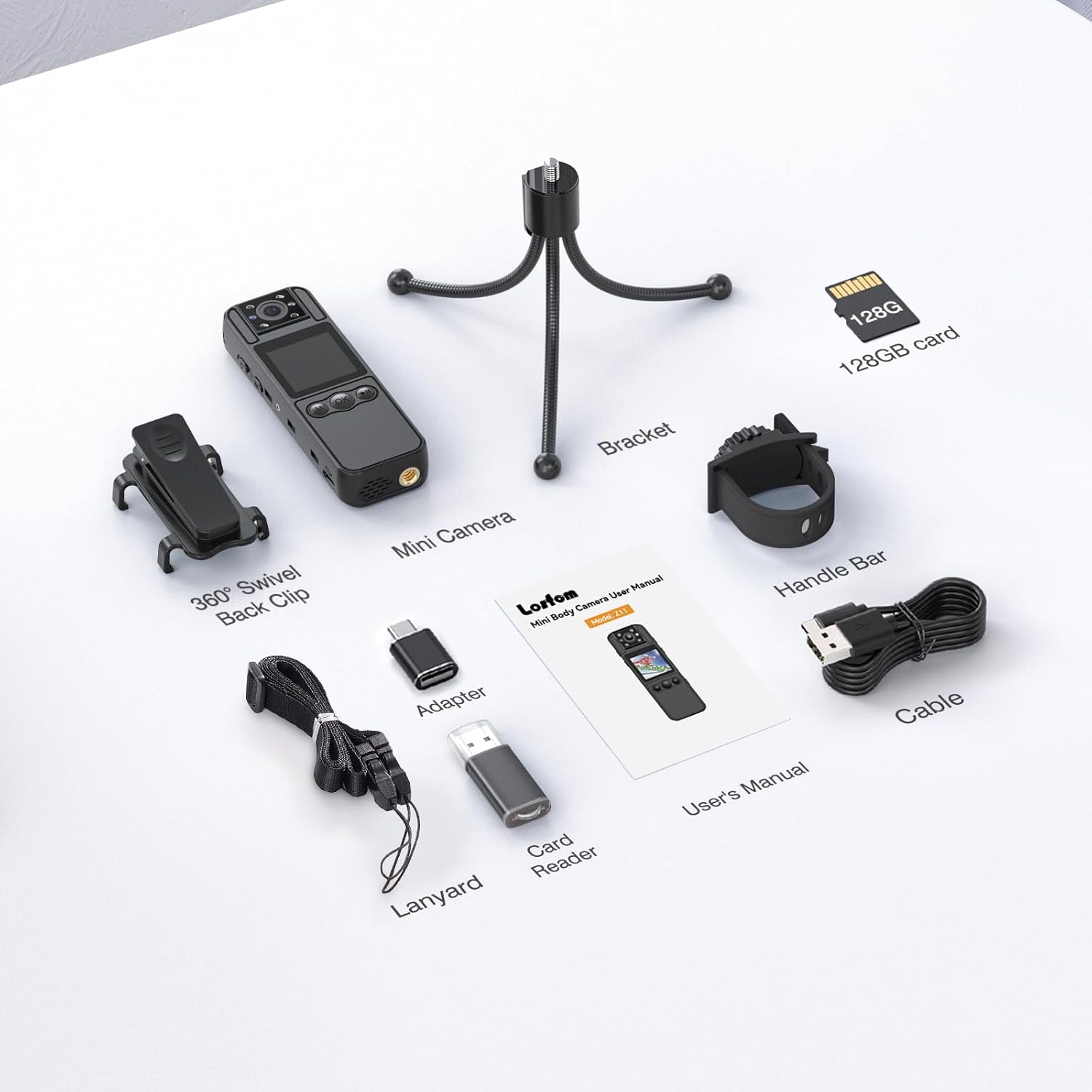
Figure 2: Contents of the Z11 Body Camera package.
2.2. Key Features
- Mini Body Camera with IPS HD Screen: The integrated high-definition IPS HD screen allows for instant playback, file review, file deletion, and quick adjustments to device settings, simplifying daily operation.
- 3-in-1 Multi-Function: The Z11 supports video recording, clear audio capture, and stunning photo taking. It is suitable for capturing various moments, from pet activities to meeting minutes and security evidence.
- Long-Lasting Battery: Equipped with a 1700mAh rechargeable battery, the camera provides 6-7 hours of working time and fully recharges in 3-4 hours. It supports recording while charging for extended use.
- 180° Rotatable Lens & Night Vision: The camera features a 180° adjustable rotation and a 120° wide-angle lens for optimal angle capture. It includes night vision for clear recording in low-light conditions.
- Motion Detection & Loop Recording: The motion detection system activates recording only when movement is detected, conserving battery and storage. Loop recording automatically overwrites the oldest footage when memory is full.
- Lightweight & Compact Design: Its ultra-sleek and lightweight build ensures portability and discreet attachment for on-the-go recording.
- Four Wearing Options: Includes a 360° back clip for clothing/bags, a bracket for stable support, a lanyard for neck wear, and a strap with a built-in screw hole for mounting on bikes or motorcycles.
- Seamless Data Transfer: Easily connect to Windows or Mac computers using the included adapter for effortless data transfer and management.

Figure 3: The Z11 camera's multi-functional capabilities.

Figure 4: Rotatable lens and back clip for flexible positioning.
2.3. Product Video Overview
Watch this official product video for a visual demonstration of the Losfom Z11 Mini Body Camera's features and functionalities.
Video 1: Official Losfom Z11 Mini Body Camera demonstration, showcasing its 1080P resolution, 128GB memory card, motion detection, wide-angle lens, rotatable features, and charging capabilities.
3. Setup
3.1. Inserting the Micro SD Card
- Locate the TF slot on the side of the camera.
- Gently insert the included 128GB Micro SD card into the slot until it clicks into place. Ensure the card is oriented correctly.
- To remove the card, gently push it inward until it springs out.
3.2. Initial Charging
Before first use, fully charge the camera's battery.
- Connect the USB cable to the camera's USB port.
- Connect the other end of the USB cable to a power source (e.g., computer USB port, USB wall adapter).
- The charging indicator light will illuminate. Charging typically takes 3-4 hours.
- The indicator light will change or turn off once charging is complete.
4. Operating Instructions
4.1. Controls Overview
- Power Button: Turns the camera on/off.
- Video Recording / Return Button: Starts/stops video recording; navigates back in menus.
- Audio Recording Button: Starts/stops audio-only recording.
- Photo Button: Takes a still photograph.
- Alarm Light Button: Activates/deactivates the alarm light.
- TF Slot: Micro SD card insertion point.
- USB Port: For charging and data transfer.
- Lanyard Hole: Attachment point for the lanyard.
4.2. Powering On/Off
- To Power On: Press and hold the Power Button until the screen illuminates.
- To Power Off: Press and hold the Power Button until the screen turns off.
4.3. Video Recording
- Ensure the camera is powered on.
- Press the Video Recording button once to start recording. A recording indicator will appear on the screen.
- Press the Video Recording button again to stop recording. The video file will be saved automatically.
4.4. Photo Capture
- Ensure the camera is powered on.
- Press the Photo Button once to capture a still image. The image will be saved automatically.
4.5. Audio Recording
- Ensure the camera is powered on.
- Press the Audio Recording Button once to start audio-only recording.
- Press the Audio Recording Button again to stop recording. The audio file will be saved automatically.
4.6. Motion Detection
The motion detection feature allows the camera to start recording automatically when it detects movement, saving battery life and storage space.
- Navigate to the camera settings via the IPS HD screen.
- Locate and enable the Motion Detection option.
- The camera will now only record when motion is detected.
4.7. Night Vision Mode
The Z11 camera is equipped with night vision for recording in low-light or dark environments.
- The camera automatically adjusts to low-light conditions.
- For optimal night vision performance, ensure the camera lens is unobstructed.

Figure 5: Night Vision capability for clear footage in low light.
4.8. Loop Recording
When the memory card is full, the loop recording feature automatically overwrites the oldest files to continue recording without interruption.
- This feature is typically enabled by default.
- Ensure you regularly transfer important footage to a computer to prevent accidental overwriting.

Figure 6: Smart Loop Recording in action.
5. Data Transfer
To transfer recorded data to your computer:
- Ensure the camera is powered off.
- Connect the camera to your Windows or Mac computer using the provided USB cable and adapter.
- The camera will appear as a removable disk drive on your computer.
- Open the drive to access your recorded video, photo, and audio files.
- Copy the desired files to your computer.
- Safely eject the removable disk before disconnecting the camera.

Figure 7: Effortless data transfer to Windows or Mac computers.
6. Charging and Battery Life
The Losfom Z11 is equipped with a 1700mAh rechargeable battery, providing extended operational time.
- Battery Capacity: 1700mAh
- Charging Time: Approximately 3-4 hours for a full charge.
- Working Time: Provides 6-7 hours of continuous operation on a full charge.
- Recording While Charging: The camera supports recording while connected to a power source, ideal for prolonged filming needs.

Figure 8: The Z11 camera's extended battery life for continuous use.
7. Maintenance
To ensure the longevity and optimal performance of your Losfom Z11 Body Camera:
- Keep the camera clean by wiping it with a soft, dry cloth. Avoid using harsh chemicals or abrasive materials.
- Protect the lens from scratches and dust.
- Store the camera in a cool, dry place away from direct sunlight and extreme temperatures.
- Avoid dropping or subjecting the camera to strong impacts.
8. Troubleshooting
If you encounter issues with your Losfom Z11 Body Camera, consider the following general troubleshooting steps:
- Camera not turning on: Ensure the battery is charged. Connect the camera to a power source and try again.
- Recording issues (e.g., not saving, corrupted files): Check if the Micro SD card is properly inserted and has sufficient free space. Try formatting the SD card (this will erase all data).
- Poor video/audio quality: Ensure the lens is clean and unobstructed. Check lighting conditions.
- Camera unresponsive: Locate the reset button (if available, typically a small pinhole) and use a thin object (like a paperclip) to press it. This will restart the device without erasing data.
- Data transfer problems: Ensure the USB cable is securely connected to both the camera and the computer. Try a different USB port or cable.
If problems persist, please refer to the support information in Section 10.
9. Specifications
| Feature | Specification |
|---|---|
| Brand Name | Losfom |
| Item Model Number | Z11 |
| Item Weight | 8.1 ounces |
| Package Dimensions | 5.94 x 4.29 x 1.93 inches |
| Batteries | 1 A battery required (included) |
| Photo Sensor Technology | CMOS |
| Video Capture Resolution | 4K |
| Maximum Focal Length | 20 |
| Maximum Aperture | 2 f |
| Flash Memory Type | Micro SD |
| Video Capture Format | MOV |
| Supported Audio Format | AAC |
| Screen Size | 1.3 inches |
| Connectivity Technology | USB |
10. Warranty and Support
For warranty information, technical support, or any inquiries regarding your Losfom Z11 4K Body Camera, please contact Losfom customer service through the official channels provided at the point of purchase or on the Losfom brand website. Keep your purchase receipt as proof of purchase for warranty claims.
Related documentsZ11


Ask a question about this manual
Ask about setup, troubleshooting, compatibility, parts, safety, or missing instructions. Manuals+ will review the question and use this page’s manual context to help answer it.