
1. Introduction
The UGREEN USB-C+HDMI KVM Switch is designed to streamline your workspace by allowing two computers to share one monitor and multiple USB peripherals. This device is ideal for users who need to switch between a USB-C enabled laptop and a traditional desktop PC without constantly re-plugging cables. It supports high-resolution video output and offers convenient data transfer speeds, enhancing productivity and reducing desktop clutter.
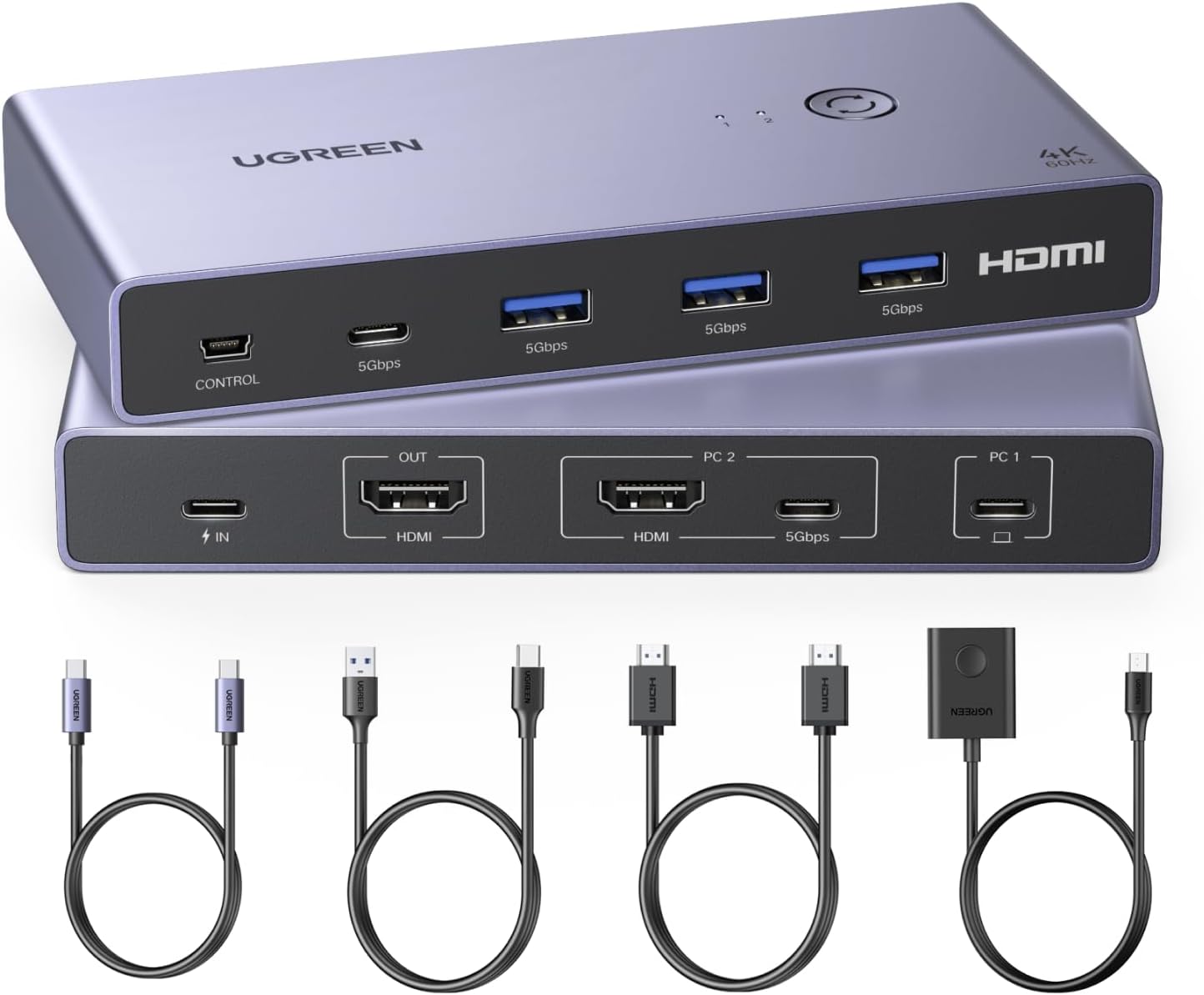
Image: The UGREEN USB-C+HDMI KVM Switch shown with its various included cables, highlighting its compact design and connectivity options.
2. Package Contents
Please verify that all items listed below are included in your package:
- 1x UGREEN USB-C+HDMI KVM Switch
- 1x HDMI Cable (3.3FT)
- 1x USB-C Cable (3.3FT)
- 1x USB-A to C Data Cable (5FT)
- 1x Desktop Controller (5FT)
- 1x User Manual

Image: A visual representation of all items included in the UGREEN USB-C+HDMI KVM Switch package, including the switch unit, various cables, and the desktop controller.
3. Product Overview
Familiarize yourself with the ports and indicators on your KVM switch:
- Front Panel:
- CONTROL Port: Connects to the wired desktop controller.
- USB 3.0 Ports (x4): For connecting USB peripherals like keyboard, mouse, printer, USB drives, etc. These ports support data transfer up to 5Gbps.
- HDMI OUT: Connects to your monitor/display.
- Rear Panel:
- IN (Power Only) Port: USB-C port for optional external power supply (not included). Recommended for high-power USB devices.
- HDMI OUT: Connects to your monitor/display.
- PC 2 (HDMI IN Video + USB-A to C Data): Connects to your second computer (desktop PC). Requires both an HDMI cable for video and a USB-A to C cable for data.
- PC 1 (USB-C IN): Connects to your first computer (USB-C laptop). This single USB-C cable handles video, data, and power delivery (if supported by laptop and power adapter).

Image: A detailed diagram illustrating all input and output ports on the UGREEN KVM Switch, including their functions and recommended connections for various devices.
4. Setup Instructions
Follow these steps to set up your KVM switch:
- Connect Monitor: Connect your monitor to the HDMI OUT port on the KVM switch using an HDMI cable.
- Connect PC 1 (USB-C Laptop): Connect your USB-C laptop to the PC 1 (USB-C IN) port on the KVM switch using the provided USB-C cable. Ensure your laptop's USB-C port supports video output (DisplayPort Alternate Mode).
- Connect PC 2 (Desktop PC): Connect your desktop PC to the PC 2 ports on the KVM switch. This requires two cables: an HDMI cable from your PC's HDMI output to the HDMI IN Video port, and the provided USB-A to C data cable from your PC's USB-A port to the USB-A to C Data Only port.
- Connect USB Peripherals: Plug your keyboard, mouse, printer, or other USB 3.0 devices into the USB 3.0 Ports on the front panel of the KVM switch.
- Connect Desktop Controller: Plug the desktop controller into the CONTROL port on the front panel.
- Optional Power Supply: If you are connecting high-power USB devices (e.g., external hard drives) or if your laptop requires charging via the KVM, connect a PD100W power adapter (not included) to the IN (Power Only) USB-C port on the rear panel.

Image: A visual guide demonstrating how to connect a laptop (PC1) and a desktop computer (PC2) to the KVM switch, sharing a single monitor and USB peripherals.
Important Notes:
- The PC2 connection must include both an HDMI cable for video and a USB-A to C cable for data transfer for proper functionality.
- The power cable and power adapter are NOT included.
- If the power supply is not connected, connecting high-power devices to the USB ports may affect the normal operation of the KVM switch. It is recommended to connect an external power supply for stable performance, especially with power-hungry peripherals.
- Ensure the connected laptop is awakened from sleep mode before attempting to switch.
5. Operating Instructions
The UGREEN KVM Switch offers two convenient ways to switch between connected computers:
- Button Switch: Press the button located on the top of the KVM switch unit to toggle between PC1 and PC2.
- Desktop Controller Switch: Use the wired desktop controller to switch between PC1 and PC2. This allows for flexible placement of the KVM switch while keeping the control button easily accessible on your desk.

Image: Demonstrates the two methods of switching between computers: directly pressing the button on the KVM unit or using the external wired desktop controller.
Note:
- This KVM switch does not support automatic switching or hotkey switching.
- Do not press the switch button or the desktop controller while connecting devices and cables.
6. Features and Capabilities
- High Resolution Support: Supports video resolutions up to 4K@60Hz, and is backward compatible with 4K@30Hz, 2560*1440@120Hz, and lower resolutions.
- Advanced Video Standards: Compatible with HDMI 2.0, HDCP2.2, 3D, and HDR 10+, ensuring vibrant and realistic image quality.
- Fast Data Transfer: Equipped with four USB 3.0 ports (3x USB-A, 1x USB-C) offering data transfer speeds of up to 5Gbps, which is 10 times faster than USB 2.0 (480Mbps). This allows for quick transfer of files, images, and efficient use of peripherals.
- Broad Compatibility: Plug-and-play functionality with wide compatibility across various operating systems including Windows, macOS, and Linux. It also works with a range of devices such as laptops, MacBook Pro/Air, Nintendo Switch/Switch 2, PS5/4/3, Xbox One, and projectors.

Image: A screen displaying high-resolution content, emphasizing the KVM switch's support for 4K@60Hz video output.

Image: Close-up view of the KVM switch's USB 3.0 ports, highlighting their 5Gbps data transfer capability, which is significantly faster than USB 2.0.
7. Maintenance
To ensure the longevity and optimal performance of your UGREEN KVM Switch, follow these maintenance guidelines:
- Cleaning: Use a soft, dry cloth to clean the exterior of the device. Avoid using abrasive cleaners, solvents, or strong chemicals, as they may damage the surface.
- Storage: Store the device in a cool, dry place away from direct sunlight and extreme temperatures.
- Handling: Handle the device with care. Avoid dropping it or subjecting it to strong impacts.
- Ventilation: Ensure the device has adequate ventilation and is not covered, to prevent overheating.
8. Troubleshooting
If you encounter issues with your KVM switch, please refer to the following common problems and solutions:
| Problem | Possible Cause | Solution |
|---|---|---|
| No display or flickering display. | Incorrect cable connection; Laptop in sleep mode; Incompatible resolution; Insufficient power. | Ensure all HDMI and USB-C cables are securely connected. Wake up the laptop from sleep mode before switching. Verify your monitor supports the output resolution. Connect an external power adapter if using high-power USB devices. |
| Keyboard/Mouse not working. | USB data cable not connected for PC2; USB ports overloaded; Driver issues. | For PC2, ensure the USB-A to C data cable is connected. If using high-power USB devices, connect an external power adapter. Try connecting the keyboard/mouse directly to the KVM's USB ports. Ensure no conflicting drivers are installed. |
| Slow switching time or windows moving. | Lack of EDID emulation. | This KVM switch does not feature EDID emulation. This is expected behavior where connected devices may detect a disconnect/reconnect, causing windows to rearrange. This is not a defect. |
| Only one display supported. | Product design limitation. | This KVM switch is designed to support only one display output. It cannot extend or duplicate to multiple monitors simultaneously. |
| Power-related issues with USB devices. | Insufficient power supply. | Connect a PD100W power adapter (not included) to the KVM's IN (Power Only) USB-C port to provide sufficient power, especially for high-power USB devices like external hard drives. |

Image: Illustrates correct and incorrect connection methods for the KVM switch, specifically highlighting the necessity of both HDMI and USB data connections for PC2.
9. Specifications
| Feature | Detail |
|---|---|
| Product Dimensions | 6.3 x 4.53 x 2.28 inches |
| Item Weight | 1.41 pounds |
| Model Number | 25960 |
| Color | Silver |
| Connector Type | HDMI, USB Type-C |
| Compatible Devices | Computers, Laptops, MacBook Pro, MacBook Air, Nintendo Switch/Switch 2, PS5/4/3, Xbox One, Projector |
| Video Resolution | Up to 4K@60Hz |
| USB Data Transfer Speed | Up to 5Gbps (USB 3.0) |
10. Warranty and Support
UGREEN products are designed and manufactured to the highest quality standards. For information regarding warranty coverage, technical support, or customer service, please refer to the official UGREEN website or contact their customer support team directly. Contact details are typically available on the product packaging or the official UGREEN support page.