1. Introduction
The UGREEN USB C SD 4.0 Card Reader (Model 65024) is a versatile 2-in-1 device designed for high-speed data transfer between various memory cards and your computer or mobile devices. It features both USB-A and USB-C connectors, offering broad compatibility and ease of use. This manual provides essential information for setting up, operating, maintaining, and troubleshooting your card reader.
2. Product Overview
The UGREEN USB C SD 4.0 Card Reader is engineered for efficiency and portability. It supports a wide range of SD and MicroSD card formats and offers fast data transfer speeds.
2.1 Key Features
- 2-in-1 Design: Equipped with both USB-A and USB-C connectors for universal compatibility.
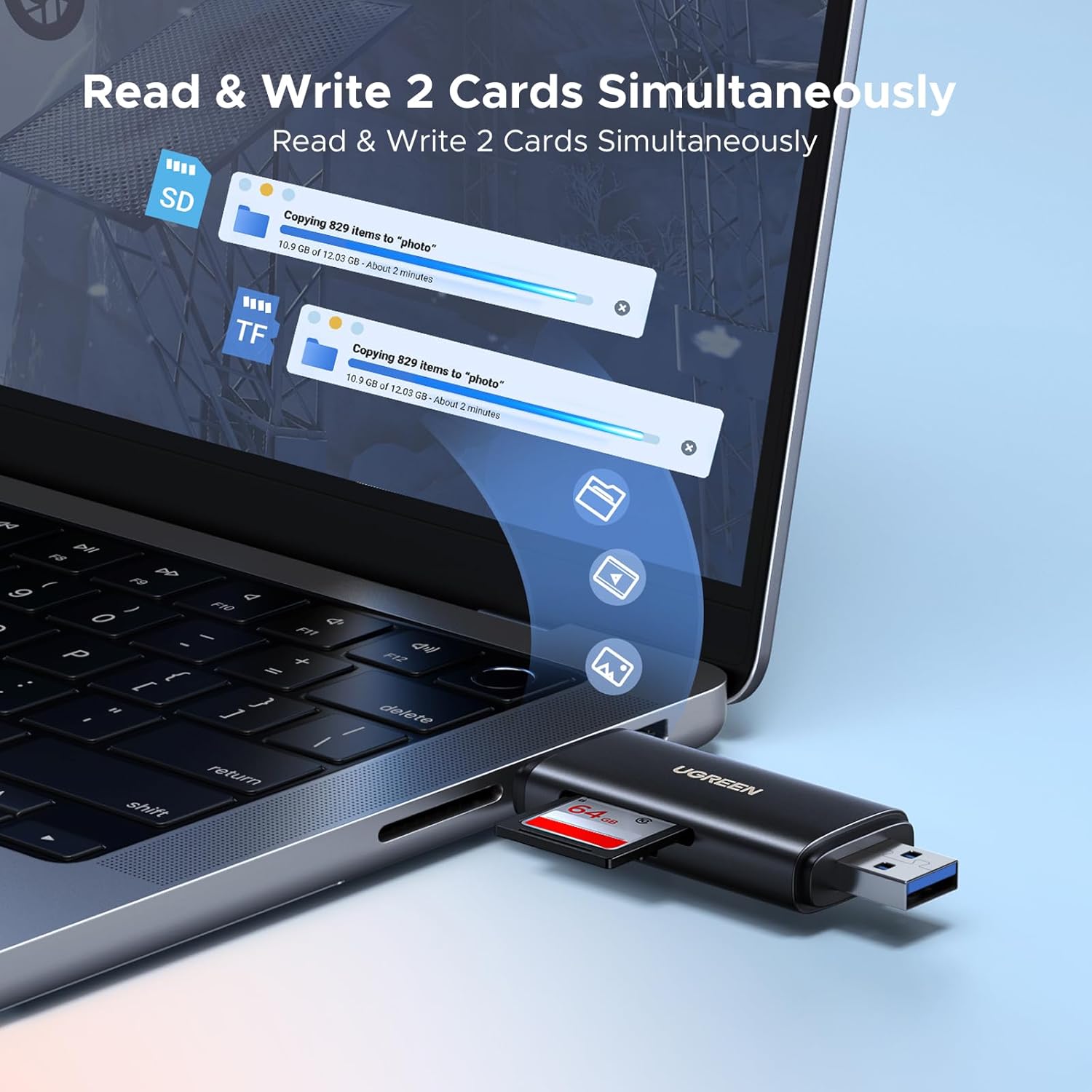
- Dual Card Slots: Supports simultaneous reading and writing for SD and MicroSD cards.
- High-Speed Data Transfer: Achieves speeds up to 312 MB/s with UHS-II cards and up to 5 Gbps (USB 3.0/3.1 Gen 1) via its powerful chipset.
- Wide Card Compatibility: Supports SDXC, SDHC, MicroSD, MMC, RS-MMC, Micro SDXC, Micro SDHC, UHS-II, and UHS-I cards up to 2TB.
- Plug and Play: No drivers required for most operating systems.
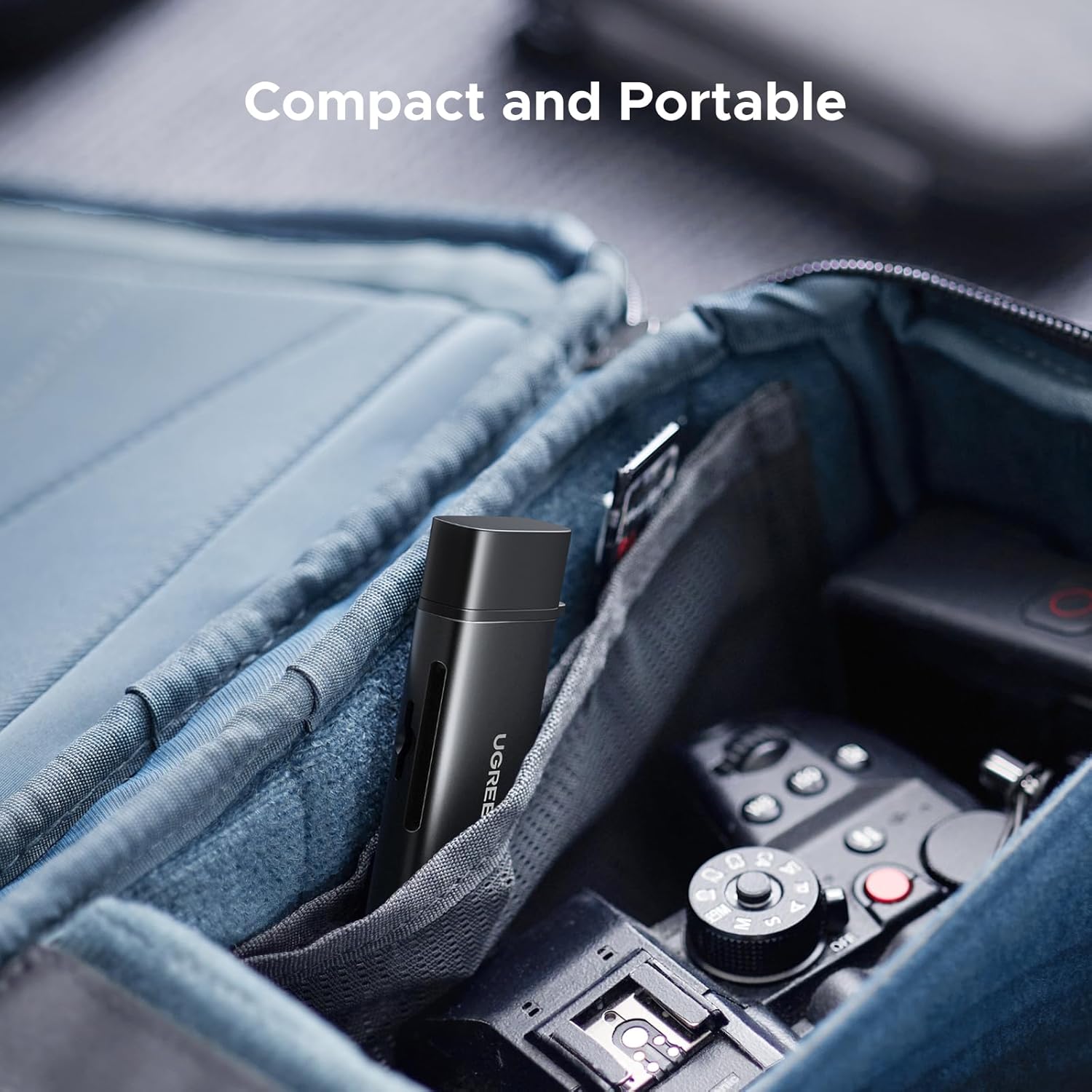
- Compact and Portable: Lightweight design for easy transport.
2.2 Components
The card reader consists of a main body with two integrated connectors (USB-A and USB-C) and two card slots. Protective caps are included for both connectors.


3. Setup
The UGREEN USB C SD 4.0 Card Reader is designed for simple plug-and-play operation.
3.1 Inserting a Memory Card
- Identify the correct slot for your memory card: the larger slot for standard SD cards (SD, SDHC, SDXC) and the smaller slot for MicroSD cards (MicroSD, Micro SDHC, Micro SDXC).
- Gently insert the memory card into the appropriate slot until it clicks into place. Ensure the card is oriented correctly to avoid damage. The eject mechanism design secures the card firmly.
3.2 Connecting to a Device
- Remove the protective cap from the desired connector (USB-A or USB-C).
- Plug the card reader into an available USB-A or USB-C port on your computer, laptop, tablet, or smartphone.
- Your device's operating system should automatically detect the card reader and the inserted memory card. A new drive letter or icon will appear, indicating successful connection.
4. Operating Instructions
Once connected, the card reader functions like any external storage device.
4.1 Data Transfer
- Open the detected drive on your computer or device.
- Drag and drop files to and from the memory card, or use copy/paste functions.
- The card reader supports simultaneous reading and writing from both SD and MicroSD slots, allowing for efficient multi-card operations.
4.2 OTG Functionality (for Mobile Devices)
For compatible smartphones and tablets with OTG (On-The-Go) functionality, the card reader allows direct access to memory card content without a computer.
- Ensure your mobile device supports OTG.
- Connect the card reader (with an inserted memory card) to your mobile device's USB-C port.
- Access files through your device's file manager application.

4.3 Safe Removal
Always safely eject the card reader from your operating system before physically disconnecting it to prevent data corruption.
- Windows: Right-click the drive icon in 'This PC' or the taskbar icon, then select 'Eject'.
- macOS: Drag the drive icon to the Trash, or click the Eject button next to the drive in Finder.
- Android/iOS: Use the 'Eject' or 'Unmount' option in your device's file manager or settings, if available.
5. Maintenance
Proper care ensures the longevity and optimal performance of your UGREEN USB C SD 4.0 Card Reader.
- Keep Clean: Use a soft, dry cloth to clean the exterior of the card reader. Avoid liquid cleaners.
- Protect Connectors: Always use the provided protective caps when the card reader is not in use to prevent dust and debris from entering the USB-A and USB-C ports.
- Handle with Care: Avoid dropping the device or subjecting it to strong impacts.
- Storage: Store the card reader in a cool, dry place away from direct sunlight and extreme temperatures. Its compact size makes it easy to store in a bag or pocket.

6. Troubleshooting
If you encounter issues with your card reader, refer to the following common solutions:
- Device Not Recognized:
- Ensure the card reader is fully inserted into the USB port.
- Try a different USB port on your device.
- Test the card reader on another computer or compatible device to rule out a port issue.
- Restart your computer or mobile device.
- Memory Card Not Detected:
- Ensure the memory card is correctly and fully inserted into its slot.
- Try a different memory card to check if the issue is with the card itself.
- Verify the memory card is not damaged or corrupted.
- Slow Data Transfer Speed:
- Ensure your computer's USB port supports USB 3.0/3.1 Gen 1 (often indicated by a blue port or SS symbol). Connecting to a USB 2.0 port will result in slower speeds.
- Confirm your memory card is a high-speed card (e.g., UHS-II for 312 MB/s). Lower class cards will have slower transfer rates.
- Avoid running multiple demanding applications during large file transfers.
- Intermittent Connection:
- Ensure the connection is stable and the card reader is not being jostled.
- Check for any physical damage to the connectors or the card reader itself.
7. Specifications
| Feature | Detail |
|---|---|
| Brand | UGREEN |
| Model Number | 65024 |
| Connectivity Technology | USB Type A, USB Type C |
| Media Type Supported | SD Card, SDHC, SDXC, MicroSD, MicroSDHC, MicroSDXC, MMC, RS-MMC, UHS-I, UHS-II |
| Max Capacity Supported | Up to 2TB |
| Max Data Transfer Speed | Up to 312 MB/s (with UHS-II cards), Up to 5 Gbps (USB 3.0/3.1 Gen 1) |
| Operating System Compatibility | iOS, Android, Windows, macOS |
| Product Dimensions (LxWxH) | 3.23 x 1.06 x 0.47 inches |
| Item Weight | 2.16 ounces |
| Color | Black |

8. Warranty and Support
For warranty information and technical support, please refer to the official UGREEN website or contact UGREEN customer service directly. Keep your purchase receipt for warranty claims.
UGREEN Official Website: www.ugreen.com