
1. Introduction
This manual provides detailed instructions for the ZMX GMK70 Split Mechanical Keyboard Kit. It covers setup, operation, maintenance, and troubleshooting to ensure optimal performance and user experience. The GMK70 is a 65% layout, gasket-mounted, hot-swappable keyboard kit with tri-mode connectivity (Bluetooth 5.0, 2.4GHz wireless, and Type-C wired) and VIA programmability, designed for ergonomic comfort.
2. What's in the Box
Upon opening your ZMX GMK70 Split Mechanical Keyboard Kit, please verify that all the following components are included:
- GMK70 Split Mechanical Keyboard Kit (Left and Right halves)
- USB Cable (Type-C to Type-A)
- User Manual (this document)
- Detachable Coiled Cable (for connecting the two halves)
- 2-in-1 Keycap & Switch Puller
Video: Unboxing the ZMX GMK70 Split Keyboard Kit. This video demonstrates the contents of the package and the initial presentation of the keyboard components.
3. Setup Guide
3.1 Assembling the Keyboard
The GMK70 is a barebones kit, meaning switches and keycaps are not pre-installed. You will need to install your preferred 3-pin or 5-pin mechanical switches and keycaps.
- Install Switches: Using the provided switch puller, carefully align and press each mechanical switch into the hot-swappable sockets on the PCB. Ensure the pins are straight to avoid bending.
- Install Keycaps: Once all switches are installed, press your desired keycaps onto the switches.

Image: The ZMX GMK70 keyboard kit demonstrating its hot-swappable sockets, allowing for easy installation of mechanical switches.
3.2 Connecting the Keyboard Halves
The GMK70 features a split design. The two halves can be used separately or connected.
- Magnetic Connection: The left and right keyboard halves are designed to magnetically bond when placed close together, forming a single unit.
- Wired Connection (Split Mode): To use the keyboard as a single unit with a wired connection, connect the provided detachable coiled cable between the two halves.

Image: The ZMX GMK70 Split Mechanical Keyboard Kit demonstrating its magnetic connection feature, allowing the two halves to be joined.

Image: Close-up of the split connection socket and the tri-mode connection switch on the ZMX GMK70 keyboard.
3.3 Connectivity Modes
The GMK70 supports three connection modes:
- Type-C Wired: Connect the main USB cable from the left half of the keyboard to your computer. This mode is required when using the right half alone.
- 2.4GHz Wireless: Insert the 2.4GHz USB dongle into your computer. Switch the keyboard's mode selector to 2.4GHz.
- Bluetooth 5.0: Switch the keyboard's mode selector to Bluetooth. Press FN+Q, FN+W, or FN+E to switch between three paired Bluetooth devices.
The keyboard is equipped with a 3000mAh battery for wireless operation.

Image: Connectivity diagram illustrating the 2.4GHz wireless, Bluetooth 5.0, and wired connection options for the ZMX GMK70 keyboard, compatible with various devices.

Image: The ZMX GMK70 keyboard highlighting its 3000mAh battery capacity, ensuring extended wireless usage.
4. Operating Instructions
4.1 Basic Key Functions
The GMK70 features a 65% layout. Refer to the keycap legends for standard functions. The FN key is used for accessing secondary functions.
- FN + Q/W/E: Switch between Bluetooth devices (in Bluetooth mode).
- FN + TAB: Cycle through RGB backlight effects.
- Volume Knob: Rotate to adjust volume. Press to mute/unmute.
4.2 RGB Backlight Control
The keyboard features south-facing RGB backlighting. Use FN + TAB to cycle through various lighting effects. Additional customization is available via VIA software.
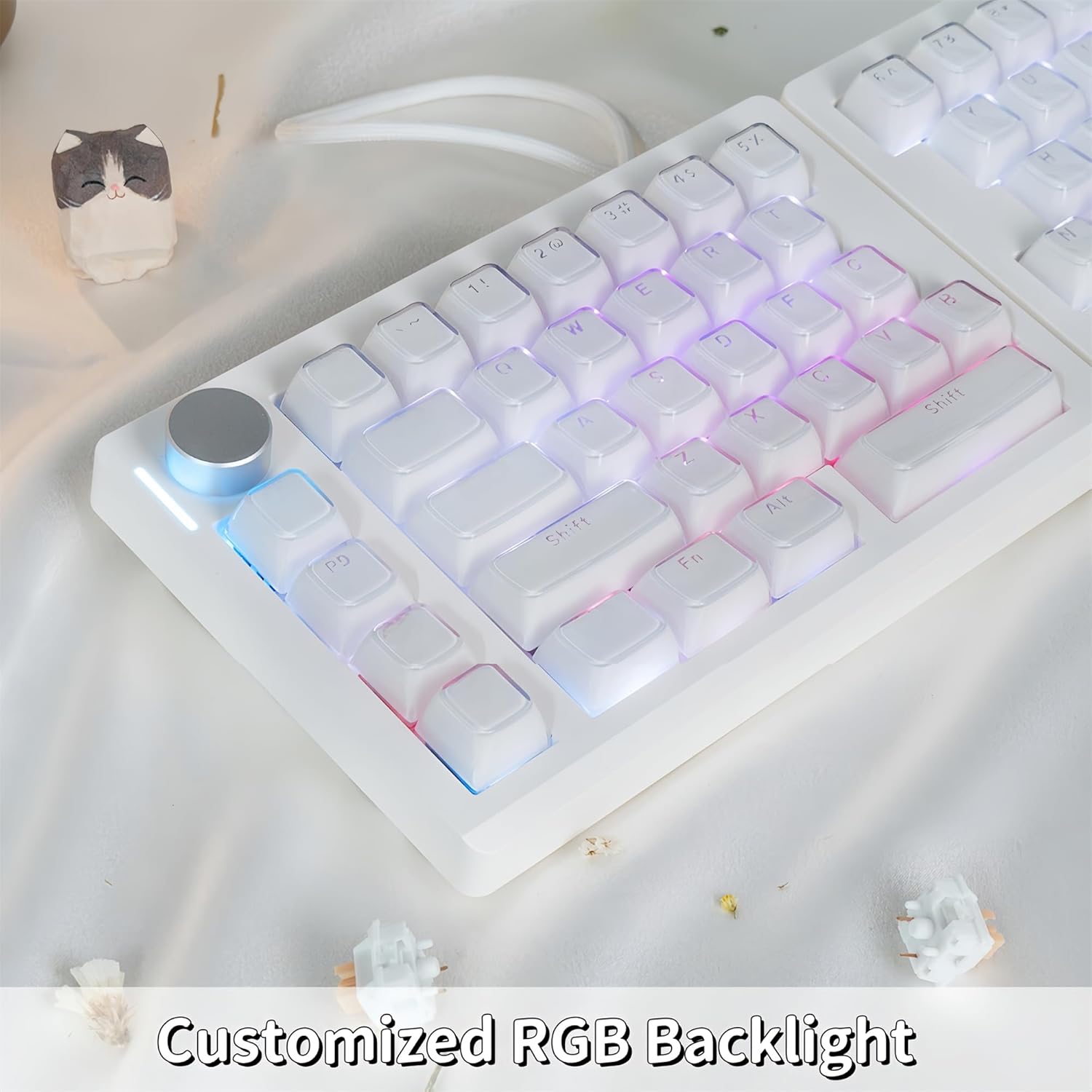
Image: The ZMX GMK70 keyboard displaying its customizable RGB backlighting, enhancing the visual experience.
Video: Demonstration of the ZMX GMK70 Split Keyboard Kit's RGB backlighting effects. This video showcases various lighting patterns and colors.
4.3 VIA Programmability
The GMK70 supports VIA software, allowing for extensive customization of key remapping, layer configurations, RGB lighting, and macro creation. Download the VIA software from the official website (refer to the manufacturer's website for the correct download link).
- Connect the keyboard to your computer via the Type-C wired connection.
- Open the VIA software. The software should automatically detect the GMK70.
- Use the interface to remap keys, create macros, and customize lighting effects across different layers.

Image: A screenshot of the VIA software interface, demonstrating the customization options available for the ZMX GMK70 keyboard, including key remapping and lighting control.
5. Maintenance
5.1 Cleaning the Keyboard
- Keycaps: Use a keycap puller to remove keycaps. Clean them with mild soap and water, then dry thoroughly before reattaching.
- Case: Wipe the keyboard case with a soft, damp cloth. Avoid harsh chemicals.
- Between Keys: Use compressed air to remove dust and debris from between the switches.
5.2 Replacing Switches
The GMK70 is hot-swappable, allowing for easy switch replacement without soldering.
- Using the provided switch puller, gently grip the switch from the top and bottom.
- Pull the switch straight up to remove it from the PCB.
- Align the pins of the new switch with the hot-swap sockets on the PCB.
- Press the new switch firmly until it clicks into place. Ensure it is seated correctly and the pins are not bent.
6. Troubleshooting
6.1 Keyboard Not Responding
- Wired Connection: Ensure the USB cable is securely connected to both the keyboard and the computer. Try a different USB port or cable.
- Wireless Connection (2.4GHz): Verify the 2.4GHz dongle is inserted and the keyboard is switched to 2.4GHz mode.
- Bluetooth Connection: Ensure Bluetooth is enabled on your device and the keyboard is paired. Try re-pairing the keyboard. Check battery level.
- Battery: If using wireless modes, ensure the keyboard battery is charged. Connect the USB cable to charge.
6.2 RGB Backlight Not Working
- Press FN + TAB to cycle through lighting effects.
- Check VIA software settings to ensure RGB is enabled and configured correctly.
- Ensure the keyboard is receiving sufficient power (especially in wired mode).
6.3 Keys Not Registering
- Switch Installation: Ensure the switches are fully seated in their sockets. Remove and re-insert any problematic switches.
- Bent Pins: Carefully remove the switch and check for bent pins. Straighten them with tweezers if necessary before re-inserting.
- VIA Configuration: Check VIA software to ensure the keys are not accidentally remapped or disabled.
7. Specifications
| Model | GMK70 |
| Layout | 65% Split Ergonomic |
| Connectivity | Bluetooth 5.0, 2.4GHz Wireless, USB Type-C Wired |
| Battery Capacity | 3000mAh |
| Switch Compatibility | 3-pin / 5-pin Hot-Swappable Mechanical Switches |
| Mounting Style | Gasket Mounted |
| Backlighting | South-Facing RGB |
| Programmability | VIA Software Support |
| Compatibility | Windows, macOS, Gaming Consoles, Laptops, PCs, Smartphones, Tablets |
| Dimensions | 14.6 x 4.6 x 1.6 inches (approximate, when combined) |
| Item Weight | 1.5 pounds |

Image: An exploded view diagram illustrating the internal components and layers of the ZMX GMK70 keyboard, including the gasket mount structure.
8. Warranty and Support
For warranty information and technical support, please refer to the official ZMX website or contact your retailer. Keep your purchase receipt for warranty claims.
For further assistance, please visit the ZMX Store on Amazon.