
1. Introduction
The MiLESEEY TNV30i is an Android-compatible thermal monocular designed for various outdoor observation activities. This device utilizes advanced thermal imaging technology to detect heat signatures, providing clear visuals in complete darkness or challenging environments. It features a 512x384 resolution detector, a 13mm lens, and a 16X digital zoom capability, allowing for detection distances up to 1500 meters. This manual provides essential information for the proper setup, operation, and maintenance of your TNV30i thermal monocular.

Image 1.1: MiLESEEY TNV30i Thermal Monocular with smartphone and accessories.
2. What's in the Box
Carefully unpack your MiLESEEY TNV30i thermal monocular and verify that all components are present:
- TNV30i Thermal Monocular
- Tactical Handle
- Multifunction Adapter Cable
- Quick User Guide
- Cleaning Cloth
- Carrying Bag

Image 2.1: Package contents of the MiLESEEY TNV30i.
3. Product Overview
The TNV30i thermal monocular is a compact device designed to connect directly to your Android smartphone via a USB-C port. It features an adjustable focus lens and is compatible with a dedicated mobile application for full functionality.

Image 3.1: MiLESEEY TNV30i Thermal Monocular key features.
4. Setup
4.1. Smartphone Compatibility
The MiLESEEY TNV30i thermal monocular is designed exclusively for Android smartphones running Android 6.0 or higher. Ensure your device meets this requirement for proper operation.
4.2. App Installation
Before connecting the monocular, install the official MiLESEEY companion application on your Android smartphone. Refer to the Quick User Guide for instructions on where to download the application. You may need to enable installation from unknown sources in your phone's security settings if downloading directly.
4.3. Connecting the Monocular
- Ensure the MiLESEEY app is installed and open on your smartphone.
- Connect the TNV30i thermal monocular to your smartphone's USB-C port.
- The app should automatically detect the monocular and display the thermal live view. If prompted, grant necessary permissions to the app.
4.4. Attaching the Tactical Handle
For enhanced stability and control, attach the provided tactical handle to your smartphone and monocular setup. The handle typically includes a phone clamp and a mounting point for the monocular, allowing for a secure grip during observation.
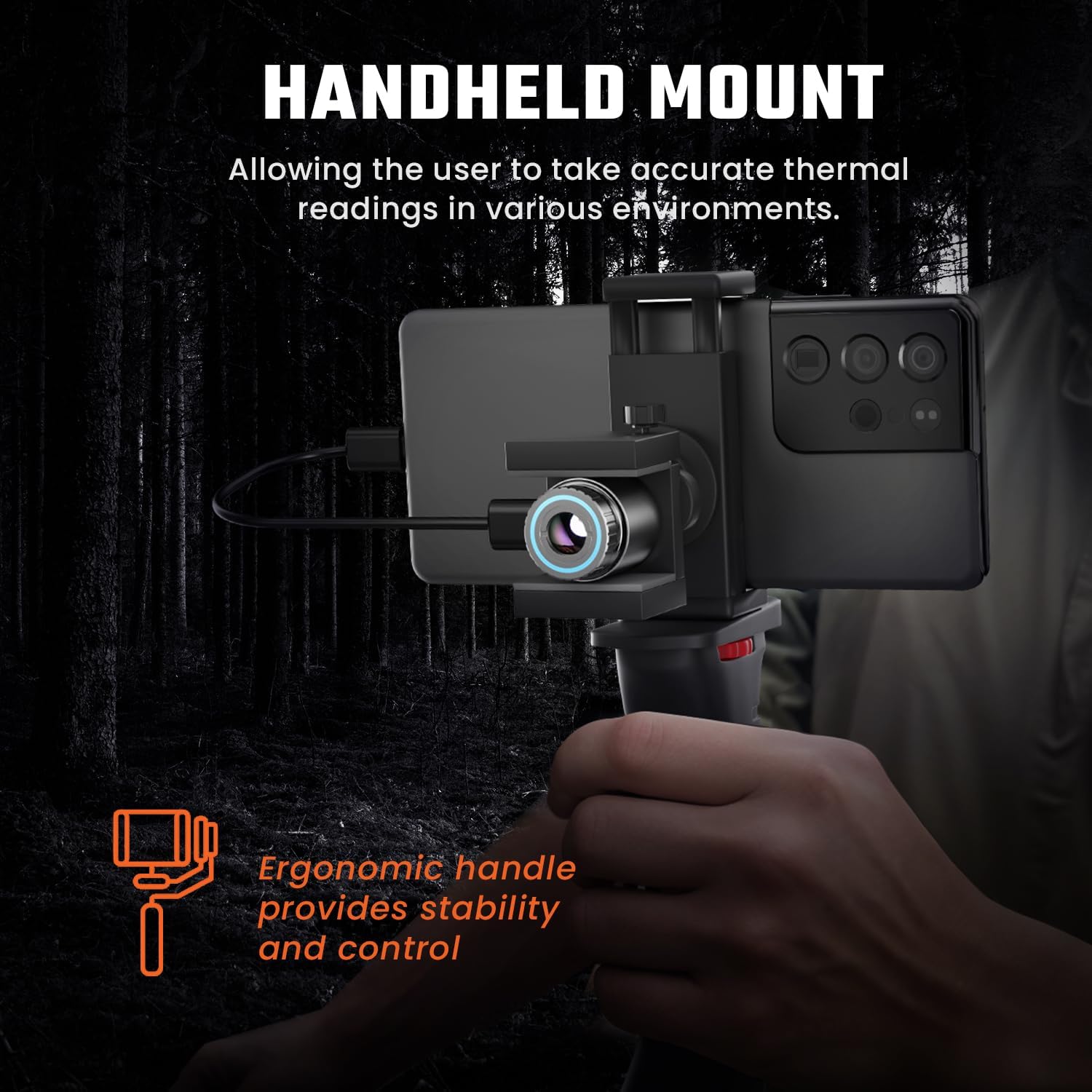
Image 4.1: MiLESEEY TNV30i with tactical handle for stable use.
5. Operation
5.1. Using the MiLESEEY App
The MiLESEEY app provides the interface for controlling the thermal monocular and viewing its output. Familiarize yourself with the app's layout and functions:
- Live View: Displays real-time thermal imagery from the monocular.
- Resolution: The monocular operates at 512x384 resolution, providing detailed thermal images.
- Adjustable Focus: Rotate the ring around the monocular's lens to achieve a clear image. This is crucial for optimal image quality at varying distances.
- Digital Zoom: Utilize the app's controls to apply up to 16X digital zoom for closer observation of distant targets.
- Hot Spot Tracking: This feature automatically identifies and highlights the hottest point in the field of view, aiding in quick target location.
- Color Palettes: Select from various color palettes (e.g., White Hot, Black Hot, Ironbow, Sepia, Green Hot) to visualize thermal data in different ways, enhancing contrast and detail for specific scenarios.
- Image Algorithms: The device incorporates Matrix III exclusive image algorithms for clear and sharp thermal images.
- Other Settings: The app typically includes options for adjusting contrast, brightness, FFC (Flat Field Correction) calibration, and specialized modes like 'Jungle Mode' for specific environments.

Image 5.1: MiLESEEY app interface showing thermal view and settings.
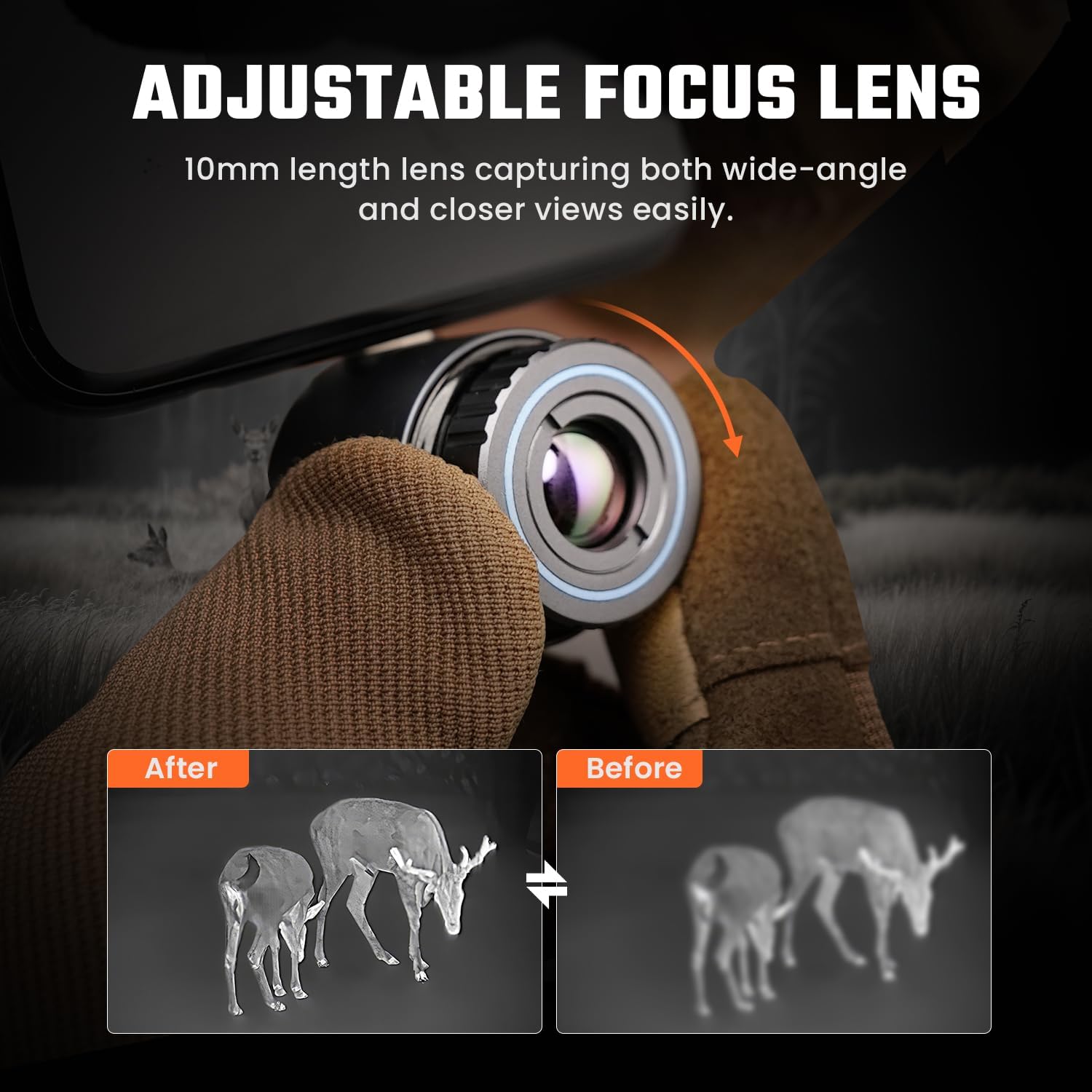
Image 5.2: Demonstrating the adjustable focus lens for clear thermal imaging.

Image 5.3: Overview of MiLESEEY app functions.
5.2. Field of View and Detection Range
The TNV30i offers a 17.5°x13.1° field of view with its 13mm focal length lens, allowing for a broad perspective. The device is capable of detecting heat signatures up to 1500 meters (approximately 1579 yards) under optimal conditions.

Image 5.4: Field of View illustration.
6. Maintenance
6.1. Cleaning
To maintain optimal performance, keep the monocular's lens and body clean. Use the provided cleaning cloth or a soft, lint-free cloth to gently wipe the lens. Avoid using abrasive materials or harsh chemicals that could damage the lens coating or device housing.
6.2. Storage
When not in use, store the thermal monocular in its carrying bag in a cool, dry place, away from direct sunlight and extreme temperatures. This protects the device from dust, moisture, and physical damage.
7. Troubleshooting
If you encounter issues with your MiLESEEY TNV30i, refer to the following common troubleshooting steps:
- App Not Launching or Displaying Errors:
- Ensure your smartphone is running Android 6.0 or higher.
- Verify that the app has all necessary permissions granted in your phone's settings.
- Try uninstalling and reinstalling the app.
- Restart your smartphone.
- Monocular Not Detected / "Plug in device" Message:
- Confirm the monocular is securely connected to the USB-C port.
- Ensure the USB-C port on your phone is clean and free of debris.
- Try connecting the monocular to a different compatible Android phone to rule out a device-specific issue.
- Check if your phone's USB settings (often found in Developer Options) are configured to allow external device connections.
- Dark or Undifferentiated Screen:
- Adjust the focus ring on the monocular lens.
- Ensure there are sufficient temperature differences in the scene for the thermal imager to detect.
- Check the app's brightness, contrast, and color palette settings. Experiment with different palettes.
- Perform an FFC (Flat Field Correction) calibration if available in the app.
- Poor Image Quality at Zoom:
- Digital zoom can reduce image clarity. Optimal clarity is typically achieved at lower zoom levels.
- Ensure the lens is clean and properly focused.
If these steps do not resolve the issue, please contact MiLESEEY customer support for further assistance.
8. Specifications
| Feature | Specification |
|---|---|
| Model Name | TNV30i |
| Brand | MiLESEEY |
| Detector Resolution | 512x384 |
| Pixel Pitch | 12µm |
| Focal Length | 13 mm |
| Field of View (FOV) | 17.5° x 13.1° |
| Digital Zoom | Up to 16X |
| Detection Range | Up to 1500m (1579 yards) |
| Focus Type | Adjustable Focus |
| Compatible Devices | Android Smartphones (Android 6.0+) |
| Interface | USB-C |
| Item Weight | 1.5 pounds (approx. 0.68 kg) |
| Package Dimensions | 9.33 x 7.01 x 2.48 inches |
9. Warranty and Support
The MiLESEEY TNV30i Thermal Monocular comes with a 24-month warranty from the date of purchase. This warranty covers manufacturing defects and ensures the product functions as intended under normal use.
For technical support, warranty claims, or any questions regarding your device, please refer to the contact information provided in your Quick User Guide or visit the official MiLESEEY website. Please have your product model and purchase details ready when contacting support.