
1. Introduction
Thank you for choosing the LSLYA 9-inch Single DIN Touchscreen Car Stereo. This manual provides essential information for the safe and efficient operation of your new car stereo. Please read it thoroughly before installation and use, and keep it for future reference.

Figure 1.1: LSLYA 9-inch Single DIN Touchscreen Car Stereo
2. Safety Information
- Driving Safety: Always prioritize safe driving. Do not operate the device in a way that distracts you from the road.
- Volume Control: Keep the volume at a level where you can still hear outside traffic sounds.
- Installation: Professional installation is recommended. Ensure all wiring is correctly connected to prevent damage or malfunction.
- Power Supply: Use only the specified power supply voltage (12V DC).
- Temperature: Avoid exposing the unit to extreme temperatures or direct sunlight for prolonged periods.
3. Package Contents
Verify that all items are present in the package:
- LSLYA 9-inch Single DIN Touchscreen Car Stereo
- Backup Camera
- Microphone
- Rear View Camera Cable
- Power Cable
- User Manual (this document)

Figure 3.1: Package Contents and Unit Dimensions
4. Product Overview
The LSLYA 9-inch Single DIN Touchscreen Car Stereo offers a range of features to enhance your driving experience:
- 9-inch Touchscreen: High-definition display for clear visuals and easy interaction.
- Apple CarPlay & Android Auto: Seamless integration with your smartphone for navigation, music, calls, and more.
- Bluetooth Connectivity: Hands-free calling and wireless music streaming.
- Mirror Link: Display your phone's screen directly on the car stereo.
- AM/FM Radio: Access to local radio stations.
- Backup Camera Support: Automatic display of rear view when reversing.
- USB/AUX/RCA/Microphone Input: Multiple connectivity options.
- EQ: Customizable audio equalizer settings.
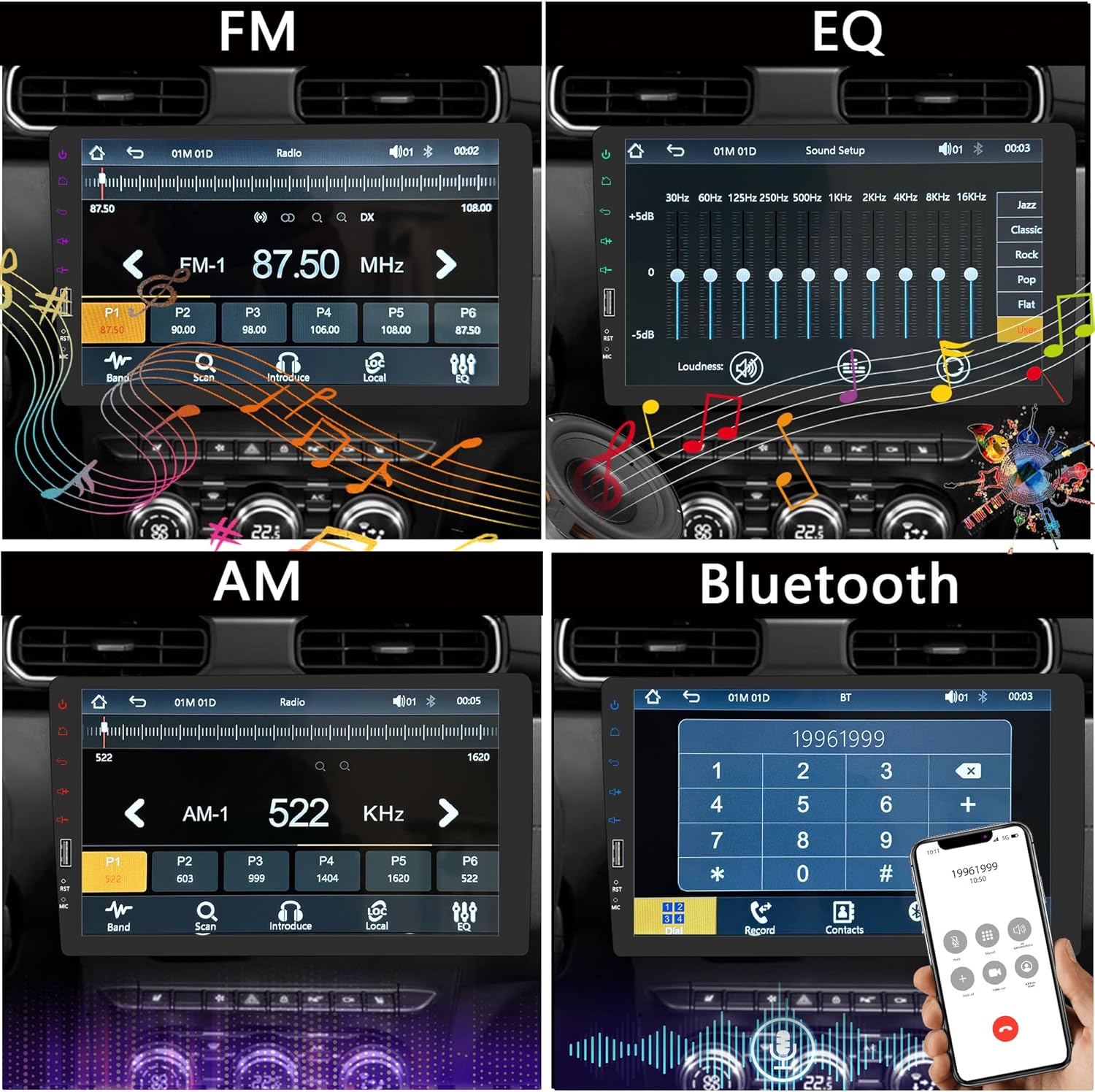
Figure 4.1: Key Features Interface (FM, EQ, AM, Bluetooth)
5. Setup & Installation
Before installation, ensure your vehicle's power is disconnected. Refer to the wiring diagram provided with your unit and consult a professional if you are unsure about any steps.
5.1. Wiring Connections
Connect the power cable, speaker wires, and other necessary cables according to the diagram. Pay close attention to the positive and negative terminals.
5.2. Backup Camera Installation
Install the backup camera at the rear of your vehicle. Connect the camera's video output to the stereo's 'CAM-IN' input and its power to the reverse light circuit. This ensures the camera activates automatically when the vehicle is in reverse gear.

Figure 5.1: Backup Camera View on Screen
6. Operating Instructions
6.1. Power On/Off
Press the power button on the front panel to turn the unit on or off. The unit will automatically power on when the vehicle's ignition is turned on.
6.2. Basic Navigation
Use the touchscreen to navigate through menus and select functions. The home button will return you to the main interface.
6.3. Radio (AM/FM)
Select the 'Radio' icon from the main menu. You can manually tune frequencies or use the 'Scan' function to find available stations. Save your favorite stations to preset buttons.
6.4. Bluetooth Connectivity
To pair your phone via Bluetooth:
- Go to your phone's Bluetooth settings and ensure Bluetooth is enabled.
- On the car stereo, select the 'BT' or 'Bluetooth' icon.
- Search for available devices on your phone and select 'CAR BT_EEC3'.
- Confirm the pairing code on both devices.
- Once paired, you can make hands-free calls and stream audio.
Watch the video below for a demonstration of Bluetooth phone calls:
Video 6.1: Bluetooth Phone Calls (0:04 - 0:25)
6.5. Apple CarPlay & Android Auto
Connect your iPhone or Android phone to the car stereo via a USB cable. The system will automatically detect and launch Apple CarPlay or Android Auto, providing access to your phone's apps, navigation, and voice control.

Figure 6.2: Apple CarPlay / Android Auto Interface
Watch the video below for a demonstration of CarPlay and Android Auto connections:
Video 6.2: CarPlay Connection (0:25 - 0:44) and Android Auto Connection (1:14 - 1:25)
6.6. Mirror Link
The Mirror Link function allows you to display your smartphone's screen directly on the car stereo. Connect your phone via USB and follow the on-screen prompts to activate the mirroring application.

Figure 6.3: Mirror Link Functionality
Watch the video below for a demonstration of Mirror Link connections:
Video 6.3: iOS Mirror Connection (0:44 - 1:07) and Android Mirror Connection (1:25 - 1:55)
7. Audio Settings (EQ)
Access the Equalizer (EQ) settings from the main menu to customize your audio experience. You can choose from preset modes (Jazz, Classic, Rock, Pop, Flat) or adjust individual frequency bands to create a 'User' defined setting. Adjust the 'Loudness' feature as desired.
Watch the video below for a demonstration of EQ settings:
Video 7.1: EQ Settings Adjustment (2:03 - 2:12)
8. Specifications
| Brand | LSLYA |
| Model Number | LSLYA-9inch-SingleDin |
| Screen Size | 9 inches |
| Connectivity Technology | Bluetooth |
| Controller Type | Hand Control, Remote Control, Voice Control (Google Assistant, Siri Assistant) |
| Special Features | Android Auto, Apple CarPlay, Hands-Free Calling, Single DIN Car Stereo, Touchscreen |
| Compatible Devices | Amplifier, Smartphone, Speaker, iPhone |
| Connector Type | 3.5mm Jack, USB |
| Audio Output Mode | Stereo |
| Surround Sound Channel Configuration | 5.1 |
| Video Encoding | RM, RMVB, AVI, MP4, MKV, 3GP |
| Color | Black |
| Number of Channels | 6 |
| Control Method | Touch, Voice |
| Audio Output Type | Speakers |
| Item Dimensions (D x W x H) | 4.8"D x 10"W x 6.4"H |
9. Troubleshooting
If you encounter issues, please refer to the following common solutions:
- No Power: Check all power connections. Ensure the ignition is on and the fuse is not blown.
- No Sound: Verify speaker connections. Check volume levels and EQ settings. Ensure the correct audio source is selected.
- Bluetooth Pairing Issues: Ensure Bluetooth is enabled on both devices. Forget previous pairings and try again. Make sure the stereo is in pairing mode.
- CarPlay/Android Auto Not Connecting: Use a high-quality USB cable. Ensure your phone's operating system is up to date. Restart both your phone and the car stereo.
- Backup Camera Not Displaying: Check the camera's power and video connections. Ensure the reverse gear is engaged.
For further assistance, please contact LSLYA customer support.
10. Warranty & Support
LSLYA is committed to providing quality products and excellent customer service. Your purchase includes a 30-day refund/replacement policy. For any questions or issues, our customer support team is available to assist you.
LSLYA adheres to customer-centered values, quality survival, and innovation-driven development to serve you best. We offer permanent after-sales support.