
Acer ED343CUR J
Acer ED343CUR J 34-inch UWQHD 1000R Curved LED Monitor User Manual
1. Introduction
Welcome to the user manual for your new Acer ED343CUR J 34-inch UWQHD 1000R Curved LED Monitor. This document provides essential information for setting up, operating, maintaining, and troubleshooting your monitor. Please read this manual thoroughly before using your monitor to ensure proper functionality and to maximize your viewing experience.
The Acer ED343CUR J monitor features a 34-inch UWQHD (3440x1440) VA panel with a 1000R curvature, offering an immersive visual experience. It boasts a 1ms Visual Response Boost (VRB) and a 120Hz refresh rate for smooth visuals, complemented by AMD FreeSync Premium technology to eliminate screen tearing. With HDR 10 support, Adobe RGB 90% wide color gamut, and integrated RGB lighting, this monitor is designed for both productivity and entertainment. It also incorporates Acer VisionCare 2.0 technologies for eye comfort.
2. Package Contents
Please verify that all items listed below are included in your package:
- Acer ED343CUR J Monitor
- Monitor Stand (Base and Neck)
- Power Cord
- DP Cable (DisplayPort Cable)
- User Manual (this document)
3. Setup Instructions
3.1 Assembling the Monitor Stand
- Carefully remove the monitor and stand components from the packaging. Place the monitor face down on a soft, clean surface to prevent scratches.
- Attach the stand neck to the back of the monitor. Ensure it clicks securely into place or is fastened with screws if provided.
- Attach the stand base to the stand neck. Tighten any screws firmly to ensure stability.
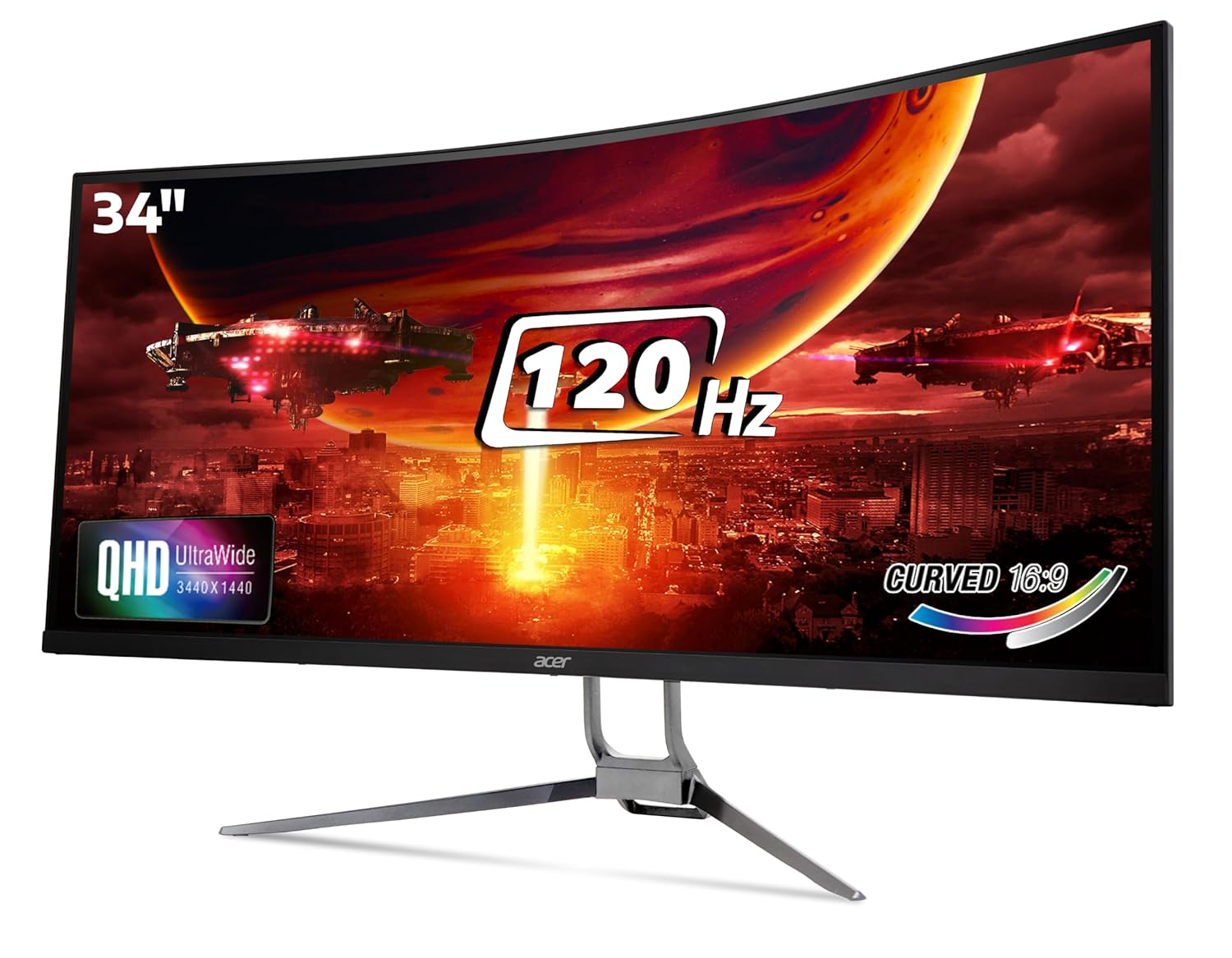
Image 3.1: Front view of the Acer ED343CUR J monitor with its stand assembled.
3.2 Connecting the Monitor
Connect the monitor to your computer or other devices using the appropriate cables.
- Power Connection: Connect the power cord to the monitor's power input and then to a power outlet.
- Video Connection: Use the included DisplayPort (DP) cable to connect the monitor to your computer's graphics card. Alternatively, you can use an HDMI 2.0 cable (not included) to connect to one of the two HDMI 2.0 ports.
- Audio Connection: If you wish to use external speakers or headphones, connect them to the audio out port on the monitor. The monitor also has integrated 3W x 2 stereo speakers.

Image 3.2: Rear view of the monitor highlighting the 2x HDMI 2.0 ports, 2x DisplayPort 1.2 ports, and audio out.
3.3 Wall Mounting (Optional)
The monitor supports VESA wall mounting. Refer to the wall mount kit instructions for proper installation. Ensure the wall mount can support the monitor's weight of approximately 7.7 kg.
4. Operating Instructions
4.1 Power On/Off
Press the power button, usually located on the bottom or back of the monitor, to turn the monitor on or off. The power indicator light will illuminate when the monitor is on.
4.2 On-Screen Display (OSD) Menu
The OSD menu allows you to adjust various monitor settings. Typically, buttons located on the back or bottom of the monitor are used to navigate and select options within the OSD. Common settings include:
- Brightness/Contrast: Adjust the overall luminance and contrast of the display.
- Color Settings: Modify color temperature, gamma, and individual RGB levels.
- Input Selection: Manually switch between HDMI and DisplayPort inputs.
- Audio Settings: Adjust speaker volume or mute audio.
- Gaming Features: Enable/disable AMD FreeSync Premium, adjust response time (VRB), and other gaming-specific enhancements.
- Acer VisionCare 2.0: Access settings for Bluelight Shield PRO, Flickerless, Low Dimming, and Comfyview to reduce eye strain.
4.3 Key Features and Technologies
- 1000R Curved Display: Provides an immersive viewing experience by matching the natural curvature of the human eye.
- 120Hz Refresh Rate & 1ms VRB: Ensures smooth motion and reduced ghosting, particularly beneficial for fast-paced content.
- AMD FreeSync Premium: Synchronizes the monitor's refresh rate with the graphics card's frame rate to eliminate screen tearing and stuttering.
- HDR 10 Support: Enhances contrast and color accuracy for compatible content.
- Adobe RGB 90% Color Gamut: Delivers vibrant and accurate colors for creative work and media consumption.
- RGB Lighting: Customizable lighting elements on the back of the monitor for aesthetic enhancement.

Image 4.1: The monitor showcasing a dynamic scene, illustrating its fluid and tear-free performance with 120Hz refresh rate and 1ms VRB.

Image 4.2: The monitor displaying a vibrant image, highlighting its AdobeRGB 90% wide color gamut and 1.07 billion colors capability.
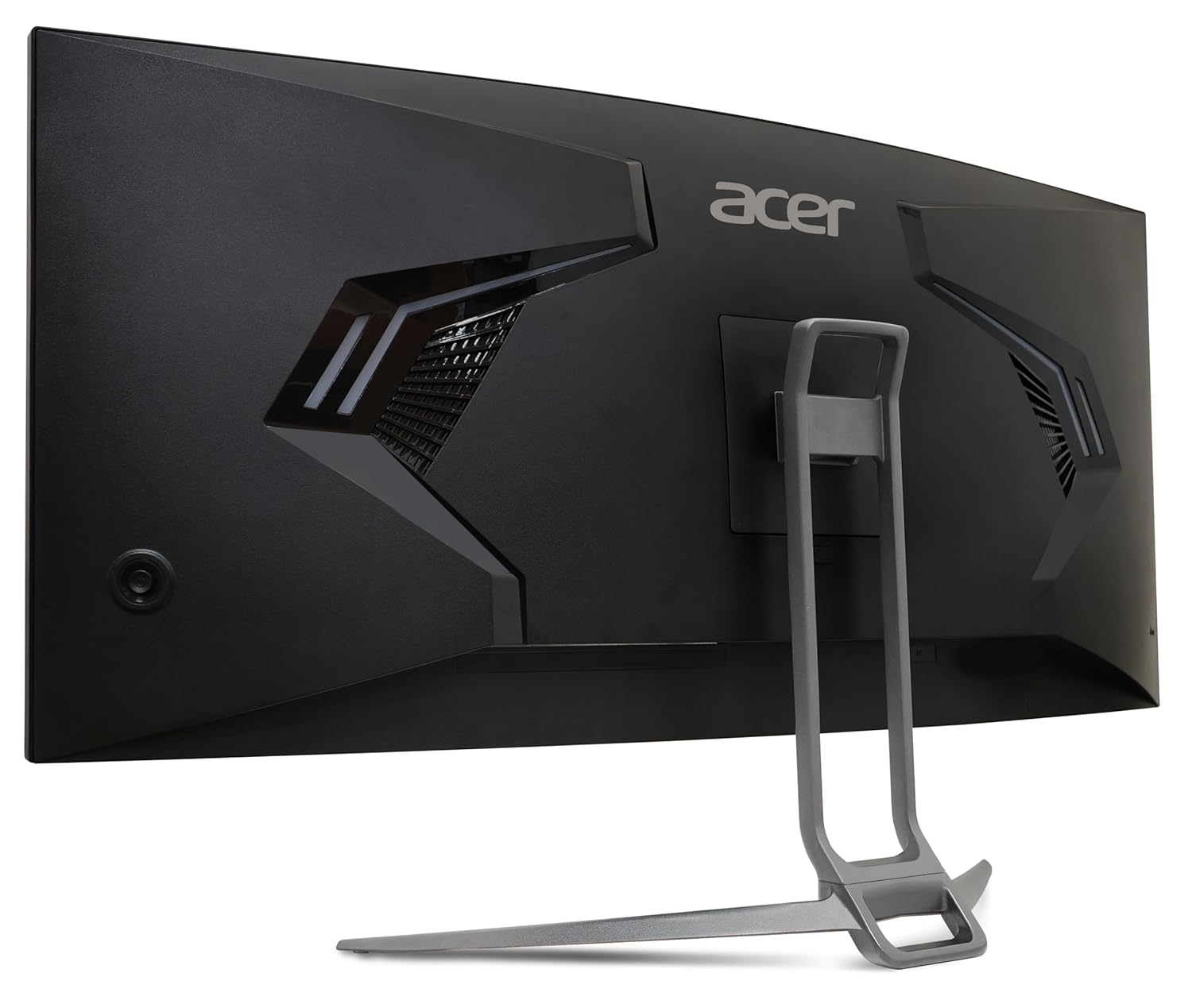
Image 4.3: Rear view of the monitor showing the integrated RGB lighting elements.
5. Maintenance
5.1 Cleaning the Monitor
To clean the monitor, ensure it is turned off and unplugged from the power outlet.
- Screen: Gently wipe the screen with a soft, lint-free cloth. For stubborn marks, lightly dampen the cloth with water or a non-abrasive screen cleaner. Do not spray liquid directly onto the screen.
- Casing: Use a soft, dry cloth to wipe the monitor casing. Avoid using harsh chemicals or abrasive materials, as they can damage the surface.
5.2 Storage
If storing the monitor for an extended period, disconnect all cables and pack it in its original packaging if possible. Store in a cool, dry place away from direct sunlight and extreme temperatures.
6. Troubleshooting
If you encounter issues with your monitor, please refer to the following common solutions:
| Problem | Possible Cause | Solution |
|---|---|---|
| No image on screen | Monitor not powered on; incorrect input selected; video cable loose or faulty. | Ensure power cable is securely connected and monitor is turned on. Check video cable connections (HDMI/DP) at both the monitor and computer. Use the OSD menu to select the correct input source. |
| Image flickering or unstable | Loose video cable; graphics card driver issues; refresh rate mismatch; external interference. | Check video cable connections. Update graphics card drivers. Ensure the refresh rate in your computer's display settings matches the monitor's capabilities (120Hz). Restart the monitor and computer. |
| Colors appear incorrect | Color settings misconfigured; faulty cable. | Reset color settings in the OSD menu to default. Ensure the video cable is not damaged. |
| No audio from speakers | Volume too low; audio output not selected; external speakers connected. | Increase monitor volume via OSD. Ensure the monitor is selected as the audio output device in your computer's sound settings. Disconnect external speakers if you intend to use the integrated ones. |
| Screen appears pixelated or hazy | Incorrect resolution; cable quality. | Ensure your computer's display resolution is set to 3440x1440. Use a high-quality DisplayPort or HDMI cable. |
7. Specifications
| Feature | Specification |
|---|---|
| Brand | Acer |
| Model | ED343CUR J |
| Screen Size | 34 Inches |
| Panel Type | VA Panel |
| Curvature | 1000R |
| Resolution | UWQHD (3440 x 1440 Pixels) |
| Aspect Ratio | 21:9 |
| Refresh Rate | 120Hz |
| Response Time | 1ms VRB (Visual Response Boost) |
| Brightness | 300 Nits |
| Color Gamut | Adobe RGB 90% |
| HDR Support | HDR 10 |
| Connectivity | 2 x HDMI (2.0), 2 x DisplayPort (1.2), Audio Out |
| Speakers | Integrated 3W x 2 Stereo Speakers |
| Eye Care Technology | Acer VisionCare 2.0 (Bluelight Shield PRO, Flickerless, Low Dimming, Comfyview) |
| Mounting | Wall Mount Option (VESA compatible) |
| Tilt | -5 to -15 Degrees |
| Dimensions (LxWxH) | 80.7 x 24.9 x 46.2 cm (with stand) |
| Item Weight | 7.7 kg |
| Voltage | 240 Volts |
8. Warranty and Support
Your Acer ED343CUR J monitor comes with a standard manufacturer's warranty. Please refer to the warranty card included in your package for specific terms and conditions, including warranty period and coverage details. For technical support, service, or warranty claims, please contact Acer customer service or visit the official Acer support website.
Manufacturer: Acer I Pvt Ltd, Acer Incorporated, 8F, No. 88 Sec. 1, Xintai 5th road, Xizhi, New Teipei City, TW 221
Importer (India): ACER INDIA PRIVATE LIMITED Embassy Heights, 6th Floor, No. 13 Magrath Road, Next to HOSMAT Hospital, Bangalore, INDIA – 560025
Ask a question about this manual
Ask about setup, troubleshooting, compatibility, parts, safety, or missing instructions. Manuals+ will review the question and use this page’s manual context to help answer it.