
Introduction
The Alacrity1D 2D QR Barcode Scanner is a versatile and compact device designed for efficient barcode scanning. It offers three connection modes: 2.4G Wireless, Bluetooth, and Wired USB, providing flexibility for various environments and devices. This scanner is compatible with a wide range of operating systems, including Windows, Mac OS, Android, and iOS, making it suitable for use with laptops, PCs, smartphones, tablets, and POS systems. It is capable of decoding both 1D and 2D barcodes, including QR codes, Data Matrix, and PDF417, even from digital screens.
This manual provides detailed instructions on how to set up, operate, and maintain your Alacrity1D barcode scanner, along with troubleshooting tips and product specifications.
Package Contents
- Alacrity1D 2D QR Barcode Scanner
- USB Charging/Data Cable
- 2.4G Wireless USB Dongle
- User Manual (this document)

Image: Alacrity1D Barcode Scanner with its USB cable, 2.4G USB dongle, and user manual.
Setup
1. Charging the Scanner
Before initial use, fully charge the scanner. Connect the USB charging cable to the scanner's charging port and the other end to a USB power source (e.g., computer USB port, USB wall adapter). The charging indicator light will show the charging status. A full charge typically takes approximately 3 hours.

Image: Battery specifications for the Alacrity1D scanner, highlighting its 1000 mAh capacity, 3-hour charging time, 12-13 hours of continuous scanning, and 30 days of standby time.
2. Connecting the Scanner
The Alacrity1D scanner supports three connection methods:
- Wired Connection: Connect the scanner directly to your computer or POS system using the provided USB cable. This mode offers a stable, plug-and-play connection without the need for batteries.
- 2.4G Wireless Connection: Insert the 2.4G USB dongle into an available USB port on your computer. The scanner will automatically pair with the dongle, establishing a wireless connection. This mode is ideal for desktop use where a dedicated USB port is available.
- Bluetooth Connection: Turn on the scanner and activate its Bluetooth pairing mode (refer to the specific barcode in the physical manual for Bluetooth pairing). On your device (smartphone, tablet, laptop), search for available Bluetooth devices and select the Alacrity1D scanner to pair. This mode is suitable for mobile devices and systems with built-in Bluetooth.
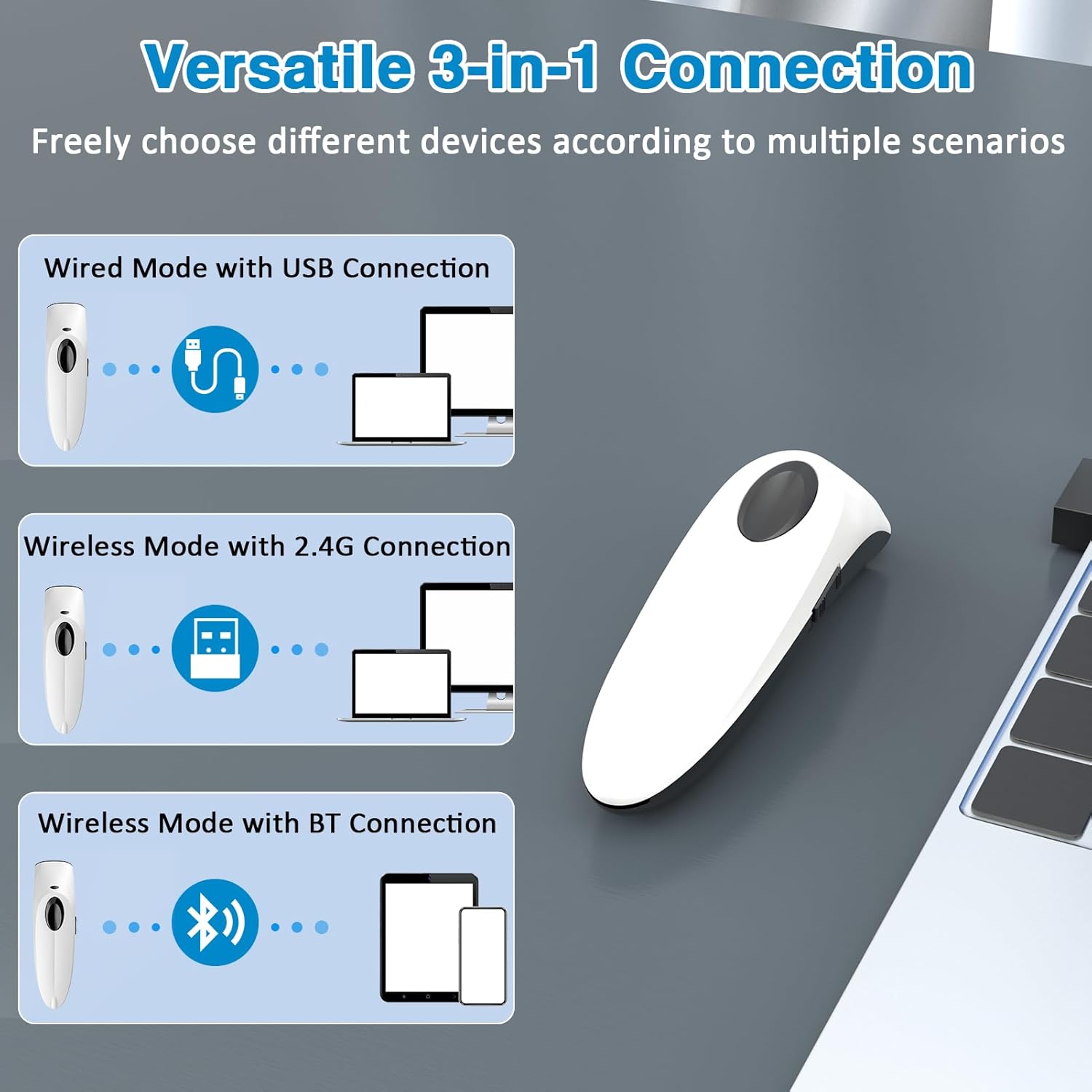
Image: The scanner's versatile 3-in-1 connection options: wired via USB, wireless via 2.4G dongle, and Bluetooth for various devices.
3. System Compatibility
The scanner is compatible with a wide range of operating systems and devices:
- Windows XP/7/8/10
- Mac OS
- Windows Mobile
- Android OS
- iOS
- Linux
- Compatible Devices: Desktop, Laptop, POS systems, Smartphones, Tablets

Image: The scanner supports multiple systems, including iOS, Android, Windows, Mac OS, and Linux, and connects to PCs, POS, laptops, tablets, and smartphones.
Operating Instructions
1. Basic Scanning
To scan a barcode, point the scanner's window at the barcode and press the trigger button. A successful scan will typically be indicated by a beep and/or vibration (if enabled). The decoded data will be transmitted to your connected device.
2. Scanning from Screens
The Alacrity1D scanner is capable of reading 1D and 2D barcodes directly from computer screens and mobile phone displays, addressing a common limitation of some laser scanners.

Image: The scanner's super decoding ability for 2D and 1D codes, including Data Matrix, QR Code, PDF417, ITF, and various other barcode types.
3. Data Storage Mode
The scanner features built-in storage, allowing it to store up to 50,000 barcodes when not connected or when operating in inventory mode. To upload the stored data, connect the scanner to your device and follow the instructions in the physical manual for data transfer.
4. Adjusting Settings
The scanner offers various customizable settings, such as turning off sound and vibration for more discreet operation. These settings are typically configured by scanning specific setup barcodes found in the comprehensive user manual provided with the product.
5. Transmission Distance
The effective transmission range varies depending on the connection type and environment:
- Barrier Environment (with obstacles):
- 2.4GHz Wireless: Up to 30 meters (98 feet)
- Bluetooth Wireless: Up to 15 meters (49 feet)
- Barrier-Free Environment (open space):
- 2.4GHz Wireless: Up to 100 meters (492 feet)
- Bluetooth Wireless: Up to 50 meters (164 feet)
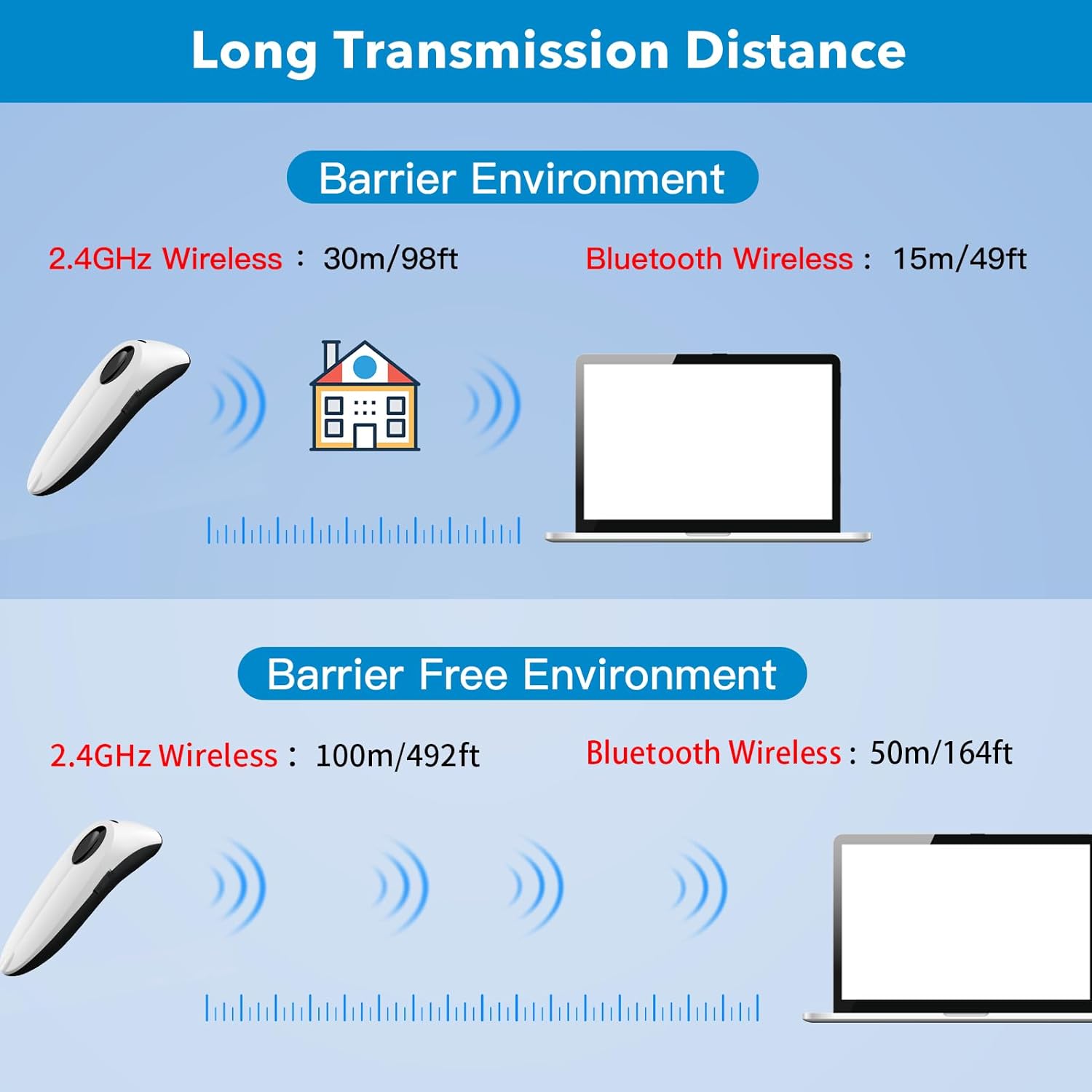
Image: Transmission distances for 2.4GHz Wireless and Bluetooth in both barrier and barrier-free environments, showing ranges up to 100m/492ft and 50m/164ft respectively.
Maintenance
1. Cleaning the Scanner
To maintain optimal performance, regularly clean the scanner's exterior and scanning window. Use a soft, lint-free cloth slightly dampened with water or a mild, non-abrasive cleaning solution. Avoid using harsh chemicals or abrasive materials that could damage the device.
2. Battery Care
The scanner is equipped with an on/off switch to conserve battery life when not in use. For long-term storage, ensure the battery is partially charged (around 50%) and store the device in a cool, dry place. Avoid fully discharging the battery for extended periods, as this can reduce its lifespan.
3. Storage
Store the scanner in a safe place away from extreme temperatures, direct sunlight, dust, and moisture. Protect it from drops or impacts that could damage internal components.
Troubleshooting
- Scanner not connecting:
- Ensure the scanner is powered on and fully charged.
- For wired connection, check the USB cable and port.
- For 2.4G wireless, ensure the USB dongle is securely inserted and try a different USB port.
- For Bluetooth, ensure Bluetooth is enabled on your device, the scanner is in pairing mode, and no other devices are interfering. Try unpairing and re-pairing.
- Scanner not reading barcodes:
- Ensure the barcode is not damaged, smudged, or too blurry.
- Check the distance and angle between the scanner and the barcode.
- Verify that the barcode type is supported by the scanner (e.g., 1D, 2D, QR).
- If specific digits are missing, refer to the physical manual for advanced settings or factory reset options.
- Short battery life:
- Ensure the scanner is fully charged before use.
- Turn off the scanner when not in use to conserve power.
- Reduce vibration or sound feedback if not essential.
- Limited transmission range:
- Ensure there are no significant physical obstructions (walls, large metal objects) between the scanner and the receiver.
- Minimize interference from other wireless devices operating on similar frequencies.
Specifications
| Product Dimensions | 2.25 x 3 x 7 inches |
| Item Weight | 0.071 ounces |
| Battery | 1 Lithium Polymer (included), 1000 mAh |
| Charging Time | Approx. 3 hours |
| Scanning Time | 12-13 hours (continuous) |
| Standby Time | Up to 30 days |
| Connectivity Technology | Bluetooth, 2.4G Wireless, Wired (USB) |
| Supported Barcodes | 1D, 2D, QR Code, Data Matrix, PDF417, ITF, etc. |
| Supported Operating Systems | Windows XP/7/8/10, Mac OS, Windows Mobile, Android OS, iOS, Linux |
| Internal Storage | Up to 50,000 barcodes |
| Transmission Distance (Barrier-Free) | 2.4G Wireless: 100m (492ft), Bluetooth: 50m (164ft) |
| Manufacturer | Alacrity |
Image: Physical dimensions of the Alacrity1D barcode scanner.
Warranty Information
For specific warranty terms and conditions, please refer to the warranty card included with your product or contact the manufacturer directly. Warranty coverage typically includes defects in materials and workmanship under normal use.
Support
If you encounter any issues or have questions not covered in this manual, please contact Alacrity customer support. You may find contact information on the manufacturer's official website or through the retailer where you purchased the product.
General support contact: 212-555-1212