
1. Introduction
Thank you for choosing the MIZISNR AX-80S 8-Channel Audio Mixer. This professional mixing console is designed to provide high-quality sound processing for various applications, including recording, karaoke, podcasting, and live performances. This manual provides detailed instructions for setup, operation, and maintenance to ensure optimal performance and longevity of your device.
2. Safety Information
- Read all instructions carefully before operating the device.
- Keep this manual for future reference.
- Do not expose the device to rain or moisture to prevent fire or electric shock.
- Ensure the power supply voltage matches the requirements specified on the device.
- Do not open the casing. Refer all servicing to qualified personnel.
- Avoid placing the device near heat sources or in direct sunlight.
- Disconnect the power cord during lightning storms or when unused for long periods.
3. Package Contents
Please check the package for the following items:
- MIZISNR AX-80S Audio Mixer
- Power Adapter (110V AC, US plug)
- USB Cable
- User Manual (this document)
4. Product Overview
The MIZISNR AX-80S is an 8-channel audio mixer equipped with various features for comprehensive sound control. Below is a diagram illustrating the main components and their functions.

Figure 4.1: Front and Rear Panel Layout of the AX-80S Mixer. This image displays the various inputs, outputs, and controls on the mixer's top and rear panels, including microphone/instrument interfaces, gain controls, EQ, effects, master volume, and power input.
Key Features:
- 8 Input Channels: Supports multiple microphones and line-level instruments.
- 3-Band Equalization: Independent High, Mid, and Low frequency adjustment for each channel.
- Bluetooth Connectivity: Wireless audio streaming from mobile devices.
- USB Port: For MP3/U disk playback, recording, and computer connection.
- +48V Phantom Power: For condenser microphones.
- Built-in Reverb Effects: Enhances vocal and instrument sound.
- Real-time Monitoring: Via 3.5mm headphone jack.
5. Setup
5.1 Initial Power-Up
- Ensure all faders are at their lowest position and all gain knobs are turned down.
- Connect the provided power adapter to the mixer's power input and then to a 110V AC power outlet.
- Flip the main power switch to the 'ON' position. The power indicator light will illuminate.
5.2 Connecting Devices
The AX-80S mixer is compatible with a variety of audio devices. Refer to the diagram below for common connection types.
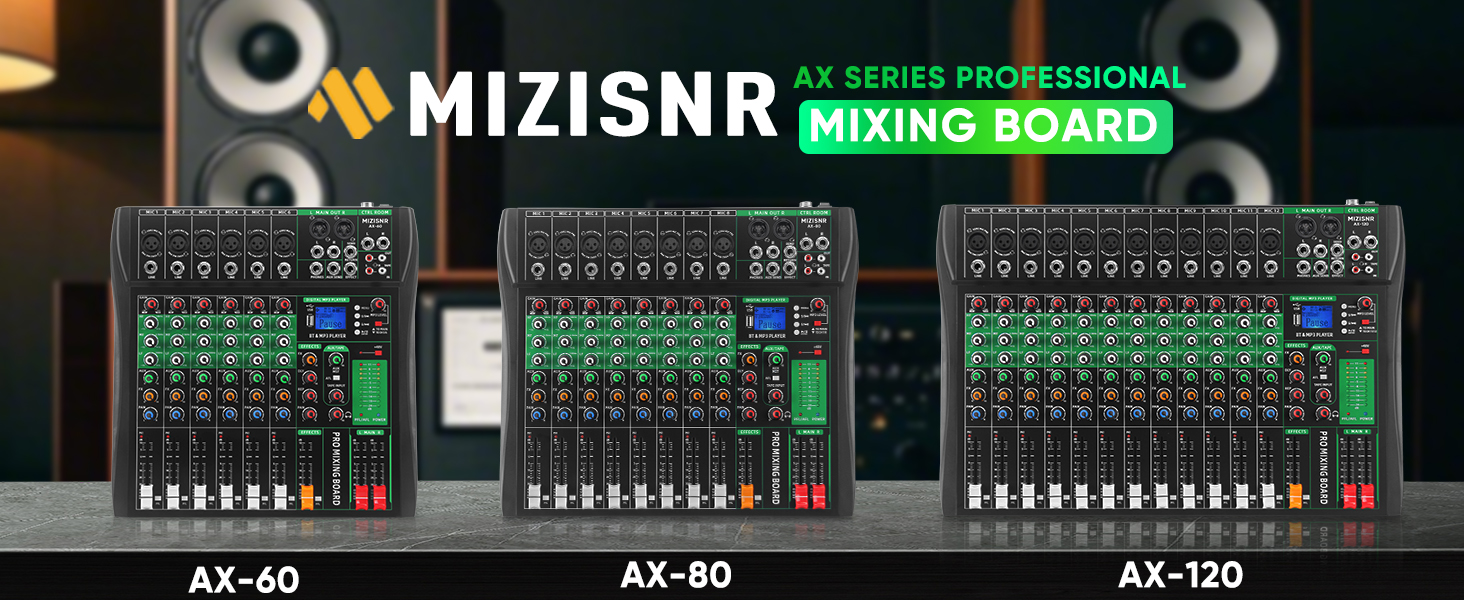
Figure 5.1: Device Compatibility and Connection Points. This diagram illustrates how to connect various devices such as wireless microphones, condenser microphones, guitars, karaoke machines, power amplifiers, speaker boxes, mobile stereos, USB flash drives, cell phones, headphones, and computers to the mixer.
- Microphones/Instruments: Connect wired microphones or instruments to the MIC/LINE inputs (XLR or 1/4" TRS).
- External Audio Sources: Connect mobile phones, tablets, or other audio players via Bluetooth or the AUX input.
- Output to Speakers/Amplifiers: Connect the MAIN OUT R/L to your power amplifier or active speakers. Note: This mixer does not have a built-in amplifier. An external amplifier is required to power passive speakers.
- Headphones: Connect headphones to the PHONES output for real-time monitoring.
6. Operating Instructions
6.1 Channel Control (Gain, EQ, AUX, FX, PAN, Volume)
Each input channel features a set of controls to shape the sound:
- GAIN: Adjusts the input sensitivity for the connected microphone or instrument. Start low and gradually increase until a healthy signal is achieved without clipping.
- 3-Band EQ (HF, MF, LF): Allows independent adjustment of high, mid, and low frequencies for each channel.
- HF (High Frequency): Adjusts frequencies above 12kHz for clarity and brilliance.
- MF (Mid Frequency): Sweeps from 250Hz to 6kHz for vocal presence and instrument body.
- LF (Low Frequency): Adjusts frequencies below 80Hz for bass and warmth.
- AUX: Sends a portion of the channel signal to an auxiliary output, often used for monitor mixes.
- FX: Sends a portion of the channel signal to the internal effects processor (e.g., Reverb).
- PAN: Adjusts the stereo position of the channel signal (left to right).
- PFL (Pre-Fader Listen): Allows monitoring of the channel signal before the fader, useful for checking input levels.
- Channel Fader: Controls the volume level of the individual channel in the main mix.

Figure 6.1: 3-Band Equalization Controls. This image details the High (HF), Mid (MF), and Low (LF) frequency adjustment knobs for each channel, showing their frequency ranges and boost/cut capabilities.
6.2 Bluetooth Connectivity
To stream audio wirelessly from your mobile device:
- Press the 'MODE' button on the digital MP3 player section until 'BT' or 'Bluetooth' is displayed on the screen.
- On your mobile device (smartphone, tablet), enable Bluetooth and search for available devices.
- Select 'BT-Speaker' from the list of devices to pair.
- Once connected, you can play audio from your device through the mixer. Adjust the 'BT & MP3 PLAYER' volume knob on the mixer.

Figure 6.2: Bluetooth Pairing Process. This image demonstrates connecting a mobile phone to the mixer via Bluetooth, showing the 'BT-Speaker' device name for pairing.
6.3 USB Playback and Recording
The mixer supports USB playback from U disks and recording to USB devices or a connected computer.
6.3.1 USB Playback (U Disk)
- Insert a USB flash drive containing MP3, WAV, or WMA audio files into the USB port.
- The mixer will automatically detect and begin playing files, or you can navigate using the controls on the digital MP3 player section.
- Adjust the 'BT & MP3 PLAYER' volume knob to control playback level.

Figure 6.3: USB Playback and Data Transfer. This image highlights the USB port and its functions for plug-and-play, lossless audio playback, and audio input/output.
6.3.2 USB Recording (to Computer)
- Connect the mixer to your computer using a USB cable.
- The mixer will be recognized as an audio interface.
- Open your preferred Digital Audio Workstation (DAW) software on your computer.
- Select the mixer as your audio input device within the DAW settings.
- Adjust channel levels and master output on the mixer, then begin recording in your software.
Note: This mixer cannot connect to Macbook for recording.

Figure 6.4: Computer Connection for Professional Recording. This image shows the mixer connected to a laptop, illustrating its use for mixing and recording with external USB devices or computers.
6.4 +48V Phantom Power
The mixer provides +48V Phantom Power for condenser microphones.
- Connect your condenser microphone to an XLR input.
- Ensure the channel gain is turned down.
- Press the '+48V' button located near the master section. The indicator light will illuminate.
- Gradually increase the channel gain to the desired level.
Caution: Do not activate phantom power when dynamic microphones or other devices not requiring phantom power are connected, as this may cause damage.

Figure 6.5: Activating +48V Phantom Power. This image shows the +48V button and its function to power condenser microphones.
6.5 Real-time Monitoring
The 3.5mm PHONES output allows for real-time monitoring of the main mix or PFL signals.
- Connect your headphones to the PHONES jack.
- Adjust the PHONES volume knob to control the monitoring level.
- Use the PFL buttons on individual channels to listen to specific input signals before they reach the main mix.

Figure 6.6: Real-time Monitoring. This image shows headphones connected to the mixer's monitor jack, indicating its use for instant feedback during recording or mixing.
7. Maintenance
- Cleaning: Use a soft, dry cloth to clean the surface of the mixer. Do not use liquid cleaners or solvents.
- Storage: Store the mixer in a cool, dry place away from direct sunlight and extreme temperatures.
- Ventilation: Ensure proper ventilation around the mixer to prevent overheating. Do not block the ventilation openings.
- Cable Management: Avoid bending or crimping cables excessively to prevent damage.
8. Troubleshooting
| Problem | Possible Cause | Solution |
|---|---|---|
| No sound output |
|
|
| No input signal |
|
|
| Distorted sound |
|
|
| Cannot record to Macbook |
|
|
9. Specifications
| Feature | Detail |
|---|---|
| Model | AX-80S |
| Brand | MIZISNR |
| Number of Channels | 8 |
| Connectivity Technology | Bluetooth, USB |
| Power Source | Corded Electric |
| Voltage | 110 Volts (AC) |
| Product Dimensions (D x W x H) | 1.77 x 15.75 x 13.7 inches (4.5 x 40 x 34.8 cm) |
| Item Weight | 9.93 pounds (4.51 kg) |
| Equalization | 3-Band (High, Mid, Low) per channel |
| Phantom Power | +48V |
| Supported USB Audio Formats | MP3, WAV, WMA |
10. Warranty and Customer Support
MIZISNR is committed to providing high-quality products and excellent customer service.
10.1 Warranty Information
Specific warranty details are typically provided with your purchase documentation. Please refer to the warranty card or contact MIZISNR customer support for information regarding your product's warranty period and terms.
10.2 Customer Support
If you have any questions, require assistance with setup, operation, or encounter any issues with your MIZISNR AX-80S mixer, please do not hesitate to contact our dedicated support team. We aim to respond to all inquiries within 24 hours.
For support, please visit the MIZISNR Store on Amazon or refer to the contact information provided with your product packaging.


