
HONOR BRP-NX1
Honor X9c Dual-SIM 5G Smartphone User Manual
Model: BRP-NX1
1. Introduction
Welcome to the user manual for your new Honor X9c Dual-SIM 5G Smartphone. This guide provides essential information to help you set up, operate, and maintain your device. Please read this manual thoroughly to ensure proper use and to maximize the performance of your smartphone.
2. Safety Information
To prevent injury to yourself or others, and to avoid damage to your device, read all safety information before using the product. Keep this manual for future reference.
- Do not expose the device to extreme temperatures, direct sunlight, or high humidity.
- Use only Honor-approved chargers and accessories.
- Avoid dropping or subjecting the device to severe impact.
- Do not attempt to disassemble or modify the device.
- Dispose of the device and its battery responsibly according to local regulations.
3. Package Contents
Verify that your product package contains the following items:
- Honor X9c Dual-SIM 5G Smartphone
- USB Cable
- SIM Ejector Tool (may vary by region)
- Quick Start Guide (may vary by region)
Note: The actual contents may vary depending on the region and retailer.
4. Product Overview
Familiarize yourself with the physical components of your Honor X9c smartphone.
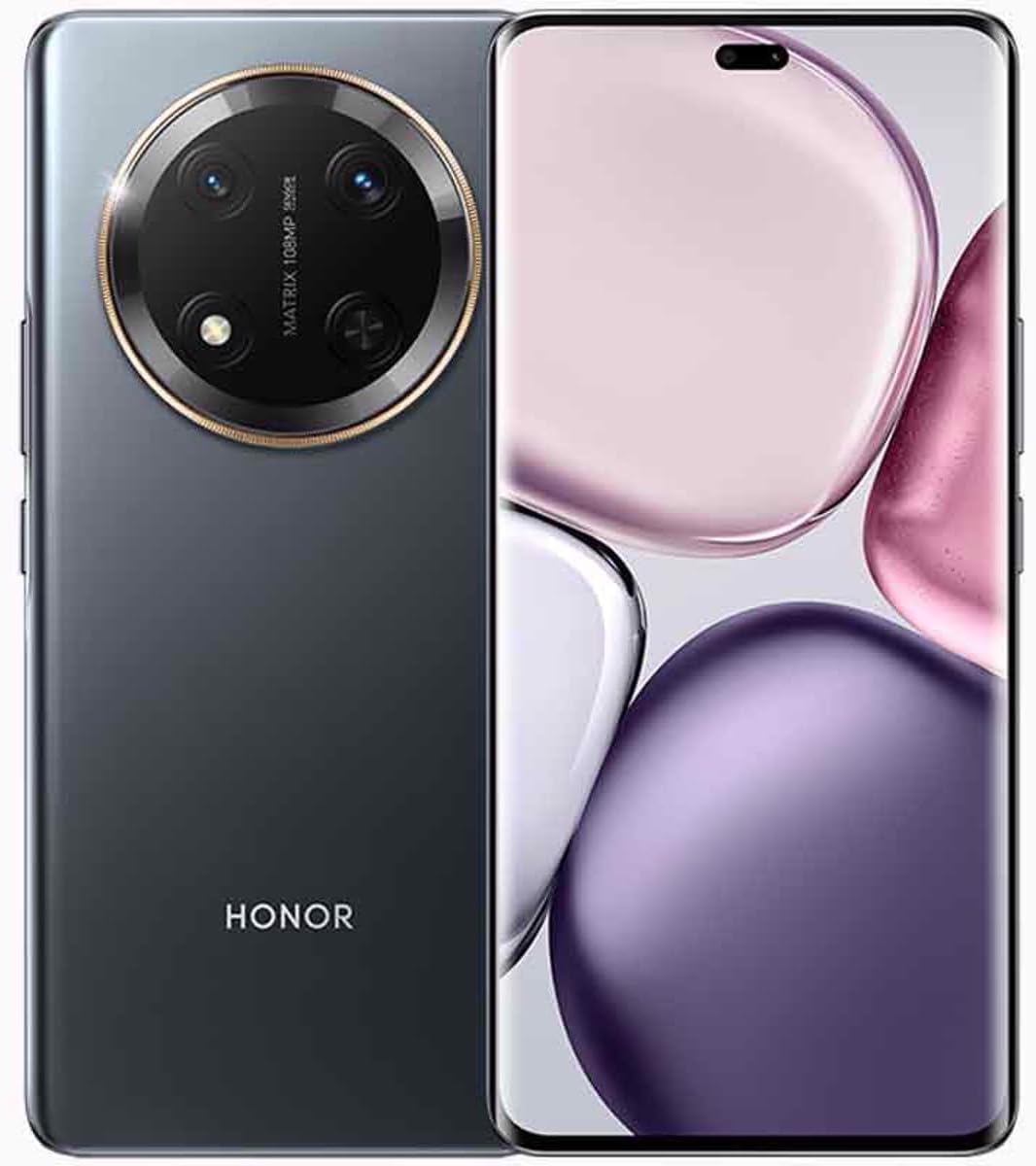
Figure 4.1: Front and Back View of the Honor X9c. This image displays the overall design of the smartphone, highlighting both the display and the rear camera module.

Figure 4.2: Rear Camera Module. A detailed view of the circular camera array on the back of the Honor X9c, featuring multiple lenses and flash.
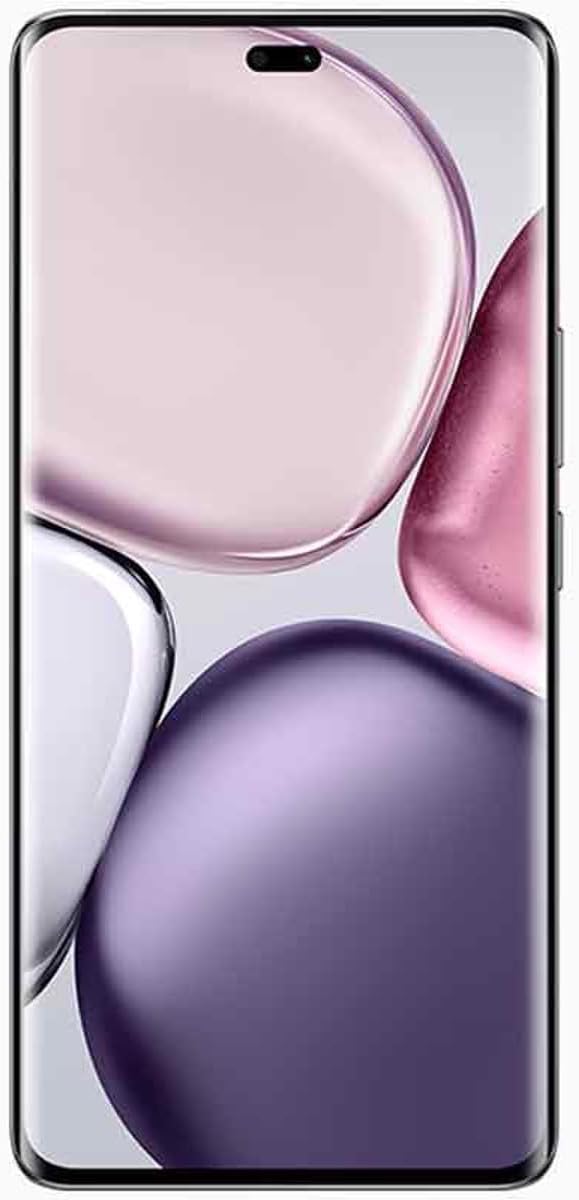
Figure 4.3: Front Display. This image shows the Honor X9c's vibrant AMOLED display, illustrating its edge-to-edge design and punch-hole front camera.
4.1. Device Layout
- Front Camera: Located at the top center of the display.
- Display: 6.78-inch AMOLED screen.
- Power Button: Typically on the right side, used to turn the device on/off or wake/sleep the screen.
- Volume Buttons: Usually above the power button, for adjusting volume.
- USB-C Port: At the bottom, for charging and data transfer.
- SIM Card Slot: On the side, for inserting Nano-SIM cards.
- Main Camera Module: Prominently featured on the back, housing multiple lenses.
5. Setup
5.1. Inserting SIM Cards
- Locate the SIM card tray on the side of your device.
- Insert the SIM ejector tool into the small hole next to the tray to open it.
- Place your Nano-SIM cards into the designated slots on the tray, ensuring the gold contacts face down. The Honor X9c supports Dual-SIM functionality.
- Carefully push the tray back into the device until it clicks into place.
5.2. Charging the Battery
- Connect the USB cable to the USB-C port at the bottom of your phone.
- Connect the other end of the USB cable to a compatible power adapter (not included) and plug it into a power outlet.
- The battery icon on the screen will indicate charging status. For optimal performance, fully charge the device before first use.
5.3. Initial Power On and Setup Wizard
- Press and hold the Power button until the Honor logo appears.
- Follow the on-screen instructions to complete the initial setup, including language selection, Wi-Fi connection, Google account setup, and security settings.
6. Operating Your Device
6.1. Basic Navigation
- Home Screen: The main screen where you can access apps and widgets.
- Notifications Panel: Swipe down from the top of the screen to view notifications and quick settings.
- App Drawer: Swipe up from the bottom of the screen (or tap the app drawer icon) to view all installed applications.
6.2. Making Calls
- Tap the Phone icon on the home screen.
- Enter the phone number using the dial pad or select a contact from your address book.
- Tap the Call button to initiate the call.
6.3. Sending Messages
- Tap the Messages icon.
- Tap the 'Start chat' or '+' icon to compose a new message.
- Enter the recipient's number or select from contacts, then type your message.
- Tap the Send button.
6.4. Using the Camera
- Tap the Camera icon.
- Select your desired mode (Photo, Video, Portrait, etc.).
- Tap the Shutter button to capture a photo or start/stop recording a video.
6.5. Internet Connectivity
- Wi-Fi: Go to Settings > Network & internet > Wi-Fi to connect to available Wi-Fi networks.
- Mobile Data: Ensure your SIM card is active and mobile data is enabled in Settings > Network & internet > Mobile network.
7. Maintenance
Proper maintenance ensures the longevity and optimal performance of your Honor X9c.
- Cleaning: Use a soft, lint-free cloth to clean the screen and body. Avoid harsh chemicals.
- Software Updates: Regularly check for and install system updates to ensure your device has the latest features and security patches. Go to Settings > System > System update.
- Battery Care: Avoid fully discharging the battery frequently. Charge your device before the battery level drops too low.
- Storage Management: Periodically clear unnecessary files and apps to free up storage space and maintain performance.
8. Troubleshooting
Here are solutions to common issues you might encounter:
| Problem | Possible Solution |
|---|---|
| Device won't turn on | Ensure the battery is charged. Connect to a charger for at least 10 minutes, then try powering on again. |
| Apps are crashing or freezing | Clear the app's cache (Settings > Apps > [App Name] > Storage > Clear cache). If the issue persists, restart the device. |
| Poor network signal | Check SIM card insertion. Move to an area with better network coverage. Restart the device. Verify network compatibility with your carrier. |
| Battery drains quickly | Reduce screen brightness, disable unused features (Wi-Fi, Bluetooth, GPS), close background apps, and check for power-intensive apps in battery settings. |
| NFC not functioning | Ensure NFC is enabled in Settings. Check if the issue is app-specific. If the problem persists, contact support. |
9. Specifications
Detailed technical specifications for the Honor X9c Dual-SIM 5G Smartphone.
| Feature | Specification |
|---|---|
| Model Name | Honor X9c (BRP-NX1) |
| Display | 6.78 Inches AMOLED, 1224 x 2700 pixels |
| Processor | Qualcomm SM6450 Snapdragon 6 Gen 1 (4 nm), Octa-core (4x2.2 GHz Cortex-A78 & 4x1.8 GHz Cortex-A55) |
| RAM | 12 GB |
| Internal Storage | 256 GB |
| Operating System | Android 14 |
| Main Camera | 108 MP, f/1.8, (wide), 1/1.67", PDAF |
| Front Camera | 16 MP, f/2.5, (wide) |
| Battery | 6600 mAh, non-removable |
| SIM Type | Dual Nano-SIM |
| Network Compatibility | 2G GSM, 3G HSDPA, 4G LTE, 5G SA/NSA/Sub6 |
| Color | Titanium Black |
| Item Weight | 1.32 pounds |
| Dimensions | 7.87 x 3.94 x 3.94 inches (Package) |
10. Network Compatibility Disclaimer
IMPORTANT: For USA Buyers, this Smartphone is not compatible/will not work with any CDMA Networks including: VERIZON, SPRINT, US CELLULAR. Please check with your network provider for 3G or 4G/LTE/5G compatibility check before you purchase or attempt to use this device.
The Honor X9c supports the following frequencies:
- SIM CARD 1 & 2:
- 2G: GSM 850/ 900/ 1800/ 1900
- 3G: HSDPA 850(B5) / 900(B8) / 1900(B2) / 2100(B1)
- 4G: LTE
- 5G: SA/NSA/Sub6
Always confirm network band support with your carrier to ensure full compatibility.
11. Warranty and Support
For warranty information and customer support, please refer to the warranty card included in your product package or visit the official Honor website. Keep your proof of purchase for warranty claims.
- Online Support: Visit the official Honor support page for FAQs, software downloads, and service center locations.
- Contact Support: Refer to your regional Honor website for contact numbers and email support.
Related documentsBRP-NX1


Ask a question about this manual
Ask about setup, troubleshooting, compatibility, parts, safety, or missing instructions. Manuals+ will review the question and use this page’s manual context to help answer it.