
1. Introduction
Thank you for choosing the Ftoghe Android 13 Car Stereo. This manual provides detailed instructions for the installation, operation, and maintenance of your new car stereo system. This unit is specifically designed for Mazda MX-5 models manufactured between 2006 and 2021, offering a seamless upgrade to your vehicle's infotainment system. It features a 9-inch touchscreen, wireless Apple CarPlay and Android Auto, GPS navigation, Bluetooth connectivity, Wi-Fi, and support for a backup camera.
2. Safety Information
- Professional Installation Recommended: Due to the complexity of car electrical systems, professional installation is highly recommended to prevent damage to the unit or your vehicle.
- Driving Safety: Do not operate the unit or view videos while driving. Always prioritize road safety.
- Power Disconnection: Disconnect the vehicle's battery before beginning any installation or wiring procedures.
- Ventilation: Ensure adequate ventilation around the unit to prevent overheating.
- Liquid Exposure: Avoid exposing the unit to water or other liquids.
3. Package Contents
Please verify that all items listed below are included in your package:
- Ftoghe Android 13 Car Stereo Unit (9-inch display)
- Power Cable
- RCA Input/Output Cables
- 2 USB Cables
- Camera Input Cable
- GPS Antenna
- Instruction Manual
- Microphone
- USB Adapter
- AHD Backup Camera

4. Installation
This section outlines the general steps for installing the car stereo. Specific vehicle disassembly and reassembly procedures may vary. Always refer to your vehicle's service manual if unsure.
- Preparation: Ensure the vehicle's ignition is off and disconnect the negative terminal of the car battery to prevent electrical shorts.
- Remove Old Unit: Carefully remove the existing car stereo and trim panels from your Mazda MX-5.
- Connect Wiring:
- Connect the main power harness to the vehicle's wiring.
- Connect the RCA input/output cables for external amplifiers or video displays if applicable.
- Attach the USB cables for external devices.
- Connect the GPS antenna and position it in a location with a clear view of the sky (e.g., dashboard).
- Connect the external microphone for improved call quality.
- Backup Camera: Route the backup camera cable from the rear of the vehicle to the stereo unit. Connect the camera input cable to the stereo and ensure the camera's power wire is connected to the vehicle's reverse light circuit for automatic activation.
- Mount the Unit: Secure the new Ftoghe car stereo into the dashboard opening.
- Reassemble: Reinstall any removed trim panels.
- Reconnect Battery: Reconnect the negative terminal of the car battery.
5. Initial Setup
After installation, follow these steps for initial setup:
- Power On: Start your vehicle to power on the car stereo.
- Language Settings: Navigate to the system settings to select your preferred language.
- Wi-Fi Connection: Go to Wi-Fi settings, scan for available networks, and connect to your mobile hotspot or a local Wi-Fi network to enable online features and app downloads.
- GPS Setup: Ensure the GPS antenna is properly connected. The system should automatically detect satellites. You can download offline maps for navigation without an internet connection.
- Bluetooth Pairing:
- On the car stereo, open the Bluetooth application.
- On your smartphone, enable Bluetooth and search for available devices.
- Select the car stereo's Bluetooth name (e.g., "Ftoghe Car Stereo") from your phone's list and confirm the pairing code.
- Steering Wheel Control (SWC) Learning:
- Access the SWC settings in the car stereo's menu.
- Follow the on-screen instructions to assign functions to your vehicle's steering wheel buttons. Note: An additional interface may be required for some vehicle models if direct connection is not supported.

6. Operating Instructions
6.1. Home Screen Navigation
The home screen provides access to all main functions and installed applications. Swipe left or right to navigate between screens. Tap on an icon to open an application.
6.2. Wireless CarPlay & Android Auto
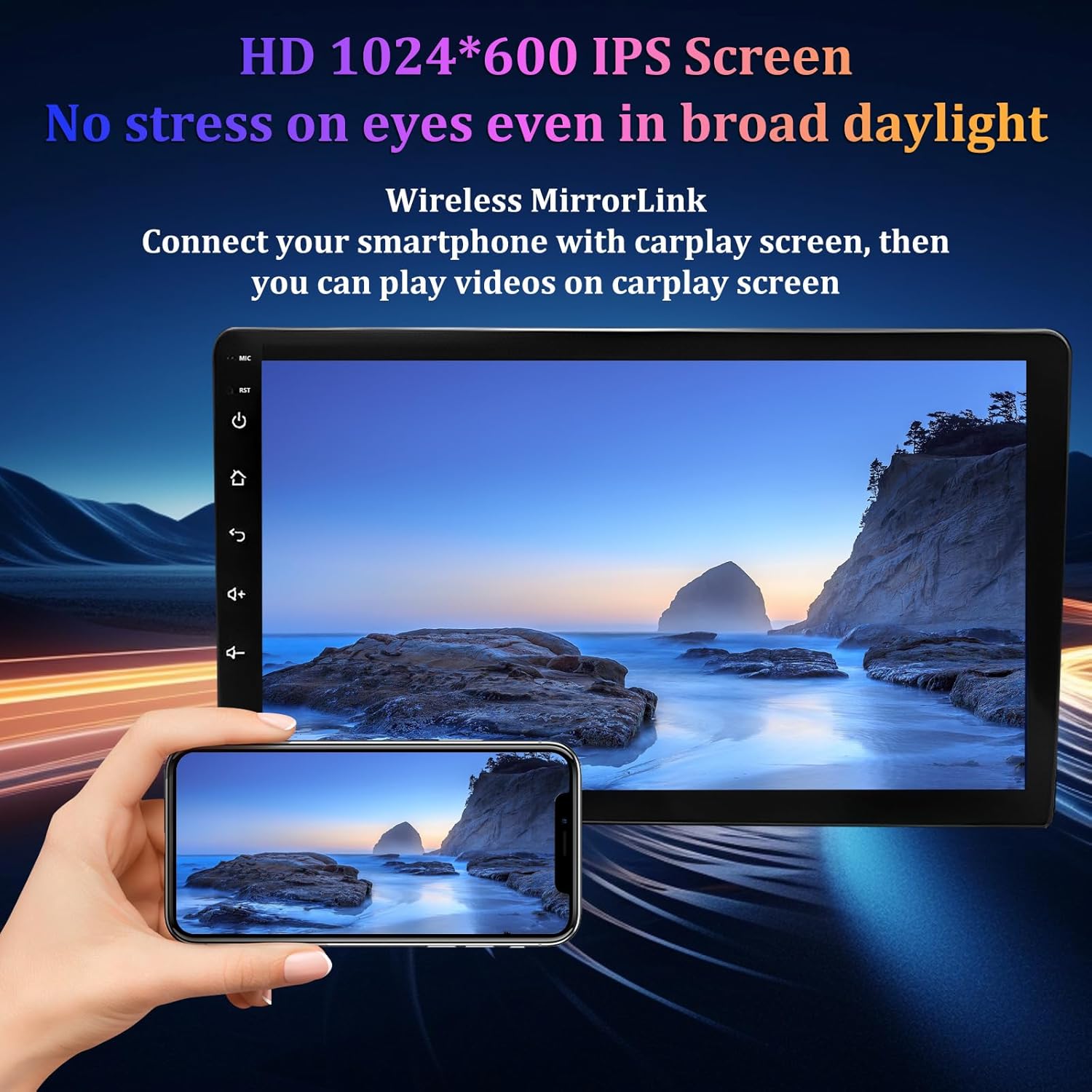
Connect your compatible smartphone wirelessly to access Apple CarPlay or Android Auto. This allows you to use phone apps, navigation, make calls, and play music directly from the car stereo's touchscreen.
- Ensure Bluetooth and Wi-Fi are enabled on both your phone and the car stereo.
- Open the CarPlay/Android Auto app on the stereo and follow the on-screen prompts to connect your device.

6.3. GPS Navigation
The unit supports both online and offline navigation. Use pre-installed map applications or download your preferred navigation apps from the app store. Ensure the GPS antenna has a clear signal for accurate positioning.
- Tap the 'Navigation' icon to launch the map application.
- Enter your destination using the touchscreen or voice commands.
