
1. Setup
1.1 What's in the Box
Verify that all components are present in the packaging:
- 1*Projector
- 1*Power Adapter with Cable
- Remote Control
- User Manual

Image: AGIMA X5 Mini Projector with its remote control, power adapter, and an HDMI cable.
1.2 Initial Placement and Power
Place the projector on a stable, flat surface. Connect the power adapter to the projector's power port and then to an electrical outlet. The projector is designed for portability and can be used in various indoor and outdoor settings.
1.3 Connecting Devices
The projector includes multiple connection ports:
- USB Ports: For connecting USB drives to access media files.
- HDMI Port: For connecting external devices such as TV sticks, laptops, and gaming consoles.
- 3.5mm Headphone Jack: For connecting external audio devices like headphones or speakers.
2. Operating Instructions
2.1 Powering On/Off
Press the power button on the projector or the remote control to turn the device on or off. Allow a few moments for the system to boot up.
2.2 Auto Focus and Keystone Correction
The X5 projector features automatic focus and keystone correction. When the projector is moved or powered on, it will automatically adjust the image for optimal clarity and a rectangular display. Manual adjustments are also possible if needed.

Image: The projector automatically focusing the image on the screen.

Image: Visual representation of the projector's auto focus and keystone correction capabilities.
2.3 Navigating the Smart OS
The projector includes a built-in smart operating system with access to various streaming applications like YouTube and D+. The App Store allows for downloading additional applications, and a browser is available for online content. The system supports online updates to ensure you have the latest features.
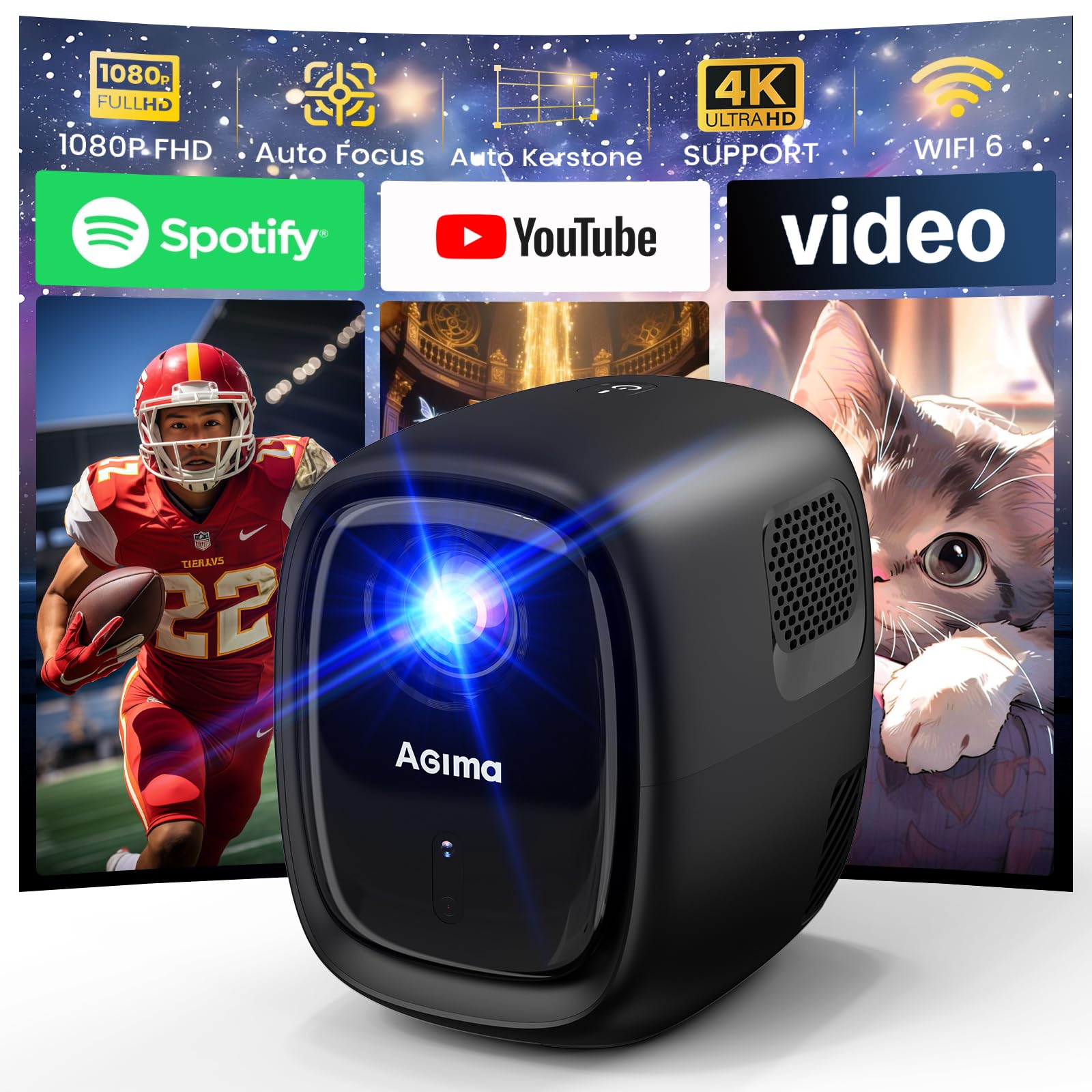
Image: The projector displaying its smart operating system interface with multiple built-in applications.
2.4 Wireless Connectivity (WiFi 6 & Bluetooth 5.2)
The X5 projector is equipped with WiFi 6 for stable and fast dual-band (5G/2.4G) network connectivity. It also supports two-way Bluetooth 5.2, allowing it to connect to mobile devices as a standalone speaker or pair with external Bluetooth speakers or headphones for enhanced audio.

Image: Demonstrating WiFi 6 wireless connection between a smartphone and the projector.

Image: The projector utilizing Bluetooth 5.2 for an enhanced audio experience.
2.5 Audio Output
The projector is equipped with two 15W high-quality stereo speakers, providing 3D stereo high-fidelity audio. For a more immersive experience, external speakers can be connected via Bluetooth or the 3.5mm audio jack.

Image: Internal view of the projector's 15W dual speaker system for HiFi audio.
2.6 Image Resizing (Zoom)
The zoom function allows you to adjust the screen size from 50% to 100% without physically moving the projector, providing flexibility in various projection environments.

Image: Illustration of the projector's image resizing capability, allowing zoom from 50% to 100%.
3. Maintenance
3.1 Cleaning the Projector
To maintain optimal performance, regularly clean the projector's lens and vents. Use a soft, dry cloth for the exterior. For the lens, use a lens cleaning cloth and solution designed for optical surfaces. Ensure the projector is powered off and unplugged before cleaning.
3.2 Software Updates
The smart operating system supports online updates. Periodically check for and install available updates to ensure your projector has the latest features and performance enhancements. Navigate to the settings menu to find the update option.
4. Troubleshooting
4.1 Common Issues and Solutions
- No Image Displayed:
- Ensure the projector is powered on and connected correctly to a power source. Check the input source selection (HDMI, USB) to match your connected device. Verify that the lens cap is removed.
- Blurry Image:
- Allow the auto-focus function to complete. If the image remains blurry, try moving the projector slightly to re-trigger auto-focus or check for any obstructions near the lens.
- No Sound:
- Check the volume settings on the projector and any connected source device. Ensure external speakers are properly connected and powered on if used. Verify Bluetooth connection if streaming audio wirelessly.
- Remote Control Not Responding:
- Replace the batteries in the remote control. Ensure there are no obstructions between the remote and the projector's IR receiver.
- Cannot Connect to WiFi:
- Ensure your WiFi network is active and within range. Re-enter the WiFi password carefully. Try restarting both the projector and your router.
5. Technical Specifications
| Feature | Detail |
|---|---|
| Brand Name | AGIMA |
| Model Number | X5 |
| Item Weight | 3.09 pounds (1.4 kg) |
| Product Dimensions | 4.88 x 5.66 x 6.45 inches (12.4 x 14.4 x 16.4 cm) |
| Native Display Resolution | 1920 x 1080 (1080P Full HD) |
| 4K Support | Yes (4K video playback displayed at native 1080P resolution) |
| Brightness | 350 ANSI Lumens |
| Connectivity Technology | 3.5mm Jack, USB, WiFi 6 (5G/2.4G Dual Band), Bluetooth 5.2 |
| Special Features | Auto Keystone Correction, Auto Focus, Built-in Speaker, Portable, Lightweight, HDR10 Support |
| Voltage Range | 100-240V |
| Built-in Speakers | 2 x 15W Stereo Speakers |
| Zoom Function | 50%-100% |
6. Warranty and Support
6.1 Warranty Information
This product is covered by a standard manufacturer's warranty. Please refer to the warranty card included in your packaging for specific terms and conditions, including warranty duration and coverage details. Keep your purchase receipt as proof of purchase for warranty claims.
6.2 Customer Support
For technical assistance, troubleshooting, or warranty inquiries, please contact AGIMA customer support. Contact information can typically be found on the official AGIMA website or on the product packaging.

