
Inateck BCST-47-BK
Contents
Inateck BCST-47 Wireless Barcode Scanner User Manual
Model: BCST-47-BK | Brand: Inateck
1. Introduction
The Inateck BCST-47 is a versatile and portable barcode scanner designed for efficient data collection in various environments, including warehouses, retail stores, and personal inventory management. It supports both 1D and 2D barcodes, including QR codes, and offers multiple connection options for broad compatibility. Equipped with a clear display and a long-lasting battery, the BCST-47 enhances productivity and simplifies scanning operations.

Figure 1.1: The Inateck BCST-47 is lightweight and portable, weighing only 105g, making it ideal for extended use.
2. Package Contents
Please check the package contents upon unboxing to ensure all items are present:
- Inateck BCST-47 Barcode Scanner Unit
- USB Charging Cable (Type-C)
- 2.4GHz Wireless USB Dongle
- Quick Start Guide (this manual)
3. Product Overview
Familiarize yourself with the key components of your Inateck BCST-47 barcode scanner:
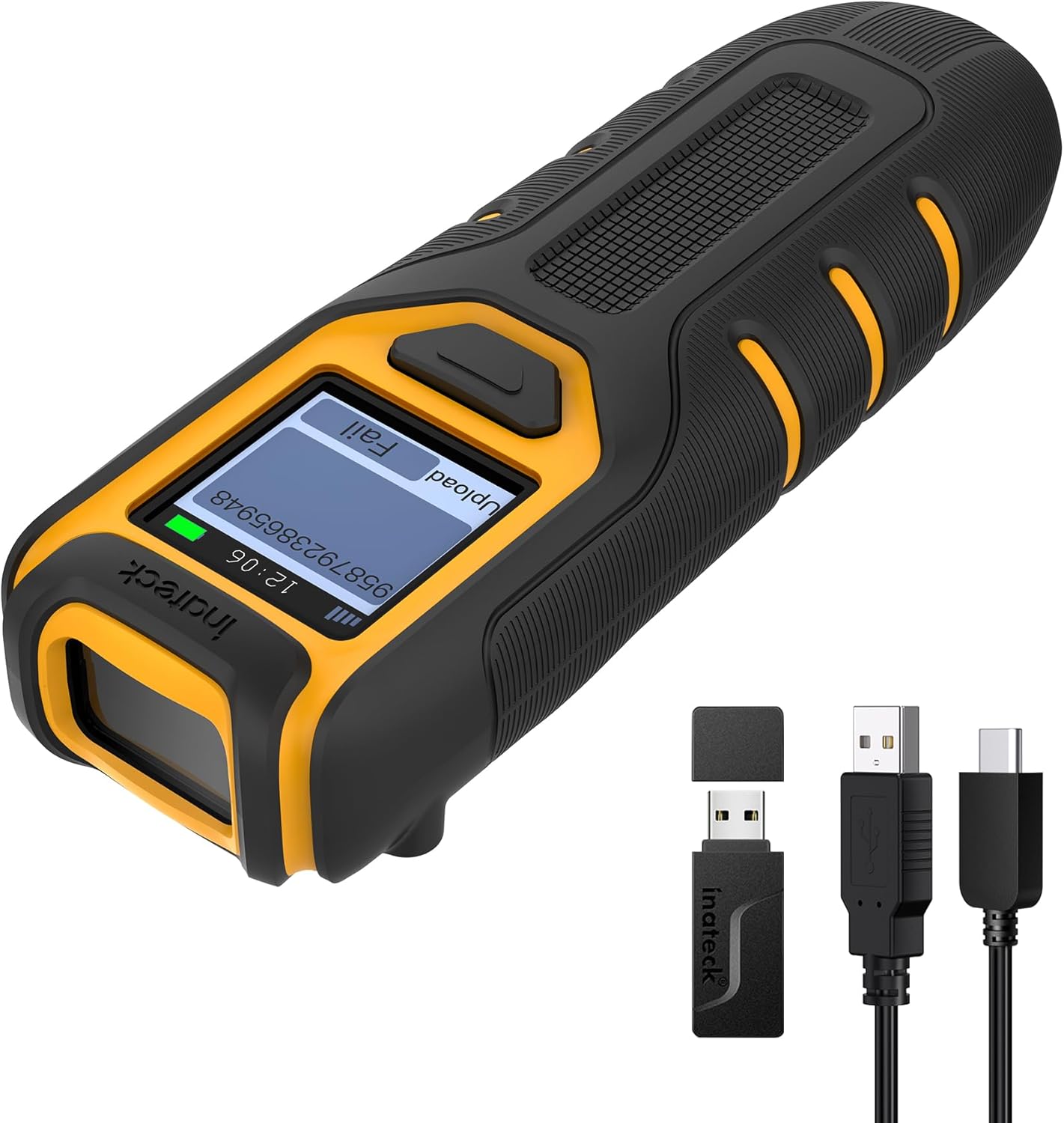
Figure 3.1: Inateck BCST-47 Barcode Scanner with its accessories, including the USB dongle and charging cables.
- Scan Window: Located at the front, emits the scanning beam.
- Scan Button: Activates the scanning function.
- Display Screen: 1.4-inch TFT display for real-time feedback and status.
- USB-C Port: For charging and wired connection.
- Strap Hole: For attaching a wrist strap (not included).
4. Setup
4.1 Initial Charging
Before first use, fully charge the scanner. Connect the provided USB-C cable to the scanner's USB-C port and the other end to a USB power adapter (5V/1A recommended) or a computer's USB port. The display will indicate charging status. A full charge typically provides up to one week of continuous use due to its 2600mAh high-capacity battery.

Figure 4.1: The scanner features a 2600mAh high-capacity battery, providing extended operational time.
4.2 Connection Modes
The Inateck BCST-47 offers three versatile connection options:

Figure 4.2: The BCST-47 supports USB wired, Bluetooth, and 2.4G wireless connections for broad compatibility.
4.2.1 2.4GHz Wireless Connection
This mode uses the included USB dongle for a stable wireless connection to your computer.
- Plug the 2.4GHz USB dongle into an available USB port on your computer.
- Turn on the barcode scanner by pressing and holding the scan button.
- The scanner will automatically pair with the dongle. A successful connection is indicated by a specific sound and/or light on the scanner.
4.2.2 Bluetooth Connection
Connect the scanner wirelessly to Bluetooth-enabled devices like smartphones, tablets, or computers.
- Ensure Bluetooth is enabled on your host device (e.g., smartphone, tablet, computer).
- Turn on the scanner.
- Scan the Bluetooth pairing barcode (usually found in the quick start guide or by accessing the scanner's settings via the app).
- On your host device, search for Bluetooth devices and select "Inateck BCST-47" (or similar name) to pair.
- Confirm pairing if prompted.
4.2.3 Wired USB Connection
For direct and reliable connection, use the USB cable.
- Connect the USB-C end of the cable to the scanner and the USB-A end to your computer's USB port.
- The scanner will be recognized as a HID keyboard device, allowing scanned data to be input directly into any text field.
Video 4.1: An overview of the Inateck BCST-47 barcode scanner, demonstrating its lightweight design, scanning capabilities for various barcode types (1D, QR, colorful, inverted, stacked), real-time display feedback, APP control, and multiple connection options including 2.4G wireless, Bluetooth, and wired USB. It also highlights the large battery capacity.
5. Operating Instructions
5.1 Scanning Barcodes
The BCST-47 can read a wide range of 1D and 2D barcodes, including QR codes, from both paper and digital screens.
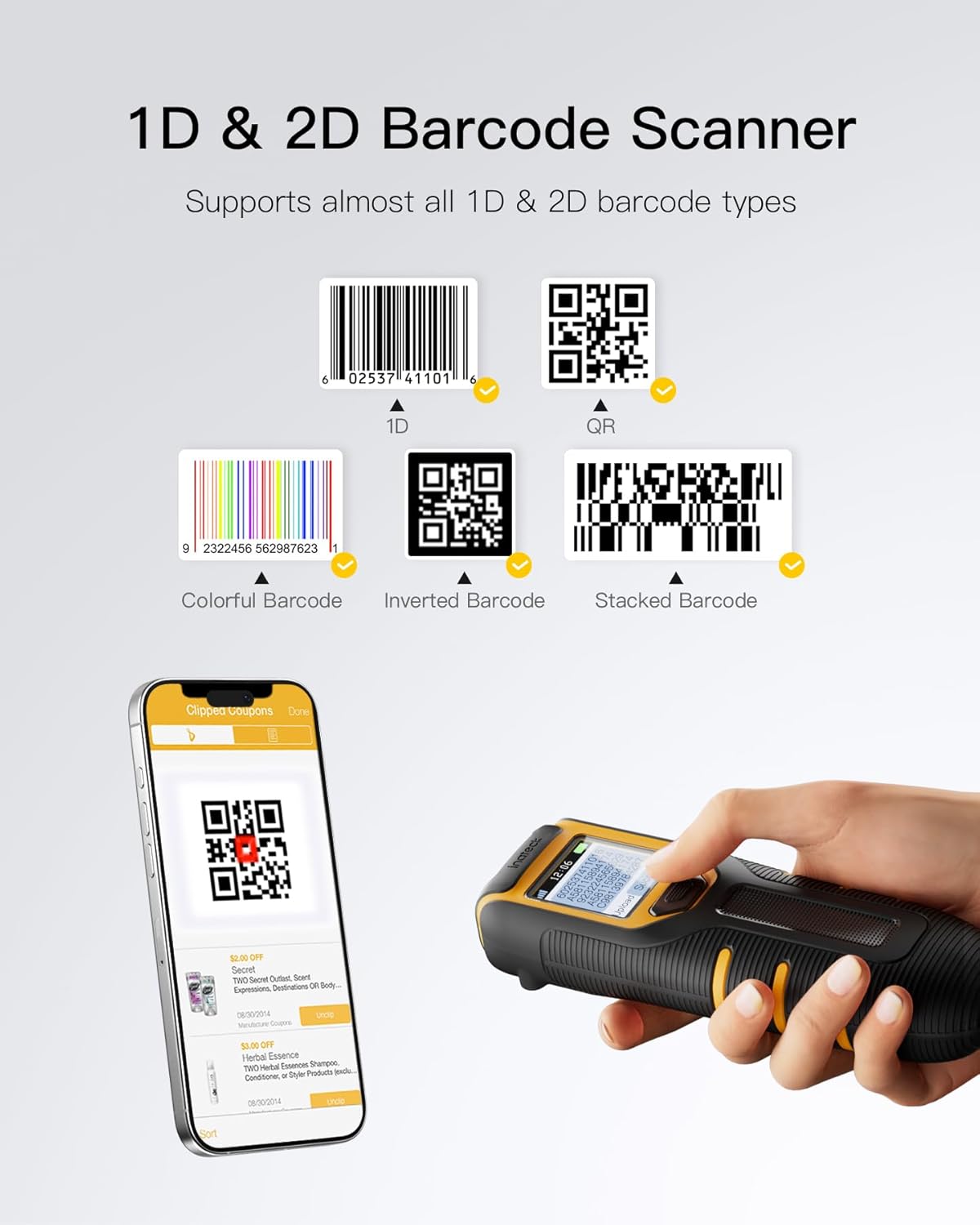
Figure 5.1: The scanner supports various 1D and 2D barcode types, including standard, QR, colorful, inverted, and stacked formats.
- Point the scan window at the barcode you wish to scan.
- Press the scan button. A red aiming beam will appear.
- Ensure the barcode is within the aiming beam. A successful scan will be indicated by a beep, a vibration, and the scanned data appearing on the display.
5.2 Using the Display Screen
The 1.4-inch TFT display provides immediate feedback on your scans and scanner status.

Figure 5.2: The integrated display provides real-time scan feedback, showing scanned data and upload status.
- Scanned Data: View the barcode data immediately after scanning.
- Connection Status: Icons indicate Bluetooth, 2.4G, or wired connection status.
- Battery Level: Monitor the remaining battery life.
- Upload Status: See if data has been successfully uploaded or if there are pending scans (in inventory mode).
5.3 Inateck Scanner APP and SDK
The Inateck Scanner APP (available for Android and iOS) and SDK provide advanced configuration and customization options for your BCST-47.

Figure 5.3: The Inateck Scanner APP allows for effortless and efficient configuration of scanner settings.
- Download the APP: Search for "Inateck Scanner" on your device's app store.
- Connect via APP: Open the app and connect to your BCST-47 via Bluetooth.
- Customize Settings: Adjust volume, vibration intensity, illumination, navigation light, keyboard language, auto-off time, and more.
- Data Management: Configure cache management and data processing settings.
- SDK: For developers, the SDK allows integration of the scanner's functionality into custom applications.
6. Maintenance
- Cleaning: Use a soft, dry cloth to clean the scanner's body. For the scan window, use a lens cleaning cloth to avoid scratches. Do not use abrasive cleaners or solvents.
- Battery Care: To prolong battery life, avoid fully discharging the battery frequently. Store the scanner in a cool, dry place when not in use for extended periods. Recharge regularly, even if not in active use.
- Storage: Store the scanner in a safe place to prevent drops or impacts.
7. Troubleshooting
| Problem | Possible Cause | Solution |
|---|---|---|
| Scanner does not turn on. | Low battery. | Charge the scanner for at least 2 hours. |
| No data output after scanning. | Not connected to host device; incorrect connection mode; barcode unreadable. | Ensure scanner is paired/connected. Check connection mode (Bluetooth, 2.4G, Wired). Ensure barcode is clear and well-lit. Try scanning a different barcode. |
| Bluetooth connection unstable. | Interference; out of range; host device issues. | Move closer to the host device. Avoid strong electromagnetic interference. Re-pair the scanner. Restart Bluetooth on the host device. |
| Scanner beeps but no data appears. | Output format issue; application not ready for input. | Ensure your cursor is in a text field or the target application is active. Check scanner settings via the APP for output format. |
8. Specifications
| Feature | Detail |
|---|---|
| Model Number | BCST-47-BK |
| Product Dimensions | 5.31 x 1.8 x 1.11 inches |
| Item Weight | 3.68 ounces |
| Battery Type | 1 Lithium Ion battery (included) |
| Battery Capacity | 2600mAh |
| Connectivity Technology | Bluetooth, USB, 2.4GHz Wireless |
| Compatible Devices | Windows, macOS, Linux, Android, iOS |
| Supported Barcode Types | Code 128, EAN-13, EAN-8, UPC-A, UPC-E, Code 39, Code 93, Codabar, Interleaved 2 of 5, Standard 2 of 5, Industrial 2 of 5, Matrix 2 of 5, IATA 2 of 5, MSI, Code 11, ISBN, ISSN, GS1 128, GS1 DataBar, GS1 DataBar Expanded, GS1 DataBar Limited, QR Code, PDF-417, Aztec Code, Maxi Code, Data Matrix, Han Xin Code |
| Manufacturer | Inateck |
| Country of Origin | China |
9. Warranty and Support
Inateck products come with a standard manufacturer's warranty. For detailed warranty information, technical support, or service inquiries, please refer to the official Inateck website or contact their customer service directly. Keep your purchase receipt for warranty claims.
Contact Information:
- Website: www.inateck.com
- Email: Refer to website for support email.
Ask a question about this manual
Ask about setup, troubleshooting, compatibility, parts, safety, or missing instructions. Manuals+ will review the question and use this page’s manual context to help answer it.