
1. Introduction
This manual provides essential information for setting up, operating, and maintaining your ASUS ROG Strix G13 Gaming Desktop PC. Please read this manual thoroughly before using the product to ensure proper functionality and safety.
2. Safety Information
- Ensure the desktop is placed on a stable, flat surface with adequate ventilation.
- Do not block ventilation openings.
- Keep the device away from liquids, excessive heat, and direct sunlight.
- Use only the power adapter supplied with the device.
- Do not attempt to open or repair the device yourself. Refer to qualified service personnel.
3. Package Contents
Verify that all items are present in your product packaging:
- ASUS ROG Strix G13 Gaming Desktop PC
- Power Cord
- Documentation (Quick Start Guide, Warranty Card)
Note: Additional peripherals such as a monitor, keyboard, and mouse are typically sold separately.
4. Physical Overview
4.1 Front View
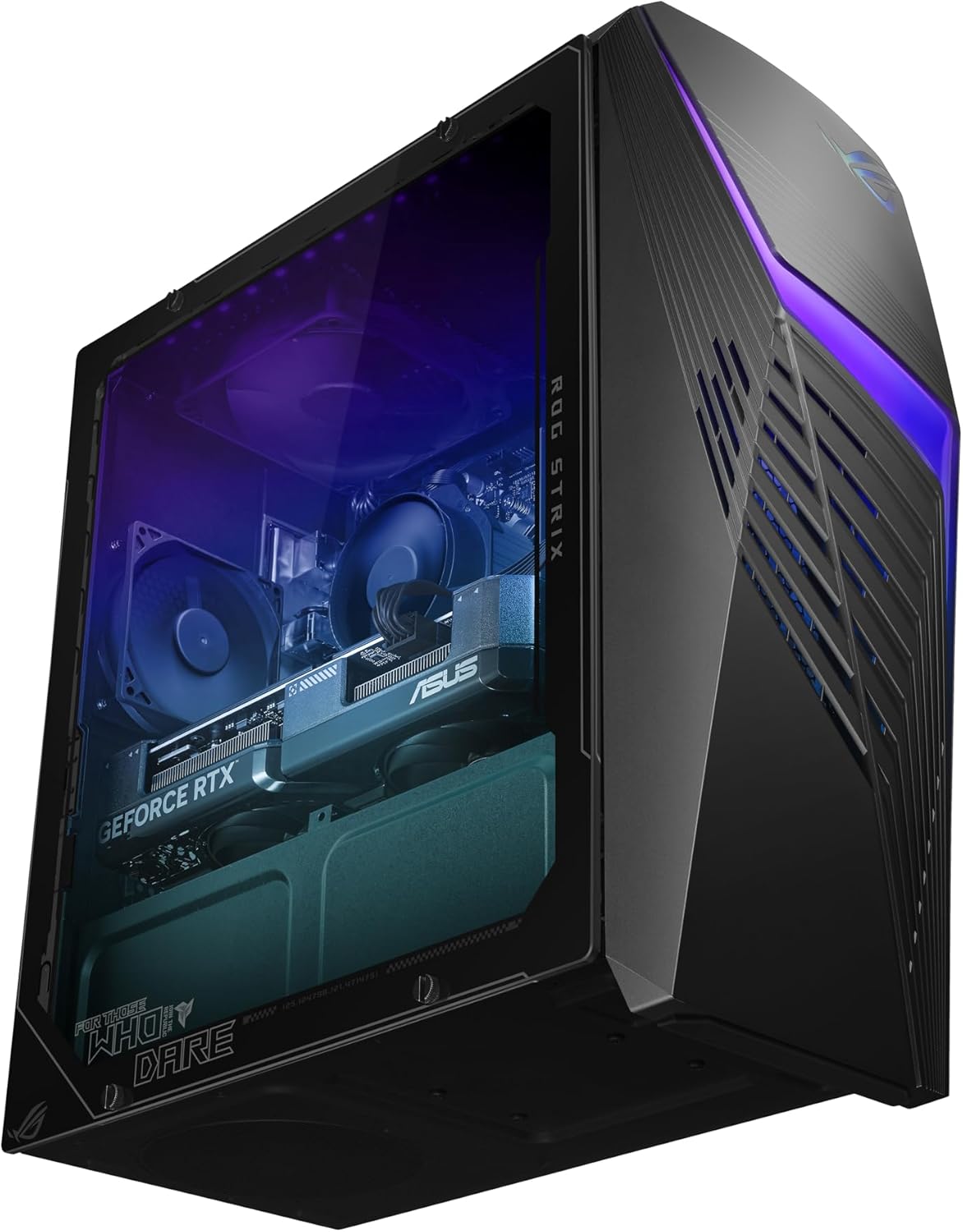
The front panel features a distinctive design with customizable RGB lighting and ventilation.
4.2 Side View
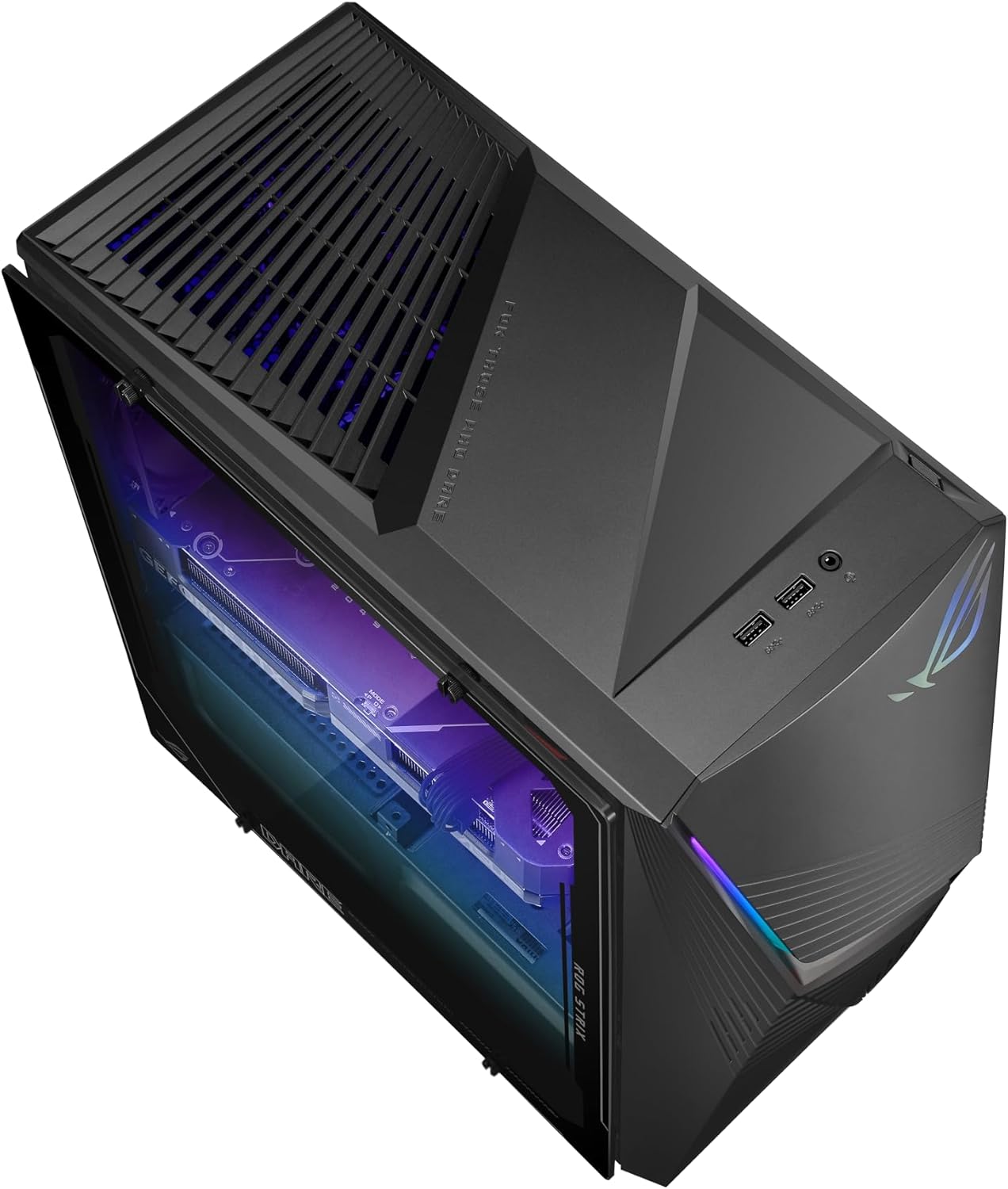
The transparent side panel allows visibility of the internal components and RGB lighting.
4.3 Rear View and Ports

The rear panel provides access to all essential input/output ports, including USB, HDMI, DisplayPort, Ethernet, and audio jacks.
5. Setup
5.1 Connecting Peripherals
- Monitor: Connect your monitor to the graphics card's HDMI or DisplayPort output on the rear panel.
- Keyboard and Mouse: Connect your keyboard and mouse to the available USB ports.
- Audio: Connect speakers or headphones to the audio output jacks.
- Network: For a wired connection, connect an Ethernet cable to the LAN port. For wireless, ensure Wi-Fi antennas are connected if applicable.
5.2 Power Connection
- Connect the power cord to the power input on the rear of the desktop.
- Plug the other end of the power cord into a grounded electrical outlet.
5.3 Initial Boot-Up
- Press the power button on the front panel of the desktop.
- Follow the on-screen instructions to complete the Windows 11 Home setup. This includes setting up your user account, network connection, and privacy settings.
6. Operating Your PC
6.1 Windows 11 Home
Your ASUS ROG Strix G13 comes pre-installed with Windows 11 Home, offering a modern and intuitive user experience. Familiarize yourself with the Start Menu, Taskbar, and File Explorer for efficient navigation.
6.2 Key Features and Performance

The desktop is equipped with an Intel Core i5-14400F processor, NVIDIA GeForce RTX 3050 graphics, and 16GB DDR5 RAM for high-performance gaming and multitasking.
- Processor: The 10-core Intel Core i5-14400F provides robust performance for gaming and demanding applications.
- Graphics: The NVIDIA GeForce RTX 3050 with 8GB GDDR6 supports real-time ray tracing and AI-powered DLSS for enhanced visual fidelity.
- Memory: 16GB DDR5 RAM ensures smooth multitasking and quick application switching.
- Storage: A 1TB M.2 PCIe 4.0 SSD offers fast boot times and rapid game loading.
6.3 Cooling System

An internal view of the desktop, showcasing the cooling solution and component arrangement.
The ROG Strix G13 features Flow Tech Ventilation with two isolated air chambers to prevent heat buildup, ensuring optimal performance and system stability during intense gaming sessions.
6.4 Audio Features

Experience immersive audio with Dolby Atmos and clear communication with Two-Way AI Noise Cancellation.
Enjoy rich, immersive sound with Dolby Atmos support and crystal-clear voice communication thanks to Two-Way AI Noise Cancellation, which filters out background noise.
6.5 ASUS Aura Sync

Customize the RGB lighting effects across your desktop and compatible peripherals using Aura Sync.
Personalize your gaming setup with ASUS Aura Sync RGB lighting. Use the Aura Sync software to synchronize lighting effects across your desktop and compatible peripherals.
7. Maintenance
7.1 Cleaning
- Exterior: Use a soft, dry cloth to wipe down the exterior surfaces. Avoid abrasive cleaners.
- Ventilation: Periodically clean dust from the ventilation grilles using compressed air to maintain optimal airflow.
- Ports: Ensure ports are free of dust and debris.
7.2 Software Updates
Regularly update your Windows operating system, graphics drivers (NVIDIA), and ASUS utilities to ensure optimal performance, security, and compatibility.
7.3 Data Backup
It is recommended to regularly back up your important data to an external drive or cloud storage to prevent data loss.
8. Troubleshooting
8.1 No Power
- Check if the power cord is securely connected to both the desktop and the electrical outlet.
- Ensure the power outlet is functional by testing it with another device.
8.2 No Display
- Verify that the monitor is powered on and the video cable is securely connected to both the desktop's graphics card and the monitor.
- Ensure the correct input source is selected on your monitor.
8.3 System Slowdown
- Close unnecessary background applications.
- Check for and install any pending Windows or driver updates.
- Ensure adequate ventilation to prevent overheating.
8.4 Audio Issues
- Check speaker/headphone connections and ensure they are plugged into the correct audio jacks.
- Verify audio settings in Windows and ensure the correct output device is selected.
9. Specifications
| Component | Detail |
|---|---|
| Model Number | G13CHR-BBI53050-CB |
| Processor | Intel Core i5-14400F (10 Cores, up to 4.7 GHz) |
| Graphics Card | NVIDIA GeForce RTX 3050 (8GB GDDR6) |
| RAM | 16GB DDR5 |
| Storage | 1TB M.2 PCIe 4.0 SSD |
| Operating System | Windows 11 Home |
| Connectivity | Wi-Fi 6, Ethernet, USB 2.0 (x4), USB 3.0 (x6) |
| Dimensions (L x W x H) | 43 x 18 x 42.8 cm |
| Weight | 8 kg |
10. Warranty and Support
Your ASUS ROG Strix G13 Gaming Desktop PC is covered by a manufacturer's warranty. Please refer to the warranty card included in your package for detailed terms and conditions.
For technical support, driver downloads, or further assistance, please visit the official ASUS support website or contact their customer service. Keep your product's serial number handy when seeking support.