
1. Introduction
This manual provides detailed instructions for the installation, operation, maintenance, and troubleshooting of your Uckazy 12.3 Inch Car Stereo. This multimedia player is designed to upgrade your Mercedes-Benz ML GL W166 X166 (2012-2015) with NTG4.5/4.7 System, offering enhanced features such as Apple CarPlay, Android Auto, and a high-resolution touch screen while retaining original vehicle functionalities.
The device features an ultra-narrow 12.3-inch (HD 1920*720) IN-CELL screen with full lamination technology, which reduces reflection and enhances display clarity. It operates on a dual system, allowing a one-click switch between the Linux system and the original car system.
2. Vehicle Compatibility
This unit is specifically designed for Mercedes-Benz ML GL W166 X166 models from 2013-2015, equipped with the NTG 4.5/4.7 System. The NTG 4.5 system is identified by a 4-pin LVDS plug for the display. It is crucial to verify your vehicle's NTG system version before installation. This device is not compatible with NTG 4.0, NTG 5.0, or NTG 5.1 systems.

Image 2.1: Compatibility chart illustrating the correct NTG 4.5/4.7 system plug (green checkmark) and incompatible NTG 4.0 and NTG 5.0/5.1 system plugs (red crosses).
3. What's in the Box
Please ensure all the following components are included in your package:
- Plug and play power Cable/Frame
- Ultra narrow 12.3" in-cell display screen
- USB/AUX/RCA Cable
- AMI Cable
- Installation tools and touch pen

Image 3.1: Overview of the 12.3-inch display unit and all included accessories, such as the USB cable, AUX cable, AMI cable, power cable, installation tools, and touch pen.
4. Setup and Installation
Installation should be performed by a qualified technician. Incorrect installation may damage the device or vehicle. Always disconnect the vehicle's battery before beginning installation.
4.1. General Wiring and Fiber Optic Connection
Carefully review the wire definitions and link the car machine system according to the provided diagram. Pay close attention to the correct interfaces for each connection.
Video 4.1: This video demonstrates how to properly transfer fiber optic cables during the installation process, which is crucial for maintaining audio functionality if your original system uses fiber optics.

Image 4.1: Detailed diagram for wire definition and linking. It also illustrates how to connect with fiber optics by unplugging the 2P fiber optic harness from the original car CD and inserting it into the Linux system harness.
4.2. USB Connection for Wired CarPlay/Android Auto
For wired CarPlay or Android Auto functionality, connect your device to USB1. USB1 is designated for data links, while USB2 is for storage links.

Image 4.2: This image shows the correct USB connection for wired CarPlay/Android Auto (USB IN 1). It also provides a solution for sound distortion by connecting an additional AB cable if noise is present.
4.3. AUX Activation and Settings
Ensure AUX is properly activated for audio output. If using AMI, directly insert the AMI cable. If not, confirm the original AUX input location (e.g., manual gear position or passenger side storage box). Navigate to settings to turn off the AUX auto switching settings if necessary (for NTG5.0 dual Bluetooth channel, sound and picture need to be separated).

Image 4.3: Screenshot of the 'Car Settings' menu, highlighting 'AUX Activation' and 'Auto Switch to AUX' options. Ensure 'Auto Switch to AUX' is enabled for seamless audio integration.

Image 4.4: This image displays the AMI and AUX ports, indicating where to connect them. It also shows the 'Car Settings' interface for managing AUX auto-switching, which may need to be adjusted for specific NTG systems.
4.4. Setting OEM Resolution and Camera Type
After installation, it is essential to set the correct OEM screen resolution and camera type in the device settings to ensure proper display and functionality of your original car information and reverse camera.

Image 4.5: Screenshot of the settings menu for 'Original Car Screen Resolution'. Users must select the correct resolution (e.g., NTG4.0/4.5/4.7 800x480) to ensure OEM car information displays correctly.

Image 4.6: Screenshot of the settings menu for 'Camera Type'. Users need to select 'Original Camera' or 'Aftermarket Camera' to ensure the reverse camera functions properly.
5. Operating Instructions
5.1. Dual System Switching
The device supports a one-click switch between the Linux system (for CarPlay/Android Auto) and your original car's NTG system. This allows you to retain all original car functions while enjoying the new multimedia features.

Image 5.1: This image visually demonstrates the seamless one-click switching capability between the original car's NTG 4.5 system and the new Linux system interface.
5.2. Wireless CarPlay and Android Auto Connection
To connect wirelessly, first ensure the necessary wires are connected to the machine. Then, enable Bluetooth on your phone and search for the screen's Bluetooth connection. Follow the pairing prompts. For CarPlay, ensure Siri voice is enabled on your iPhone.
Video 5.1: This video provides a step-by-step guide on how to establish a wireless CarPlay connection with the Linux system, including initial wire connections and Bluetooth pairing.

Image 5.2: This image illustrates the process for wireless CarPlay connection, emphasizing the need to connect Bluetooth and allow permissions for a successful link.
5.3. Core Features and Functionality
The system supports a range of features including navigation, phone calls, messaging, and music playback through Apple CarPlay or Android Auto. Voice assistants like Siri or Google Voice Assistant can be used for hands-free operation.
- Navigation: Access map navigation through CarPlay/Android Auto.
- Communication: Manage phone contacts, make calls, and send messages.
- Media: Play music and other audio content.
- Voice Control: Use voice commands for various functions, enhancing safety while driving.
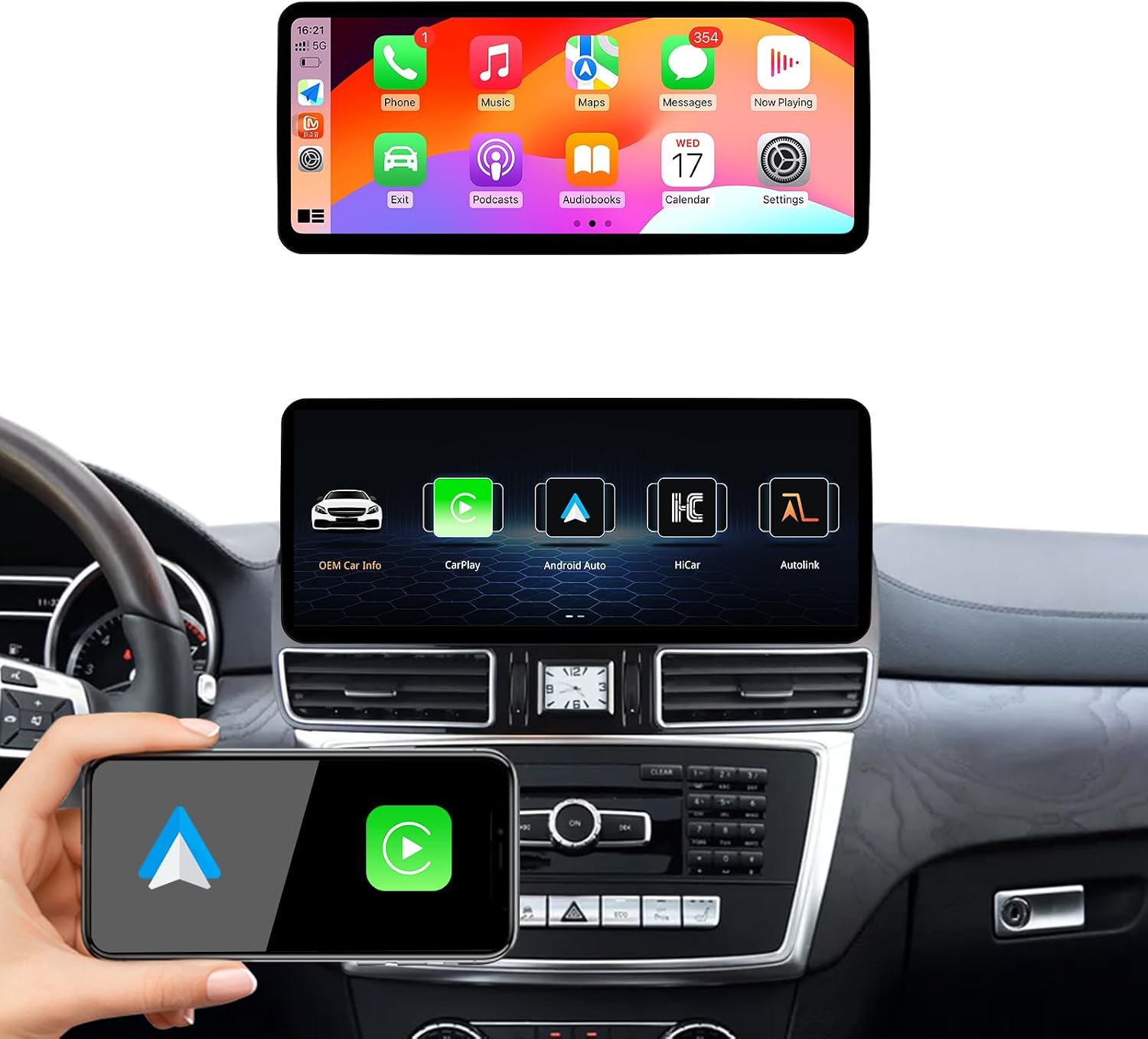
Image 5.3: The main product view showcasing the CarPlay interface on the 12.3-inch screen, displaying common applications like Phone, Music, Maps, and Messages.

Image 5.4: This image highlights the voice control capabilities of CarPlay, showing examples of commands like "Navigate to XX Station" and "Go to a nearby gas station," along with third-party map and mobile music integration.
5.4. Automatic Light Sensitivity
The system features automatic light sensitivity, which adjusts the screen's day and night mode based on your car's original headlights, optimizing visibility and reducing eye strain.
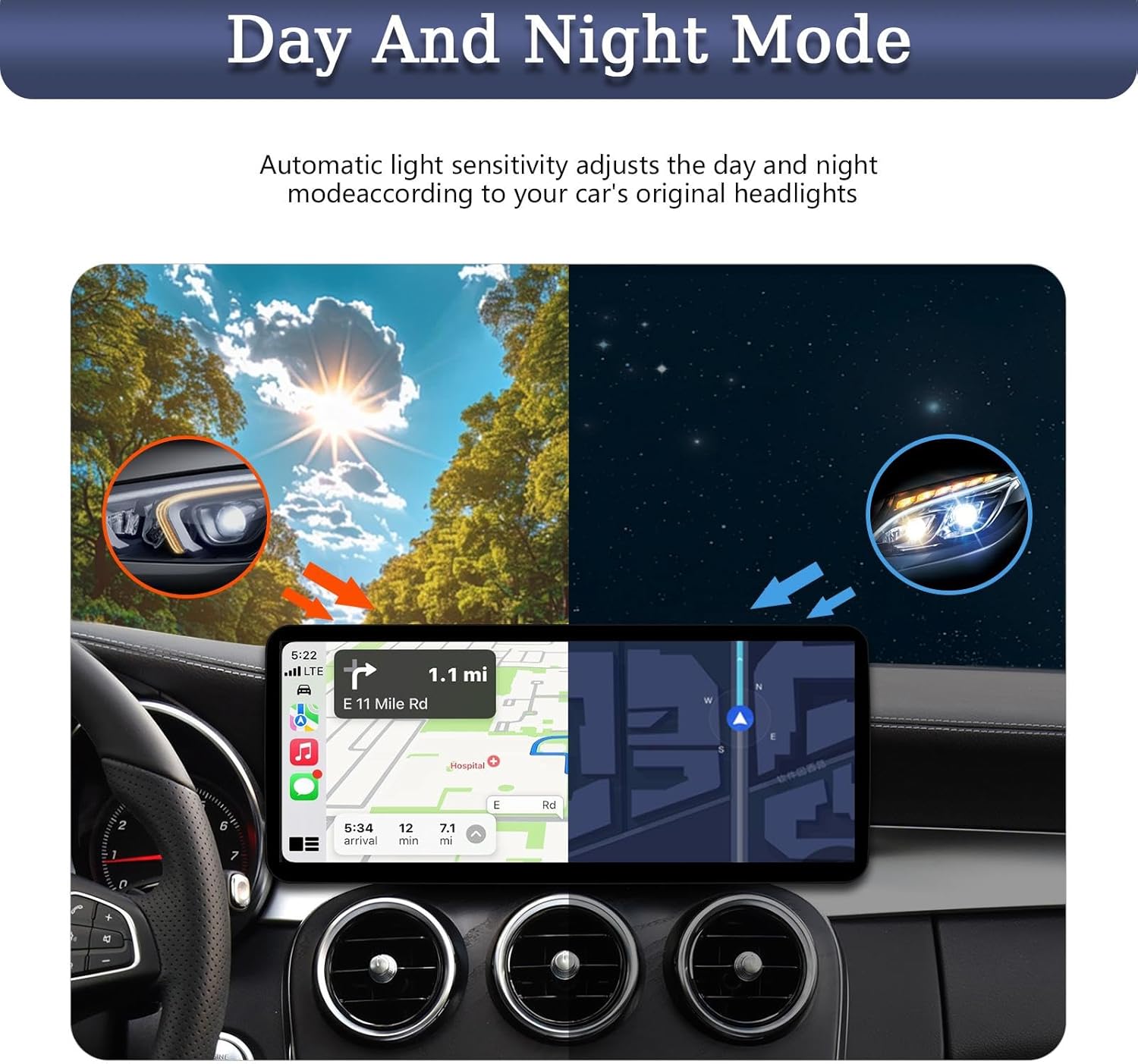
Image 5.5: An illustration demonstrating the automatic light sensitivity feature, showing how the screen adjusts its display mode between day (bright) and night (darker) based on the car's headlights.
5.5. Digital Sound Processor (DSP)
The built-in DSP with 16 EQ segments allows for precise audio tuning. You can utilize various EQ presets or customize settings to achieve optimal sound quality and adjust speaker positioning to suit personal preferences.
6. Maintenance
To ensure the longevity and optimal performance of your Uckazy Car Stereo, follow these maintenance guidelines:
- Screen Cleaning: Use a soft, lint-free cloth specifically designed for electronics to clean the screen. Avoid abrasive materials or harsh chemical cleaners.
- Software Updates: Periodically check for available software updates from the manufacturer to ensure you have the latest features and bug fixes.
- Environmental Conditions: Avoid exposing the unit to extreme temperatures, direct sunlight for prolonged periods, or excessive moisture.
- Cable Connections: Ensure all cables are securely connected and not pinched or damaged.
7. Troubleshooting
If you encounter issues with your Uckazy Car Stereo, refer to the following common problems and solutions:
- No Sound or Distorted Audio:
- Verify that the fiber optic cables are correctly transferred and connected. Refer to Video 4.1 and Image 4.1.
- Ensure AUX is activated in the settings (Image 4.3).
- If using wired CarPlay/Android Auto and experiencing noise, connect the additional AB cable as shown in Image 4.2.
- Check all audio connections for looseness or damage.
- Display Issues (Incorrect Resolution, No Original Car Info):
- Ensure the correct OEM screen resolution is selected in the settings (Image 4.5). Incorrect selection can prevent original car information from displaying.
- Verify the LVDS plug type matches your NTG system (Image 2.1).
- Reverse Camera Not Working:
- Confirm that the correct camera type (Original or Aftermarket) is selected in the settings (Image 4.6).
- Check the camera's wiring connections.
- CarPlay/Android Auto Connection Problems:
- For wireless connection, ensure Bluetooth is on and paired, and Siri is enabled on iPhone (Video 5.1, Image 5.2).
- For wired connection, ensure your phone is connected to USB1 (Image 4.2).
- Restart both the car stereo and your smartphone.
- General Setup Difficulties:
- Installation can be complex. If you encounter significant difficulties, it is recommended to seek professional assistance or contact customer support.
8. Specifications
| Feature | Detail |
|---|---|
| Screen Size | 12.3 inches |
| Display Resolution | 1920 x 720 (HD) |
| Screen Technology | IN-CELL, Full Lamination |
| Operating System | Linux (Dual System with Original Car NTG) |
| Connectivity | Wireless/Wired Apple CarPlay, Wireless/Wired Android Auto, Wireless Mirrorlink (iOS/Android), Bluetooth, Wi-Fi |
| Audio Features | Built-in DSP with 16 EQ segments |
| Control Method | Touch, Original Car Knob, Steering Wheel Control |
| Special Features | Automatic Light Sensitivity, Retains Original Car Functions (Radio, Amplifier, Reverse Camera, etc.) |
| Item Weight | 5.14 pounds |
| Package Dimensions | 15.87 x 10.87 x 8.12 inches |
| ASIN | B0DP595L5D |
| Date First Available | January 25, 2025 |
9. Warranty and Support
For product-specific warranty information, please refer to the documentation included with your purchase or contact the seller directly. Extended protection plans may be available for purchase separately.
If you encounter any issues with installation, sound, CarPlay functionality, or if the original car UI does not display correctly, please contact the seller for technical support. The seller, Uckzay Factory Outlet, is available to provide solutions and assistance.

Image 9.1: This image highlights the importance of contacting the seller, Uckzay Factory Outlet, for technical support regarding installation, sound, CarPlay, or original UI display issues.
You can typically find seller contact information on the product's purchase page or within your order details.