
Enzemit bluetooth glasses GY006
User Manual for Enzemit Sport Smart Glasses
Model: bluetooth glasses GY006
Product Overview
The Enzemit Sport Smart Glasses combine polarized UV400 sunglasses with advanced Bluetooth 5.3 audio technology. Designed for active individuals, these glasses allow for hands-free calling, music playback, and voice assistant access while providing essential eye protection. The open-ear speaker design ensures situational awareness, making them ideal for various outdoor activities.

Image: Enzemit Sport Smart Glasses, front view.
Setup and First Use
1. Charging the Glasses
Before first use, fully charge your Enzemit Sport Smart Glasses. Connect the provided USB-C charging cable to the charging port located on the temple of the glasses and plug the other end into a compatible USB power source. A full charge takes approximately 1 hour.

Image: Illustration of long battery life and charging port location.
A fully charged battery provides 4-5 hours of continuous use and up to 50 hours of standby time.
2. Bluetooth Pairing
- Ensure the glasses are charged and powered off.
- Press and hold the power button on the glasses for 2 seconds until the indicator light flashes, indicating pairing mode.
- On your smartphone or Bluetooth-enabled device, navigate to the Bluetooth settings.
- Search for available devices and select "Enzemit Smart Glasses" (or similar name) from the list.
- Once connected, the indicator light on the glasses will stop flashing and remain solid.

Image: Diagram illustrating the dual Bluetooth 5.3 chip technology.
The glasses utilize Bluetooth 5.3 for a stable connection up to 15 meters.
Operating Instructions
Power On/Off
- Power On: Press and hold the button for 2 seconds.
- Shutdown: Hold down the button for 5 seconds.
Music Playback
- Play/Pause: When music is playing, click the button once.
- Volume Control: (Specific gesture/button not detailed in source, assume touch control as per feature bullet) Use the touch control area on the temple to adjust volume.
Call Management
- Answer/Hang Up: Press the button with one click during an incoming call.
- Reject Call: Hold down the button for 1.5 seconds during an incoming call.

Image: Diagram showing multifunction button controls for power, music, and calls.

Image: User demonstrating one-click answer feature for safe driving.
Voice Assistant Activation
- In a non-music playing state, hold down the button for 1.5 seconds to activate your device's voice assistant.
UV Protection and Lens Care
The glasses feature polarized UV400 lenses that block 100% of harmful UVA and UVB rays, reducing glare and enhancing visual clarity in bright conditions.

Image: Visual representation of UV400 lenses filtering harmful UV rays.
Care and Maintenance
- Cleaning: Use a soft, clean microfiber cloth to wipe the lenses and frame. Avoid using harsh chemicals or abrasive materials that could damage the lenses or electronic components.
- Storage: Store the glasses in their protective case when not in use to prevent scratches and damage. Avoid exposing them to extreme temperatures or direct sunlight for prolonged periods.
- Nose Pad: The soft anti-slip rubber nose pad is designed for comfort and stability. Clean it regularly with a damp cloth to maintain hygiene and grip.
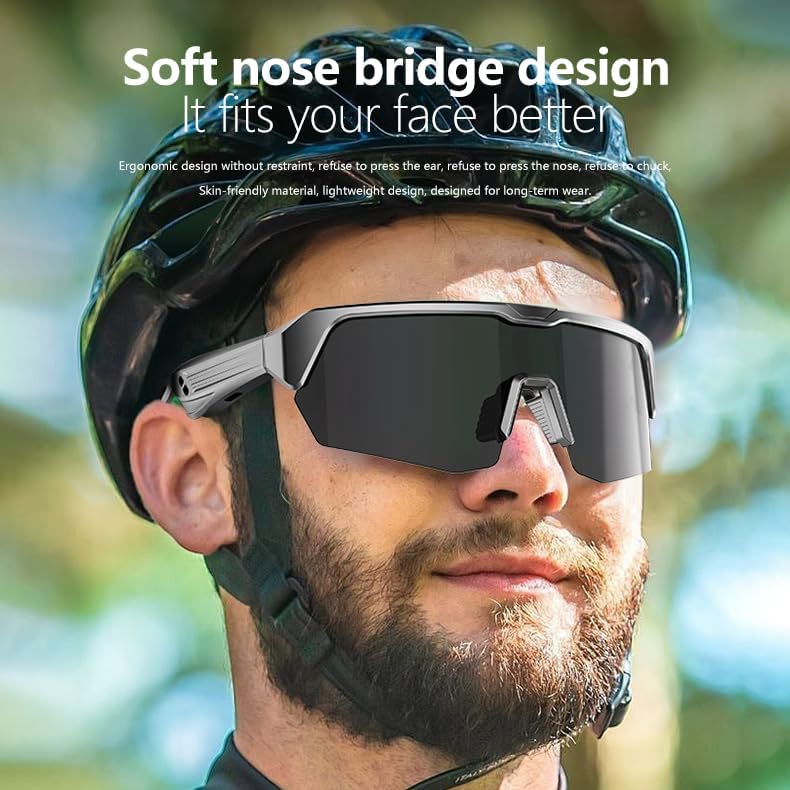
Image: Close-up of the soft nose bridge design for improved fit and comfort.
Troubleshooting
| Problem | Solution |
|---|---|
| Glasses do not power on. | Ensure the battery is fully charged. Connect to a power source and allow at least 15 minutes of charging before attempting to power on again. |
| Cannot pair with Bluetooth device. | Make sure the glasses are in pairing mode (flashing indicator light). Ensure Bluetooth is enabled on your device and it is within the 15m transmission range. Try restarting both the glasses and your device. |
| No sound or poor audio quality. | Check the volume level on both the glasses and your connected device. Ensure the glasses are properly connected via Bluetooth. Move closer to your device to improve signal strength. |
| Touch controls are unresponsive. | Ensure your fingers are clean and dry. Restart the glasses. If the issue persists, ensure the firmware is up to date (check manufacturer's website for updates). |
Technical Specifications
- Model: bluetooth glasses GY006
- Bluetooth Version: 5.3
- Bluetooth Transmission Range: Up to 15 meters
- Battery Capacity: 130mAh
- Charging Time: Approximately 1 hour
- Continuous Use Time: 4-5 hours
- Standby Time: Up to 50 hours
- Lens Type: Polarized
- UV Protection: UV400 (100% UVA/UVB protection)
- Speaker Design: Open-ear
- Control Type: Touch control
Warranty and Support
Enzemit products are manufactured with high-quality standards. For warranty information, technical support, or service inquiries, please refer to the contact details provided with your product packaging or visit the official Enzemit website. Please retain your proof of purchase for warranty claims.
Ask a question about this manual
Ask about setup, troubleshooting, compatibility, parts, safety, or missing instructions. Manuals+ will review the question and use this page’s manual context to help answer it.