
1. Introduction
Thank you for choosing the NEWFAST 300Mbps WiFi Extender. This device is designed to expand your existing Wi-Fi network coverage, eliminate dead zones, and provide stable, high-speed internet access throughout your home or office. With its versatile operating modes and easy setup, you can enjoy seamless connectivity for all your devices.

Image: The NEWFAST 300Mbps WiFi Extender, a white rectangular device with four adjustable antennas, emitting blue signal waves from its base.
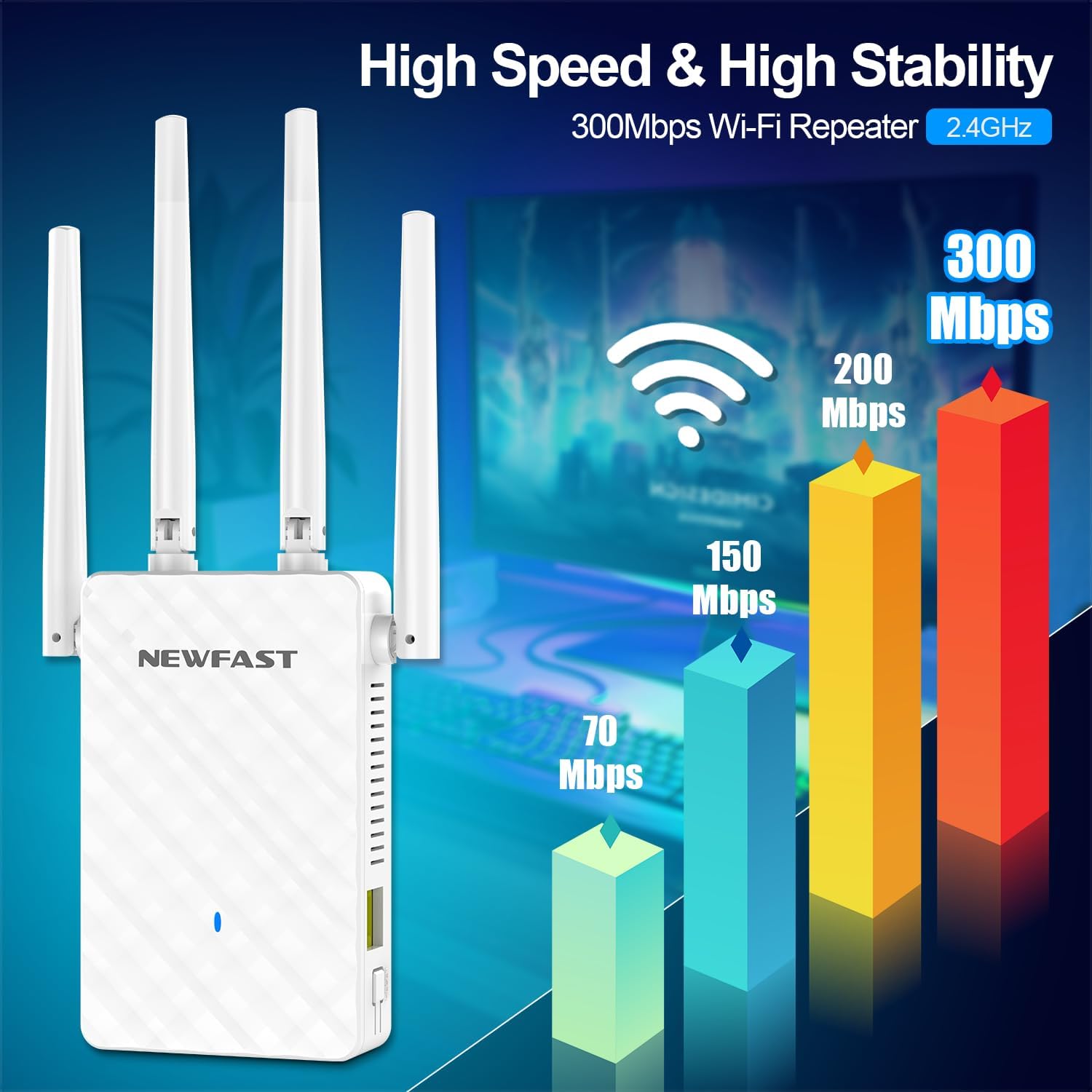
Image: A graphic illustrating the high speed and stability of the 300Mbps Wi-Fi Repeater, showing a bar chart with speeds up to 300 Mbps on 2.4 GHz.
2. Safety Information
- Do not expose the device to water or excessive humidity.
- Do not attempt to disassemble or repair the device yourself. Refer to qualified personnel for service.
- Ensure proper ventilation around the device to prevent overheating.
- Use only the power adapter supplied with the device, if applicable.
- Keep the device away from direct sunlight and heat sources.
3. Package Contents
Verify that all items are present in your package:
- 1 x NEWFAST WiFi Extender (NF-RE516)
- 1 x User Manual
- 1 x RJ-45 Ethernet cable
4. Product Overview
The NEWFAST NF-RE516 features a compact design with multiple antennas for enhanced signal transmission and reception. Key components include:
- Adjustable Antennas: Four high-gain antennas that can be rotated 180 degrees to optimize signal direction.
- LED Indicator: Provides visual feedback on power, signal strength, and connection status.
- WPS Button: For quick and easy setup with WPS-enabled routers.
- Ethernet Port: For wired connections in AP or Repeater mode.
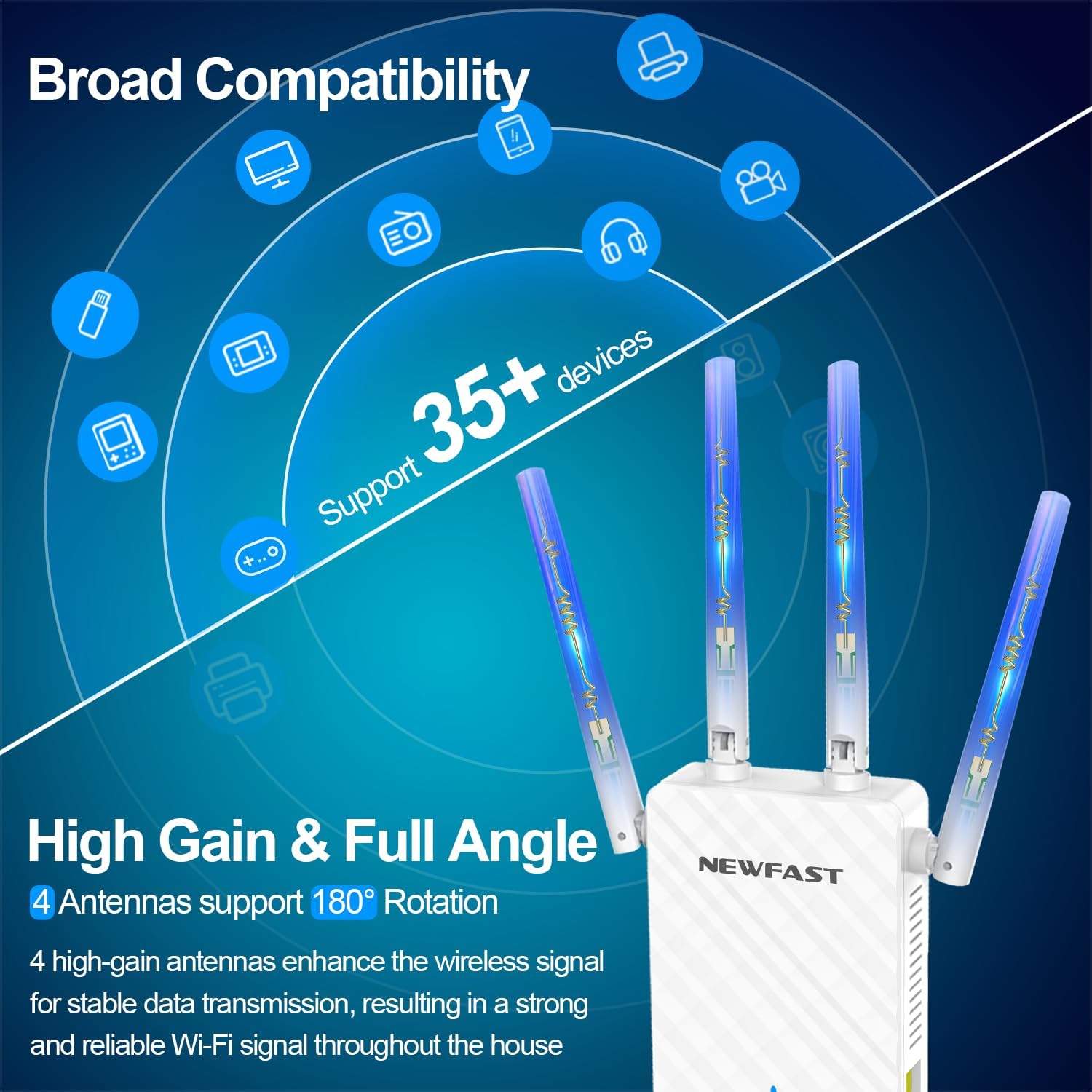
Image: A graphic highlighting the broad compatibility and high-gain, full-angle adjustable antennas of the WiFi extender, supporting over 35 devices.
5. Setup
5.1. Powering On
Plug the WiFi extender into a standard electrical outlet. The power LED indicator will light up.
5.2. Easy Setup with WPS
- Plug the NEWFAST WiFi Extender into an electrical outlet near your main router.
- Wait for the extender to power on (Power LED will be green).
- Press the WPS button on your main router.
- Within 2 minutes, press the WPS button on the NEWFAST WiFi Extender for 1-2 seconds.
- The signal indicator light on the extender will change color (e.g., blue for strong signal) once connected.
- Once connected, you can unplug the extender and move it to a location between your router and the Wi-Fi dead zone. Ensure the signal indicator shows a strong signal in the new location.

Image: A diagram showing the easy WPS setup process, with illustrations of pressing the WPS button on both the router and the extender, and signal indicator light colors (Green for Power on, Red for Weak Signal, Blue for Strong Signal).
5.3. Manual Setup (Web Browser)
- Plug the extender into an electrical outlet.
- On your computer or mobile device, connect to the extender's default Wi-Fi network (e.g., "NEWFAST_EXT"). No password is required initially.
- Open a web browser and enter the default IP address or domain name (refer to the included user manual for specific details, typically
192.168.1.1ornewfastwifi.com). - Follow the on-screen instructions to log in (default username/password is usually
admin/admin). - Select your desired operating mode (Repeater, AP, or Router) and follow the wizard to configure network settings, including selecting your main Wi-Fi network and entering its password.
- Save the settings and wait for the extender to restart.
6. Operating Instructions
The NEWFAST NF-RE516 supports multiple operating modes to suit various networking needs:

Image: A visual representation of the three operating modes: Repeater/Bridge Mode (extending Wi-Fi signal), AP Mode (switching wired network to wireless), and Router Mode (turning wireless signal to wired network).
6.1. Repeater/Bridge Mode
In this mode, the extender wirelessly connects to your existing router's Wi-Fi network and re-broadcasts it, extending the coverage area. This is ideal for eliminating Wi-Fi dead zones.
- Connect your devices to the extender's new Wi-Fi network (usually your original network name with "_EXT" appended).
- The extender will use the same password as your main router's Wi-Fi.
- You can also connect a wired device (e.g., PC, game console) to the extender's Ethernet port for a stable connection.
6.2. AP (Access Point) Mode
In AP mode, the extender transforms a wired internet connection into a wireless hotspot. This is useful if you have an Ethernet port in a room but no Wi-Fi coverage.
- Connect an Ethernet cable from your router (or a wall Ethernet port) to the extender's Ethernet port.
- The extender will create a new Wi-Fi network. You can configure its name (SSID) and password during manual setup.
6.3. Router Mode
In Router mode, the device functions as a standalone router, creating a new private network from a modem connection. This is suitable for small homes or as a primary router.
- Connect an Ethernet cable from your modem to the extender's Ethernet port.
- The extender will act as your main router, providing Wi-Fi and managing network traffic.

Image: A graphic detailing the multi-mode functionality, specifically illustrating AP Mode where a wired connection is converted to wireless, and the use of the Ethernet port for connecting devices.
7. Maintenance
- Cleaning: Use a soft, dry cloth to clean the device. Do not use liquid cleaners or aerosols.
- Firmware Updates: Periodically check the manufacturer's website for firmware updates to ensure optimal performance and security.
- Placement: Ensure the extender is placed in a well-ventilated area, away from obstructions and other electronic devices that may cause interference.
8. Troubleshooting
| Problem | Possible Solution |
|---|---|
| No power / LED indicators off. | Ensure the extender is securely plugged into a working electrical outlet. Try a different outlet. |
| Cannot connect to the extender's Wi-Fi. | Ensure the extender is powered on. If setting up manually, verify you are connecting to the correct default network. Try resetting the extender to factory defaults (refer to manual for reset button location). |
| Extender connected but no internet access. | Check if your main router has internet access. Reconfigure the extender, ensuring the correct Wi-Fi network and password of your main router are entered. Ensure the extender is within range of your main router. |
| Slow internet speed after connecting to extender. | Relocate the extender closer to your main router, ensuring the signal indicator shows a strong connection. Reduce interference by moving the extender away from other electronic devices. The actual speed depends on your superior router. |
| WPS setup failed. | Ensure both WPS buttons are pressed within the 2-minute window. Try manual setup via web browser. |

Image: A graphic illustrating how the WiFi extender provides long-distance and wide coverage, eliminating dead zones within a multi-story house layout.

Image: A graphic showcasing the extender's ability to provide powerful signal and eliminate dead zones in various areas like garage, bathroom, bedroom, and study room.
9. Specifications
| Feature | Detail |
|---|---|
| Model | NF-RE516 |
| Wireless Communication Standard | 802.11bgn |
| Data Transfer Rate | Up to 300 Megabits Per Second (2.4 GHz) |
| Frequency Band Class | Single-Band (2.4GHz) |
| Special Features | 360 Degree Coverage, Router Mode, Access Point Mode, LED Indicator, 1-Tap Setup (WPS) |
| Antennas | 4 high-gain adjustable antennas |
| Coverage Area | Up to 1500 sq.ft (approximate) |
| Product Dimensions | 3.46 x 1.08 x 7.73 inches |
| Item Weight | 4.8 ounces |
| Security Protocols | WPA/WPA2/WPA-PSK/WPA2-PSK |

Image: A graphic indicating the 300Mbps speed capability of the WiFi extender for 2.4GHz.
10. Warranty and Support
NEWFAST products are designed for reliability and performance. For warranty information and technical support, please refer to the contact details provided in your product packaging or visit the official NEWFAST website.
For further assistance, please contact NEWFAST Customer Support.


