
1. Introduction
This manual provides detailed instructions for the installation, operation, and maintenance of your Uckazy 12.3 Inch Touch Screen Carplay Android Auto Radio. Please read this manual thoroughly before installation and use to ensure proper functionality and to maximize your product experience. This device is designed to integrate advanced multimedia features into your Mercedes Benz CLS Class W218 (2014-2017) equipped with the NTG 5.0 system.

Figure 1.1: Uckazy 12.3 Inch Touch Screen Carplay Android Auto Radio displaying Apple CarPlay.
2. Compatibility
This unit is specifically designed for Mercedes Benz CLS Class W218 models manufactured between 2014 and 2017, which are equipped with the NTG 5.0 system. It is crucial to verify your vehicle's NTG system version before installation. The NTG 5.0 system is identified by a 5-pin LVDS plug for the display.

Figure 2.1: Compatibility chart for Mercedes Benz NTG systems.

Figure 2.2: Identifying NTG 5.0/5.1 system by flat button radio.
If you are uncertain about your vehicle's compatibility, please consult a professional or contact Uckazy customer support with your vehicle's year, model, and a photo of your current radio interface.
3. Package Contents
Please ensure all items listed below are present in your package:
- Ultra narrow 12.3" in-cell display screen
- Plug and play power Cable/Frame
- USB/AUX/RCA Cable
- AMI Cable
- Installation tools and touch pen

Figure 3.1: Included components and screen dimensions.
4. Installation Guide
The Uckazy multimedia player is designed for plug-and-play installation. However, professional installation is recommended due to the complexity of vehicle electronics. Ensure the vehicle's power is disconnected before beginning installation.
4.1 Wiring and Connections
Carefully follow the wiring diagram provided. Ensure all cables are securely connected to their corresponding ports.

Figure 4.1: Wire definition and fiber optic connection.
4.2 Wired CarPlay/Android Auto Connection
For wired CarPlay or Android Auto functionality, connect your device to USB1. USB2 is designated for storage links.

Figure 4.2: USB connection for wired CarPlay/Android Auto.
4.3 AMI/AUX Connection
If your vehicle has an AMI port, directly insert the AMI cable. If using the original AUX, ensure the AUX auto-switching setting is turned off in the system settings (NTG5.0 dual Bluetooth channel requires separate sound and picture handling).

Figure 4.3: AMI/AUX connection and settings.
4.4 System Settings Configuration
After physical installation, configure the system settings for optimal performance.
4.4.1 OEM Resolution Settings
Navigate to Image Setup > Car Settings > Original Car Screen Resolution and select the correct resolution for your OEM display. Incorrect settings may prevent OEM car information from displaying correctly.

Figure 4.4: OEM Resolution settings menu.
4.4.2 OEM Camera Settings
Go to Image Setup > Car Settings > Reversing Settings > Camera Type and select either 'Original' or 'Aftermarket' based on your vehicle's camera. The reverse camera will not function if this setting is incorrect.

Figure 4.5: OEM Camera settings menu.
4.4.3 Automatic AUX Switch
To enable automatic switching to AUX input, navigate to Image Setup > Car Settings > Auto Switch to AUX and toggle the setting to 'ON'.

Figure 4.6: Automatic AUX switch setting.
5. Operating Instructions
5.1 Dual System Switching
The unit supports a dual system, allowing you to switch between the Linux system and your original car's NTG system with a single click. This retains all original car functions while adding new features.

Figure 5.1: Switching between Linux and original car system.
5.2 Wireless CarPlay and Android Auto
The unit supports wireless Apple CarPlay and wireless Android Auto. To connect:
- Enable Bluetooth on your smartphone.
- Connect your phone to the unit via Bluetooth.
- Allow all requested permissions on your phone.
- Wait for the connection to establish automatically.
Once connected, you can access navigation, phone contacts, email, notifications, and music through voice assistants like Siri or Google Voice Assistant.

Figure 5.2: Wireless CarPlay and Android Auto functionality.
5.3 Display Features
The 12.3-inch IN-CELL screen features full lamination technology, reducing reflections by 75% and enhancing display clarity. It also includes automatic light sensitivity, adjusting brightness for day and night driving modes based on your car's original headlights.

Figure 5.3: Automatic day and night mode adjustment.

Figure 5.4: Visual comparison of screen quality and field of view.
5.4 Original System Integration
The unit seamlessly integrates with your vehicle's existing systems, retaining the following original functions:
- Steering wheel controls
- OEM reversing camera and parking radar
- iDrive control knob
- Original car radio and amplifier function
- Display of speed, fuel level, oil pressure, and safety warnings
- Ability to keep the original CD player
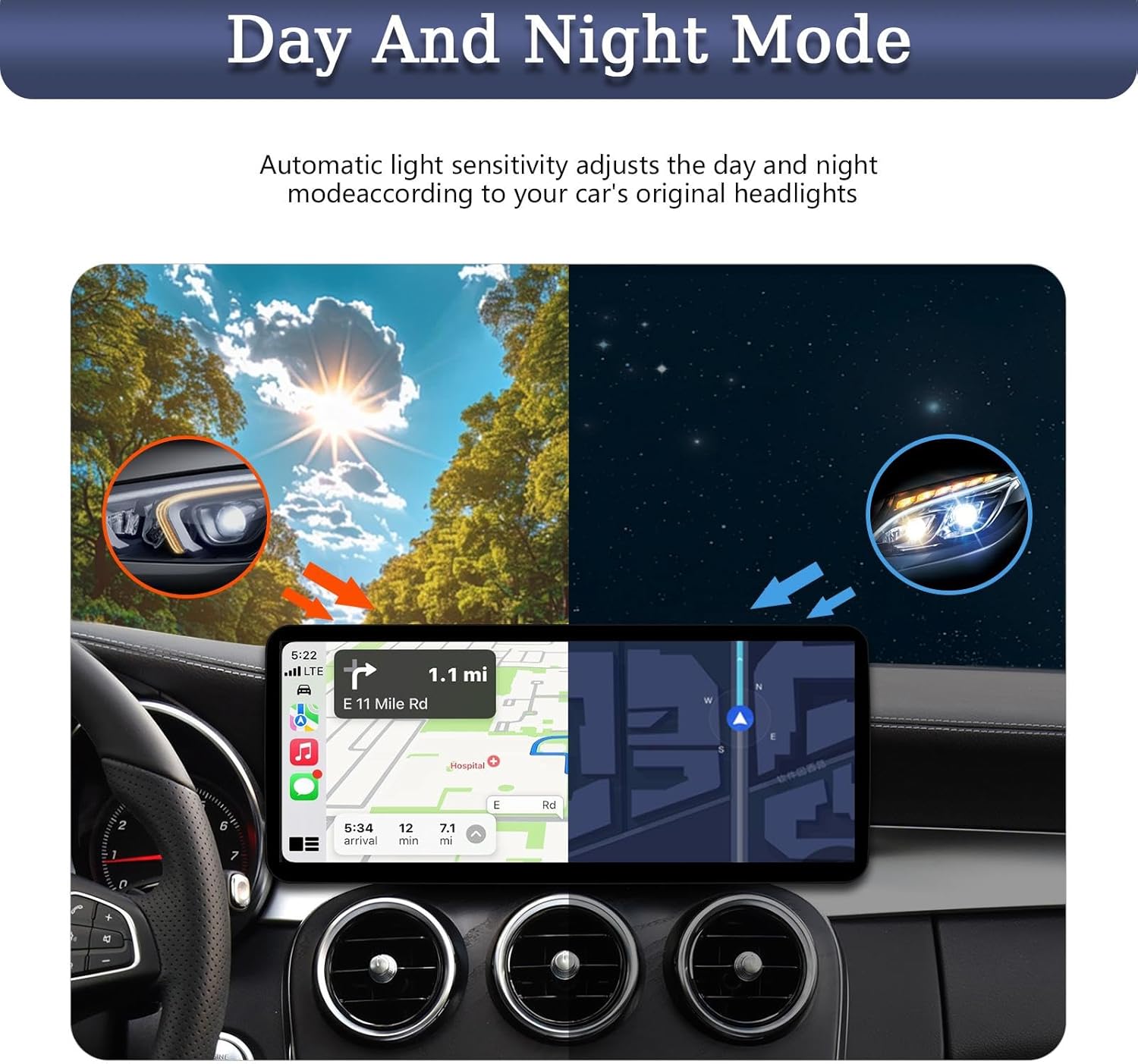
Figure 5.5: Supported original OEM system features.
5.5 Digital Sound Processor (DSP)
The built-in DSP features 16 EQ segments and various tuning methods. This allows for detailed adjustment of the overall sound quality, speaker positioning (front, rear, left, right), and enhancement of the audio experience.
6. Maintenance
To ensure the longevity and optimal performance of your Uckazy multimedia player, follow these maintenance guidelines:
- Screen Cleaning: Use a soft, lint-free cloth to gently wipe the screen. For stubborn smudges, slightly dampen the cloth with water or a screen-safe cleaner. Avoid harsh chemicals or abrasive materials.
- Dust Removal: Regularly clean dust from the screen and surrounding areas using a soft brush or compressed air.
- Avoid Extreme Temperatures: Do not expose the unit to extreme heat or cold, as this can affect its electronic components.
- Cable Inspection: Periodically check all connected cables for any signs of wear or damage.
7. Troubleshooting
If you encounter issues with your Uckazy multimedia player, refer to the following common solutions:
- No Power/Screen Blank:
- Check all power cable connections to ensure they are secure.
- Verify the vehicle's fuse related to the radio/multimedia system.
- No Sound or Distorted Sound (CarPlay/Android Auto):
- Ensure the AUX input is correctly selected on your original car radio.
- Verify the 'Auto Switch to AUX' setting is enabled in the unit's settings (refer to Figure 4.6).
- If sound is distorted, ensure the AB connection is made as indicated in the wired CarPlay/Android Auto diagram (Figure 4.2).
- Check the volume levels on both the unit and your original car stereo.
- CarPlay/Android Auto Not Connecting Wirelessly:
- Ensure Bluetooth is enabled on your phone and paired with the unit.
- Confirm all necessary permissions are granted on your smartphone for CarPlay/Android Auto.
- Try restarting both your phone and the multimedia unit.
- Original Car Information Not Displaying:
- Verify that the correct OEM screen resolution is selected in the unit's settings (refer to Figure 4.4).
- Reverse Camera Not Working:
- Check the camera type setting (Original/Aftermarket) in the unit's settings (refer to Figure 4.5).
- Ensure the camera wiring is correctly connected.
- Touch Screen Unresponsive or Random Selections:
- Perform a system reset if available.
- Ensure the screen is clean and free of debris or moisture.
If these steps do not resolve the issue, please contact Uckazy technical support for further assistance.
8. Specifications
| Feature | Specification |
|---|---|
| Brand | Uckazy |
| Screen Size | 12.3 Inches |
| Display Type | IPS In-Cell Screen |
| Resolution | 1920*720 |
| Touch Screen Type | Capacitive |
| Operating System | Linux System |
| Special Features | Built-In Bluetooth, DSP (16 EQ segments), Wired/Wireless Android Auto, Wired/Wireless Apple CarPlay, Ultra Narrow Bezel |
| Connectivity Technology | Bluetooth, USB |
| Audio Output Mode | Digital |
| Item Weight | 3.85 pounds |
| Package Dimensions | 14.99 x 7.08 x 7.08 inches |
9. Warranty and Support
Uckazy offers a 30-day refund/replacement policy for this product. For any technical issues, installation questions, or support needs, please contact Uckazy customer service. Providing details of your issue and any relevant photos or videos will help expedite the support process.

Figure 9.1: Technical support contact information.
Note: No official product videos were provided in the product data for embedding in this manual.