
1. Introduction
The Rockwell Automation 1756-L72S GuardLogix Controller is a powerful and reliable automation controller designed for industrial applications. Part of the Logix 5572S series, this controller offers advanced control capabilities for efficient and precise operations. It is engineered for seamless integration within Rockwell systems, providing a versatile solution for diverse industrial automation needs. This manual provides essential information for the proper installation, operation, maintenance, and troubleshooting of the 1756-L72S controller.
2. Safety Information
Before installing, operating, or performing maintenance on the 1756-L72S GuardLogix Controller, read and understand all safety instructions. Failure to follow these instructions may result in personal injury, property damage, or equipment malfunction.
- Qualified Personnel: Installation, adjustment, operation, programming, maintenance, and repair of this equipment must be performed by qualified personnel who are familiar with industrial control systems and safety procedures.
- Electrical Safety: Disconnect all power sources before working on the equipment. Always use appropriate lockout/tagout procedures. Ensure proper grounding.
- Environmental Conditions: Operate the controller within specified environmental limits (temperature, humidity, vibration) to prevent damage and ensure reliable performance.
- Hazardous Voltage: This equipment may operate at hazardous voltage levels. Contact with live components can cause severe injury or death.
3. Setup and Installation
Proper installation is crucial for the reliable operation of the 1756-L72S GuardLogix Controller. Follow these general guidelines for setup.
3.1. Product Identification
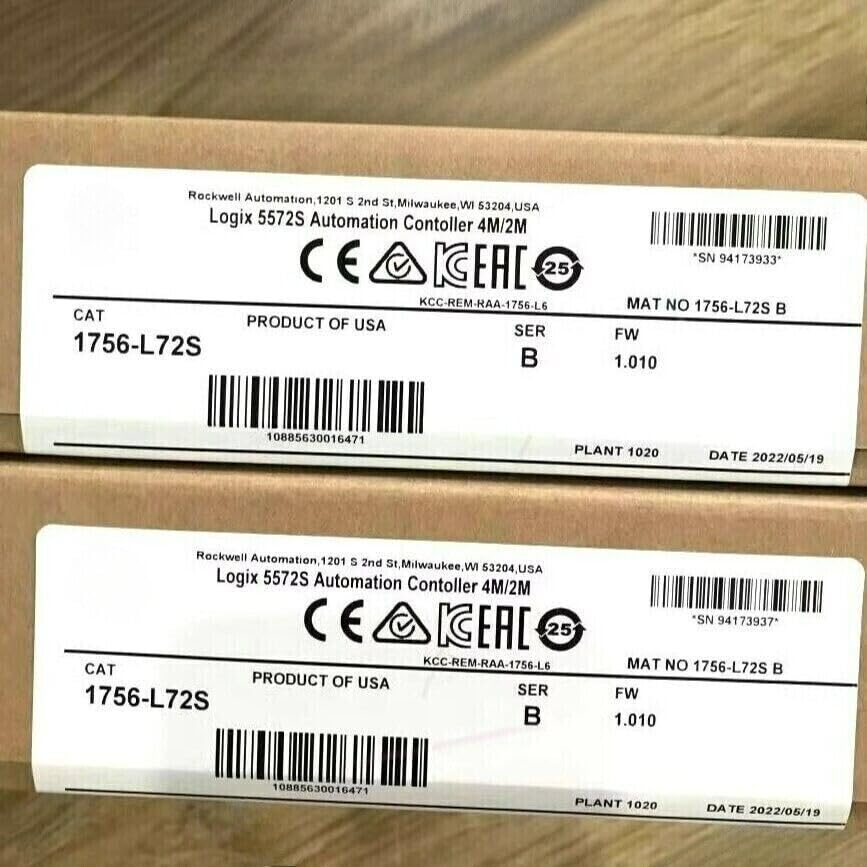
This image displays the product labels for two Rockwell Automation Logix 5572S Automation Controllers. Each label clearly indicates the model number 'CAT 1756-L72S', 'PRODUCT OF USA', 'SER B', and 'FW 1.010'. Unique serial numbers, such as '*SN 94173933*', and manufacturing dates are also visible, confirming product authenticity and origin. The labels also show 'KCC-REM-RAA-1756-L6' and 'MAT NO 1756-L72S B'.
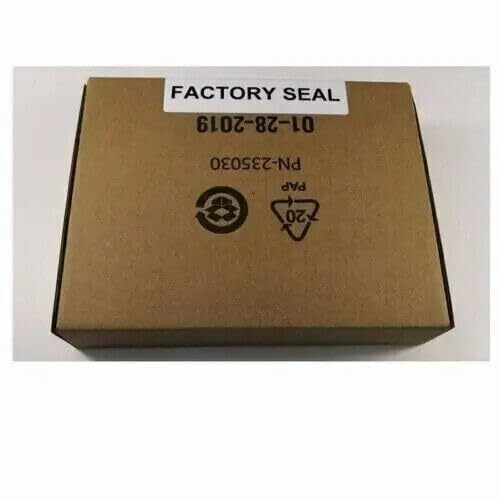
This image shows the factory-sealed packaging for the controller. The brown cardboard box features a 'FACTORY SEAL' label prominently, along with recycling symbols (PAP 20) and a part number 'PN-235030' and date '6102-28-10' (likely 2010-10-28 in a reversed format). This packaging ensures the product is new and untouched.
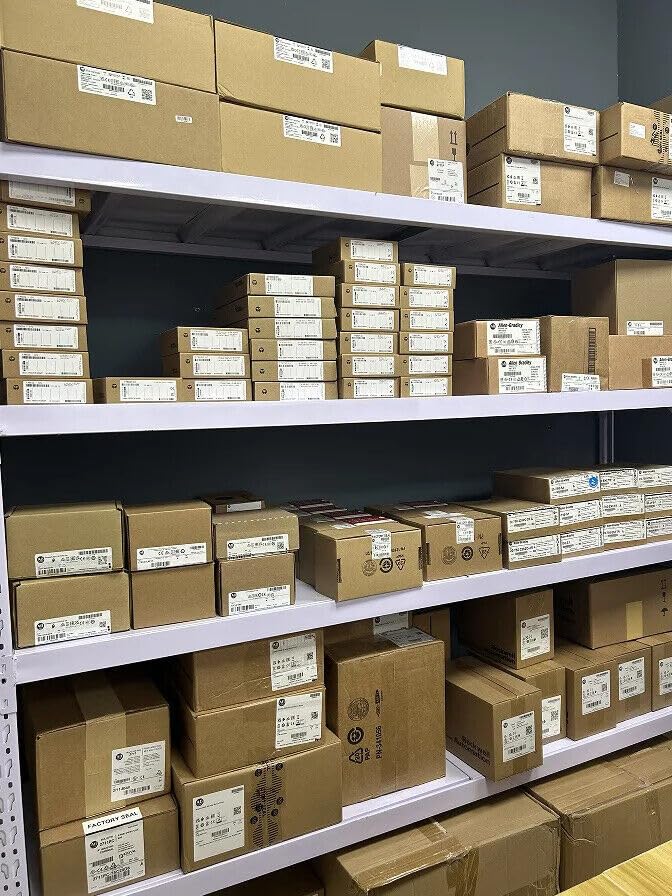
This image provides a view of a storage area or warehouse, displaying multiple units of industrial automation components, likely including the 1756-L72S controllers, neatly stacked on shelves in their original factory-sealed packaging. This illustrates the product's availability and typical storage conditions.
3.2. Mounting
The 1756-L72S controller is designed for chassis mounting. Ensure the chassis is securely mounted in an industrial enclosure that provides adequate ventilation and protection from environmental hazards. Refer to the chassis documentation for specific mounting instructions.
3.3. Wiring and Power Connection
Connect the controller to a compatible power supply module within the ControlLogix chassis. Ensure all power connections adhere to local electrical codes and safety standards. Use appropriate wire gauges and termination methods. Verify that the power supply voltage matches the controller's requirements.
3.4. Network Configuration
Connect the controller to the appropriate industrial network (e.g., EtherNet/IP, ControlNet) using standard cabling. Configure network settings, including IP addresses and subnet masks, using Rockwell Automation's Studio 5000 Logix Designer software. Ensure proper communication paths are established for all connected devices.
4. Operating the Controller
The 1756-L72S GuardLogix Controller operates by executing user-defined logic programs. These programs are developed using Studio 5000 Logix Designer software.
4.1. Programming Environment
Utilize Studio 5000 Logix Designer to create, download, and monitor control programs. This software provides a comprehensive environment for developing ladder logic, function block diagrams, structured text, and sequential function charts.
4.2. Operating Modes
The controller typically operates in RUN, PROGRAM, or REMOTE modes. The mode can be selected via the keyswitch on the front of the controller or through software. In RUN mode, the controller executes the program. In PROGRAM mode, the program can be edited offline. REMOTE mode allows for software control of the operating mode.
4.3. Status Indicators
Observe the LED indicators on the front of the controller for operational status. Common indicators include:
- RUN LED: Indicates the controller is in RUN mode.
- FAULT LED: Illuminates when a controller fault occurs.
- OK LED: Indicates normal operation.
- I/O LED: Indicates I/O module status.
5. Maintenance
Regular maintenance helps ensure the longevity and reliable performance of your 1756-L72S GuardLogix Controller.
5.1. Routine Checks
- Periodically inspect the controller and chassis for dust accumulation, loose connections, or signs of damage.
- Ensure proper ventilation and airflow around the controller to prevent overheating.
- Verify that all cables are securely connected and free from wear or damage.
5.2. Cleaning
If cleaning is necessary, disconnect power to the controller. Use a soft, dry, lint-free cloth to wipe down the exterior. Avoid using harsh chemicals or abrasive materials. Do not spray cleaners directly onto the unit.
5.3. Firmware Updates
Keep the controller firmware updated to the latest version recommended by Rockwell Automation. Firmware updates often include performance enhancements, bug fixes, and security improvements. Refer to Rockwell Automation's official documentation for detailed firmware update procedures.
6. Troubleshooting
This section provides general guidance for common issues encountered with the 1756-L72S GuardLogix Controller.
- Controller Not Powering On: Check power supply connections, ensure the chassis is receiving power, and verify the power supply module is functioning correctly.
- FAULT LED On: A fault condition exists. Connect to the controller using Studio 5000 Logix Designer to view the fault code and description for specific troubleshooting steps.
- Communication Issues: Verify network cable connections, IP address settings, and network switch configurations. Ensure firewalls are not blocking communication.
- Program Not Running: Check the controller's operating mode (ensure it is in RUN or REMOTE RUN). Verify that a valid program has been downloaded to the controller.
For more detailed troubleshooting, consult the specific diagnostic tools within Studio 5000 Logix Designer and refer to Rockwell Automation's comprehensive documentation.
7. Specifications
| Attribute | Value |
|---|---|
| Model Number | 1756-L72S |
| Series | GuardLogix 5572S |
| Memory | 4M/2M |
| Package Dimensions | 10 x 10 x 10 inches |
| Package Weight | 5 Pounds |
| Date First Available | November 27, 2024 |
| Manufacturer | Giant Industrial Automation |
| ASIN | B0DP3YXW5N |
8. Warranty and Support
For specific warranty information, please refer to the documentation provided with your purchase or contact the seller, Giant Industrial Automation. For technical support, programming assistance, or detailed product documentation, please visit the official Rockwell Automation website or contact their authorized support channels.


