
Introduction
Thank you for choosing the KENRONE Fingerprint Padlock. This smart padlock offers a convenient and secure way to protect your belongings using biometric technology. With quick fingerprint recognition, a durable design, and a portable form factor, it is suitable for various applications including school lockers, gyms, warehouses, homes, and office cabinets. This manual provides detailed instructions for setup, operation, and maintenance to ensure optimal performance and longevity of your padlock.

Image: The KENRONE Fingerprint Padlock in a typical usage scenario, highlighting its smart unlocking feature.
Product Features
- Convenient Fingerprint Unlock: Unlock in 0.5 seconds with a simple finger press. Supports up to 2 administrator fingerprints and 48 user fingerprints.
- Indoor and Outdoor Use: IP65 waterproof rating and anti-rust treatment for durability in humid environments.
- Low Power Alarm: Notifies users when the battery voltage is low (≤3.5V) by flashing a red light 3 times after unlocking.
- Sturdy and Durable: Constructed with a fully enclosed zinc alloy shell, resistant to drops and collisions.
- Portable Design: Compact size for easy carrying and versatile application across various items and locations.
- Emergency Reset Key: Includes a physical reset key to delete all fingerprints if needed.
What's in the Box
- 1 x KENRONE Fingerprint Padlock
- 1 x Reset Key
- 1 x Instruction Manual
- 1 x Micro USB Charging Cable
Setup
1. Initial Charging
Before first use, fully charge the padlock. Connect the included Micro USB cable to the charging port located at the bottom of the padlock and plug it into a USB power source. The red indicator light will illuminate during charging and turn off when fully charged. A full charge takes approximately 2 hours and provides power for up to 10,000 unlocking operations or up to 12 months of standby time.
Video: This video demonstrates the unboxing and initial charging process of the KENRONE Fingerprint Padlock.
Video: This video provides an overview of the smart fingerprint padlock, including its USB charging feature.
2. Registering Administrator Fingerprints
The first two fingerprints registered will be designated as administrator fingerprints. These are required to add or delete other user fingerprints.
- Place your finger on the fingerprint sensor and hold it until the blue light starts flashing (approximately 3 seconds). Do not release your finger.
- While the blue light is flashing, repeatedly tap the fingerprint sensor with the same finger. Each tap should be a distinct press and release. Continue tapping until the green light turns on, indicating successful registration of that finger.
- After the green light blinks, switch to a second finger and repeat the tapping process until the green light goes out. This registers the second administrator fingerprint.

Image: Visual guide for registering the first two administrator fingerprints on the padlock.
Video: This video demonstrates the process of setting up administrator fingerprints on the padlock.
3. Adding User Fingerprints
After registering administrator fingerprints, you can add up to 48 additional user fingerprints.
- Press and hold an administrator fingerprint on the sensor for 3 seconds. Release when the blue light turns on. This indicates the padlock is ready to register a new fingerprint.
- Have the new user repeatedly press their finger on the sensor (approximately 6 times) until the blue light turns off. This confirms the successful addition of the new user fingerprint.

Image: Visual guide for adding additional user fingerprints to the padlock.
Operating the Padlock
1. Unlocking
To unlock the padlock, simply place a registered finger on the fingerprint sensor. The padlock will unlock within 0.5 seconds if the fingerprint is recognized.
Video: This video demonstrates the quick fingerprint unlocking feature of the KENRONE Padlock.
2. Emergency Unlocking
In situations where fingerprint unlocking is not possible (e.g., finger injury, damaged sensor, dead battery), the padlock can be unlocked using the provided electronic reset key. Ensure the padlock is sufficiently charged for the electronic key to function.

Image: Illustration of the emergency unlocking feature, showing the padlock and the electronic key.

Image: Detailed instructions on how to use the electronic key for unlocking or clearing fingerprints.
Maintenance
1. Low Power Alarm and Charging
When the battery voltage drops to 3.5V or below, the red light will flash 3 times after each successful unlock. This is a reminder to charge the padlock promptly. Connect the Micro USB cable to recharge the device.
2. Waterproof and Rustproof
The padlock has an IP65 waterproof rating, making it resistant to water splashes and dust. Its exterior is treated for anti-rust, ensuring durability even in humid conditions. However, avoid prolonged submersion in water.
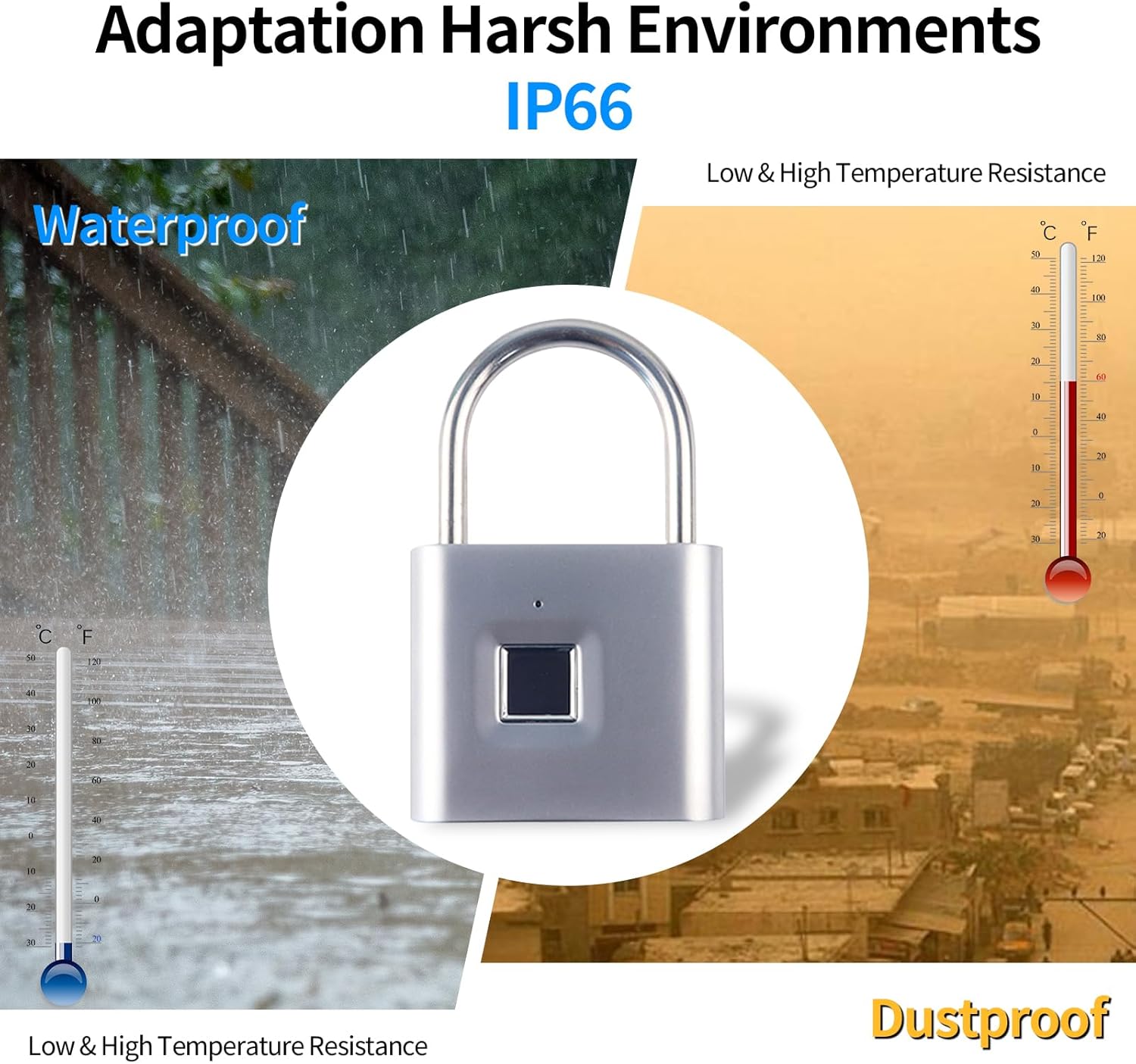
Image: The padlock is designed to adapt to harsh environments, featuring waterproof and temperature resistance.

Image: A comparison highlighting the KENRONE padlock's resistance to rust and damage versus a traditional padlock.

Image: The padlock is shown in various applications, including securing luggage, backpacks, and cabinets.
3. Deleting Fingerprints
To delete all registered fingerprints:
- Press and hold an administrator fingerprint. Do not release it when the blue light turns on. Continue holding until the red light turns on after approximately 10 seconds.
- Release the administrator fingerprint. Then, press the user fingerprint you wish to delete. The green light will turn on, indicating that the user fingerprint has been successfully deleted.

Image: Visual guide detailing the steps to delete fingerprints from the padlock.
Troubleshooting
1. Fingerprint Recognition Issues
If the padlock is inconsistent in recognizing your fingerprint:
- Ensure your finger is clean and dry when attempting to unlock.
- Try re-registering your fingerprint, ensuring a thorough scan from multiple angles during the setup process.
- If the issue persists, consider using a different finger or one of the administrator fingerprints.
Video: This video demonstrates a user experiencing inconsistent fingerprint recognition, which can be addressed by re-registering fingerprints or ensuring proper finger placement.
2. Padlock Not Responding
If the padlock does not respond to any input, it may be due to a depleted battery. Connect the padlock to a USB power source using the provided Micro USB cable for charging.
Product Specifications
| Feature | Specification |
|---|---|
| Brand | KENRONE |
| Model Number | KR-PL4349 |
| Lock Type | Biometric (Fingerprint) |
| Material | Zinc Alloy (Metal) |
| Waterproof Rating | IP65 |
| Fingerprint Capacity | Up to 2 Admin, 48 User Fingerprints |
| Unlock Speed | 0.5 seconds |
| Charging Port | Micro USB |
| Battery Life (Standby) | Up to 12 months |
| Unlocks per Charge | Up to 10,000 times |
| Dimensions (L x W x H) | 1.96 x 0.55 x 3.14 inches |
| Item Weight | 120 Grams |

Image: The compact dimensions of the KENRONE Fingerprint Padlock, illustrating its small and portable design.
Safety Information
- Do not attempt to disassemble or modify the padlock, as this may void the warranty and cause damage.
- Keep the padlock away from extreme temperatures and direct sunlight for prolonged periods.
- Ensure the charging port cover is securely closed when not charging to maintain waterproof integrity.
- This padlock is designed for security but is not impenetrable. Always use it in conjunction with other security measures where appropriate.
Warranty and Support
The KENRONE Fingerprint Padlock comes with a standard manufacturer's warranty. For specific warranty details, please refer to the product packaging or contact KENRONE customer support. If you encounter any issues or have questions not covered in this manual, please reach out to our customer service team for assistance.