
Losfom Z11
Losfom Z11 Body Camera User Manual
Model: Z11
1. Introduction
This user manual provides comprehensive instructions for the operation, maintenance, and troubleshooting of your Losfom Z11 Body Camera. Please read this manual carefully before using the device to ensure proper functionality and to maximize its lifespan. The Losfom Z11 Body Camera features a high-definition IPS HD screen, delivering clear visuals for instant playback, file review, file deletion, and quick adjustments to device settings. It is a reliable tool designed to simplify your daily recording needs.
2. Package Contents
Verify that all items listed below are included in your package. If any items are missing or damaged, please contact customer support.
- Z11 Mini Camera
- 128GB Micro SD Card
- 360° Back Clip
- Bracket
- Handle Bar Mount
- Lanyard
- Data Cable (USB-A to Type C)
- Adapter
- Card Reader
- User Manual
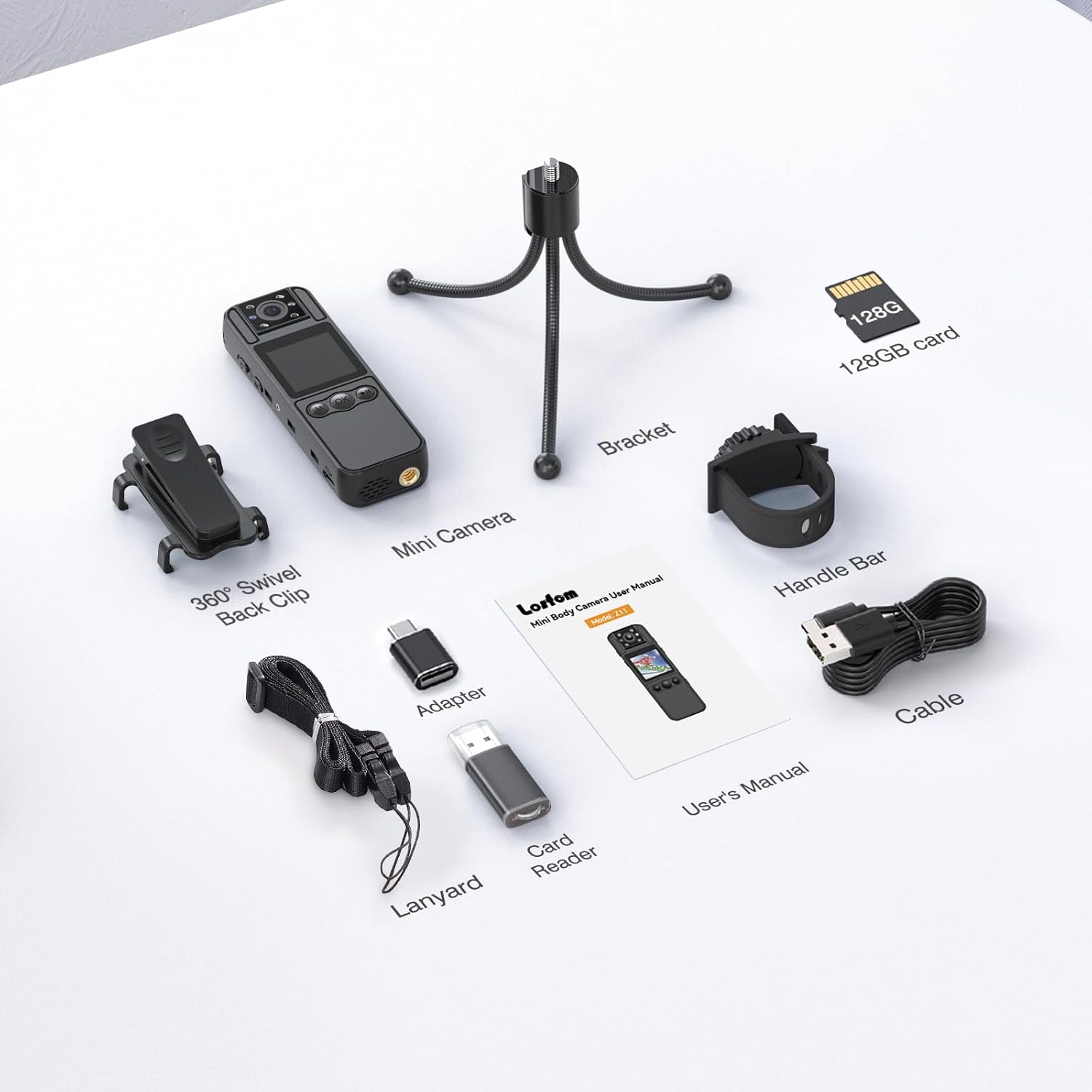
Figure 2.1: All-in-One Package Contents of the Losfom Z11 Body Camera.
3. Product Overview
The Losfom Z11 is a compact and versatile body camera designed for various recording needs. Its lightweight and portable design makes it ideal for on-the-go use, whether for personal security, capturing daily moments, or professional applications.

Figure 3.1: Losfom Z11 Body Camera and its accessories.
Key Features:
- 3-in-1 Multi-Function: Supports video recording, clear audio capture, and stunning photos.
- 180° Rotatable Lens: Adjustable lens for capturing various angles, paired with a 120° wide-angle view.
- Night Vision: Equipped with infrared night vision for clear footage in low-light conditions.
- Motion Detection: Automatically starts recording when movement is detected, saving battery and storage.
- Loop Recording: Overwrites the oldest footage when memory is full to ensure continuous recording.
- Long Battery Life: 1700mAh rechargeable battery provides 6-7 hours of working time.
- IPS HD Screen: High-definition screen for instant playback and device settings adjustment.
Component Identification:

Figure 3.2: Front and Side View of the Z11 Body Camera with labeled components.
4. Setup
4.1 Charging the Battery
Before first use, fully charge the camera's built-in 1700mAh battery. Connect the provided USB data cable to the camera's USB port and a power source (e.g., computer USB port, USB wall adapter). The charging indicator light will show the charging status. A full charge typically takes 3-4 hours. The camera supports recording while charging.

Figure 4.1: The Z11 Body Camera in use during a meeting, highlighting its 6-7 hour battery life.
4.2 Inserting the Micro SD Card
The camera comes with a 128GB Micro SD card pre-installed. If you need to remove or replace it, gently push the card into the TF slot until it clicks, then release to eject. Ensure the card is inserted correctly with the gold contacts facing the back of the camera.
4.3 Initial Power On
Press and hold the Power Button for a few seconds to turn on the camera. The IPS HD screen will light up, displaying the current mode and settings.
5. Operating Instructions
5.1 Video Recording
To start video recording, press the Video Recording button. The recording indicator will illuminate. Press the button again to stop recording. The camera supports 1080p resolution.

Figure 5.1: The Z11 Body Camera's versatile 3-in-1 recording capabilities.
5.2 Audio Recording
To record audio only, press the Audio Recording button. Press again to stop. This feature is useful for meeting minutes or voice notes.
5.3 Photo Capture
To take a photo, press the Photo button. The camera will capture a still image.
5.4 180° Rotatable Lens & Night Vision
The camera's lens can be manually rotated 180 degrees to adjust the viewing angle. The built-in night vision automatically activates in low-light conditions, providing clear recordings even in the dark.
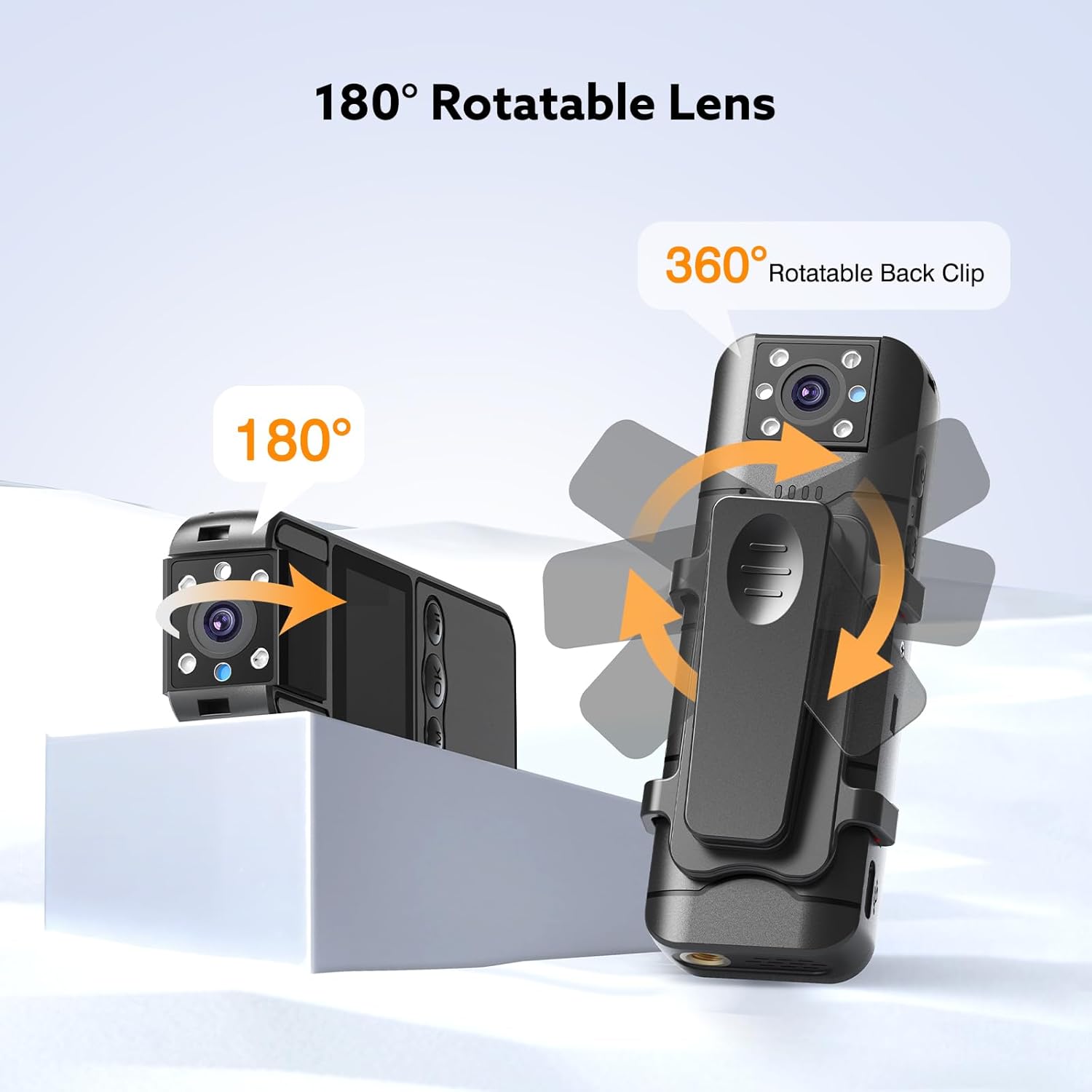
Figure 5.2: The Z11 Body Camera's 180° rotatable lens and 360° rotatable back clip.

Figure 5.3: Night Vision capability of the Z11 Body Camera.
5.5 Motion Detection & Loop Recording
Activate motion detection through the camera's settings. When enabled, the camera will only record when it detects movement, conserving battery and storage. Loop recording ensures that when the memory card is full, the oldest files are automatically overwritten by new footage.

Figure 5.4: Smart Loop Recording in various scenarios.
5.6 Playback and Data Transfer
You can review recorded videos and photos directly on the camera's IPS HD screen. To transfer files to a computer, connect the camera using the provided USB data cable and adapter. The camera is compatible with both Windows and Mac operating systems for easy file management.

Figure 5.5: Effortless Data Management and file transfer.
6. Wearing Options
The Losfom Z11 Body Camera offers multiple wearing and mounting options to suit various activities:
- 360° Back Clip: Easily clip the camera to clothing, bags, or belts for discreet and convenient recording.
- Bracket: Use the included bracket for stable support, ideal for recording meetings or stationary surveillance.
- Lanyard: Wear the camera around your neck using the lanyard for hands-free operation.
- Strap and Screw Hole: Utilize the strap and built-in screw hole to mount the camera on bikes or motorcycles for action recording.

Figure 6.1: The Z11 Body Camera's compact design and versatile accessories.
7. Maintenance
To ensure the longevity and optimal performance of your Losfom Z11 Body Camera, follow these maintenance guidelines:
- Cleaning: Use a soft, dry cloth to clean the camera body and lens. Avoid using liquid cleaners or abrasive materials.
- Storage: Store the camera in a cool, dry place away from direct sunlight and extreme temperatures.
- Battery Care: For long-term storage, charge the battery to about 50% every three months to prevent deep discharge.
- Firmware Updates: Check the manufacturer's website periodically for any available firmware updates to improve performance and add new features.
8. Troubleshooting
If you encounter issues with your Losfom Z11 Body Camera, refer to the following common problems and solutions:
| Problem | Possible Cause | Solution |
|---|---|---|
| Camera does not power on. | Low battery; device frozen. | Charge the battery fully. Press the reset button (if available) or hold the power button for 10 seconds. |
| Cannot record video/take photos. | Memory card full or not inserted correctly; incorrect mode. | Check memory card insertion. Delete old files or format the card. Ensure camera is in the correct recording mode. |
| Poor video/audio quality. | Dirty lens; low light conditions; microphone obstructed. | Clean the lens. Ensure adequate lighting. Check if the microphone is clear of obstructions. |
| Computer does not recognize camera. | Faulty USB cable/adapter; driver issue. | Try a different USB port or cable. Ensure the adapter is correctly used. Restart computer. |
9. Specifications
| Feature | Detail |
|---|---|
| Model Number | Z11 |
| Brand | Losfom |
| Video Capture Resolution | 1080p |
| Photo Sensor Technology | CMOS |
| Lens Rotation | 180° |
| Wide-Angle Lens | 120° |
| Battery Capacity | 1700mAh |
| Working Time | 6-7 hours |
| Charging Time | 3-4 hours |
| Storage | Micro SD (128GB card included) |
| Screen Size | 2 inches |
| Connectivity | USB |
| Item Weight | 8.4 ounces |
| Package Dimensions | 6.02 x 4.25 x 1.85 inches |
10. Warranty and Support
Losfom products are designed for reliability and performance. For warranty information and customer support, please refer to the warranty card included in your product package or visit the official Losfom website. If you experience any issues or have questions, our dedicated support team is ready to assist you.
You can also find additional resources and FAQs on the Losfom brand store page: Losfom Store.
11. Official Product Videos
Watch the official product video from Losfom for a visual guide on the Z11 Mini Body Camera's features and usage.
Video 11.1: Official overview of the Losfom Z11 Mini Body Camera, demonstrating its compact size, features, and various applications.
Ask a question about this manual
Ask about setup, troubleshooting, compatibility, parts, safety, or missing instructions. Manuals+ will review the question and use this page’s manual context to help answer it.