
1. Product Overview
The Rosewill Helium NAS Black ATX Mid Tower Computer Case is engineered for optimal performance and extensive storage capabilities, making it suitable for DIY NAS, media servers, and small business applications. Its design prioritizes airflow, efficient cooling, and versatile component compatibility.
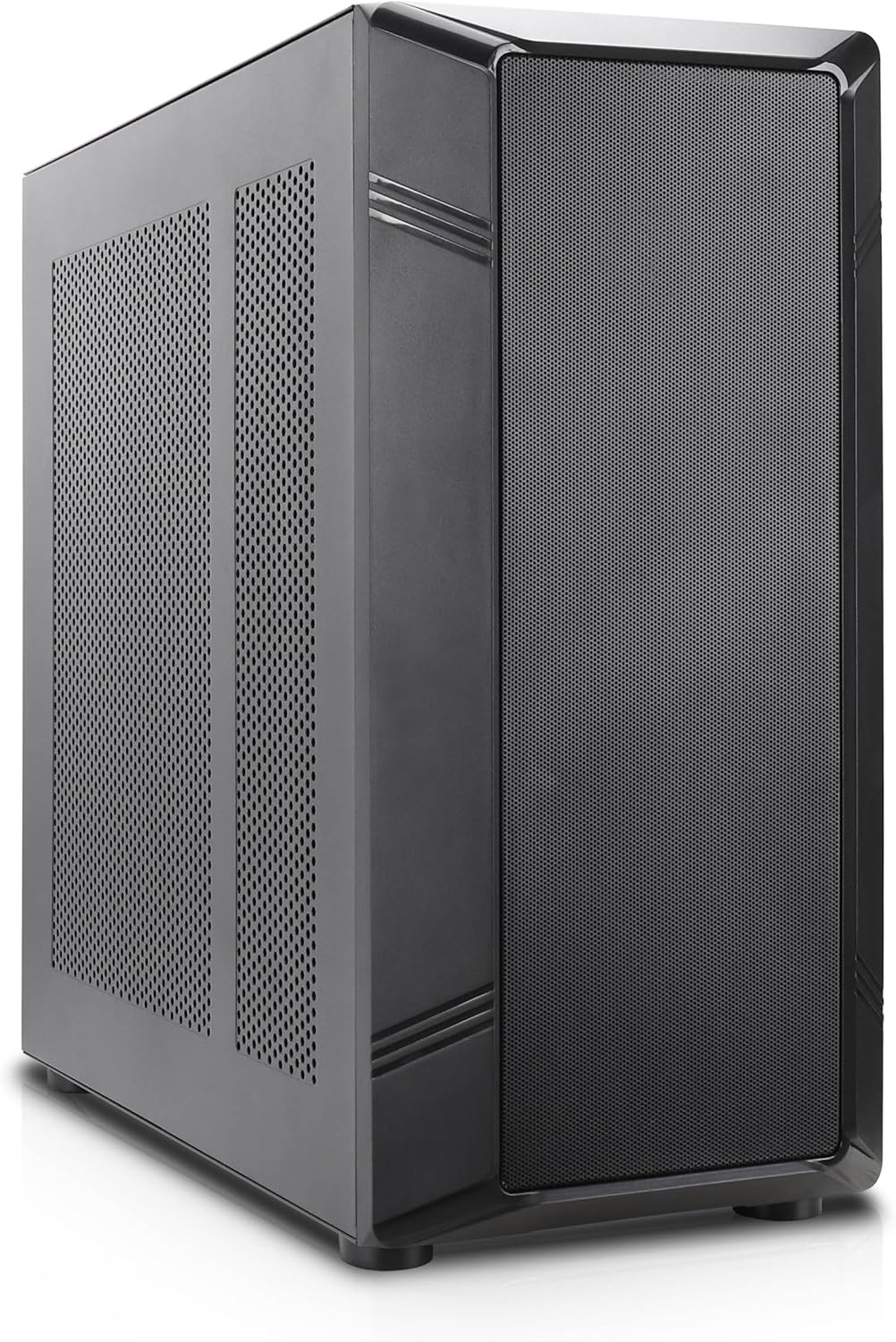
Figure 1: Angled front view of the Rosewill Helium NAS Black ATX Mid Tower Computer Case.
Key Features:
- Maximized Airflow: All-mesh side panels ensure unrestricted airflow for optimal cooling and prevention of thermal throttling.
- Quiet, Efficient Cooling: Four pre-installed 140mm PWM fans provide silent and efficient cooling, maintaining system stability under heavy workloads.
- Massive Storage Capacity: Supports up to 10 x 3.5" HDDs and 3 x 2.5" SSDs, ideal for large media libraries, virtual machines, and data-intensive applications.
- Versatile Compatibility: Supports ATX motherboards and 360 AIO Radiators, offering flexibility for various system configurations and high-performance cooling solutions.
2. Setup and Installation
Follow these steps for proper installation of your computer components.
2.1 Preparing the Case
- Place the case on a stable, flat surface.
- Remove the side panels by unscrewing the thumbscrews at the rear and sliding the panels off.

Figure 2: Interior layout of the Rosewill Helium NAS case, showing component mounting areas.
2.2 Motherboard Installation
- Install the I/O shield into the motherboard tray opening.
- Align your ATX motherboard with the standoffs inside the case.
- Secure the motherboard with the provided screws.
2.3 Storage Drive Installation
The case supports up to 10 x 3.5" HDDs and 3 x 2.5" SSDs. Utilize the dedicated drive cages for secure mounting.
Video 1: Demonstration of hard drive cage installation and cabling. This video illustrates the process of securing and connecting multiple hard drives within a PC case, which is applicable to the Rosewill Helium NAS case's storage capabilities.
- For 3.5" HDDs, slide the drives into the designated bays within the drive cages and secure them with screws.
- For 2.5" SSDs, mount them in the dedicated SSD trays, typically located behind the motherboard tray or on top of the HDD cages, and secure with screws.
- Connect SATA power and data cables to each installed drive.
2.4 Power Supply Installation
- Mount the power supply unit (PSU) in the bottom rear compartment of the case.
- Secure the PSU with screws from the rear of the case.
- Route the necessary power cables to your motherboard and other components.
2.5 Graphics Card and Expansion Card Installation
- Remove the necessary PCIe slot covers from the rear of the case.
- Insert your graphics card or other expansion cards into the appropriate PCIe slots on the motherboard.
- Secure the cards with screws.
2.6 Cable Management
Utilize the cable routing cutouts and tie-down points behind the motherboard tray to organize cables. This improves airflow and aesthetics. Zip ties are included for assistance.
3. Operating Instructions
3.1 Front Panel I/O

Figure 3: Front panel I/O ports located on the top of the case.
- Power Button: Press to power on/off the system.
- Reset Button: Press to restart the system.
- USB 3.1 Type-C Port: For high-speed data transfer.
- USB 3.0 Ports: For connecting USB 3.0 compatible devices.
- USB 2.0 Ports: For connecting USB 2.0 compatible devices.
- HD Audio Jacks: For connecting headphones and microphones.
3.2 Initial Power On
- Ensure all components are securely installed and cables are properly connected.
- Connect the power cable to the PSU and a wall outlet.
- Press the power button on the front panel to start your system.
4. Maintenance
Regular maintenance ensures optimal performance and longevity of your computer case and components.
4.1 Cleaning Dust Filters
The Rosewill Helium NAS case features removable dust filters on the top and bottom for easy cleaning.
- Gently pull out the bottom dust filter.
- The top mesh panel is magnetic and can be easily lifted off.
- Clean the filters using compressed air or a soft brush to remove accumulated dust.
- Reinstall the filters once clean.
4.2 General Cleaning
- Use a soft, dry cloth to wipe down the exterior surfaces of the case.
- For interior cleaning, use compressed air to remove dust from fans and components. Ensure the system is powered off and unplugged before cleaning.
5. Troubleshooting
This section provides solutions for common issues you might encounter.
- System Not Powering On:
- Check all power connections, including the PSU, motherboard, and front panel power switch cables.
- Ensure the PSU switch is in the 'ON' position.
- Overheating Components:
- Verify all case fans are spinning correctly.
- Clean dust filters and internal components to improve airflow.
- Ensure CPU cooler and GPU fans are functioning.
- Excessive Fan Noise:
- Check for loose cables or obstructions hitting fan blades.
- Ensure fans are securely mounted.
- Adjust fan speeds through motherboard BIOS or software if supported.
- Front Panel I/O Not Working:
- Verify that all front panel cables (USB, Audio, Power, Reset) are correctly connected to the motherboard headers.
6. Specifications
| Feature | Specification |
|---|---|
| Brand | Rosewill |
| Series | Helium NAS |
| Model Name | Helium NAS |
| Item Model Number | B0DP3PQFKW |
| Case Type | Mid Tower |
| Motherboard Compatibility | ATX |
| Color | Black |
| Material | Aluminum, Stainless Steel |
| Item Weight | 19.71 pounds |
| Product Dimensions (LxWxH) | 25 x 24.41 x 12.68 inches |
| 3.5" HDD Support | Up to 10 |
| 2.5" SSD Support | Up to 3 |
| Pre-installed Fans | 4 x 140mm PWM Fans |
| Cooling Method | Air, Water (360 AIO Radiator Support) |
| Front Panel USB 2.0 Ports | 2 |
| Front Panel USB 3.0 Ports | 2 |
| Recommended Uses | AI Server, Media Server, NAS, Workstation |
7. Warranty and Support
For warranty information, technical support, or further assistance, please refer to the official Rosewill website or contact their customer service department. Keep your purchase receipt for warranty claims.


