
Product Overview
The AZDOME M590 is a state-of-the-art 3-channel dash camera system designed to enhance driving safety and provide comprehensive recording capabilities. It features simultaneous recording from front, rear, and inside cameras, offering resolutions up to 2.5K + 1080P + 1080P in 3-channel mode, with the front camera capable of 4K resolution in 1-channel mode. Equipped with advanced features like built-in WiFi 6 for fast data transfer, integrated GPS for real-time tracking, WDR technology for clear imaging in various light conditions, and IR night vision for cabin monitoring, the M590 ensures reliable performance. It also includes a 64GB SD card and supports 24-hour parking monitoring with G-sensor and loop recording functionalities.

The AZDOME M590 dash camera system, showcasing its main unit, cabin camera, rear camera, and the accompanying mobile application interface.
What's in the Box
Upon unboxing your AZDOME M590 dash camera, please verify that all the following components are included:
- 1 x M590 Dash Cam (Front and Cabin Camera)
- 1 x In-car Rear Camera
- 1 x 64GB Memory Card
- 1 x 12ft Power Supply Cable with Car Charger
- 4 x Electrostatic Sticker
- 1 x Installation Tools Kit (Pry Tool, Cable Clips)
- 1 x AZDOME M590 User Manual

All components included in the AZDOME M590 dash camera package.
Official video demonstrating the unboxing and contents of the AZDOME M590 dash camera package.
Setup and Installation
Follow these steps for proper installation of your AZDOME M590 dash camera system:
- Insert the SD Card: Before mounting, ensure the included 64GB SD card is properly inserted into the main dash camera unit.
- Connect Cabin Camera: Attach the cabin camera to the main front camera unit. It is designed to seamlessly integrate.
- Apply Electrostatic Film: Clean the desired area on your windshield. Apply the electrostatic film first, then attach the dash camera mount to the film. This helps prevent residue on your windshield.
- Mount the Front and Cabin Camera: Secure the main dash camera unit to your windshield using the provided adhesive mount. Position it to ensure a clear view of the road ahead and the vehicle's interior.
- Connect Power Cable and Wiring: Route the 12ft power supply cable along the edge of your windshield and dashboard to the car's power outlet. Use the included pry tool and cable clips to neatly tuck away the cable for a clean installation.
- Connect and Wire Rear Camera: Connect the rear camera cable to the main unit. Route this cable from the main unit along the vehicle's headliner and side panels to the rear windshield. Secure the rear camera to the rear windshield, ensuring a clear view of the road behind.
- Plug in the Car Charger: Insert the car charger into your vehicle's cigarette lighter socket to power the dash camera.

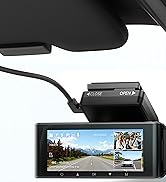
The AZDOME M590 dash camera securely mounted on the windshield.
Detailed video guide on the installation process of the AZDOME M590 dash camera, including front, cabin, and rear camera setup.
Operating the Device
WiFi Connection and App Control
The AZDOME M590 features built-in WiFi 6 for seamless connection to the AZDOME mobile application. This allows for easy viewing, downloading, and sharing of recorded footage, as well as convenient access to camera settings.
- Turn on Dash Cam WiFi: On the M590 dash cam, navigate to the settings menu and enable the WiFi function. The WiFi name and password will be displayed on the screen.
- Connect Phone to Dash Cam WiFi: On your smartphone, go to WiFi settings and connect to the AZDOME M590's WiFi network using the provided password. Ensure cellular data is turned off to prevent interference.
- Open AZDOME App: Launch the AZDOME application on your smartphone. The app will automatically detect and connect to the dash camera.
- Access Features: Once connected, you can view live video feeds, browse recorded videos in the album, download important clips to your phone, and adjust various camera settings such as video resolution, loop recording duration, G-sensor sensitivity, and more.
The AZDOME mobile application provides comprehensive control and access to your dash camera's features.
Video tutorial on how to connect your smartphone to the AZDOME M590 dash camera via WiFi and use the companion app.
Key Features
3 Channel Recording
The M590 dash cam records simultaneously from three channels: front, rear, and inside the cabin. This provides comprehensive coverage of your vehicle's surroundings and interior. The front camera records at 2.5K QHD, while the cabin and rear cameras record at 1080P, ensuring clear and detailed footage from all angles. In single-channel mode, the front camera can achieve up to 4K resolution.

Visual representation of the M590's 3-channel recording capability, capturing front, cabin, and rear views.
Built-in GPS Tracking
The integrated GPS module accurately records your driving route, speed, and precise location. This data can be viewed during video playback using the free AZDOME GPS Player software on your computer, providing crucial evidence in case of an incident and allowing you to review your journeys.
The dash camera displaying real-time GPS data, including speed and location.
WDR & IR Night Vision
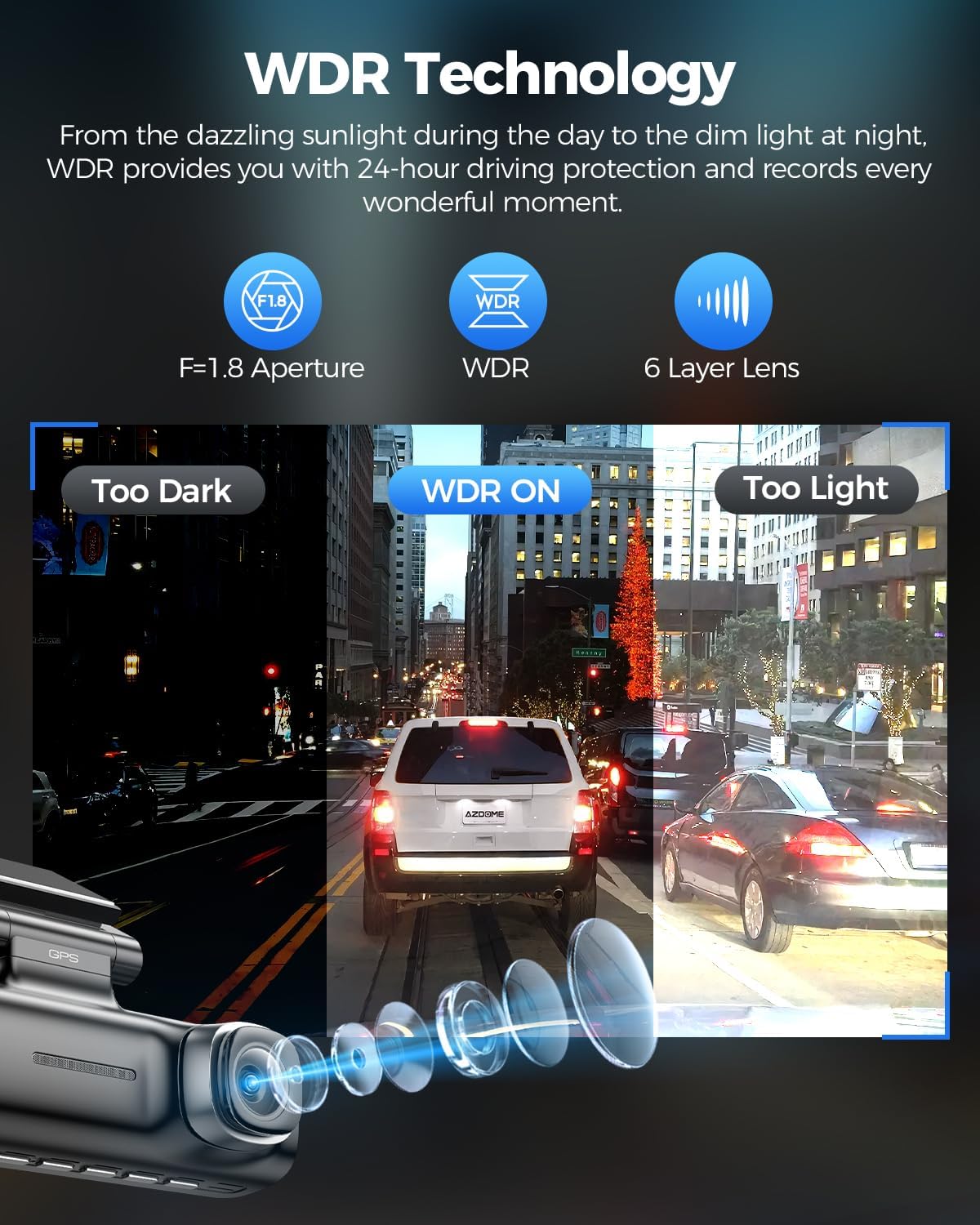
Wide Dynamic Range (WDR) technology automatically adjusts exposure to balance light, ensuring clear images in both overly bright and dimly lit environments. The cabin camera is equipped with 6 infrared LED lights, providing powerful IR night vision to clearly capture the vehicle's interior even in complete darkness, enhancing security and peace of mind.

Demonstration of WDR technology's ability to provide clear video in varying light conditions.
Loop Recording & 64GB Card
The M590 comes with a 64GB SD card, allowing for immediate use. With loop recording enabled, the camera continuously records, automatically overwriting the oldest video files when the memory card is full. This ensures that recording never stops, capturing all critical moments. Important footage can be manually locked to prevent overwriting.

The dash camera supports up to 128GB SD cards, with a 64GB card included for convenience.
24 Hour Parking Monitor & G-Sensor
The dash camera offers 24-hour parking monitoring with two modes: time-lapse recording (1fps continuous recording) and collision detection. The built-in G-sensor automatically detects sudden shakes or collisions and locks the current video file, protecting it from being overwritten. This ensures your vehicle is monitored even when parked. Note: A hardwire kit (sold separately, ASIN: B0BM9JL327) is required for 24-hour parking monitoring.

The 24-hour parking monitor provides continuous surveillance and collision detection for your parked vehicle.
Supercapacitors for Enhanced Durability
Unlike traditional lithium batteries, the M590 utilizes supercapacitors, which offer superior heat and cold resistance, making the device more reliable and durable in extreme temperatures. This technology provides a lifespan 10 times longer than conventional batteries, ensuring consistent performance and safety.

Supercapacitors offer superior temperature resistance and a longer lifespan compared to traditional lithium batteries.
Adjustable Rotation Angle and Detachable Design
The dash camera features a 135° flexible rotation angle, allowing you to easily adjust the viewing angle to capture optimal footage. Its detachable design simplifies installation and removal, adapting to various vehicle scenarios and providing convenience for securing the device when not in use.

The dash camera's flexible rotation and detachable design for versatile use and easy handling.
Specifications
| Feature | Detail |
|---|---|
| Model Name | M590 |
| Product Dimensions | 1.18 x 5.48 x 1.3 inches |
| Item Weight | 1.52 pounds |
| Video Capture Resolution | 4K Front (1-channel), 2.5K+1080P+1080P (3-channel) |
| Connectivity Technology | Wi-Fi 6 |
| Special Features | 3 Channel Recording, Built-in WiFi 6, GPS Tracking, 24 Hours Parking Mode, G-sensor, Loop Recording, Time-lapse, Infrared Night Vision, 64GB Card Included, Built-In Microphone |
| Storage Support | Up to 128GB (64GB card included) |
| Power Source | Supercapacitors (1 Lithium Metal battery included for internal clock/settings) |
| Mounting Type | Dashboard Mount |
Troubleshooting
If you encounter any issues with your AZDOME M590 dash camera, please refer to the following common troubleshooting tips:
- Camera Not Turning On:
- Ensure the car charger is properly plugged into the cigarette lighter socket and the power cable is securely connected to the dash cam.
- Check your vehicle's cigarette lighter fuse.
- Recording Issues (Stuttering/Freezing):
- Format the SD card regularly (at least once a month) through the camera's settings or on a computer.
- Ensure you are using a high-speed (Class 10, U3, A2) SD card.
- Check if the SD card is full; loop recording should manage this, but manual review is recommended.
- WiFi Connection Problems:
- Verify that WiFi is enabled on the dash cam.
- Ensure your phone's cellular data is turned off when connecting to the dash cam's WiFi.
- Restart both the dash cam and your smartphone.
- GPS Not Working:
- Ensure the GPS module is properly attached and has a clear view of the sky.
- Allow sufficient time for the GPS to acquire a signal, especially after initial setup or if the device has been off for a long period.
- Parking Monitor Not Functioning:
- Confirm that the parking monitor feature is enabled in the camera settings.
- Ensure a hardwire kit (sold separately) is installed correctly to provide continuous power to the dash cam when the vehicle is off.
For further assistance, please contact customer support.
Warranty and Support
The AZDOME M590 dash camera includes a 12-month full warranty, ensuring your travels are safer and providing peace of mind. AZDOME is committed to providing professional customer service and support.
For any issues or inquiries you may encounter during the use of your dash cam, our dedicated team is available 24/7 to assist you.
Contact Information:
- Email: service@azdomevip.com
- Phone: (833) 667-5545

AZDOME customer support information for warranty and service inquiries.


