1. Product Overview
The Winkeabuy Portable 4G WiFi Router is a compact and lightweight device designed to provide high-speed internet connectivity on the go. It supports 4G LTE networks, allowing you to create a personal Wi-Fi hotspot for multiple devices such as smartphones, tablets, and laptops. Its long-lasting battery and portable design make it ideal for travel, business trips, and outdoor activities.

Figure 1: Winkeabuy Portable 4G WiFi Router
This image displays the front of the Winkeabuy Portable 4G WiFi Router. It features a sleek white design with a black display area showing various status icons, including battery level, cellular signal strength, and Wi-Fi activity. The "4G" logo is visible at the bottom, indicating its network capability. The device is compact and designed for easy portability.
2. Key Features
- High-Speed 4G LTE Network: Supports 4G LTE for fast data transfer and a smooth internet experience.
- Wide Compatibility: Connects to a variety of devices including smartphones, tablets, and laptops.
- Portable Design: Small and lightweight, making it easy to carry for travel, business, or outdoor use.
- Long Battery Life: Equipped with a high-performance lithium-ion battery for extended network connection.
- User-Friendly: Comes with a detailed user manual and charging cable for quick setup and understanding of functions.
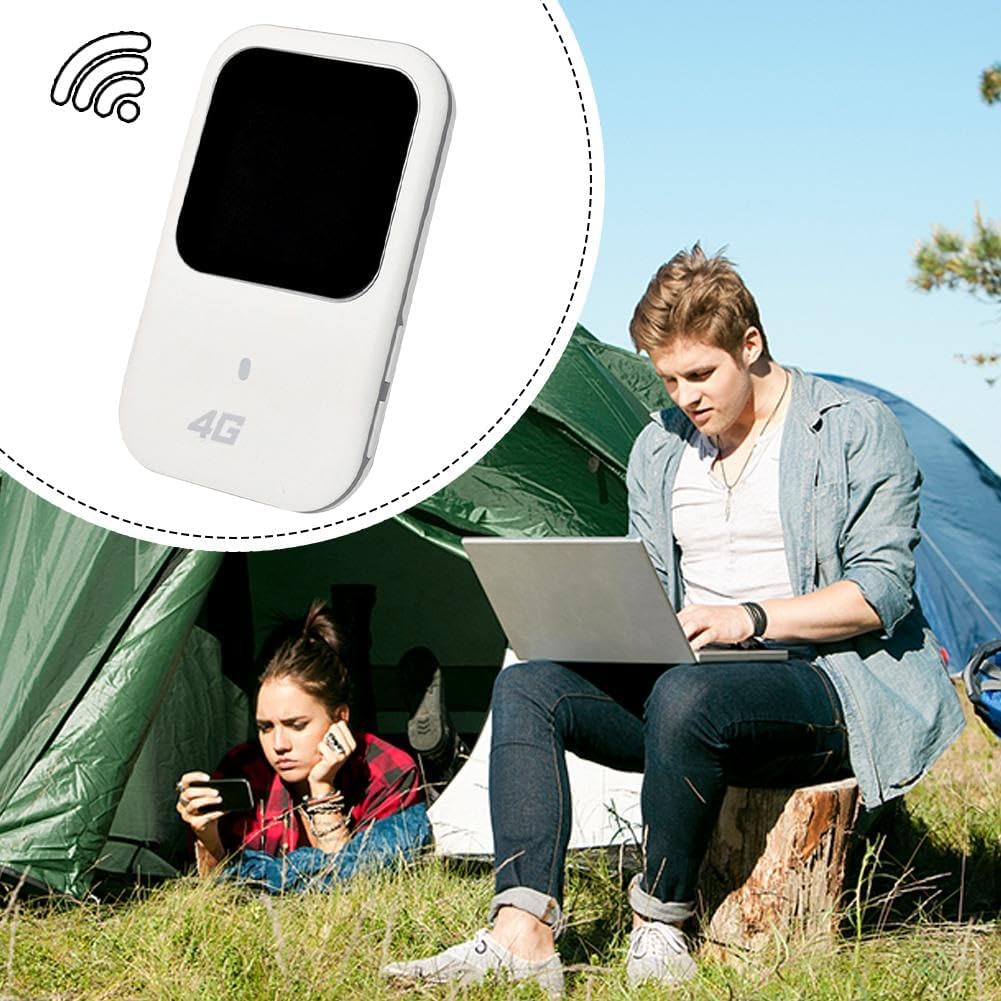
Figure 2: Router in a Camping Environment
This image depicts the Winkeabuy Portable 4G WiFi Router being used in an outdoor camping scenario. A man is shown using a laptop while sitting outside a tent, and a woman is using her phone inside the tent. The router is highlighted in the foreground, emphasizing its ability to provide internet connectivity in remote or mobile settings, perfect for travel and outdoor activities.
3. Setup Guide
3.1. Package Contents
Before you begin, ensure all items are present in the package:
- Winkeabuy Portable 4G WiFi Router
- Charging Cable
- User Manual (this document)
3.2. Charging the Device
For optimal performance, fully charge the router before first use.
- Connect the provided charging cable to the router's charging port.
- Plug the other end of the cable into a USB power adapter (not included) or a computer's USB port.
- The battery indicator on the display will show charging status. It will typically turn solid or change color when fully charged.
3.3. Inserting the SIM Card
The router requires a standard 4G LTE SIM card (not included) to access cellular data.
- Locate the SIM card slot on the side or back of the router.
- Gently open the SIM card slot cover (if applicable).
- Insert your 4G LTE SIM card into the slot with the gold contacts facing down and the notched corner aligned correctly.
- Push the SIM card in until it clicks into place.
- Close the SIM card slot cover securely.
4. Operating Instructions
4.1. Powering On/Off
- To Power On: Press and hold the power button (usually on the side) for a few seconds until the display lights up.
- To Power Off: Press and hold the power button again until the device shuts down.
4.2. Connecting to Wi-Fi
Once the router is powered on and has established a cellular connection (indicated by the signal strength icon), you can connect your devices.
- On your device (smartphone, tablet, laptop), go to the Wi-Fi settings.
- Search for available Wi-Fi networks.
- Select the network name (SSID) of your Winkeabuy router. The default SSID and password are usually printed on a sticker inside the battery compartment or on the back of the device.
- Enter the Wi-Fi password (security key) when prompted.
- Once connected, your device will have internet access through the router.
4.3. Indicator Lights
The router's display provides important status information:
- Battery Indicator: Shows the current battery level.
- Signal Indicator: Displays the strength of the 4G cellular signal. More bars mean stronger signal.
- Wi-Fi Indicator: Lights up when Wi-Fi is active and blinks when data is being transmitted.

Figure 3: Router in a Car Environment
This image illustrates the Winkeabuy Portable 4G WiFi Router positioned on a car's dashboard. A hand is visible interacting with the car's built-in navigation or entertainment system, suggesting that the router can provide internet connectivity for in-car devices, making it suitable for road trips and daily commutes.
5. Maintenance
5.1. Cleaning
Keep your router clean to ensure optimal performance and longevity.
- Use a soft, dry, lint-free cloth to wipe the exterior of the device.
- Do not use liquid cleaners, aerosols, or solvents.
- Ensure no dust or debris accumulates in the ports.
5.2. Battery Care
To maximize battery life and performance:
- Avoid exposing the device to extreme temperatures (hot or cold).
- Do not leave the device fully discharged for extended periods.
- If storing for a long time, charge the battery to about 50% before storage.
5.3. Storage
When not in use, store the router in a cool, dry place away from direct sunlight and moisture.
6. Troubleshooting
If you encounter issues with your Winkeabuy Portable 4G WiFi Router, refer to the following common problems and solutions:
6.1. No Internet Connection
- Check SIM Card: Ensure the SIM card is correctly inserted and active with a data plan.
- Check Signal: Verify the signal indicator on the router's display. If there's no signal or very weak signal, move to an area with better network coverage.
- Restart Router: Power off the router, wait a few seconds, and then power it back on.
- APN Settings: In rare cases, you might need to manually configure the APN (Access Point Name) settings. Refer to your SIM card provider for correct APN details and the router's advanced settings (if accessible via a web interface).
6.2. Slow Internet Speed
- Signal Strength: Ensure you have a strong 4G signal. Weak signals can lead to slower speeds.
- Data Cap: Check if you have exceeded your data plan's high-speed allowance, which might result in throttled speeds.
- Number of Connected Devices: Too many devices connected simultaneously can reduce speed for each user.
- Interference: Move the router away from other electronic devices that might cause Wi-Fi interference.
6.3. Device Not Powering On
- Charge Battery: Ensure the battery is sufficiently charged. Connect the router to a power source and try again.
- Check Charging Cable: Verify that the charging cable and adapter are working correctly.
6.4. Cannot Connect to Wi-Fi
- Correct Password: Double-check that you are entering the correct Wi-Fi password (SSID and password are case-sensitive).
- Router Range: Ensure your device is within the Wi-Fi range of the router.
- Restart Both Devices: Restart both the router and the device you are trying to connect.
7. Specifications
| Brand | Winkeabuy |
| Model Number | Winkeabuy-814208 |
| ASIN | B0DP2PVCWJ |
| Applicable Frequency Band | B1/B3/B5 |
| Product Color | White |
| Product Weight | 200 g |
| Product Packaging Dimensions | 12 x 13 x 6 cm |
| Date First Available | November 26, 2024 |

Figure 4: Product Packaging Dimensions
This image shows the Winkeabuy Portable 4G WiFi Router alongside text indicating its packaging dimensions: 12x13x6cm. This provides a visual reference for the compact size of the product and its packaging.
8. Warranty and Support
Specific warranty details are not provided in the product information. For warranty claims or technical support, please contact the seller or manufacturer directly.
Manufacturer: Winkeabuy
Please refer to your purchase documentation or the retailer's website for contact information and detailed warranty terms.