
Cudy WR3600E
Cudy Dual Band BE3600 Wi-Fi 7 Router WR3600E User Manual
Model: WR3600E
1. Product Overview
The Cudy Dual Band BE3600 Wi-Fi 7 Router WR3600E is a high-performance networking device designed to provide fast, stable, and secure internet connectivity for your home or office. Featuring the latest Wi-Fi 7 technology, a powerful 2.0 GHz Quad-Core CPU, and four high-gain antennas, this router delivers exceptional speed and coverage.
Key features include:
- Wi-Fi 7 Technology: Enjoy faster speeds with Multi-Link Operation (MLO), delivering enhanced performance for all your devices.
- Dual Band Connectivity: Up to 3.6 Gbps total speed, with 2882 Mbps on 5 GHz and 688 Mbps on 2.4 GHz for seamless streaming, gaming, and downloads.
- Powerful Processor: Next-gen 2GHz Quad-Core CPU effortlessly manages high throughput and eliminates lag.
- Extended Coverage: Four external high-gain antennas and beamforming technology intelligently target devices to eliminate Wi-Fi dead zones.
- Gigabit Ports: Equipped with four Gigabit Ethernet ports for reliable wired connections.
- Cudy APP & Cloud Control: Simplifies management and setup through a user-friendly mobile application.
- VPN Support: Supports VPN Clients and Server functionalities for secure network access.

Figure 1: Front view of the Cudy WR3600E Wi-Fi 7 Router, showing LED indicators and the Cudy logo.
2. Package Contents
Before you begin, please verify that your package contains the following items:
- Cudy Dual Band BE3600 Wi-Fi 7 Router (Model: WR3600E)
- Power Adapter
- Ethernet Cable
- Quick Installation Guide
Note: The product specifications mention "Cassette" in "whats_in_the_box", which is likely an error. Assuming standard router package contents.
3. Hardware Overview
3.1. Ports and Buttons

Figure 2: Rear view of the Cudy WR3600E router showing the DC power input, Reset button, WAN port, LAN ports, and WPS button.
| Component | Description |
|---|---|
| DC Power Input | Connect the included power adapter here. |
| Reset Button | Press and hold for 6-8 seconds to restore factory default settings. |
| WAN Port | Connect to your modem or main internet line. This is your Gigabit WAN Port. |
| LAN1-LAN3 Ports | Connect to wired devices such as computers, gaming consoles, smart TVs, or printers. These are Gigabit LAN Ports. |
| WPS Button | Press to quickly connect WPS-compatible devices to your Wi-Fi network without entering a password. |
4. Setup Guide
4.1. Physical Connection
- Power Off: Disconnect power from your modem (if applicable) and the Cudy router.
- Connect Modem: Connect one end of the provided Ethernet cable to the WAN port (often labeled "Internet") on your Cudy router and the other end to your modem's Ethernet port.
- Power On Modem: Power on your modem and wait for it to fully boot up (usually indicated by stable internet light).
- Power On Router: Connect the power adapter to the DC Power Input port on the Cudy router and plug it into a power outlet. Wait for the router to power on and the LED indicators to stabilize.
- Connect Devices: You can connect your computer or other devices to the router via Wi-Fi or by using an Ethernet cable to one of the LAN ports.
4.2. Initial Configuration (Web Interface)
- Access Router: Open a web browser on a device connected to the router (wired or wirelessly). In the address bar, type
http://cudy.netorhttp://192.168.10.1and press Enter. - Login: The default login password is
admin. It is highly recommended to change this password immediately for security. - Quick Setup Wizard: Follow the on-screen instructions of the Quick Setup Wizard to configure your internet connection type (e.g., Dynamic IP, Static IP, PPPoE) and set up your Wi-Fi network name (SSID) and password.
- Save Settings: Save your settings and restart the router if prompted.
4.3. Initial Configuration (Cudy App)
The Cudy App provides a convenient way to set up and manage your router from your smartphone.
- Download App: Download the Cudy App from the Apple App Store or Google Play Store.
- Launch App: Open the Cudy App and follow the on-screen instructions to detect and set up your new router.
- Connect: The app will guide you through connecting to the router's default Wi-Fi network and then configuring your internet and Wi-Fi settings.

Figure 3: Cudy App for streamlined management.
5. Operating Instructions
5.1. Wi-Fi Connectivity
To connect devices to your Wi-Fi network:
- On your device (smartphone, laptop, tablet), open your Wi-Fi settings.
- Select your Wi-Fi network name (SSID) from the list. This is the name you set during the initial configuration.
- Enter your Wi-Fi password when prompted.
- Your device should now be connected to the internet.
For WPS-compatible devices, press the WPS button on the router and then activate WPS on your device within two minutes to establish a connection.
5.2. Advanced Features
5.2.1. VPN Clients & Server
The Cudy WR3600E supports various VPN protocols, allowing you to establish secure connections. You can configure the router to act as a VPN client to connect to a VPN server, or as a VPN server to allow remote access to your home network.
- Supported protocols include OpenVPN, WireGuard, Zerotier, PPTP VPN, L2TP, and IPSec.
- Access the router's web interface and navigate to the VPN settings to configure your desired VPN setup.
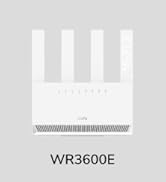
Figure 4: Visual representation of VPN client and server support, including OpenVPN, WireGuard, Zerotier, PPTP, L2TP, and IPSec.
5.2.2. Quality of Service (QoS)
QoS allows you to prioritize network traffic for specific applications or devices, ensuring optimal performance for critical tasks like online gaming or video streaming. Configure QoS settings via the router's web interface.
5.2.3. Guest Network
Create a separate Wi-Fi network for guests to provide internet access while keeping your main network secure and private. This feature can be configured through the web interface or Cudy App.
5.2.4. Parental Controls
Manage internet access for specific devices, set time limits, or block certain websites to ensure a safe online environment for children. These settings are available in the router's management interface.
6. Maintenance
- Placement: Place the router in a central location, away from obstructions, large metal objects, and other electronic devices that may cause interference. Avoid placing it in enclosed spaces.
- Firmware Updates: Regularly check for and install firmware updates from the Cudy official website or through the router's web interface/Cudy App. Firmware updates often include performance improvements, security patches, and new features.
- Restarting: If you experience network issues, try restarting the router by unplugging the power adapter for 10 seconds and then plugging it back in.
- Cleaning: Keep the router clean and free from dust. Use a soft, dry cloth to wipe the exterior. Do not use liquid cleaners.
- Security: Always use strong, unique passwords for your Wi-Fi network and router login. Enable WPA3 encryption if supported by your devices.
7. Troubleshooting
7.1. No Internet Access
- Check Cables: Ensure all Ethernet cables are securely connected to the correct ports (WAN to modem, LAN to devices).
- Modem Status: Verify that your modem is working correctly and has an active internet connection.
- Restart Devices: Power cycle your modem and router. Wait for both to fully boot up.
- Router Configuration: Log in to the router's web interface and check your internet connection settings. Ensure the WAN connection type is correctly configured (e.g., Dynamic IP, PPPoE).
7.2. Wi-Fi Signal Weak or Unstable
- Router Placement: Move the router to a central location in your home, away from walls, large metal objects, and other electronics that might cause interference.
- Antenna Orientation: Adjust the router's antennas for optimal signal strength.
- Interference: Other devices operating on the same frequency (2.4 GHz or 5 GHz) can cause interference. Try changing the Wi-Fi channel in the router settings.
- Too Many Devices: While the router supports over 200 devices, excessive simultaneous high-bandwidth usage can impact performance. Consider upgrading your internet plan or optimizing network usage.
7.3. Cannot Access Router Management Page
- IP Address: Ensure you are using the correct IP address (
http://cudy.netorhttp://192.168.10.1). - Wired Connection: Try connecting your computer directly to one of the router's LAN ports with an Ethernet cable.
- Browser Cache: Clear your web browser's cache and cookies, or try a different browser.
- Firewall/Antivirus: Temporarily disable any firewall or antivirus software on your computer that might be blocking access.
7.4. Forgot Router Login Password
If you forget your router's login password, you will need to perform a factory reset. Locate the Reset button on the back of the router (refer to Figure 2). With the router powered on, use a paperclip or pin to press and hold the Reset button for 6-8 seconds until the LED indicators flash. The router will restart with factory default settings, and the default password will be admin.
8. Specifications
| Feature | Detail |
|---|---|
| Model Name | WR3600E |
| Wi-Fi Standard | 802.11be (Wi-Fi 7) |
| Frequency Band Class | Dual-Band (2.4 GHz & 5 GHz) |
| Max Wi-Fi Speed | Up to 3.6 Gbps (2882 Mbps on 5 GHz, 688 Mbps on 2.4 GHz) |
| CPU | 2.0 GHz Quad-Core ARM A7 (Broadcom) |
| RAM | 512 MB |
| ROM | 128 MB |
| Ethernet Ports | 1x Gigabit WAN, 3x Gigabit LAN |
| Antennas | 4x High-Gain External Antennas |
| Special Features | QoS, Remote Access, VPN Clients & Server, Cudy APP, Cloud Control, Beamforming, Multi-Link Operation (MLO), OFDMA, Multi-RU |
| Product Dimensions | 3.03 x 8.86 x 9.13 inches |
| Item Weight | 11.8 ounces |
9. Warranty and Support
9.1. Warranty Information
Cudy products typically come with a limited warranty. Please refer to the warranty card included in your product packaging or visit the official Cudy website for detailed warranty terms and conditions specific to your region.
9.2. Technical Support
For technical assistance, troubleshooting, or further inquiries, please contact Cudy support through the following channels:
- Cudy Official Website: www.cudy.com (Check for support sections, FAQs, and firmware downloads)
- Cudy App: Utilize the support features available within the Cudy mobile application.
- Email Support: Refer to the contact information on the Cudy website for email support.
When contacting support, please have your router's model number (WR3600E) and serial number ready.
Ask a question about this manual
Ask about setup, troubleshooting, compatibility, parts, safety, or missing instructions. Manuals+ will review the question and use this page’s manual context to help answer it.