
1. Introduction
This manual provides comprehensive instructions for the setup, operation, and maintenance of your Freshliance BlueTag TH20 Bluetooth Temperature and Humidity Data Logger. The BlueTag TH20 is designed for automatic monitoring, tracking, and recording of temperature and humidity in various environments using Bluetooth wireless communication technology.
Please read this manual thoroughly before using the device to ensure proper function and accurate data collection.
2. Product Overview
2.1 Key Features
- Bluetooth Connectivity: Utilizes Bluetooth for wireless data transmission to a mobile application.
- Wide Application: Suitable for refrigerators, freezers, wine cellars, cigar humidors, warehouses, greenhouses, incubators, vaccine cabinets, and laboratories.
- Data Sharing: Supports remote data viewing and synchronization among multiple users via cloud services.
- App Data Analysis: The Tkeeper APP (Android/iOS) provides intuitive configuration, data management, and analysis, including charts for various timeframes (All/Year/Month/Day/Hour) and automatic calculation of Max./Min./Avg./MKT values.
- Report Export: Offers free 2-year cloud storage and supports exporting temporary, PDF, and CSV reports. Reports can be shared via email and PDF reports can include a signature upon device stop.
- LCD Display: A large LCD screen intuitively displays current temperature, humidity, maximum/minimum values, and battery status.
- Compliance: Complies with CE, RoHS, FCC, and EN12830 standards.
2.2 Package Contents
The Freshliance BlueTag TH20 package includes:
- 6 x BlueTag TH20 Data Loggers
- 1 x User Manual
- 1 x Box
2.3 Device Components

Image Description: A close-up view of the BlueTag TH20's large LCD screen, with labels pointing to various indicators: current temperature, maximum/minimum temperature, battery level, Bluetooth status, current humidity, and maximum/minimum humidity. This screen provides immediate data readings.
- Current Temperature: Displays the real-time temperature reading.
- Max/Min Temperature: Shows the maximum and minimum temperatures recorded since the last reset.
- Battery Level: Indicates the remaining battery power.
- Bluetooth Indicator: Shows Bluetooth connection status.
- Current Humidity: Displays the real-time humidity reading.
- Max/Min Humidity: Shows the maximum and minimum humidity recorded since the last reset.
3. Setup Instructions

Image Description: A visual guide outlining the six steps to use the BlueTag TH20: 1. Download 'Tkeeper' app, 2. Remove insulating film, 3. Register/login to app, 4. Pair device, 5. View data, 6. Stop device and export data.
- Step 1: Download the Tkeeper App
Download the "Tkeeper" app from the Google Play Store (for Android devices) or the Apple App Store (for iOS devices). Search for "Tkeeper".
- Step 2: Activate the Device
Locate the battery compartment on the back of the BlueTag TH20. Remove the insulating film from under the battery to activate the device. The LCD screen will power on.
- Step 3: App Registration and Login
Open the Tkeeper app on your mobile device. Follow the on-screen prompts to register a new account or log in if you already have one.
- Step 4: Pair the Device
Ensure Bluetooth is enabled on your mobile device. Within the Tkeeper app, follow the in-app instructions to search for and pair with your BlueTag TH20 device. The Bluetooth icon on the device's LCD screen will indicate a successful connection.

Image Description: The image illustrates the BlueTag TH20 device with its QR code and specifications, alongside a smartphone displaying the Tkeeper application. The app shows recorded temperature and humidity data in graphical format, demonstrating Bluetooth pairing and data review capabilities. For more details, visit freshliance.com.
4. Operating Instructions
4.1 Monitoring Data
Once paired, the BlueTag TH20 will begin recording temperature and humidity data. You can view the current readings directly on the device's LCD screen.

Image Description: This image displays six Freshliance BlueTag TH20 data loggers, each showing its LCD screen with temperature, humidity, and battery information. These compact devices are designed for monitoring environmental conditions.
4.2 Viewing Data on the App
Open the Tkeeper app to view detailed data. The app allows you to:
- Access real-time readings.
- View historical data in graphical format (All/Year/Month/Day/Hour).
- See maximum, minimum, average, and MKT values.
- Filter data details for specific probes.
- Check the working status of your loggers.

Image Description: This image features the BlueTag TH20 device inside a refrigerator, with a smartphone displaying detailed temperature and humidity charts from the Tkeeper app. It illustrates real-time monitoring and data analysis for refrigerated environments.

Image Description: An image demonstrating the Tkeeper app's capabilities for comprehensive data analysis, including filtering and graphing of temperature and humidity data over various timeframes (Year, Month, Week, Day, Hour).
4.3 Data Sharing and Cloud Synchronization
The Tkeeper app supports remote data viewing and synchronization online among multiple users from the cloud. This allows for collaborative monitoring and data access.
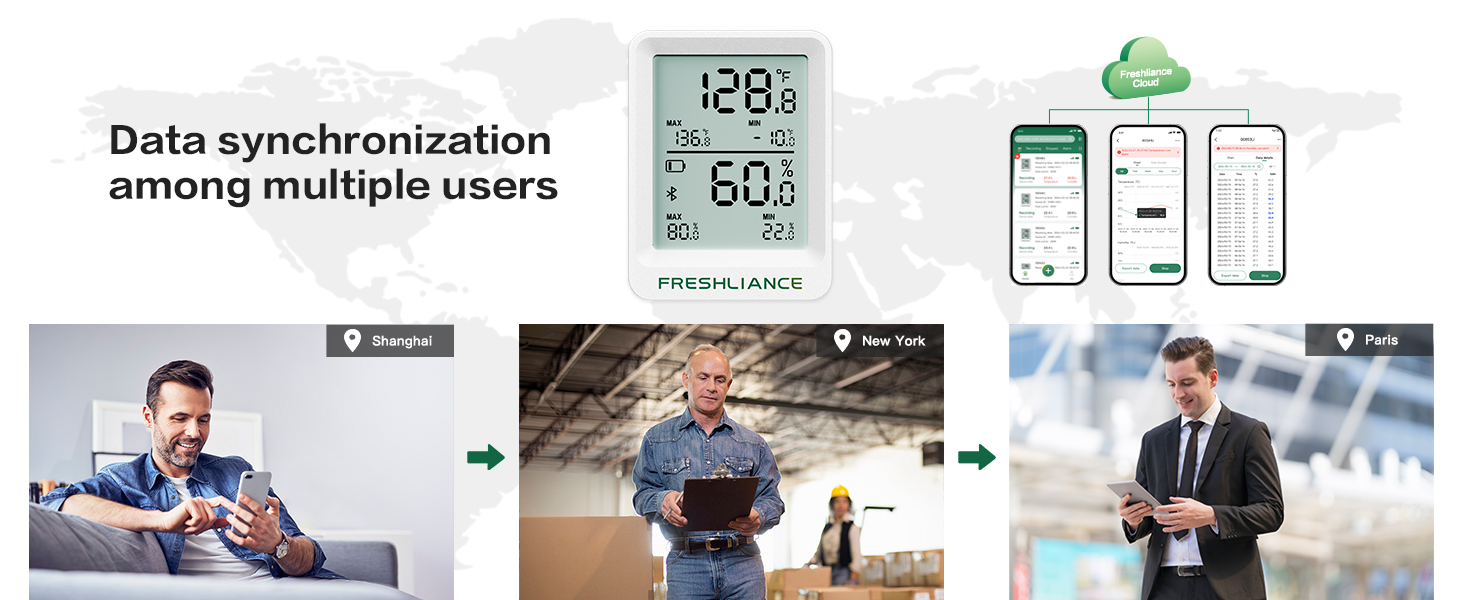
Image Description: This image depicts the BlueTag TH20's cloud synchronization feature, allowing multiple users in different locations (e.g., Shanghai, New York, Paris) to access and share data from the device via the Freshliance Cloud and Tkeeper app.
4.4 Exporting Reports
The Tkeeper app allows you to export recorded data. You can generate temporary reports, as well as PDF and CSV reports. These reports can be shared or forwarded via email. A signature option is available for PDF reports generated after stopping the device.
Free 2-year cloud storage is provided for your data.
4.5 Changing Temperature Unit
You can change the temperature unit (°F or °C) through the Tkeeper app settings or by pressing the dedicated button on the back of the device (if available).

Image Description: An image showing how to change the temperature unit (°F or °C) on the BlueTag TH20 device, either through the physical button on the back or via the Tkeeper app settings.
5. Maintenance
5.1 Battery Replacement
The BlueTag TH20 uses a CR2032 battery. When the battery level is low, replace it following these steps:

Image Description: This image provides a three-step guide for replacing the battery in the BlueTag TH20: 1. Open the back cover, 2. Push the used battery upward to remove, 3. Push a new battery into the slot.
- Step 1: Open the back cover of the device.
- Step 2: Gently push the used CR2032 battery upward to release it from its slot.
- Step 3: Insert a new CR2032 battery into the battery slot, ensuring correct polarity. Close the back cover securely.
6. Specifications
| Feature | Detail |
|---|---|
| Model Number | BlueTag TH20 |
| Product Dimensions | 1.85 x 1.85 x 0.5 inches (4.7 x 4.7 x 1.27 cm) |
| Item Weight | 1.39 ounces (39.4 grams) |
| Battery Type | 1 x CR2032 (included) |
| Mounting Type | Tabletop |
| Operating Humidity Range | 0%~100% RH |
| Connectivity | Bluetooth |
| Manufacturer | FRESHLIANCE |
7. Troubleshooting
- Device not powering on: Ensure the insulating film has been removed from the battery. Check if the CR2032 battery is correctly inserted and has sufficient charge. Replace the battery if necessary.
- Unable to pair with app:
- Ensure Bluetooth is enabled on your mobile device.
- Make sure the BlueTag TH20 device is within Bluetooth range of your mobile device.
- Restart both the device (by re-inserting the battery) and the Tkeeper app.
- Check if the app has necessary Bluetooth permissions on your phone.
- No data showing in app:
- Confirm the device is successfully paired and connected.
- Ensure the device is actively recording (check LCD screen for readings).
- Refresh the app or close and reopen it.
- LCD screen is blank in cold temperatures: This is a characteristic of LCD displays at very low temperatures (e.g., 0 degrees Fahrenheit or below). The device continues to record data, which can be accessed via the Tkeeper app. The screen will become visible again when the device returns to warmer temperatures.
8. Warranty and Support
Freshliance provides technical support via email and phone. For any issues or inquiries, please contact Freshliance customer service.
The Freshliance BlueTag TH20 complies with international standards including CE, RoHS, FCC, and EN12830.

Image Description: This image displays various certifications obtained by the Freshliance BlueTag TH20, including RoHS, FDA, ISO, FCC, CE, and EN12830, indicating compliance with international standards.


