
1. Introduction
The FEELWORLD P6XL is a compact and lightweight 6-inch camera field monitor designed for professional videographers and photographers. It features a high-brightness 1200nit touchscreen, a built-in rechargeable battery, and a rugged aluminum housing, making it suitable for various shooting environments, including bright outdoor conditions. This manual provides detailed instructions on setting up, operating, and maintaining your P6XL monitor to ensure optimal performance.

Image: The FEELWORLD P6XL monitor in use, showcasing its display quality and monitoring features.
2. What's in the Box
Please check the package contents upon opening to ensure all items are present and undamaged:
- 1 × FEELWORLD P6XL Monitor
- 1 × Power Adapter
- 1 × USB-A to USB-C Cable
- 1 × A-A HDMI Cable
- 1 × Micro HDMI Cable
- 1 × Mini Hot Shoe Mount + Hex Wrench
- 1 × USB-A to USB-C Adapter
- 1 × Sunshade + Frame
- 1 × Cable Management Tie
- 1 × User Manual

Image: All included accessories and the P6XL monitor as packaged.
3. Key Features
- Built-in Battery & Lightweight Design: The P6XL features a built-in 3000mAh rechargeable battery, offering up to 2 hours of runtime. Weighing only 332g, its ultra-portable design is ideal for handheld shooting and travel videography. The robust aluminum housing ensures durability.
- 1200nit High Brightness Touchscreen: Equipped with a 6-inch touchscreen boasting a remarkable 1200nit brightness, the monitor ensures clear visibility even under direct sunlight. This allows for accurate monitoring in various lighting conditions.
- 4K HDMI Input: The P6XL DSLR monitor features a 4K HDMI input, supporting signals up to 2160p/30p, ensuring compatibility with modern DSLR cameras.
- Professional Monitoring Functions: Includes advanced features such as 3D LUT support (up to 32 custom LUTs), HDR monitoring, Waveform, Histogram, Vector Scope, False Colors, Peaking Filter, Embedded Audio, Screen Marker, Image Flip, Image Freeze, and Anamorphic Mode for precise exposure and focus.
- Screenshot and Image Overlay: Supports capturing screenshots and saving them to a USB flash drive. You can also import custom images (JPG, max 1920x1080) for semi-transparent image superposition, allowing comparison with real-time video.
- Multiple Language Support: Built-in support for 11 languages, catering to diverse international shooting crews.
- Detachable Integrated Lens Hood: Provides protection against strong light, improving visibility in bright conditions.
- Thermal Design: Features a CNC machined aluminum alloy housing and a built-in adjustable fan for efficient heat dissipation. The fan defaults to ON with 3 modes.
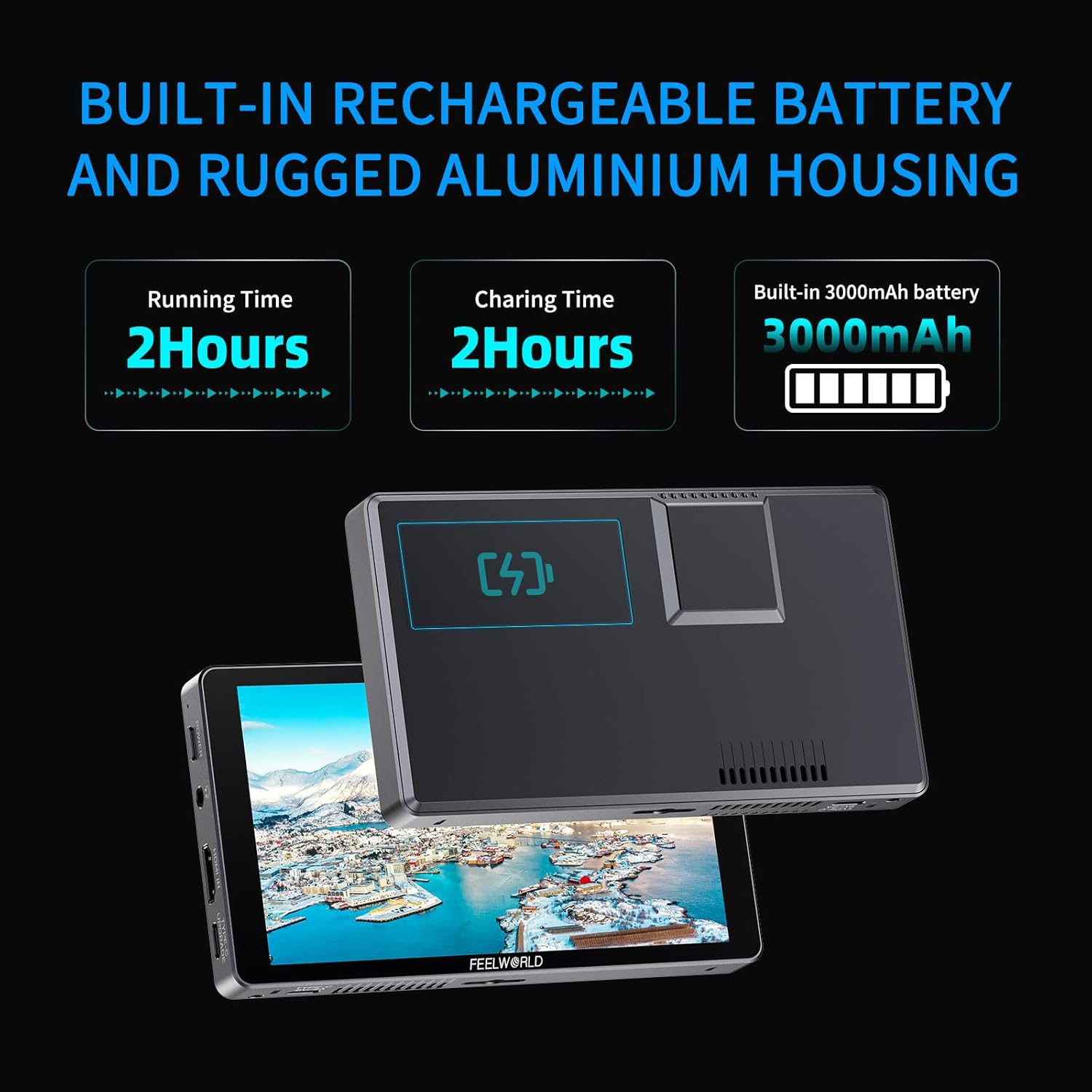
Image: Details on the P6XL's built-in battery and durable aluminum construction.

Image: Visual comparison demonstrating the P6XL's 1200nit daylight viewable screen.

Image: The 4K HDMI input port on the P6XL monitor.

Image: Overview of the professional monitoring functions available on the P6XL.
4. Setup
4.1 Charging the Monitor
The P6XL monitor comes with a built-in 3000mAh battery. To charge:
- Connect the provided USB-A to USB-C cable to the monitor's Type-C power supply/charging interface (located on the bottom).
- Connect the other end of the USB-A cable to the power adapter and plug it into a wall outlet.
- The indicator light will show charging status. A full charge takes approximately 2 hours. Note that the display may show 100% while charging, but it is fully charged when the indicator light turns green.

Image: Charging instructions and battery specifications for the P6XL.
4.2 Mounting the Monitor
Use the included Mini Hot Shoe Mount to attach the monitor to your camera or camera rig:
- Attach the Mini Hot Shoe Mount to your camera's hot shoe or a compatible mounting point.
- Secure the P6XL monitor to the mount using the 1/4" screw thread located on the bottom of the monitor.
- Adjust the viewing angle using the mount's articulation. The quick-release collapsible hood can be attached to the monitor for glare reduction.

Image: Mounting the P6XL monitor and attaching the sunshade.
4.3 Connecting to a Camera
Connect your camera to the P6XL monitor using the appropriate HDMI cable:
- Identify the HDMI output port on your camera.
- Use the provided A-A HDMI Cable or Micro HDMI Cable (depending on your camera's port type) to connect your camera's HDMI output to the HDMI IN port on the left side of the P6XL monitor.
- Ensure both connections are secure.
5. Operating Instructions
5.1 Powering On/Off
- Power On: Long press the Power button (located on the top left side) to turn on the monitor.
- Power Off: Long press the Power button again to turn off the monitor.
5.2 Touchscreen Control
The P6XL features an intuitive touchscreen interface for easy navigation and control:
- Main Menu: Tap the screen to bring up the main menu.
- Exit Menu: Swipe down from the top of the screen or tap outside the menu area to exit.
- Volume: Swipe left or right on the screen to adjust volume.
- Backlight: Swipe up or down on the screen to adjust backlight brightness.
- Zoom In/Out: Pinch in or out with two fingers to zoom the image.
- Short Press Touch: A short press on the screen can also be used to turn the monitor ON/OFF.

Image: Touchscreen control gestures for the P6XL.
5.3 Advanced Monitoring Features
The P6XL offers a suite of advanced tools to assist with exposure, focusing, and composition:
- 3D LUT: Load up to 32 custom 3D LUTs for real-time color grading previews.
- Waveform, Histogram, Vector Scope: Visual aids for analyzing video signals and ensuring proper exposure and color balance.
- False Colors & Peaking Filter: Tools for accurate exposure and focus assistance.
- HDR Monitoring: Provides a more accurate representation of real-world visual effects.

Image: HDR monitoring capabilities of the P6XL.
5.4 How to Load 3D LUTs
To load custom 3D LUTs onto your P6XL monitor:
- Ensure your LUT file has a .cube suffix, does not exceed 7.9 MB in size, and supports LUT-3D sizes of 16, 17, 32, 33, 64, or 65. The filename must consist solely of English or Arabic numerals.
- Insert a USB flash drive containing your LUT files into the USB-A to USB-C Adapter, then connect the adapter to the Type-C upgrade interface on the monitor.
- Enter the main menu on the monitor, navigate to "LUT-LUT Import", and confirm to load.
- If valid LUT files are found on the USB drive, the monitor will load them, and the screen will display "complete".
To empty the imported LUTs, insert an empty USB flash drive, enter the main menu, navigate to "LUT-LUT Import", and confirm. The imported LUTs will be cleared.

Image: Steps for loading custom 3D LUTs onto the P6XL monitor.
6. Maintenance
To ensure the longevity and optimal performance of your FEELWORLD P6XL monitor, follow these maintenance guidelines:
- Cleaning: Use a soft, dry cloth to clean the monitor's screen and body. For stubborn smudges, slightly dampen the cloth with water or a screen-safe cleaning solution. Avoid harsh chemicals or abrasive materials.
- Storage: When not in use, store the monitor in a cool, dry place away from direct sunlight and extreme temperatures. Use the original packaging or a protective case to prevent dust and scratches.
- Heat Management: The P6XL has a built-in cooling fan. Ensure the fan vents are not obstructed during operation to allow for proper heat dissipation.
- Battery Care: For long-term storage, it is recommended to charge the battery to about 50% every three months to maintain battery health.

Image: Thermal design and cooling fan system of the P6XL.
7. Troubleshooting
If you encounter issues with your FEELWORLD P6XL monitor, refer to the following common problems and solutions:
| Problem | Possible Cause | Solution |
|---|---|---|
| Monitor does not power on. | Low battery; Power button not pressed long enough. | Charge the monitor fully. Long press the Power button for 3-5 seconds. |
| No signal displayed. | Incorrect HDMI connection; Camera output settings; Cable issue. | Ensure HDMI cable is securely connected. Check camera's HDMI output settings (resolution, frame rate). Try a different HDMI cable. |
| Screen is too dim/bright. | Brightness settings. | Swipe up/down on the touchscreen to adjust backlight brightness. |
| Touchscreen unresponsive. | Temporary software glitch; Screen protector interference. | Restart the monitor. Ensure screen is clean. If using a screen protector, ensure it is properly applied or remove it for testing. |
| Battery indicator fluctuates during recording. | Power adapter incompatibility (older units); Battery calibration. | Ensure you are using the correct power adapter. Fully charge and discharge the battery a few times to recalibrate. (Note: Newer inventory is equipped with compatible power adapters to resolve this issue.) |
| Fan noise is too loud. | Fan speed setting; Obstructed vents. | Adjust fan speed settings in the menu. Ensure vents are clear of dust and obstructions. |
If the problem persists after trying these solutions, please contact FEELWORLD customer support for further assistance.
8. Specifications
| Feature | Specification |
|---|---|
| Display Size | 6 inches |
| Brightness | 1200nit |
| Resolution | 1920x1080 (Full HD) |
| Contrast Ratio | 1000:1 |
| Viewing Angle | 160° |
| Input | 4K HDMI (supports up to 2160p/30p) |
| Battery Type | Built-in 3000mAh rechargeable battery |
| Runtime (Full Charge) | Up to 2 hours (at 100% brightness, 5-speed fan) |
| Charging Time | Approx. 2 hours |
| Power Input | Type-C 9V/2A |
| Dimensions (L x W x H) | 5.45 x 3.32 x 0.86 inches (13.84 x 8.43 x 2.18 cm) |
| Weight | 7.1 ounces (200 grams) |
| Housing Material | Aluminum Alloy |
9. Warranty and Support
FEELWORLD provides a 1-year official warranty for the P6XL monitor. US local after-sales support is available for assistance with product inquiries, technical issues, or warranty claims.
For detailed warranty terms and to contact support, please visit the official FEELWORLD website or refer to the contact information provided in your product packaging.

Image: FEELWORLD brand commitment to quality and support.


