
1. Introduction
This manual provides essential information for the safe and efficient operation of your Subtransfer A3 XP600 DTF Printer. The XP600 DTF Printer is designed for high-resolution direct-to-film printing, featuring an automatic white ink anti-precipitation system and a touch screen control panel for ease of use. Please read this manual thoroughly before operating the device.
2. Safety Information
- Always connect the printer to a grounded power outlet. Ensure the voltage matches the printer's requirements (110V or 220V as specified at purchase).
- Do not expose the printer to water or excessive humidity.
- Keep the printer away from heat sources and direct sunlight.
- Use only recommended inks and consumables to prevent damage and ensure optimal print quality.
- Avoid touching moving parts during operation.
- In case of malfunction, disconnect the power immediately and contact support.
3. Package Contents
Verify that all items are present in the package:
- Subtransfer A3 XP600 DTF Printer (Pink)
- XP600 Single Printhead (if selected at purchase)
- Power Cable
- USB Cable
- Ink Cartridges (CMYK + White)
- User Manual (this document)
4. Setup
4.1 Unpacking and Placement
Carefully remove the printer from its packaging. Place the printer on a stable, level surface with adequate ventilation. Ensure sufficient space around the printer for operation and maintenance.
4.2 Power Connection
Connect the power cable to the printer and then to a grounded electrical outlet. Confirm the voltage setting (110V or 220V) matches your local power supply and the printer's configuration.
4.3 Printhead Installation (if applicable)
If your printer was shipped without the printhead installed, follow the specific instructions provided in the separate printhead installation guide. Ensure the XP600 printhead is securely seated.
4.4 Ink Cartridge Installation
Open the ink cartridge compartment. Insert the CMYK and White ink cartridges into their corresponding slots. The printer features a visual external cartridge system, allowing you to monitor ink levels easily.

Figure 4.4.1: Detailed view of the ink cartridge and white ink circulation system.
4.5 Software and Driver Installation
Install the necessary printer drivers and RIP software (e.g., RIIN) on your computer. The printer supports Windows 10/11 operating systems and connects via USB 2.0.
5. Operating Instructions
5.1 Powering On and Initializing
Press the power button to turn on the printer. The touch screen control panel will display the main interface. Allow the printer to complete its initialization sequence.
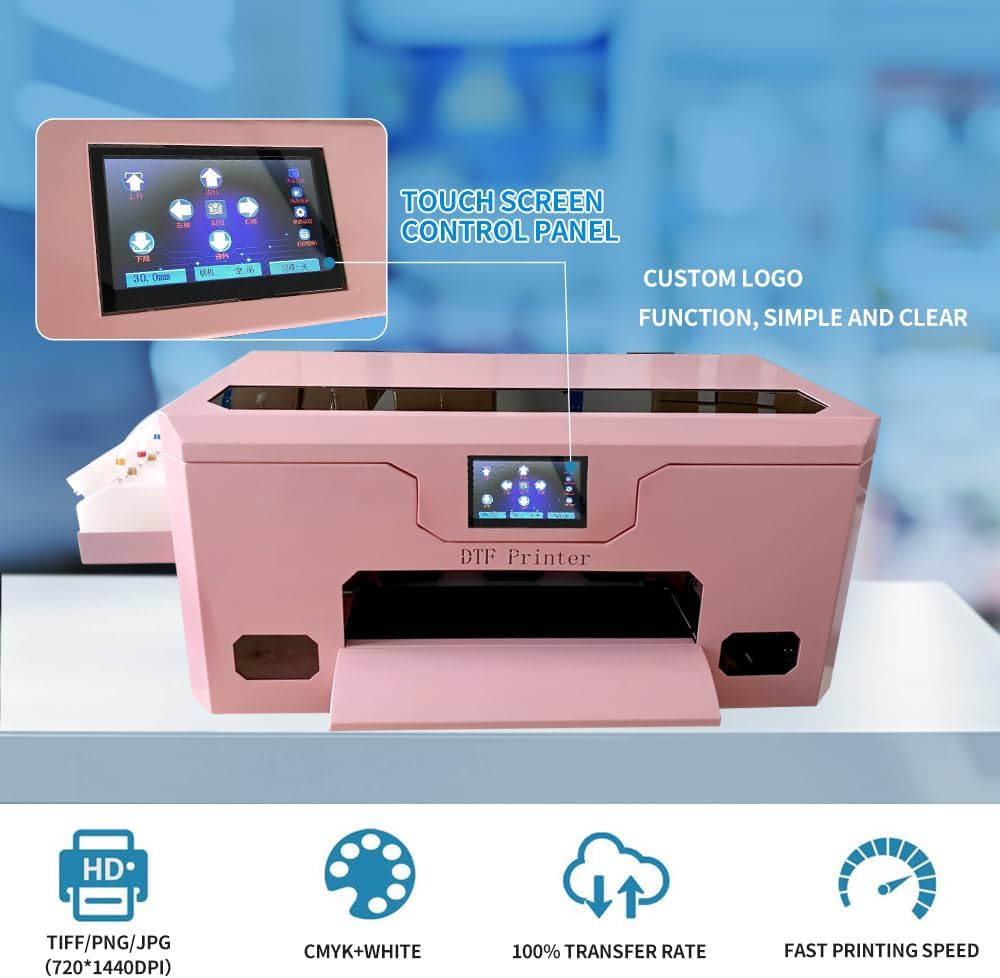
Figure 5.1.1: Touch screen control panel for printer operation.
5.2 Loading DTF Film
Load the DTF film into the printer's paper feed tray. Ensure the film is aligned correctly to prevent skewing during printing. The printer's press wheels can be adjusted independently for stable film feeding.
5.3 Printing Process
- Prepare your design in the RIP software. The printer supports TIFF, PNG, and JPG file formats.
- Send the print job from your computer to the printer via the USB connection.
- The printer will begin printing the design onto the DTF film. The XP600 printhead offers a resolution of 720x1440dpi.
- After printing, the film will proceed to the powder application and curing stage (if using an integrated system or separate unit).
Video 5.3.1: Demonstration of the Subtransfer A3 XP600 DTF Printer in operation, showing the printing process and powder application.
5.4 Touch Screen Control Panel Functions
The touch screen allows control over various functions including:
- Cleaning cycles
- Printing start/stop
- Paper feed and return
- Printhead movement (left/right)
- Custom LOGO function

Figure 5.4.1: The touch screen control panel provides intuitive access to printer settings and functions.
6. Maintenance
6.1 Automatic White Ink Anti-Precipitation System
The printer is equipped with an Adjustable White Ink Circulation and Stirring System. This system automatically circulates and stirs the white ink to prevent pigment settling and clogging. Ensure this system is active during operation and idle periods.

Figure 6.1.1: The white ink circulating system helps maintain ink consistency and prevent clogs.
6.2 Automatic Printhead Cleaning
The printer features automatic printhead cleaning functions. Regularly perform cleaning cycles via the touch screen control panel to maintain printhead health and prevent blockages.
6.3 Monitoring Ink Levels
Visually check the external ink cartridges regularly. Refill ink as needed to avoid running the printer with low ink, which can damage the printhead.
7. Troubleshooting
7.1 Common Issues and Solutions
- Poor Print Quality: Check ink levels, perform a printhead cleaning cycle, ensure film is loaded correctly, and verify print settings in the RIP software.
- Printer Not Responding: Ensure the power cable and USB cable are securely connected. Restart the printer and computer. Check for any error messages on the touch screen.
- Ink Clogging: Run multiple printhead cleaning cycles. Ensure the white ink circulation system is functioning. If issues persist, consult the support section.
- Film Jams: Power off the printer, carefully remove any jammed film. Ensure film is loaded straight and the press wheels are properly adjusted.
For persistent issues, refer to the manufacturer's support resources or contact customer service.
8. Specifications
The following table outlines the technical specifications for the Subtransfer A3 XP600 DTF Printer:
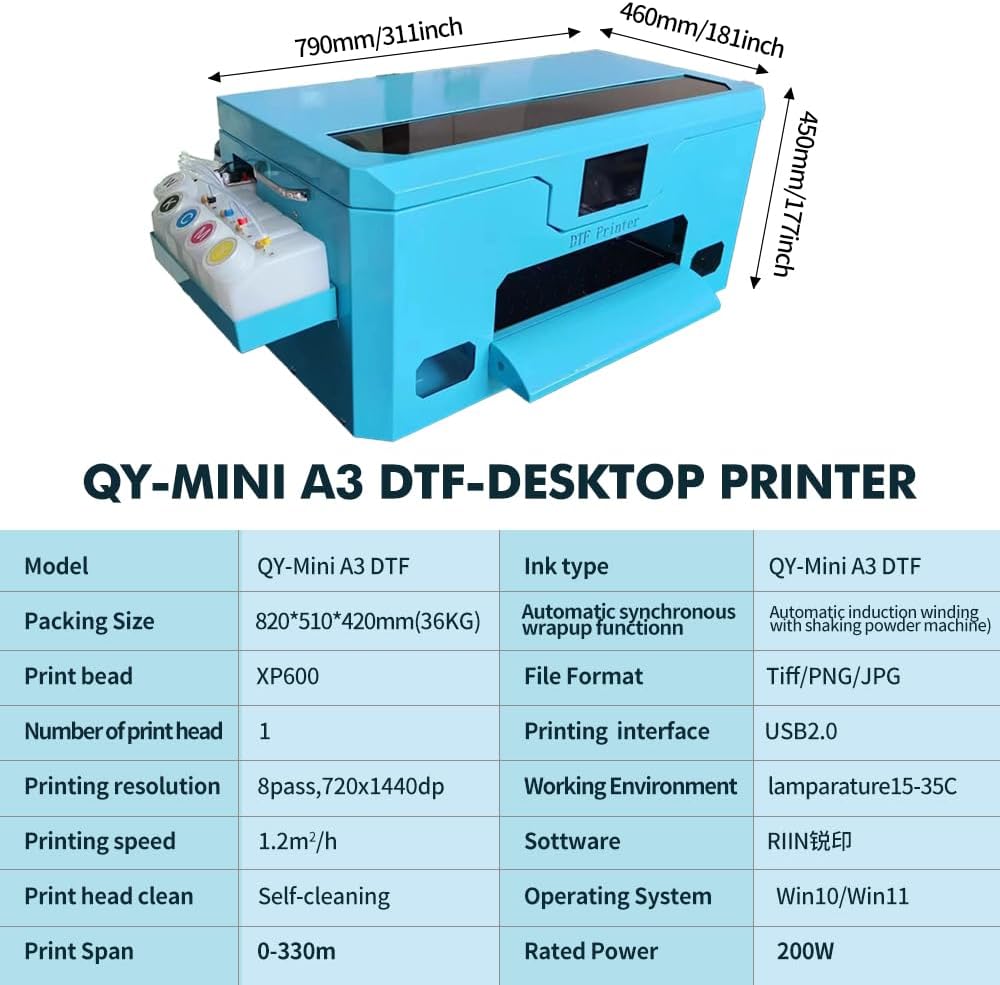
Figure 8.1.1: Detailed specifications of the QY-MINI A3 DTF-Desktop Printer.
| Feature | Specification |
|---|---|
| Model Name | XP600 |
| Printing Technology | Direct to Film (DTF) |
| Printhead | XP600 Single Printhead |
| Maximum Color Print Resolution | 720x1440 dpi |
| Maximum Black and White Print Resolution | 1440 dpi |
| Supported Media Sizes | A3 (13 inches) |
| Printing Speed | Approx. 3 minutes for A3 full width |
| Ink Type | Dye-Based Ink (CMYK + White) |
| Connectivity Technology | USB 2.0 |
| Control Method | Touch Screen |
| Special Feature | Automatic White Ink Circulation, Clog-Free |
| Product Dimensions | 31"D x 18"W x 18"H (approx.) |
| Operating System Compatibility | Windows 10/11 |
| Rated Power | 200W |
9. Warranty and Support
The Subtransfer A3 XP600 DTF Printer comes with a limited warranty. For detailed warranty terms and conditions, please refer to the warranty card included with your product or contact Subtransfer customer support.
For technical assistance, troubleshooting, or spare parts, please contact Subtransfer customer service through the contact information provided at the time of purchase.