
1. Introduction
This manual provides detailed instructions for the Focket Handheld Inkjet Printer, Model Focketatgqvmn0xk. Please read this manual thoroughly before operating the device to ensure proper use, optimal performance, and longevity of the product. This portable inkjet printer is designed for versatile coding applications on various surfaces.
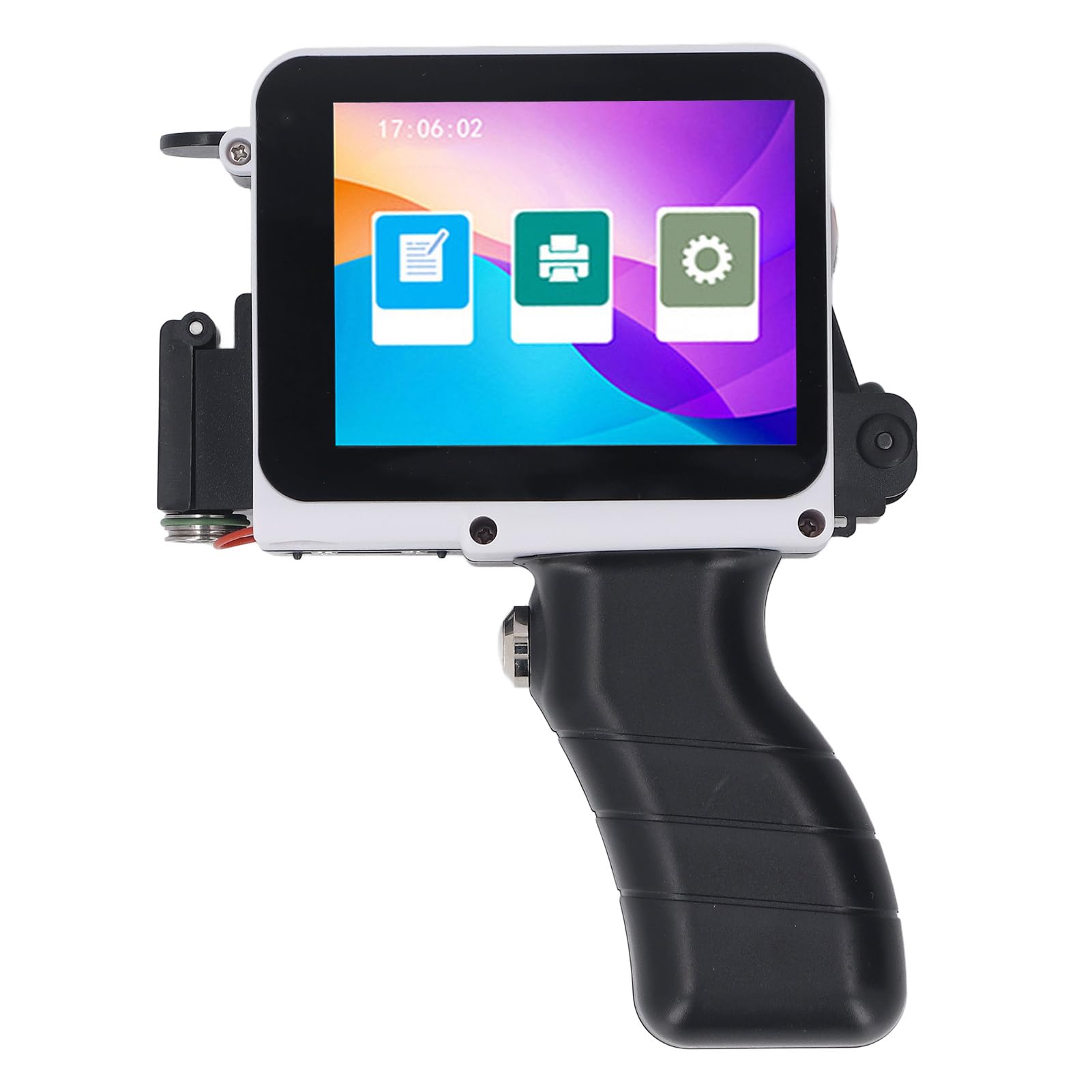
Image: The Focket Handheld Inkjet Printer, a compact and portable device.
2. Package Contents
Verify that all items listed below are included in your package. If any items are missing or damaged, please contact customer support.
- 1 x Printer
- 1 x USB Cable
- 1 x Printer Mounting Plate
- 1 x Stylus
- 7 x Accessories (e.g., O-rings, pins)
- 1 x User Manual (this document)
- 1 x Handle

Image: All components included in the Focket Handheld Inkjet Printer package, including the printer, USB cable, mounting plate, stylus, various accessories, and handle.
3. Product Features
The Focket Handheld Inkjet Printer offers a range of features designed for efficient and versatile printing:
- Intelligent Touchscreen: High-resolution 600 dpi touchscreen with a simple, intuitive interface for quick feedback.
- High Performance: Equipped with a smart quad-core processor and a high-capacity battery for stable and continuous operation.
- Quick Dry Ink Cartridge: Ensures clear, sharp prints that dry rapidly, enhancing efficiency.
- Adjustable Print Settings: Print distance of 5mm, adjustable print height from 2-12.7mm, and adjustable accuracy from 300-600 dpi.
- Versatile Coding: Supports printing of text, numbers, symbols, serial numbers, QR codes, barcodes, images, time, labels, dates, and custom logos.
- Multi-Surface Compatibility: Capable of printing on a wide range of porous, semi-porous, and non-porous materials including cardboard, wood, fabric, plastic, metal, glass, and more.
- Portable and Ergonomic: Compact, lightweight design with an ergonomic handle to minimize hand fatigue during extended use.
- Multiple Languages: Supports simplified Chinese, traditional Chinese, English, Russian, Thai, Spanish, German, French, Japanese, Korean, Arabic, Turkish, Italian, Portuguese, Vietnamese, Bulgarian, Ukrainian, Polish, Hebrew, Hungarian, Greek, Indonesian, Dutch, Serbian, Malaysian, Filipino, Persian.

Image: Visual representation of key features including compact design, multiple language support, handwriting support, adjustable word height, high-definition quick-drying ink, capacitive touch screen, excellent chip, and multi-material printing capabilities.

Image: Close-up view of the HD Touch Capacitive Screen, demonstrating its full-fit, full-view display for easy content editing via finger touch, drag, and zoom functions.

Image: The Focket Handheld Inkjet Printer featuring a lanyard design for easy portability and to prevent accidental loss.
4. Setup
4.1. Handle Installation
Follow these steps to attach the handle to your printer:
- Prepare the handle.
- Align the handle with the mini printer.
- Push the handle firmly into the groove located under the printer until it clicks into place.
- Ensure the handle is securely attached before use.
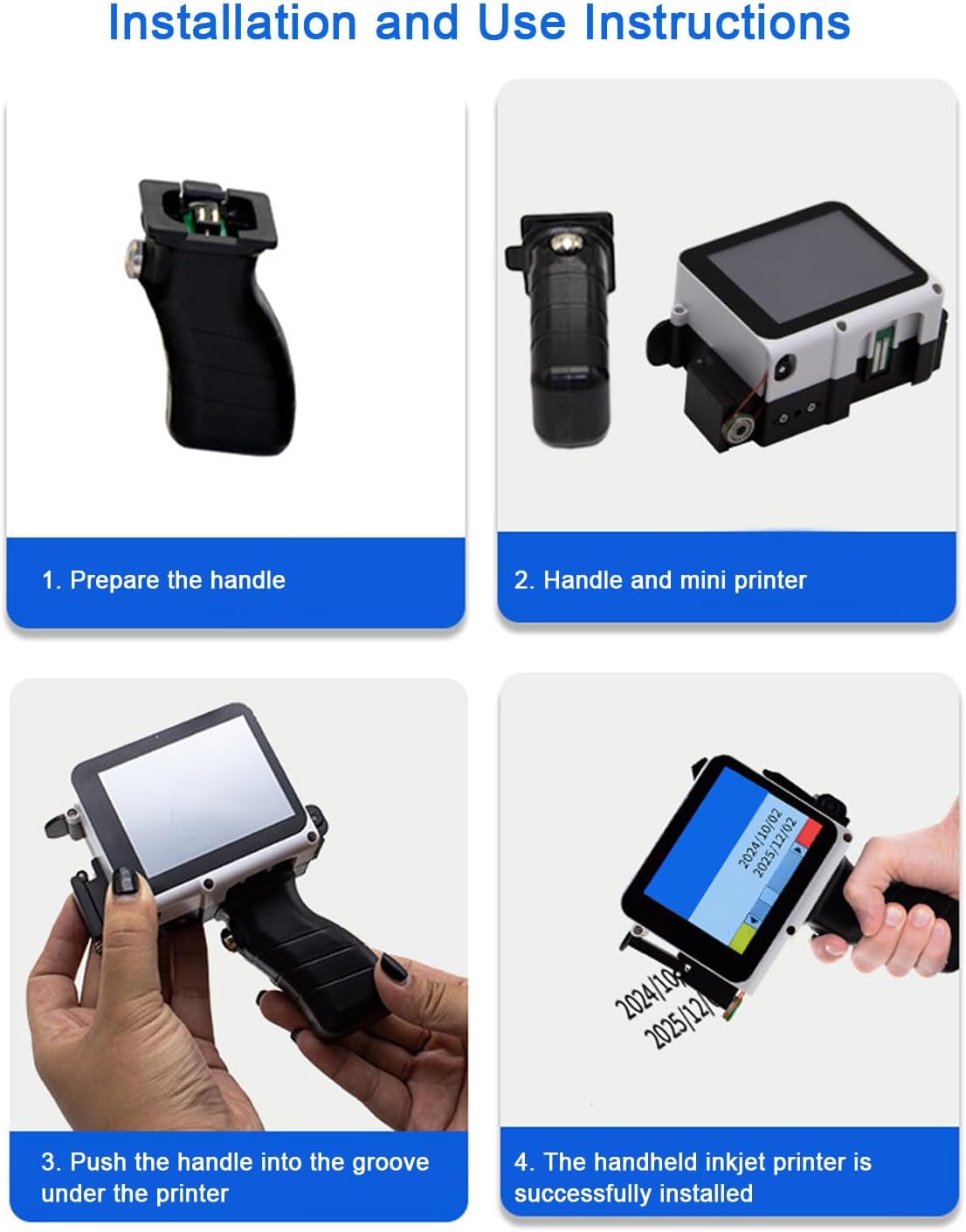
Image: Step-by-step guide for installing the handle onto the handheld inkjet printer. This includes preparing the handle, aligning it with the printer, pushing it into the groove, and confirming successful installation.
4.2. Ink Cartridge Installation
The ink cartridge is not included and must be purchased separately. Follow these instructions for proper installation:
- Remove the ink cartridge protector clip.
- Insert the cartridge into the machine at a 45-degree angle.
- Gently clamp the machine to secure the cartridge.
- To remove, follow these steps in reverse.

Image: Detailed steps for installing an ink cartridge: 1. Remove the protector clip. 2. Insert the cartridge at a 45-degree angle. 3. Clamp the machine to secure the cartridge. Removal follows the same steps in reverse.
4.3. Charging the Device
The printer is equipped with a built-in 1500mAh lithium-ion battery. To charge the device:
- Connect the provided USB cable to the TYPE C interface on the printer.
- Connect the other end of the USB cable to a compatible USB power adapter (not included) or a computer's USB port.
- The charging indicator (if available) will show the charging status.
- Ensure the device is fully charged before initial use for optimal battery life.
5. Operation
5.1. Powering On/Off
- To power on: Press and hold the power button until the screen illuminates.
- To power off: Press and hold the power button until the shutdown prompt appears, then confirm.
5.2. User Interface and Navigation
The printer features an HD capacitive touchscreen for easy navigation:
- Use your finger or the provided stylus to interact with the screen.
- Tap icons to select functions.
- Drag to move elements, zoom to adjust view, and edit content directly on the screen.
- The interface is designed to be intuitive for quick feedback.
5.3. Creating and Editing Print Content
The printer supports various content types:
- Text: Input custom text using the on-screen keyboard.
- Numbers & Serial Numbers: Generate sequential numbers (1-9 as variable serial numbers).
- Dates: Automatically insert current dates or custom dates.
- Batch Numbers: Input specific batch information.
- Barcodes & QR Codes: Create and print standard barcodes and QR codes.
- Images & Logos: Upload or design simple images and logos.
- Symbols & Labels: Access a library of symbols and create custom labels.
Adjust print lines (1-3 lines adjustable), print distance (5mm between print head and object), print height (2-12.7mm adjustable), and print accuracy (300-600 dpi adjustable) via the settings menu.
5.4. Language Selection
The operating system supports multiple languages. Navigate to the settings menu to select your preferred language from the following options:
Simplified Chinese, Traditional Chinese, English, Russian, Thai, Spanish, German, French, Japanese, Korean, Arabic, Turkish, Italian, Portuguese, Vietnamese, Bulgarian, Ukrainian, Polish, Hebrew, Hungarian, Greek, Indonesian, Dutch, Serbian, Malaysian, Filipino, Persian.
5.5. Printing on Various Surfaces
This handheld printer is designed to print on a wide array of materials. Ensure the surface is clean and dry for best results.
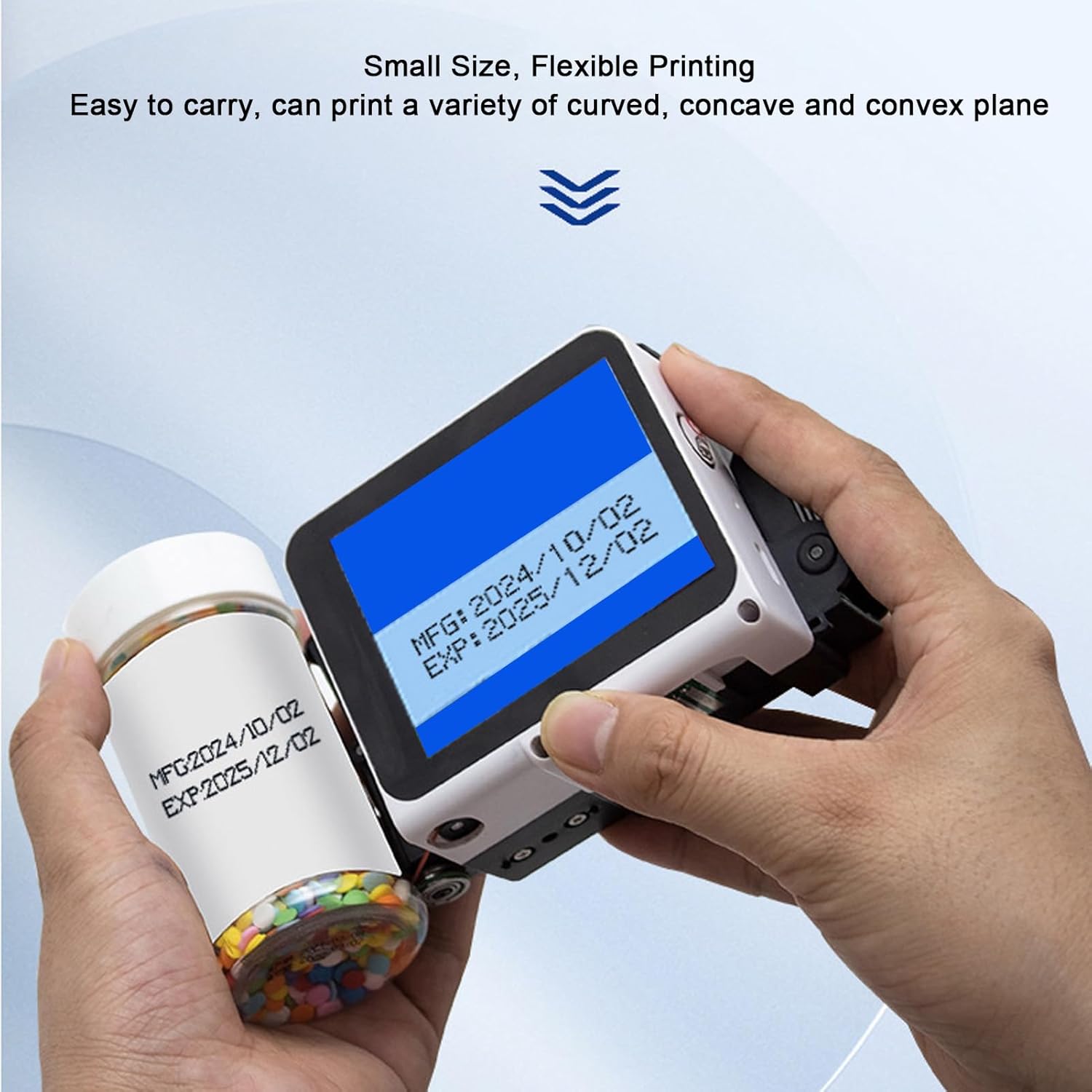
Image: The Focket Handheld Inkjet Printer demonstrating its ability to print on a curved surface, such as a bottle, showcasing its flexibility for various object shapes.
Compatible materials include:
- Cardboard
- Plastic
- Wood
- Piping
- Stone
- Cable
- Industrial packaging
- Fabric
- Clothes
- Cement
- Metal
- Aluminum
- Glass
- Leather
- Ceramics
- Polyethylene
- Medium-density fiberboard
- Steel
- Bottles
- Paper
For optimal print quality, hold the printer steady and move it smoothly across the surface at a consistent speed.
6. Maintenance
6.1. Ink Cartridge Care and Replacement
- Always store ink cartridges with their protective clips when not in use to prevent drying.
- Replace the ink cartridge when print quality deteriorates or the cartridge is empty. Refer to section 4.2 for installation/removal steps.
- Use only compatible ink cartridges (water-based, oil-based, UV ink, 42ml cartridges).
6.2. Cleaning the Printer
- Regularly wipe the exterior of the printer with a soft, dry cloth.
- If the print head becomes clogged or dirty, gently clean it according to the instructions provided with the ink cartridge or consult customer support.
- Avoid using harsh chemicals or abrasive materials for cleaning.
6.3. Battery Care
- Charge the battery regularly, even if the printer is not in frequent use, to maintain battery health.
- Avoid fully discharging the battery frequently.
- Store the printer in a cool, dry place when not in use.
7. Specifications
| Feature | Specification |
|---|---|
| Model | Focketatgqvmn0xk |
| Battery | 1 x Lithium Cell Pack 1500mAh (built-in) |
| External Interface | TYPE C, Photoelectric interface, USB, 3.5mm interface |
| Ink Cartridge Type | Water-based, Oil-based, UV ink, 42ml cartridge (not included) |
| Print Content | Date, number, batch number, serial number (1-9 variable), image, dynamic 2D code, barcode, graphics, Chinese and English characters, variable database, etc. |
| Adjustable Print Lines | 1-3 lines |
| Print Distance | 5 mm (between print head and object) |
| Print Height | 2-12.7 mm adjustable |
| Print Accuracy | 300-600 dpi adjustable |
| Supported Languages | Simplified Chinese, Traditional Chinese, English, Russian, Thai, Spanish, German, French, Japanese, Korean, Arabic, Turkish, Italian, Portuguese, Vietnamese, Bulgarian, Ukrainian, Polish, Hebrew, Hungarian, Greek, Indonesian, Dutch, Serbian, Malaysian, Filipino, Persian |
| Operating System | For RTOS operating system |
| Print Technology | Inkjet |
| Color Output | Color (Ink colors: Black, Cyan, Magenta, Yellow - Note: Printer itself is black, refers to ink cartridge capability) |
| Max Print Speed (B&W) | 15 Pages per minute |
| Item Weight | 400 Grams |
| Max Media Size | A6 |
| Max Sheet Capacity | 20 |
| Hardware Interface | USB |
| Total USB Ports | 1 |
| Origin | China |

Image: Diagram showing the dimensions of the Focket Handheld Inkjet Printer: 70mm (2.8in) height, 82mm (3.2in) width, and 48mm (1.9in) depth.
8. Troubleshooting
This section addresses common issues you might encounter with your Focket Handheld Inkjet Printer.
8.1. Poor Print Quality
- Issue: Faded, streaky, or incomplete prints.
- Solution:
- Check the ink cartridge level. Replace if empty.
- Ensure the ink cartridge is properly installed (refer to section 4.2).
- Clean the print head if it appears clogged.
- Verify print distance (5mm recommended) and print height settings.
- Ensure the printing surface is clean and suitable for inkjet printing.
8.2. Printer Not Powering On
- Issue: Device does not turn on when power button is pressed.
- Solution:
- Ensure the battery is charged. Connect the printer to a power source using the USB-C cable and allow it to charge for at least 30 minutes.
- Check the USB cable and power adapter for damage.
8.3. Touchscreen Unresponsive
- Issue: The touchscreen does not respond to touch input.
- Solution:
- Restart the printer by holding the power button.
- Ensure your fingers or stylus are clean and dry.
- If the issue persists, contact customer support.
8.4. Error Messages
- Issue: An error message appears on the screen.
- Solution:
- Note down the exact error message.
- Consult the on-screen help or restart the device.
- If the error persists, contact customer support with the error message details.
9. Warranty and Support
For warranty information and customer support, please refer to the documentation provided at the time of purchase or contact your retailer. Keep your proof of purchase for warranty claims.
For technical assistance or inquiries, please visit the Focket official website or contact their customer service department.